
Articles in this section
- RFA & RVT Geometry Exchange with Archicad
- Step by Step Guide to Subscribe to BIMcloud as a Service
- How to use BIMcloud as a Service
- Step by Step visual guide to activate Free Twinmotion 2020 License for ARCHICAD users
- Moving Elements in ARCHICAD
- Discover BIM with ARCHICAD
- Mirroring Elements in ARCHICAD
- Keyboard Shortcuts in ARCHICAD
- Drag/Rotate/Mirror an Element as Copy in ARCHICAD
- Elevating Elements in ARCHICAD
Step by Step visual guide to activate Free Twinmotion 2020 License for ARCHICAD users
By SIMBIM Solutions
Originally published on 19 March 2020. Versions, prices, offers and partnerships may have changed.
Step by Step visual guide to activate Free Twinmotion 2020 License for ARCHICAD users
If you are an ARCHICAD costumer with active SSA (maintenance contract), you are eligible to access a Twinmotion 2020 license, free of charge till December 31, 2021. In this article, you will learn how to obtain your Twinmotion 2020 license. Below you can find the main steps:
- Sign in/up with your GRAPHISOFT ID (Read more...)
- Connect your ARCHICAD license to your GRAPHISOFT ID (if it is not connected already) (Read more...)
- Sign in/up at Epic Games and get your FREE license (Read more...)
- Install Twinmotion 2020 (Read more...)
- Download the Direct Link plugins for ARCHICAD (Read more...)
Requirements to obtain Free Twinmotion 2020 License
- ARCHICAD 23 commercial license (Perpetual, 12 Months Rental or Annual Subscription)
- Active SSA (Software Service Agreement)
- GRAPHISOFT ID
- An Epic Games Account
Note: ARCHICAD 23 customers without SSA can take advantage of this offer and use Twinmotion 2020 for free but only for a limited time until April 30, 2020
Sign in/up with your GRAPHISOFT ID
1. Open your browser and navigate to Twinmotion page in GRAPHISOFT website
2. Sign in with your GRAPHISOFT ID or Sign Up if you don’t have one yet
After you are signed in, you should see the following information in your screen:
However, if you are not eligible to receive free Twinmotion 2020 license, you will see the following information in your screen. If you think you should be eligible, then call us for help!
Connect your ARCHICAD license to your GRAPHISOFT ID (if it is not connected already)
As a SIMBIM customer, your license should have already been linked to your GRAPHISOFT ID. However, if still your ARCHICAD license is not linked to your GRAPHISOFT ID, follow these steps to connect it:
1. Open ARCHICAD and then open a new project
2. Go to the Help menu and then select License Information.
3. Click on Connect GRAPHISOFT ID with License
4. A dialog box opens, then sign in with your GRAPHISOFT ID
Note: If your license is already connected to your GRAPHISOFT ID, you will receive the following message. (if not, then the message will ask you to enter your company information).
5. Success, Click OK, go back to the browser and refresh the webpage.
Sign in/up at Epic Games and get your FREE license
1. Click on Sign in at Epic Games to obtain your free Twinmotion 2020 license
2. Sign In to your Epic account, enter your credentials (if you do not have an account, click on Sign Up to create a new account.)
Note: During this process, you may be asked to allow GRAPHISOFT to access your Epic Games account. Click on Allow.
3. In this step, you should see the following information that is confirming your Twinmotion license is ready:
4. Go to Twinmotion website and click on get started now
5. Click on BUY NOW (you will either see zero price or it will directly take you to download page without asking to pay)
6. Accept the End User License Agreement of Epic Games, and we also recommend to accept to receive Epic Games news and updates
7. Download Epic Game Launcher. It is a small application that helps you download and install Twinmotion.
Install Twinmotion 2020
1. Install and open Epic Games Launcher
2. Sign in with your Epic Games credentials
3. Click on Twinmotion menu (on the top, right)
4. Click on Install bottom
5. Choose where to install Twinmotion. (If you have SSD, fusion drive, or any type of partition with a hard disk drive faster than magnetic hard disks, then it is recommended to install Twinmotion on your higher performance partition)
6. It will take some times to install (depends on your internet speed and computer performance). When the installation finished, you will see the following message to Launch Twinmotion.
7. Congratulations! That’s it…, you are a proud owner of Twinmotion 2020 license
Download the Direct Link plugins for ARCHICAD
1. On the Twinmotion tab in the Epic Games launcher, scroll down to the bottom and click on the “Download the plugins” button.
2. It takes you to Twinmotion plugin download webpage, then from the drop-down menu, choose the right version of your operating system and download it.
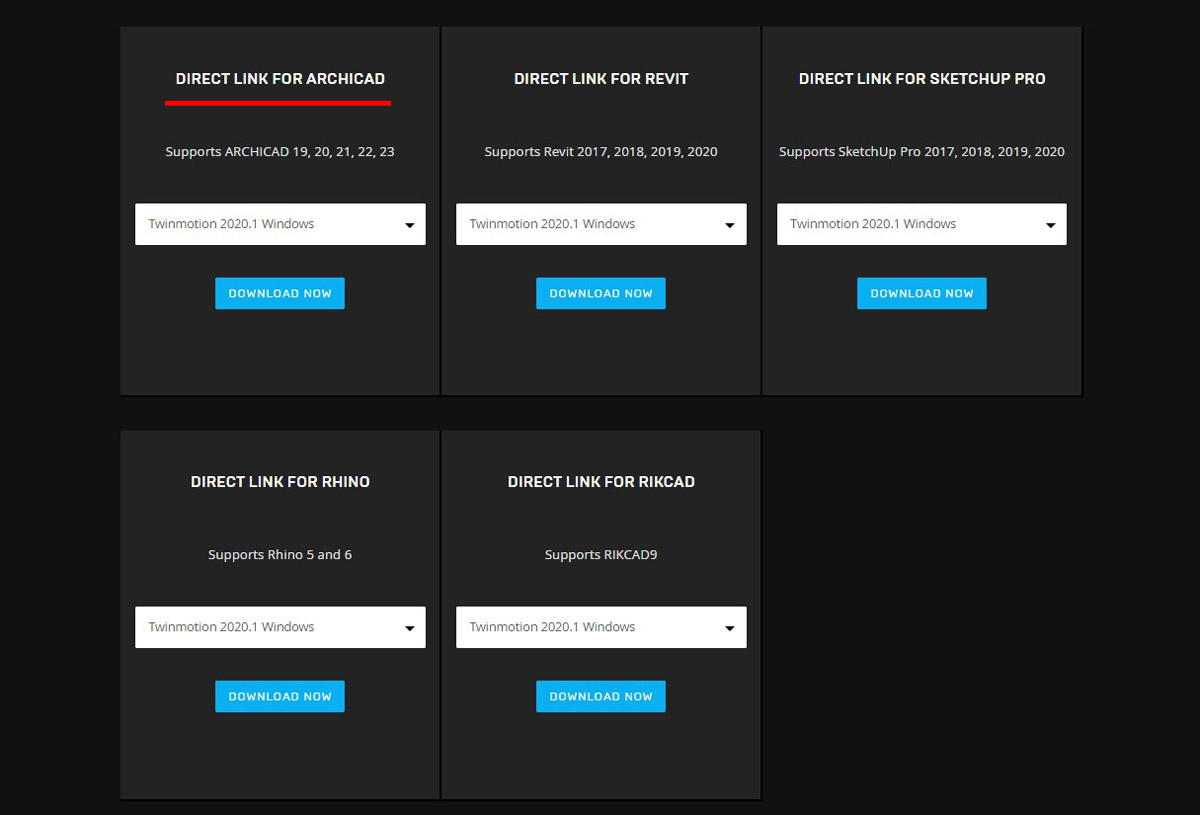
Note: When you run the installer, at the “Installation Type”, you can select the desired ARCHICAD version. But also, you can install it to more versions at the same time.