Articles in this section
- How to Create an Archicad Template and What It Should Contain?
- How to Reallocate Bluebeam Subscriptions Between Accounts?
- How to Subscribe to Software with SIMBIM
- Archicad Files Don't Show the Correct Icon on Windows
- Why Can't I Assign a Licence If the User Shows Up as a Guest?
- How to Reset Your Bluebeam ID (BBID) Password?
- How to Transfer Markups to Another Document?
- How to Manage My Bluebeam Subscriptions?
- How to Change the Administrator of a Graphisoft ID Company?
- How to Use Bluebeam Revu on Mac Computers?
Archicad Files Don't Show the Correct Icon on Windows
If Archicad files don't show the program's usual icon, it can be hard to visually tell a project file apart from its backup copy.
This issue can occur when there are two or more versions of Archicad installed on the same computer. By default, they all use an executable file with the same name — Archicad.exe — and Windows may keep the association with a previously installed version.
How to Restore the Archicad File Icons
To fix the association, we'll first rename the executable of the version you want to use, and then set it as the default app in Windows.
Step 1 - Rename the Archicad Executable
- Open Windows File Explorer.
- Go to the following location:
C: > Program Files > Graphisoft. - Open the folder for the version of Archicad you want to use to open files by default.
- Locate the application file named Archicad.exe or simply Archicad.
- Right-click the file and select Rename.
- Add the version number to the end of the name. For example:
- Archicad29.exe
- Archicad28.exe
Important: Don't change the .exe extension. Only modify the name before the extension.
Step 2 - Set the Default App for PLN Files
- Open the Windows Start menu and go to Settings.
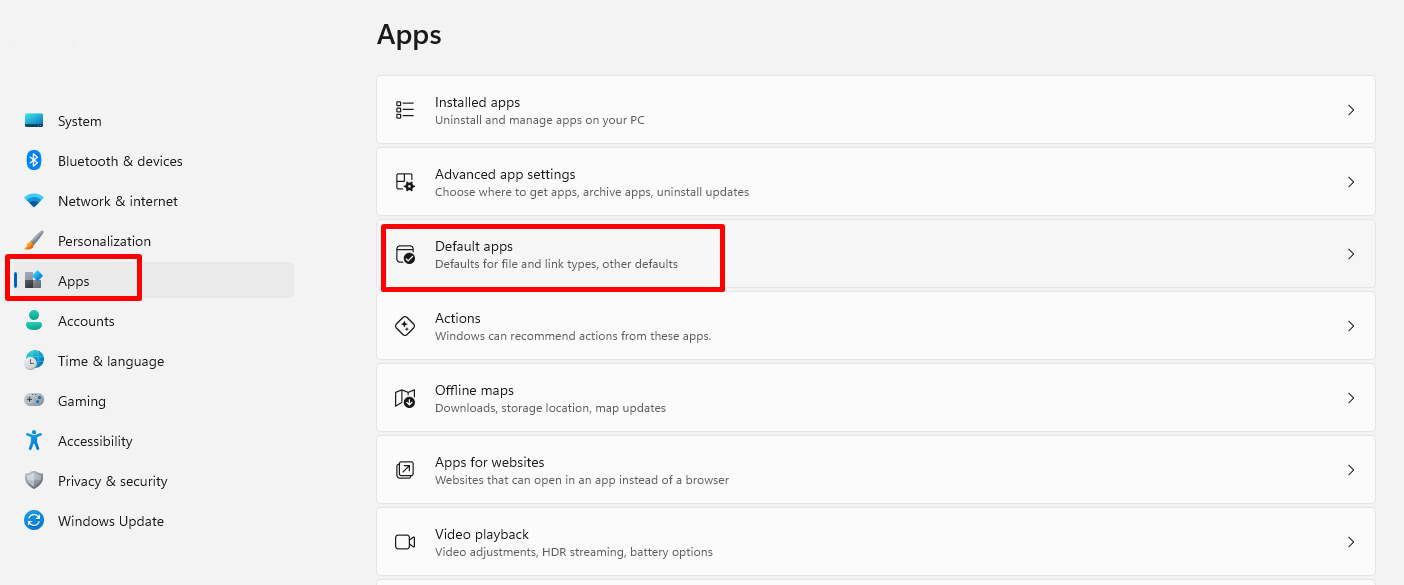
- In the left-hand panel, select Apps.
-
Click Default apps.
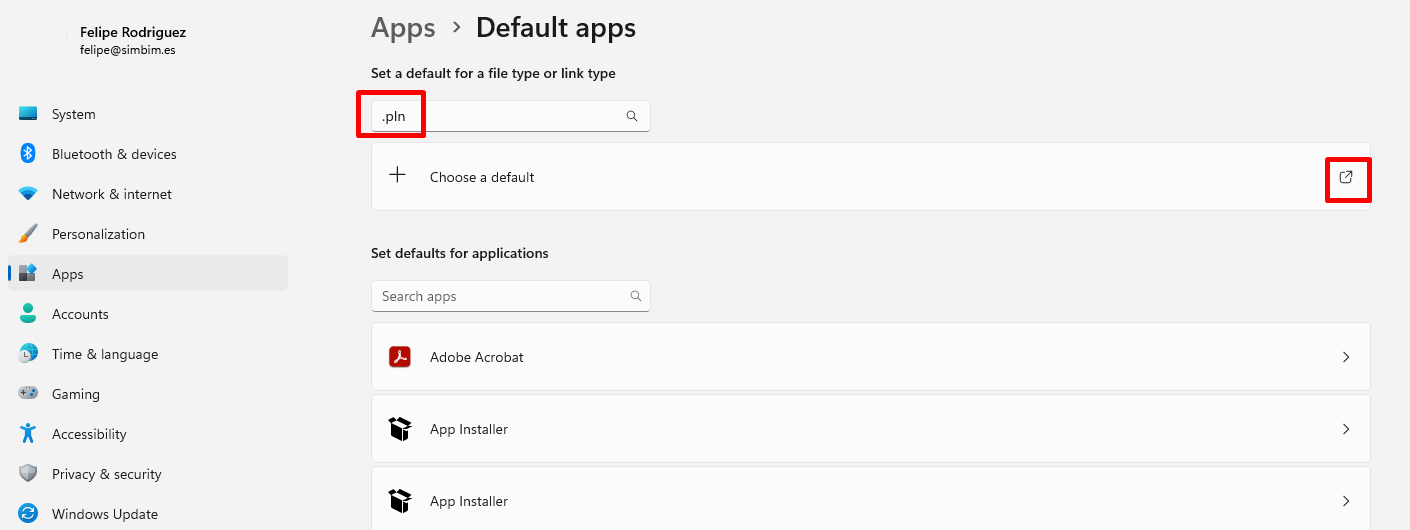
- In the search box at the top, where it says "Enter a file type or link type", type .pln and press Enter.
-
Click the app or icon currently associated with this extension.
-
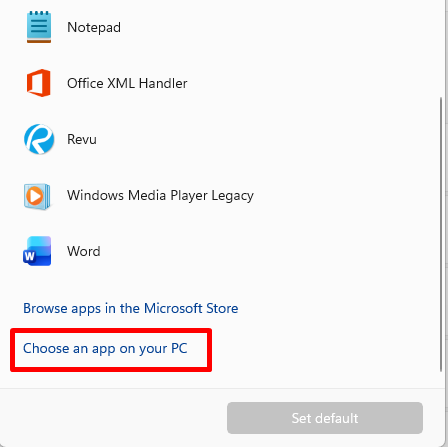
In the pop-up window, scroll to the bottom of the list and select Choose an app on your PC.
- Go back to the Archicad folder used in the previous step.
-
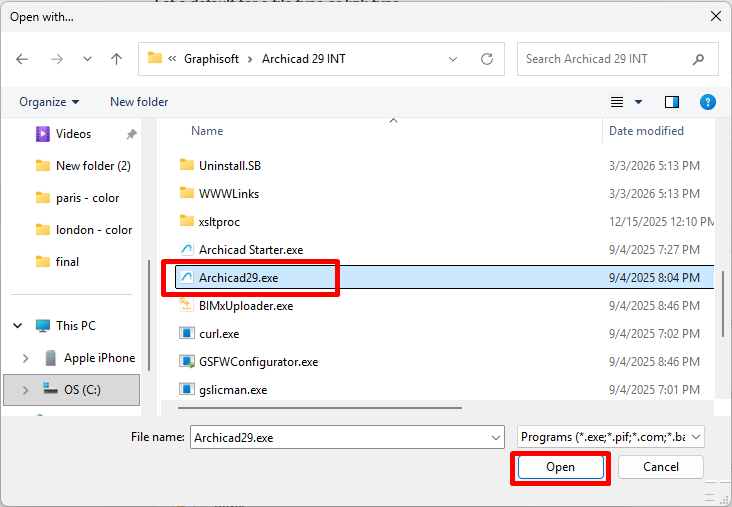
Select the executable you renamed, for example Archicad29.exe, and click Open.
-
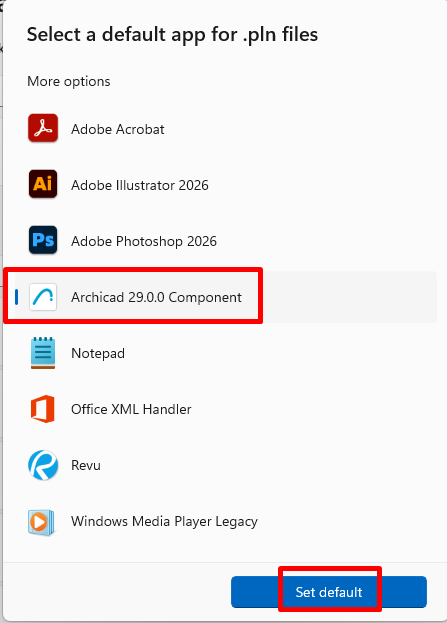
Click Set default.