
Articles in this section
- How to Create an Archicad Template and What It Should Contain?
- How to Reallocate Bluebeam Subscriptions Between Accounts?
- How to Subscribe to Software with SIMBIM
- Archicad Files Don't Show the Correct Icon on Windows
- Why Can't I Assign a Licence If the User Shows Up as a Guest?
- How to Reset Your Bluebeam ID (BBID) Password?
- How to Transfer Markups to Another Document?
- How to Manage My Bluebeam Subscriptions?
- How to Change the Administrator of a Graphisoft ID Company?
- How to Use Bluebeam Revu on Mac Computers?
Archicad Basics - Essential Archicad Commands
Reading time: 5 min.
Archicad is a powerful tool for architectural design, and knowing the essential commands can significantly improve your workflow. This article will guide you through the main areas where you can access editing options and the most commonly used commands.
1. Pet Palette
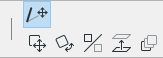
The Pet Palette appears next to the cursor when you select an element you want to modify. This palette offers two types of commands based on the location of your click:
-
Top row: Commands dependent on the click location.
-
Bottom row: Generic commands.
For example, if you want to extend a selected wall, click on a point on the highlighted blue reference line and the Pet Palette will appear with the corresponding options (see photo).
2. Menu Bar
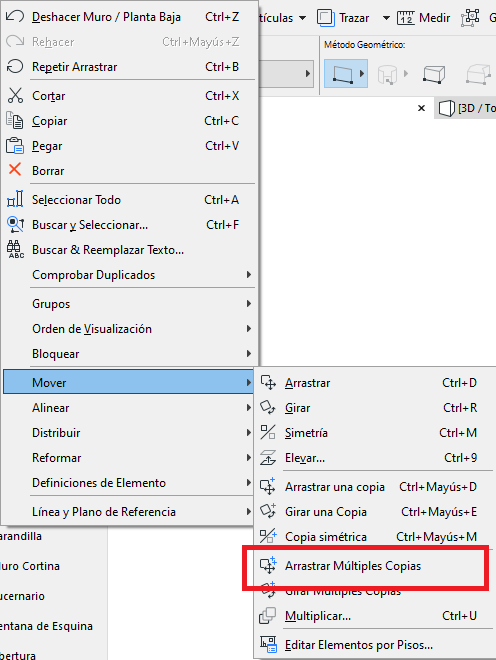
The Menu Bar is where you'll find all the commands available in Archicad. This bar includes a wide range of options for editing, design, documentation and more. An example of a command found here is "Drag a Copy", which is not available through the Pet Palette.
3. Toolbar
The Toolbar is a customisable space that holds shortcuts to specific commands (see photo). In the architecture profile of the work environment, you'll find handy editing tools such as:
-
Trim
-
Split
-
Adjust
-
Intersect
These tools let you make quick, efficient modifications to your designs.

4. Context Menu
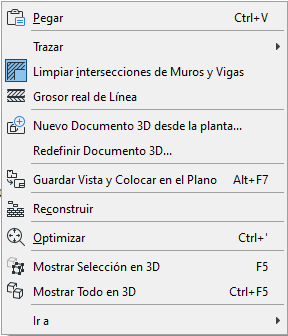
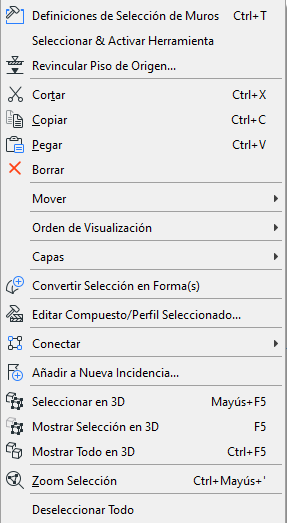
The Context Menu is accessible by right-clicking and offers options depending on the context:
-
No elements selected: You can set Tracking options, change view settings, such as Show All in 3D, turn on the option to show True Line Weight, among others.
-
With elements selected: You can apply commands such as Move, connect elements, zoom to selection, etc.
Keyboard Shortcuts
Archicad also supports keyboard shortcuts for quick access to the most used commands. You can find them in the Menu Bar next to the commands or in Options > Work Environment > Keyboard Shortcuts.
This article covers the basics of how to access the essential commands in Archicad. As you become more familiar with the program, you'll find the method that best suits your workflow. Happy designing!