
Articles in this section
- How to Create an Archicad Template and What It Should Contain?
- How to Reallocate Bluebeam Subscriptions Between Accounts?
- How to Subscribe to Software with SIMBIM
- Archicad Files Don't Show the Correct Icon on Windows
- Why Can't I Assign a Licence If the User Shows Up as a Guest?
- How to Reset Your Bluebeam ID (BBID) Password?
- How to Transfer Markups to Another Document?
- How to Manage My Bluebeam Subscriptions?
- How to Change the Administrator of a Graphisoft ID Company?
- How to Use Bluebeam Revu on Mac Computers?
Archicad Basics - Navigation in Archicad
Reading time: 6 min.
Archicad is a powerful tool for architectural modelling, and learning to navigate it efficiently is essential to getting the most out of its capabilities. Below are the basic navigation concepts in Archicad for new users.
Panning and Zoom
Panning
To pan around the model in any view, simply hold down the middle mouse button and move the mouse. This works in both 2D and 3D views.
Zoom
You can zoom in and out of the view using the mouse wheel. The cursor's position is always taken into account, letting you zoom in on specific parts of the model just by placing the cursor there.
Fit in Window
At any time, you can view the entire model in the window by double-clicking the middle mouse button. This is useful for getting an overview of the project.
Precise Zoom
For a more detailed close-up, you can use the Zoom control located in the bottom-left corner of the interface. This lets you adjust the zoom level more precisely.

Orbit
Orbiting with the Shift Key
To orbit around the model, hold down the Shift key and the middle mouse button, then move the mouse to orbit around the centre of the view.
Orbit Function
You can also activate the Orbit function in the bottom-left corner. Once activated, you can orbit using the left mouse click. To exit Orbit mode, click the icon again or press the Escape key. When an element is selected, the orbit's rotation axis shifts to the selected element, making it easier to inspect specific parts of the model in detail.
Explore in 3D
Explore Command
In 3D, you can use the Explore command to move freely through the model. Click the Explore icon and a dialog box will appear with navigation instructions. Click Explore Model to begin (the Explore icon is only enabled in Perspective views).

Navigation Controls
Use the mouse to control the camera's direction and the arrow keys or the W A S D keys to move. With Explore Model, you can fly freely through the model's elements without any obstruction. You can also ascend and descend using the spacebar and the C key, respectively. The Explore command is especially useful for reviewing the model or accessing interior spaces that are inaccessible using the pan, zoom or orbit commands. This gives both the design team and the client a comprehensive understanding of the model.
The Archicad Navigator
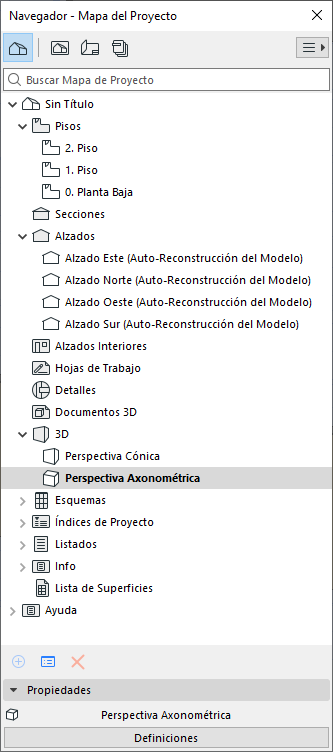
The Archicad Navigator is a tree structure that lets you build and navigate your project's logical structure (see photo). It consists of:
-
Project Map: Lets you switch seamlessly between 2D and 3D viewpoints, providing an overview of the entire project structure.
-
View Map: Organises the project's different views.
-
Layout Book: Contains the project's layouts.
-
Publisher Sets: Makes it easier to publish and distribute the project's documents.
These basic concepts will help you move around and explore Archicad efficiently. I hope you find this guide useful!