
Articles in this section
- How to Create an Archicad Template and What It Should Contain?
- How to Reallocate Bluebeam Subscriptions Between Accounts?
- How to Subscribe to Software with SIMBIM
- Archicad Files Don't Show the Correct Icon on Windows
- Why Can't I Assign a Licence If the User Shows Up as a Guest?
- How to Reset Your Bluebeam ID (BBID) Password?
- How to Transfer Markups to Another Document?
- How to Manage My Bluebeam Subscriptions?
- How to Change the Administrator of a Graphisoft ID Company?
- How to Use Bluebeam Revu on Mac Computers?
BIMcloud Basics - Share or Join a Teamwork Project
Reading time: 5 min.
Welcome to the world of collaborative work in Archicad using BIMcloud. This article is designed to guide new users through the essential steps for sharing or joining a Teamwork project (Read more). BIMcloud enables real-time collaboration, letting multiple users work simultaneously on the same project.
Sharing a Project
-
Start the process
- To start collaborating on an Archicad Teamwork project, you must first open it.
- Then you need to share it to BIMcloud. This is done using the Share command in the Teamwork > Project > Share...
-
Connect to your BIMcloud
- A dialog box will appear (see image); in its drop-down, select the BIMcloud server you want to connect to.
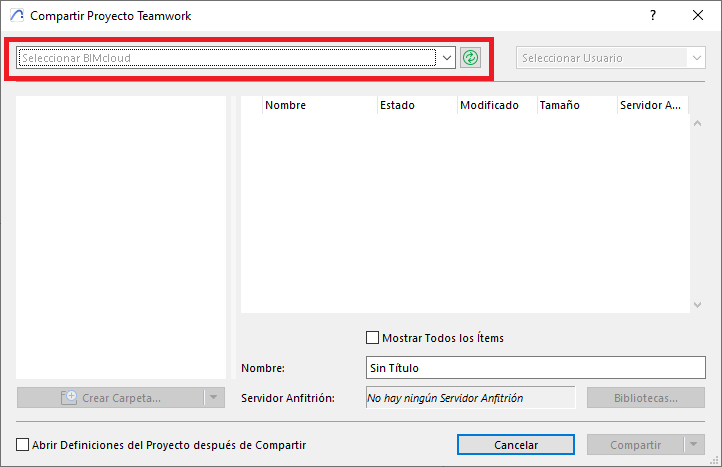
- A dialog box will appear (see image); in its drop-down, select the BIMcloud server you want to connect to.
-
Enter your BIMcloud credentials
- In the BIMcloud user drop-down, select your username, and if it isn’t available, click “Log in as a Different User...”.
- A dialog box will appear where you must enter your BIMcloud credentials.
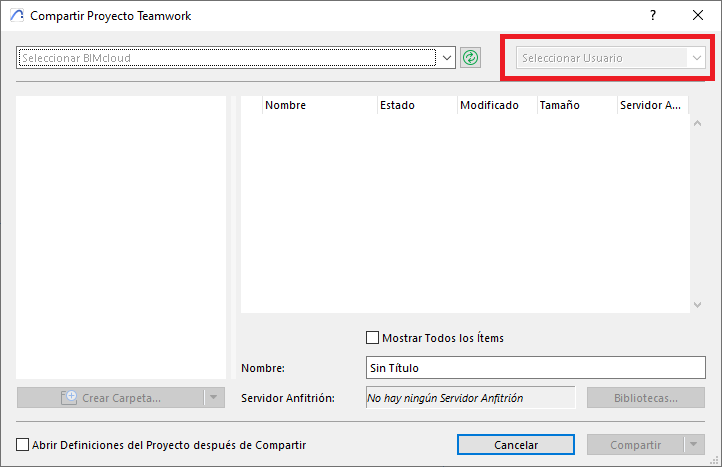
-
Upload the project to BIMcloud
- In the “Share Project” dialog box, select the project folder and choose the Share... option. This will add the project to BIMcloud, making it accessible to other users.
- In the “Share Project” dialog box, select the project folder and choose the Share... option. This will add the project to BIMcloud, making it accessible to other users.
-
Check Permissions
- Make sure you have all the necessary permissions to share the project. Without the right permissions, you won’t be able to complete the process.
- Make sure you have all the necessary permissions to share the project. Without the right permissions, you won’t be able to complete the process.
-
Automatic Reopening
- Once the project is shared, Archicad will close and automatically reopen it as a Teamwork project. This indicates the project is now set up for collaborative work.
- Once the project is shared, Archicad will close and automatically reopen it as a Teamwork project. This indicates the project is now set up for collaborative work.
-
Teamwork Symbol
- You’ll see a symbol at the bottom of the screen indicating that all content will be sent to BIMcloud and shared with the relevant users.
- You’ll see a symbol at the bottom of the screen indicating that all content will be sent to BIMcloud and shared with the relevant users.
Joining a Project
-
Start the Process
- If you want to join an existing project that has already been shared to BIMcloud, click the Teamwork > Project > Open/Join Teamwork Project... menu
- If you want to join an existing project that has already been shared to BIMcloud, click the Teamwork > Project > Open/Join Teamwork Project... menu
-
Enter Credentials
- In the BIMcloud user drop-down, select your username, and if it isn’t available, click “Log in as a Different User...”.
- A dialog box will appear where you must enter your BIMcloud credentials.
-
Step 3: Locate the Project
- Find the existing project you want to join, select it and click Join.
- Find the existing project you want to join, select it and click Join.
-
Step 4: Taking Part in the Project
- Once these steps are complete, you’ll be part of the Teamwork project and able to collaborate with other users in real time.
FAQ
Q: What should I do if my BIMcloud server doesn’t appear in the drop-down of the “Share Project” dialog box?
A: It’s likely that your BIMcloud URL link hasn’t been entered in Archicad. Check your inbox if you have a BIMcloud SaaS subscription, or contact your project administrator to get the company’s BIMcloud URL; otherwise, contact SIMBIM on +34 800 000 143 or write to us at support@simbim.es.
Q: What should I do if I can’t upload the project to BIMcloud?
A: Contact your BIMcloud administrator and ask them to check your permissions to share the project.
Conclusion
The process of sharing or joining a project in Archicad using BIMcloud is simple and straightforward. These steps let new users quickly get up to speed in the collaborative environment, making teamwork and efficient project management easier.