Articles in this section
- How to Create an Archicad Template and What It Should Contain?
- How to Reallocate Bluebeam Subscriptions Between Accounts?
- How to Subscribe to Software with SIMBIM
- Archicad Files Don't Show the Correct Icon on Windows
- Why Can't I Assign a Licence If the User Shows Up as a Guest?
- How to Reset Your Bluebeam ID (BBID) Password?
- How to Transfer Markups to Another Document?
- How to Manage My Bluebeam Subscriptions?
- How to Change the Administrator of a Graphisoft ID Company?
- How to Use Bluebeam Revu on Mac Computers?
How to Change the Company Name in Your Graphisoft ID?
To change the company name associated with your Graphisoft ID is a simple process. Follow these steps to make sure everything goes smoothly:
Step 1: Log in to your Graphisoft account
- Open your web browser and go to the Graphisoft ID portal.
- Enter your Graphisoft ID credentials to log in.
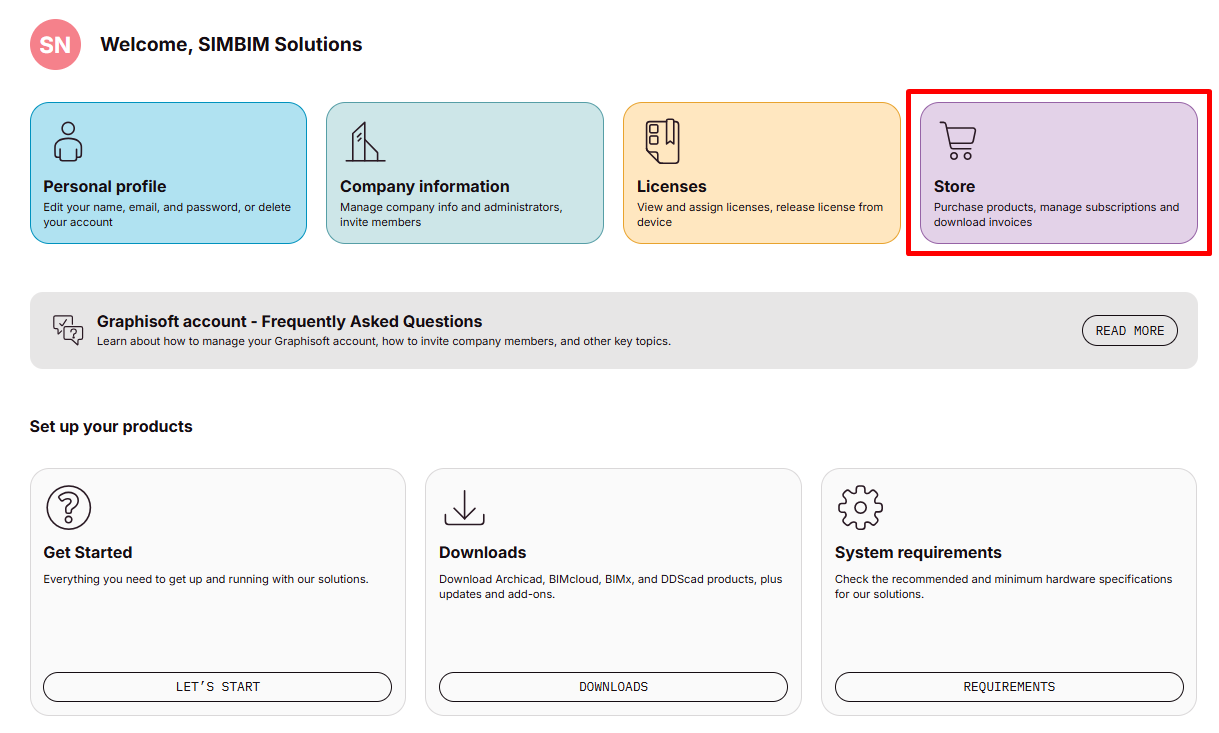
Step 2: Click on Store
- Once you have logged in, click the Store option in the main menu.
-
This will take you to the section where you can manage your company's details.
Step 3: Go to Company and BIMcloud
- Click the user icon in the top-right corner.
-
Go to the Company and BIMcloud sections.

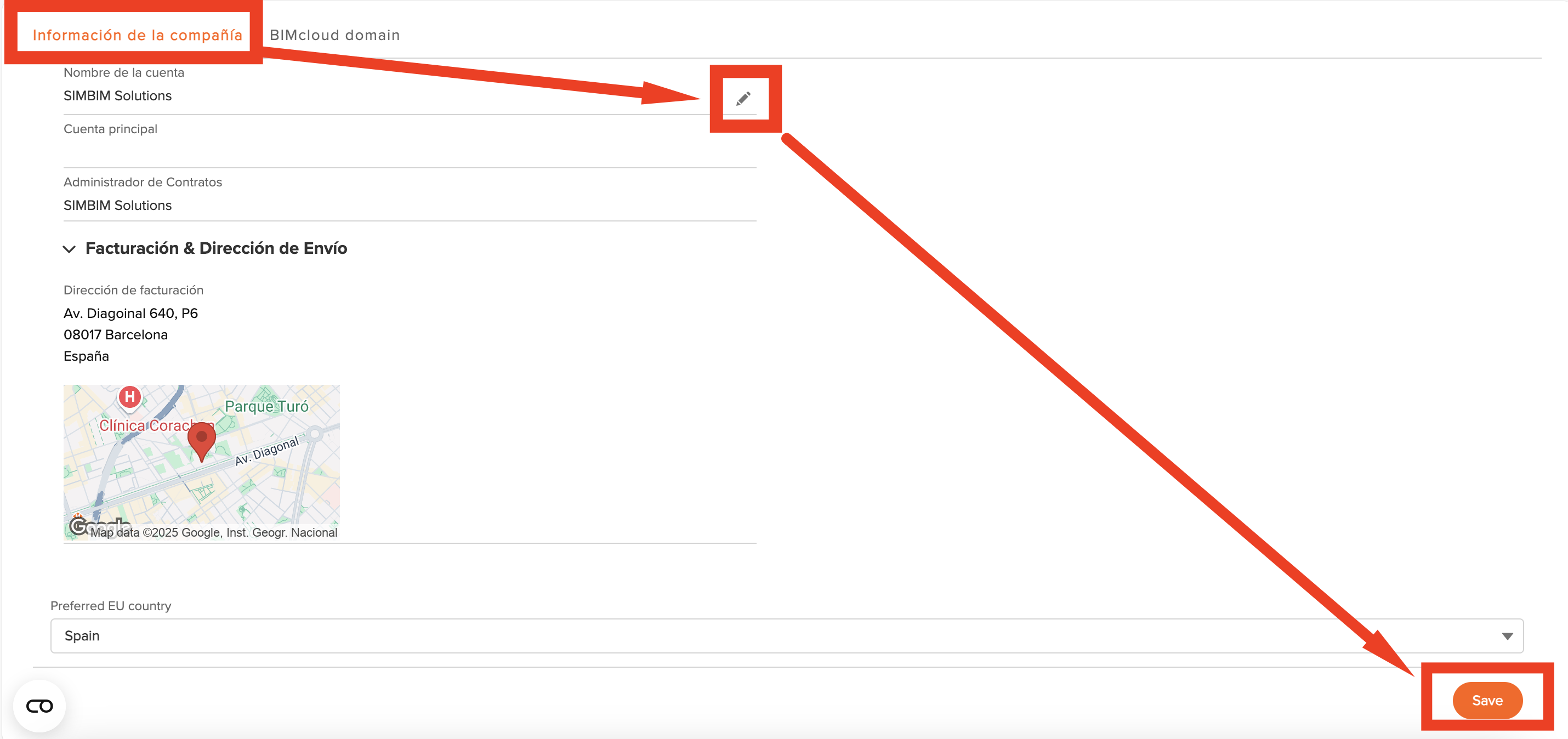
Step 4: Update the Company Name
- Click the Edit button.
-
Type the desired name in the field provided and click Save.