
Articles in this section
- How to Create an Archicad Template and What It Should Contain?
- How to Reallocate Bluebeam Subscriptions Between Accounts?
- How to Subscribe to Software with SIMBIM
- Archicad Files Don't Show the Correct Icon on Windows
- Why Can't I Assign a Licence If the User Shows Up as a Guest?
- How to Reset Your Bluebeam ID (BBID) Password?
- How to Transfer Markups to Another Document?
- How to Manage My Bluebeam Subscriptions?
- How to Change the Administrator of a Graphisoft ID Company?
- How to Use Bluebeam Revu on Mac Computers?
How to Convert Your Archicad Favorites to Use the Global Library Instead of the Monolithic Library in Archicad?
Converting your Archicad Favorites to use the Global Library instead of the Monolithic Library in Archicad 29 makes it easier to migrate projects and templates created in earlier versions.
Important note: If you are starting the process from a project file (.PLN), follow all the steps starting from 1. Preparation. If you are starting the process from a template (.TPL), you can begin from 2. Export Favorites.
The Favorite Converter tool is independent of the Archicad language, but it is only available in English.
Step-by-Step Guide
Step 1: Preparation
Note: This step is only necessary if you are starting from a project or template with a Monolithic Library from Archicad 27 or earlier.
As of Archicad 29, the program installation no longer includes the Migration Library by default.
You need to download it manually from the following link: Download Archicad 29 Migration Library
Make sure you select the correct language and operating system before downloading.
Once the file has downloaded, run it and follow a standard installation, clicking Next until it finishes.
- Open Archicad 29 and start a project with your monolithic template from Archicad 27 or earlier.
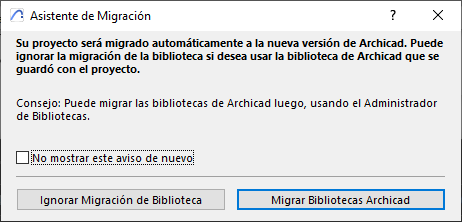
- If your template and library predate Archicad 27, migrate them first when starting the project, by clicking Migrate Archicad Libraries when the Migration Guide window appears.
- If you are working in Archicad 29 with a project originating from an earlier version, also download and install the Archicad 29 Migration Library before continuing.
- If your template and library are from Archicad 27, the migration window may still appear, but you can skip this step, since the Archicad 27 library remains compatible as a starting point for this process.
Step 2: Export Favorites
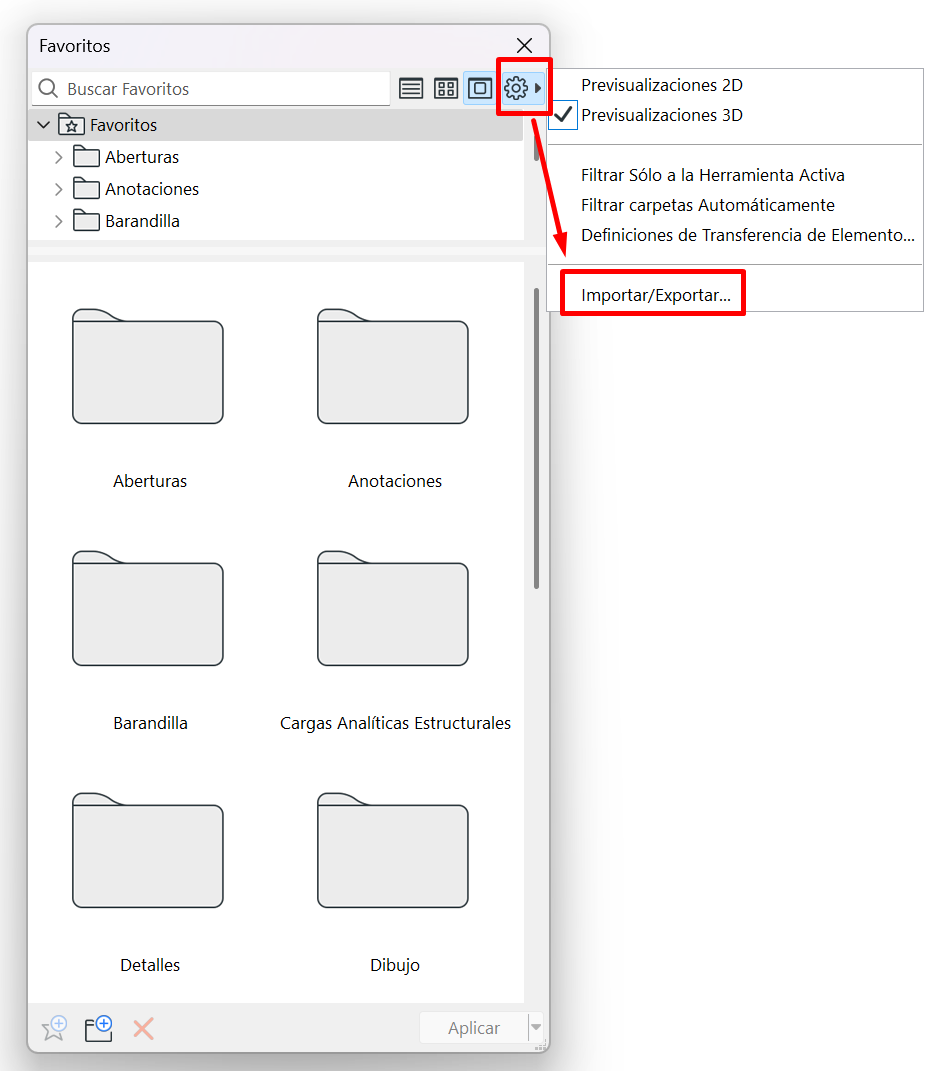
- Open the Favorites Palette from Window > Palettes > Favorites.
- Click the cog wheel on the palette and select Import/Export > Export....
- Export the Favorites to a new folder in XML format.
- Make sure the path is short; for example: /Users/<User>/Desktop/Archicad27_Favorites.
Step 3: Download the Favorite Converter Tool
- Download the Favorite Converter tool from the Graphisoft website: https://graphisoft.com/es/resources-and-support/downloads?section=favorite-converter
- Extract the downloaded compressed file.
Step 4: Check That the Project Uses the Global Library
Note: Before converting the Favorites, it is worth checking that the new Archicad 29 project is loading the library in .libpack format, which is specific to the Global Library.
- Open a new project using an Archicad 29 default template. This will be the file into which you will later import the converted Favorites.
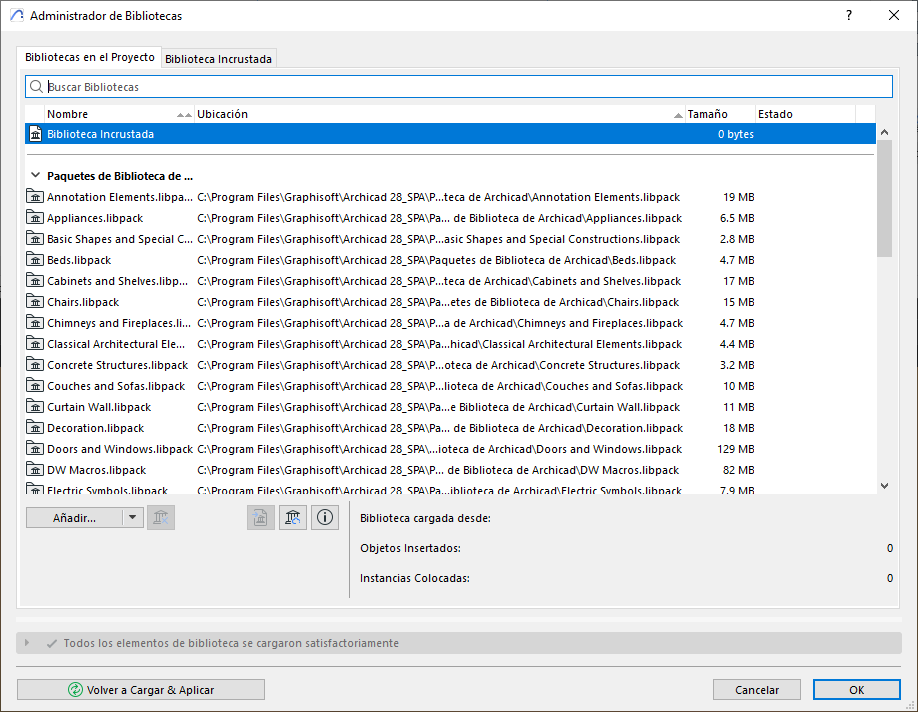
- Go to File > Libraries and Objects > Library Manager... and check that the library content is loaded with the .libpack extension.
Step 5: Install and Load the Favorite Converter Add-On
- Open the Archicad 29 add-ons folder and, if needed, create a folder called Favorite Converter.
- Copy or extract the downloaded tool contents into that folder.
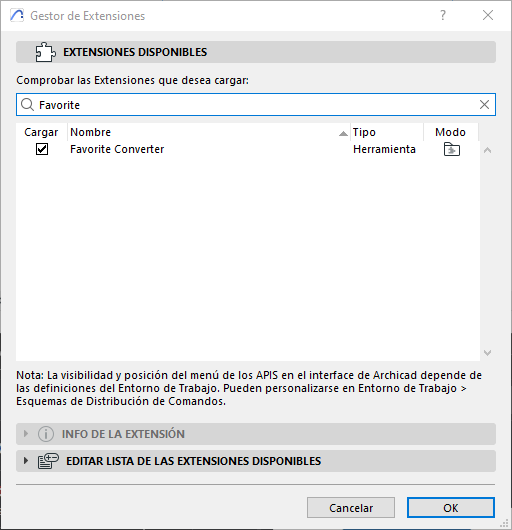
- Open the Add-on Manager from Options > Add-on Manager.
- Add the Favorite Converter add-on to the list of available add-ons and check that it loads correctly.
Step 6: Convert Favorites
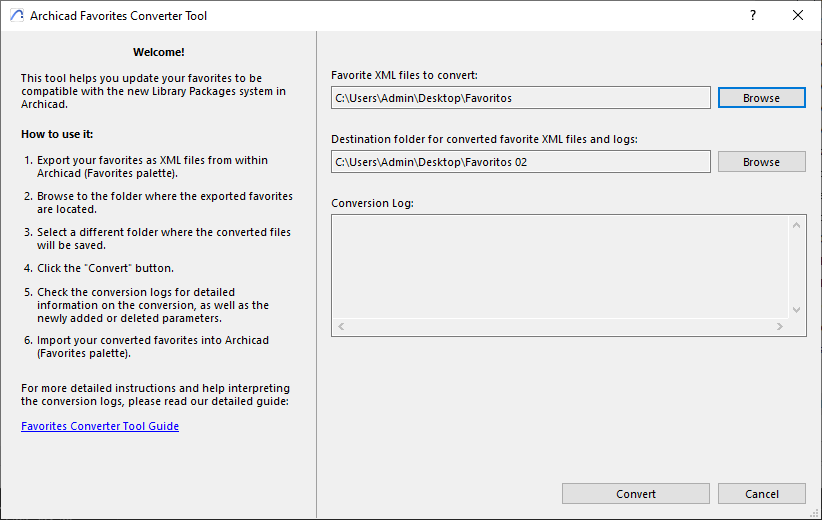
- Open Favorite Converter from the Options menu.
- In the first field, select the folder of Favorites exported as XML.
- In the second field, choose the destination folder where the converted Favorites will be saved.
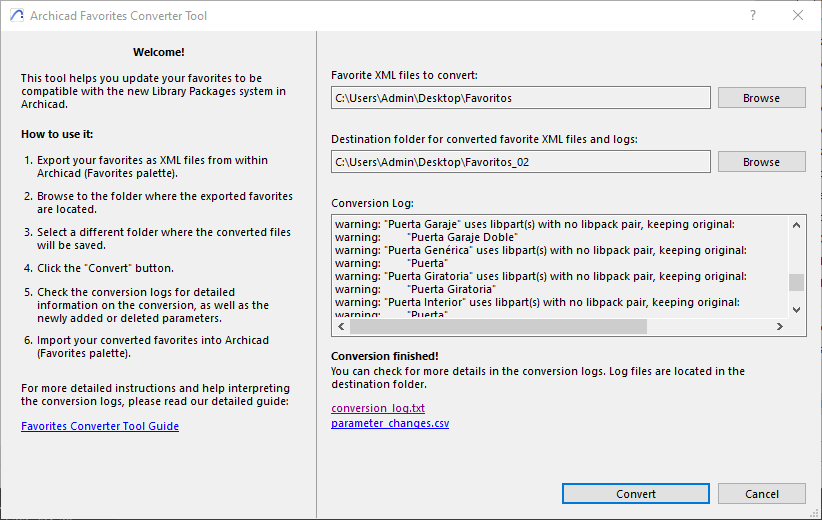
- Click Convert and wait until the Conversion Finished message appears.
Note: Favorites that can be converted automatically will be generated in the output folder. Those requiring a manual review of parameters will be listed in parameter_changes.csv.
Step 7: Import the Converted Favorites
Note: This step must be carried out in the new project you opened earlier with the Archicad 29 default template, i.e. the file that is already working with the Global Library.
- Return to the new project opened with the Archicad 29 default template.
- In the Favorites Palette, click the cog wheel and select Import/Export.
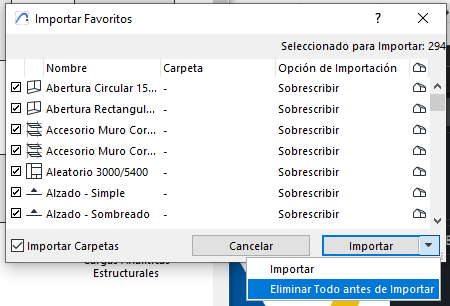
- Choose the Folder (containing XML files) option and click Import.
- Select the folder generated by the tool, typically named something like Converted_Favorites_date_and_time.
- During import, select the Delete All before Importing option to remove the previous Favorites, since they do not work with the Global Library.
Final Check
Go to File > Libraries and Objects > Library Manager... and check that all parts of the library have loaded correctly.
Note: Once the converted Favorites have been imported, you will be able to use them with projects and templates based on the Global Library in Archicad 29.