
Articles in this section
- How to Create an Archicad Template and What It Should Contain?
- How to Reallocate Bluebeam Subscriptions Between Accounts?
- How to Subscribe to Software with SIMBIM
- Archicad Files Don't Show the Correct Icon on Windows
- Why Can't I Assign a Licence If the User Shows Up as a Guest?
- How to Reset Your Bluebeam ID (BBID) Password?
- How to Transfer Markups to Another Document?
- How to Manage My Bluebeam Subscriptions?
- How to Change the Administrator of a Graphisoft ID Company?
- How to Use Bluebeam Revu on Mac Computers?
How to Create a Support Ticket in My SIMBIM Center?
Creating a support ticket in My SIMBIM Center is a simple process. Follow these steps to make sure your issue is handled quickly:
-
Set Your Password: You should receive an email with instructions for creating a password for your account. Follow the link in the email to set your password.
-
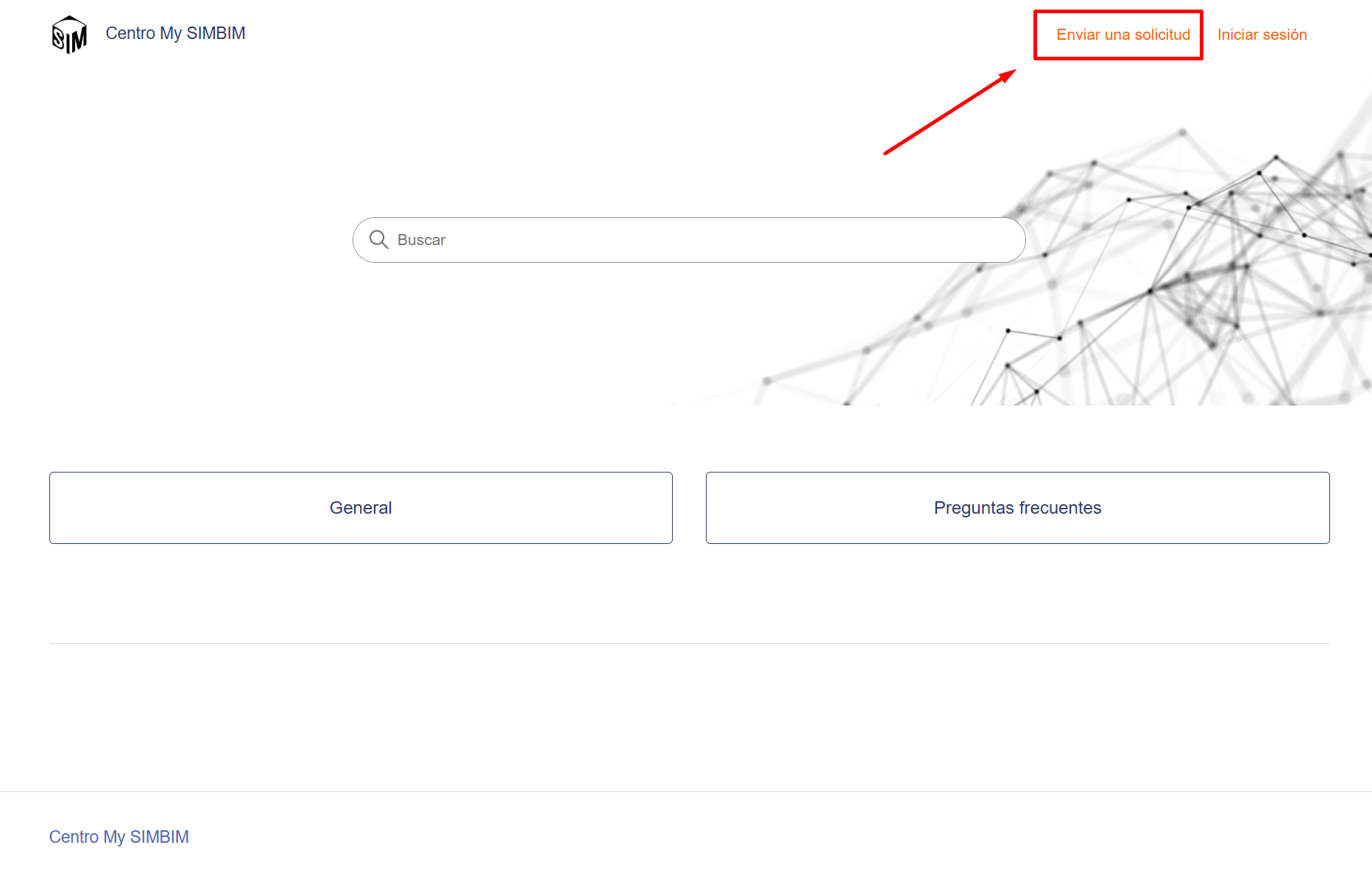
Access the Help Center and Sign In: Open your web browser, go to My SIMBIM Center (my.simbim.es), and sign in with your credentials.
-
Submit a Request: Click the "Submit a Request" option.
-
Choose the Product: Select the product related to your issue from the available options. This helps ensure your ticket is routed to the right support team.
-
Enter the Subject: Enter a brief, clear subject for your issue.
-
Provide a Description: Provide a detailed description of your issue or question. Include any relevant information that can help the support team understand and resolve your issue.
-
Steps to Reproduce the Issue: List the steps you followed that led to the issue. This helps the support team replicate the issue and find a solution more efficiently.
-
Indicate Urgency: Specify the urgency of your issue. This helps the support team prioritize your ticket appropriately.
-
Phone Number: Include your phone number so the support team can contact you if needed.
-
Attach Files (if applicable): If applicable, attach any files or screenshots that can help explain your issue.
- Review and Submit: Review the information you've entered to make sure it's accurate. Click the "Submit" button to send your ticket to the support team.