
Articles in this section
- How to Create an Archicad Template and What It Should Contain?
- How to Reallocate Bluebeam Subscriptions Between Accounts?
- How to Subscribe to Software with SIMBIM
- Archicad Files Don't Show the Correct Icon on Windows
- Why Can't I Assign a Licence If the User Shows Up as a Guest?
- How to Reset Your Bluebeam ID (BBID) Password?
- How to Transfer Markups to Another Document?
- How to Manage My Bluebeam Subscriptions?
- How to Change the Administrator of a Graphisoft ID Company?
- How to Use Bluebeam Revu on Mac Computers?
How to Export an IFC MEP Model from Archicad Using Model Filtering?
Reading time: 3 min.
In many BIM coordination projects, especially in multidisciplinary environments, only the MEP part of the model needs to be delivered —which in IFC corresponds to the MEP Domain—. Exporting only these elements from Archicad ensures a cleaner exchange, reduces file size and makes life easier for the teams who need that information.
In this practical guide you will learn, step by step, how to configure a custom IFC Translator to export MEP content exclusively from Archicad 28, using the Model Filter for IFC Export tool and keeping a correct mapping of types and properties.
Why filter the model before exporting
The IFC standard includes multiple domains (Architecture, Structural, MEP…). Exporting without filtering causes the file to contain elements that are not required, creating confusion and extra work for the recipient.
With the Model Filter for IFC Export, available in the IFC Translators, we can select only the MEP domain and make sure the resulting file contains only MEP elements, such as ducts, pipes, cable trays, fittings and equipment.
Prerequisites
- Archicad installed and an active, modelled MEP project.
- Access to the IFC Translators panel.
- Basic knowledge of element classification and properties in Archicad.
- An IFC viewer to validate the result (for example, Solibri Anywhere) or the ability to reopen the exported IFC in Archicad.
Step 1: Configure MEP filtering in an IFC Translator
- Go to File > Interoperability > IFC > IFC Translators.
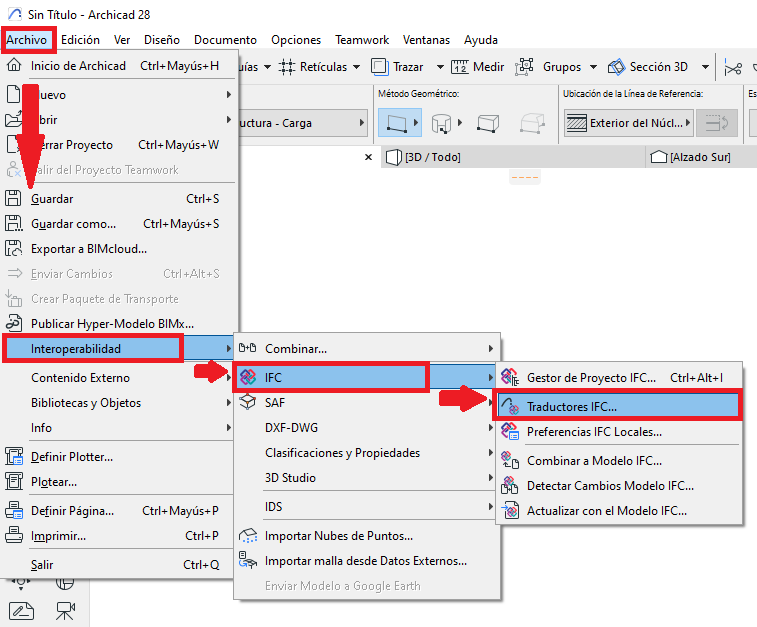
- In the Export section, select the translator you are going to use (for example, IFC4 Reference View or Parametric Geometry Export).
- Create a duplicate of the selected translator by clicking New...
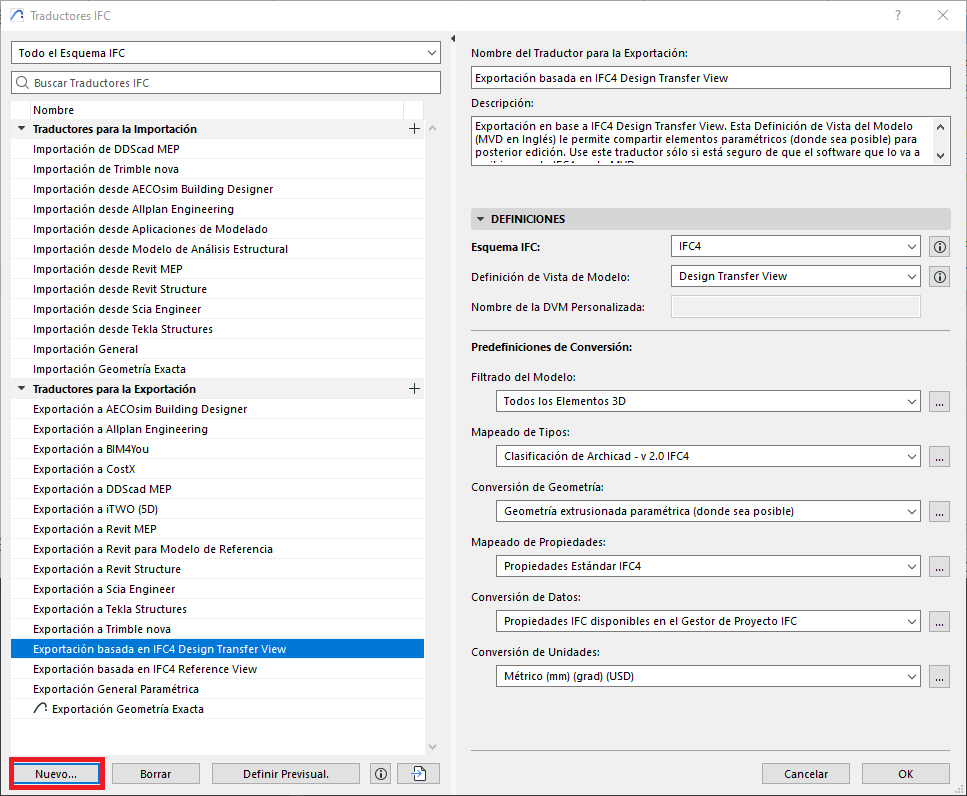
- In the New Translator dialog box, select the "Duplicate of" option and make sure the translator to be duplicated is the correct one.
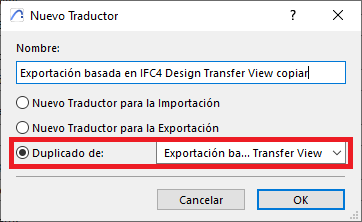
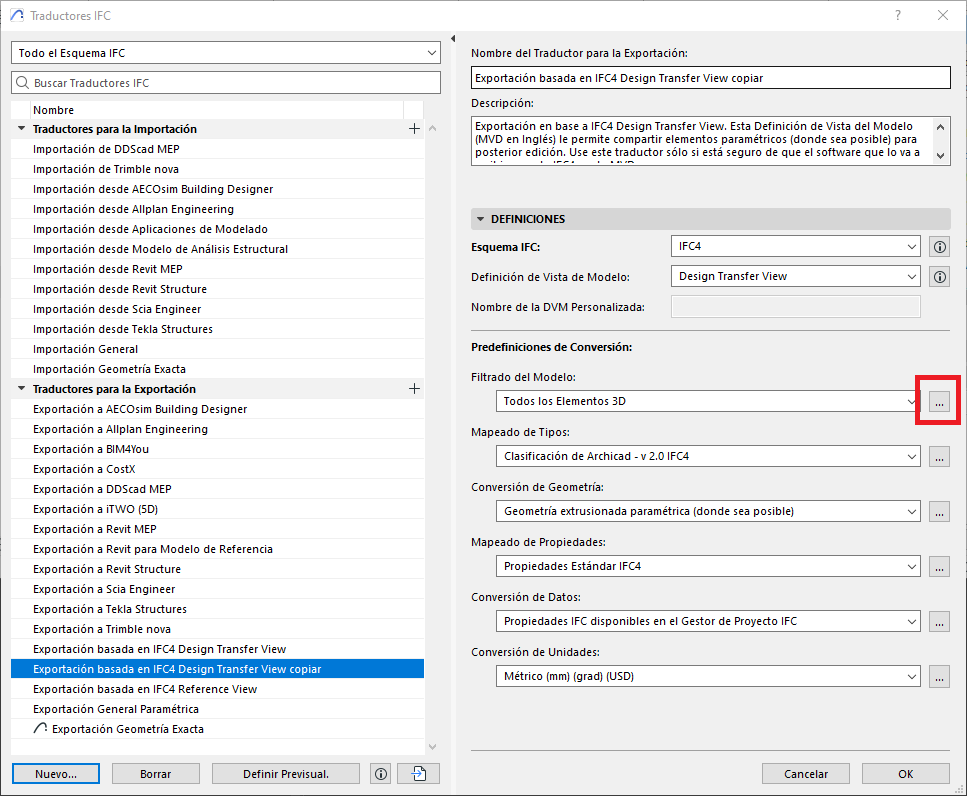
- Select the duplicated translator, and give it a new Name (red), and a brief Description (green).
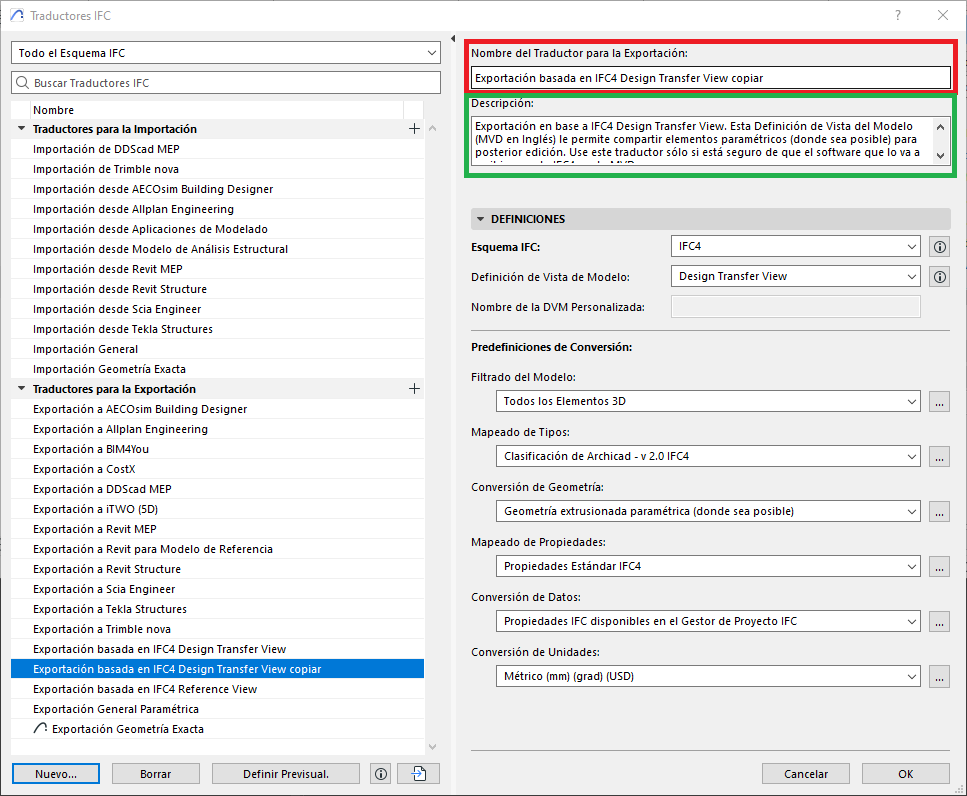
- Click the three dots next to Model Filter.
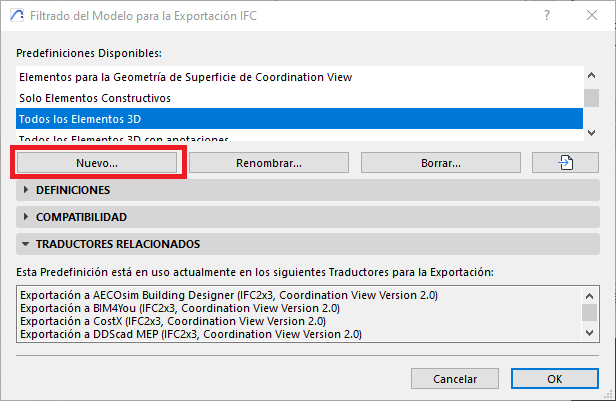
- In the "Model Filter for IFC Export" dialog box, select a filter type to create a duplicate by clicking New...
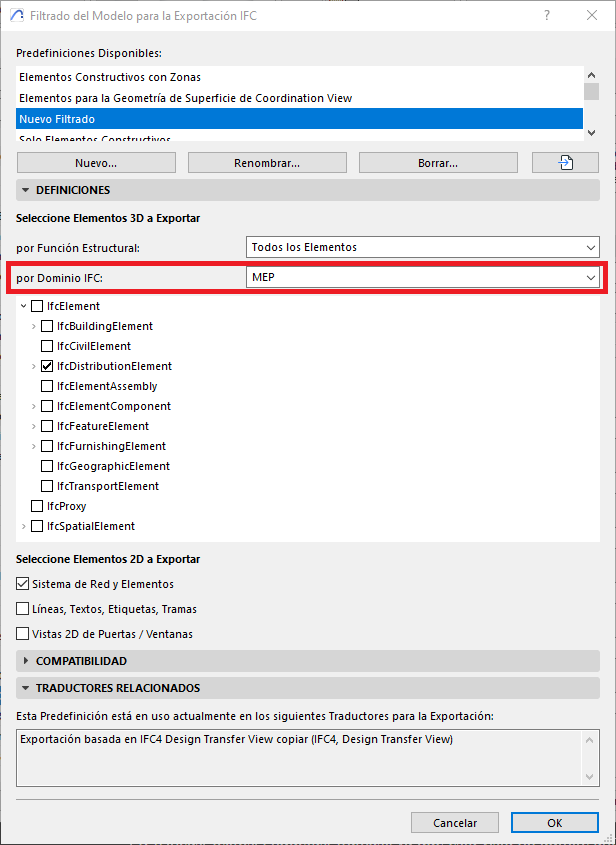
- Enable By IFC Domain and select MEP to limit the export to elements in the MEP domain.
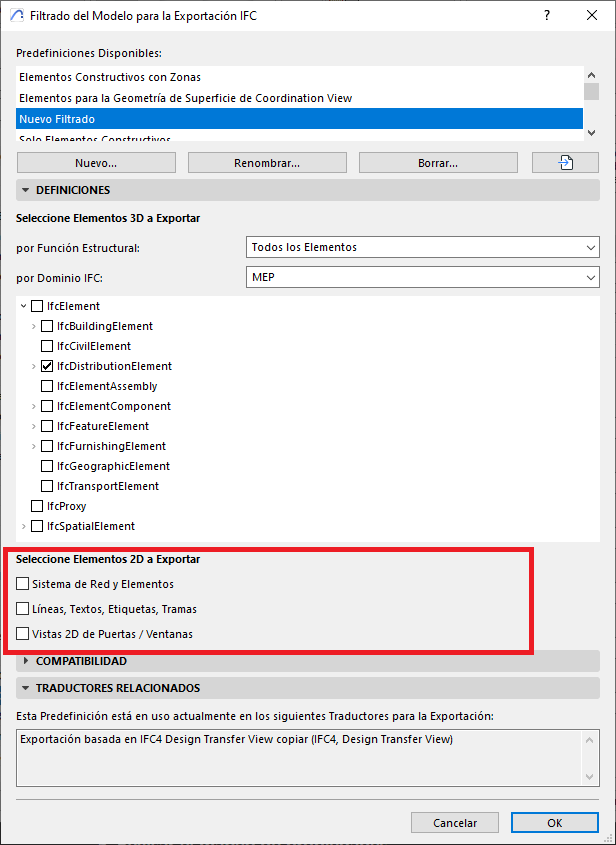
- Disable Lines, Texts, Labels, Fills to avoid IfcAnnotation. Also disable Grid System and Elements (these will be exported as IfcGrid).
- Save the changes by clicking OK.
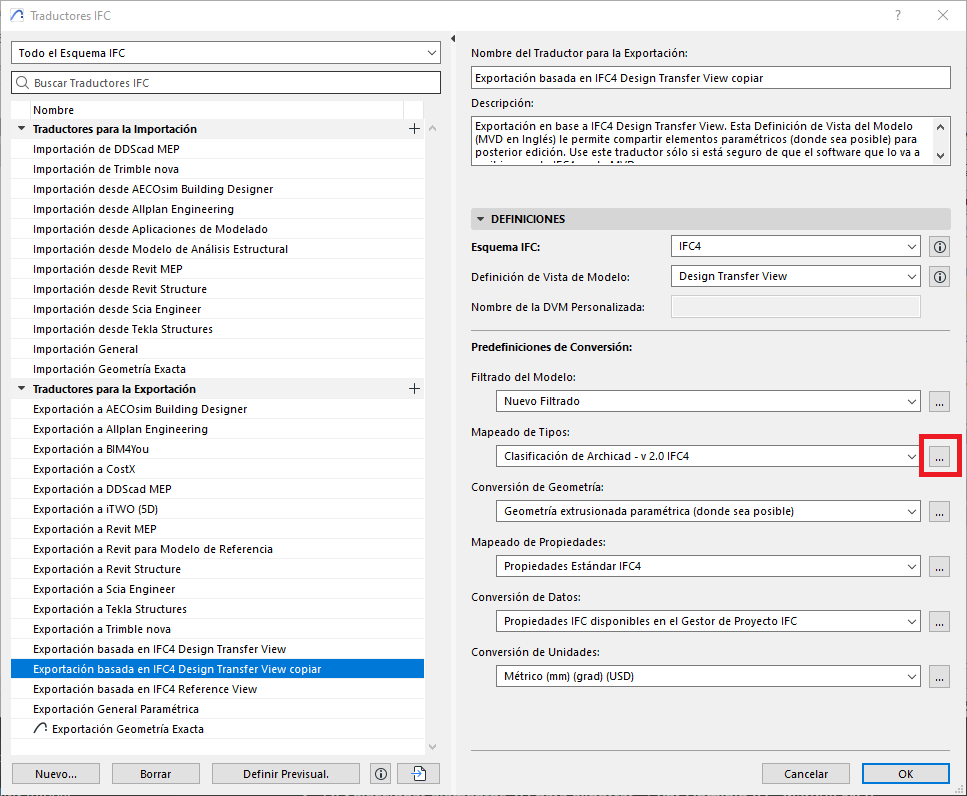
- In the IFC Translators dialog box, click the three dots next to Type Mapping
- Click Map IFC Types to Export...
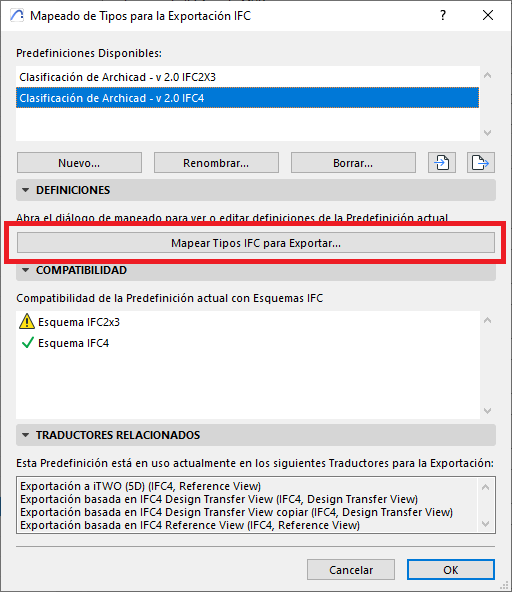
- In the Map IFC Types to Export dialog box, check that the MEP tools are mapped to the correct IFC entities (for example, IfcFlowSegment, IfcFlowFitting, IfcFlowTerminal). When finished, click OK until you return to the IFC Translators dialog box.
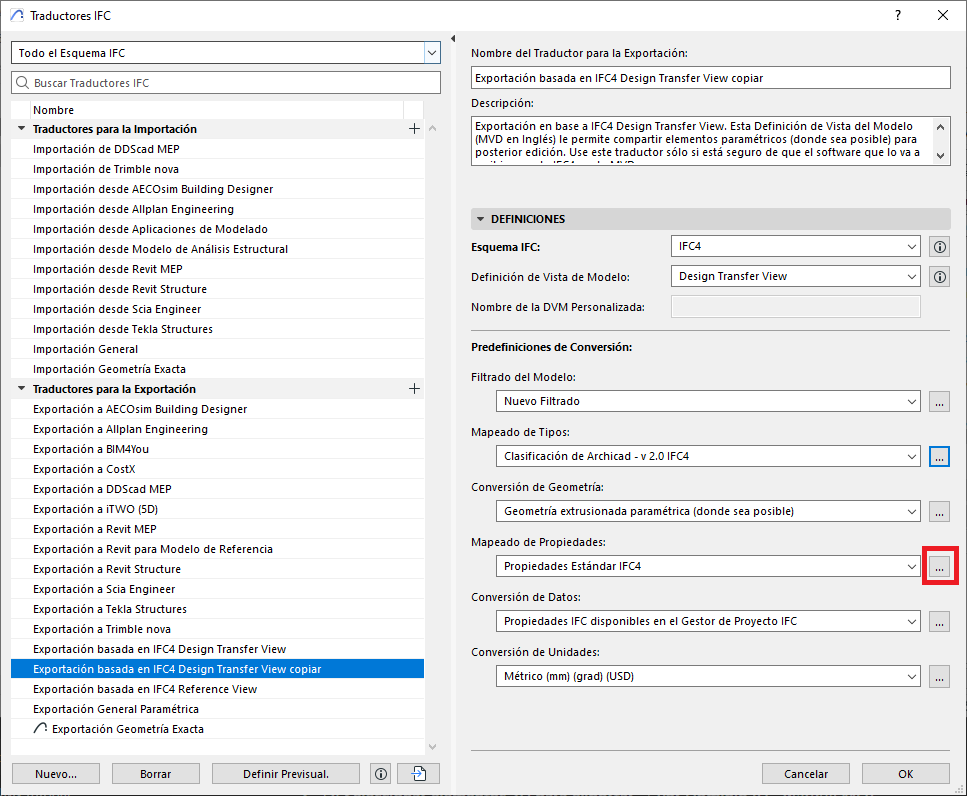
- Click the three dots next to Property Mapping.
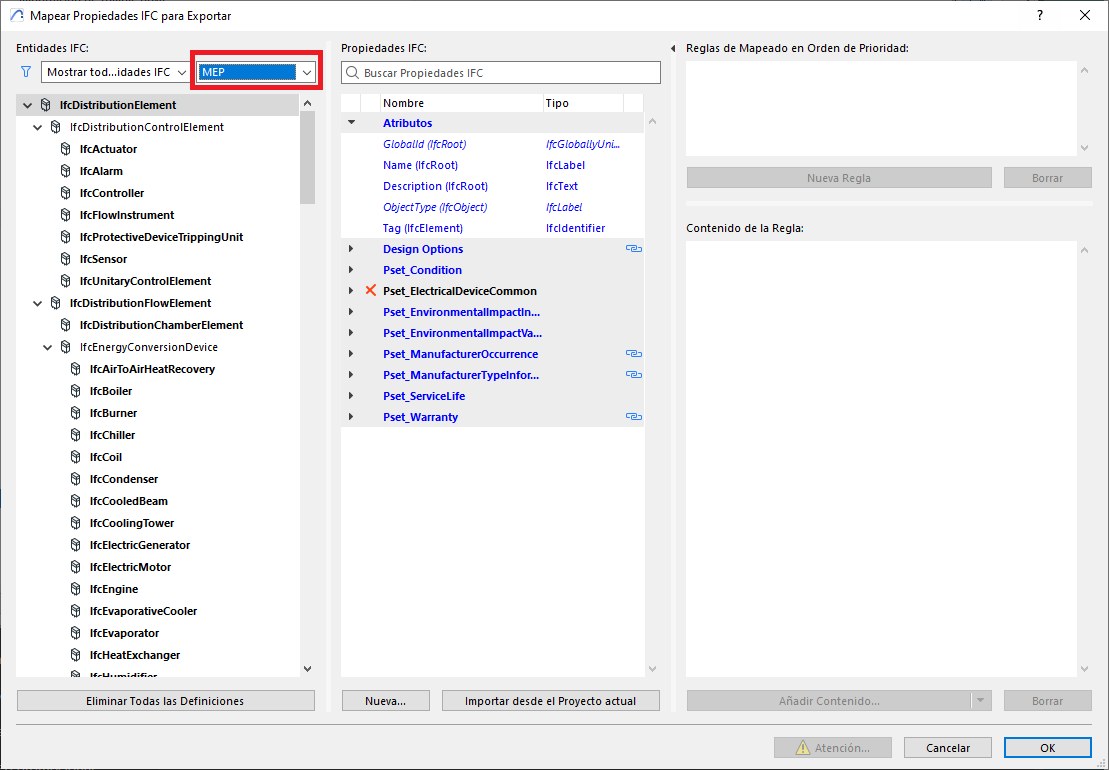
- Click Map IFC Properties to Export
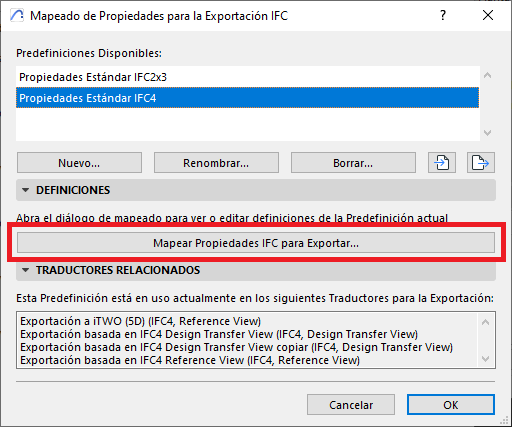
- In the Map IFC Properties to Export dialog box, filter the IFC elements by MEP, and confirm that the necessary property sets (Psets) are included. When finished, click OK.
- In the IFC Translators dialog box, click the three dots next to Data Conversion.
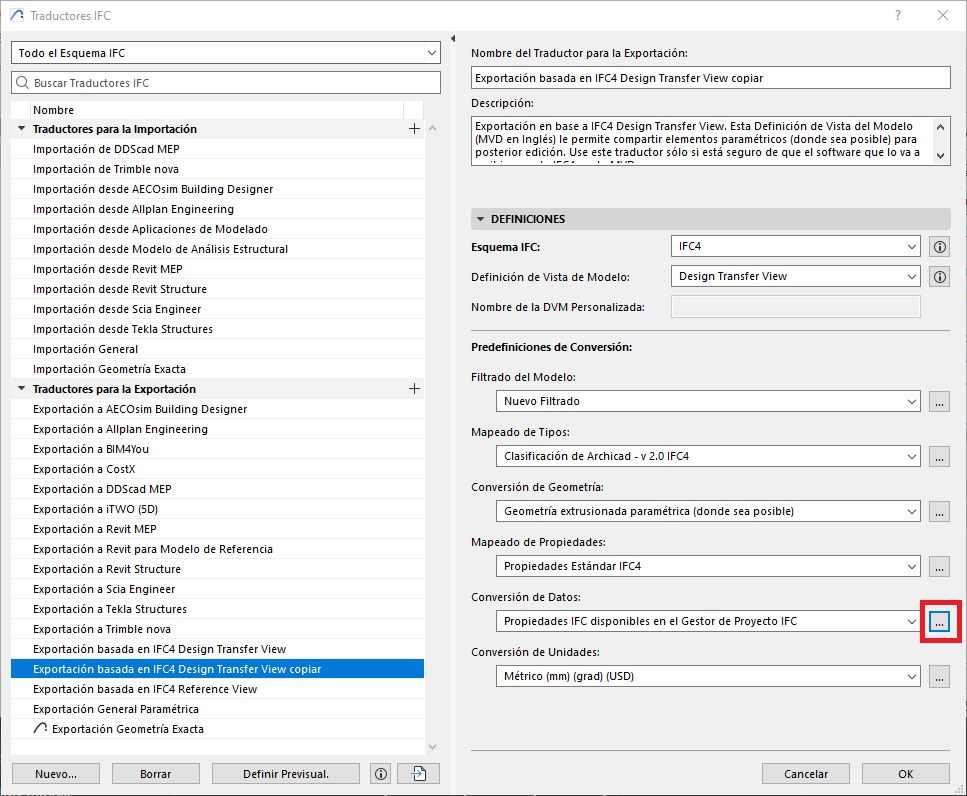
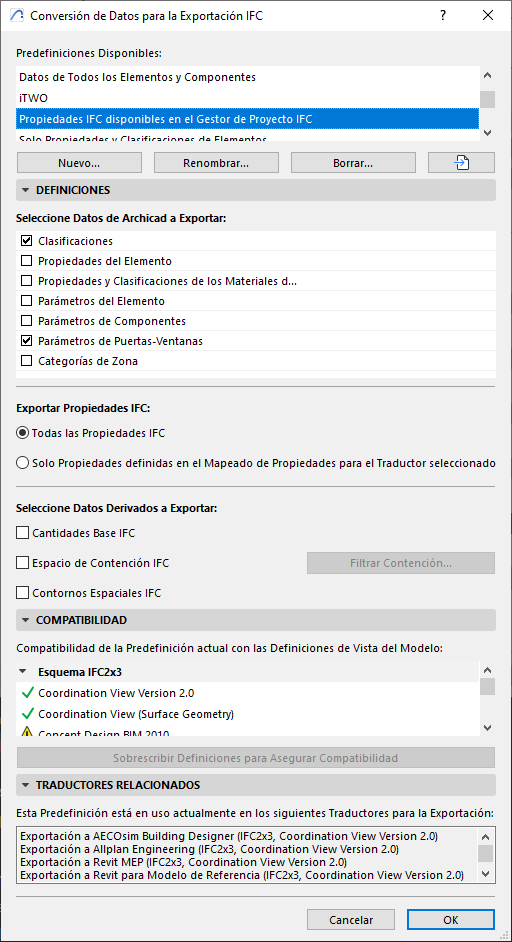
- In the Data Conversion for IFC Export dialog box, enable only what the recipient needs:
- Classifications
- Element Properties (all or visible)
- Base IFC Quantities
- Material Properties if relevant
- When finished, click OK, and save the new IFC translator.
Step 2: Prepare the Export View
- Activate the view you will export from (Floor Plan or 3D) and adjust layers, renovation filters, etc.
- (Optional) Manually select the elements if you will use Selected elements only.
Step 3: Save As IFC
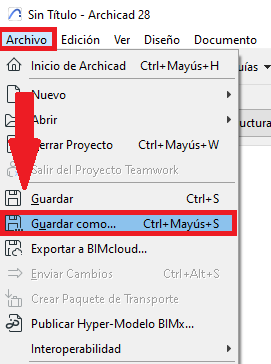
- Go to File > Save as…
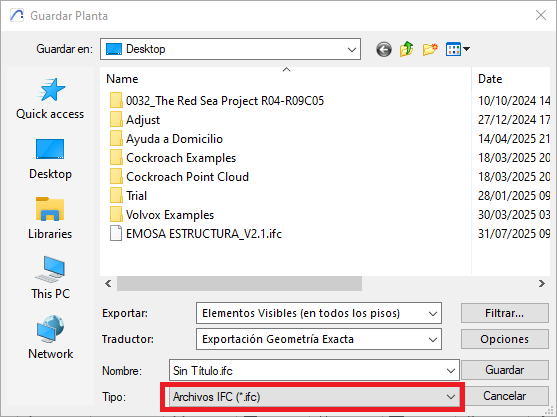
- In the Save Floor Plan dialog box, choose IFC File (*.ifc).
- Confirm the configured translator.
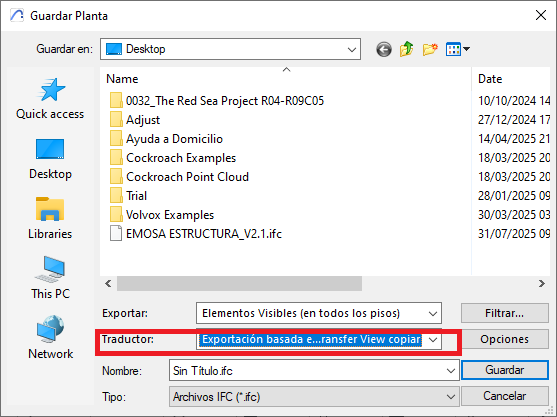
- Under Export, select:
Visible elements on all stories or
Entire project
We recommend these options together with MEP element filtering.
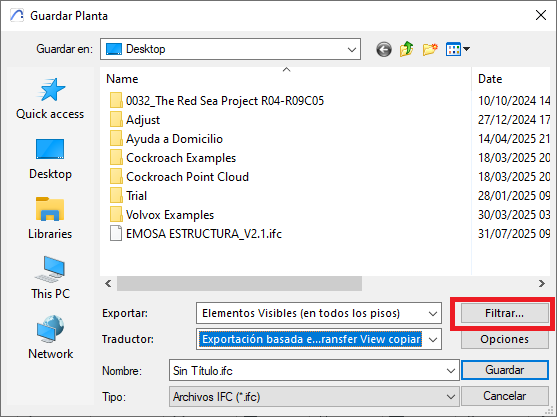
Click Filter… to group and refine by IFC Type, Story, Layer or Owner, and apply filters by IFC Domain or Structural Function.
- Define where you want to save the IFC file and click Save to save the file.
Exporting from the Publisher
The Publisher always exports Visible elements, so prepare your views according to this criterion.
Post-Export Validation
Open the IFC in a compatible viewer to check:
- Only MEP elements are present.
- That the necessary Psets and properties are present.
- Make sure that the exported set matches the chosen export mode, or the one agreed with the recipient.
Professional Tip
- Create dedicated translators for each exchange scenario: for example, IFC4 RV — Architecture (without 2D) and IFC2x3 — Coordination (with grids and annotations). This standardises deliverables and reduces errors.
- Always check the IFC file in an IFC viewer to make sure it meets expectations. You can use this free viewer for this: DDScad Viewer.
- Document the IFC schema, the filter applied and the Psets included in the delivery.
- Use the Archicad Publisher to automate recurring exports and minimise errors.
With this workflow, you will be able to deliver accurate, optimised IFC MEP models aligned with the recipient's needs, making coordination easier and reducing the time spent on subsequent clean-up.