
Articles in this section
- How to Create an Archicad Template and What It Should Contain?
- How to Reallocate Bluebeam Subscriptions Between Accounts?
- How to Subscribe to Software with SIMBIM
- Archicad Files Don't Show the Correct Icon on Windows
- Why Can't I Assign a Licence If the User Shows Up as a Guest?
- How to Reset Your Bluebeam ID (BBID) Password?
- How to Transfer Markups to Another Document?
- How to Manage My Bluebeam Subscriptions?
- How to Change the Administrator of a Graphisoft ID Company?
- How to Use Bluebeam Revu on Mac Computers?
How to Manage and Assign Archicad Cloud Licences?
Managing your Archicad Cloud licences is a straightforward process that lets you optimise the use of your resources and ensure each user has the appropriate access according to your team's needs.
Acquiring the licence
If you don't yet have an active subscription, you can contact SIMBIM:
- +34 800 000 143
- support@simbim.es
User management (Inviting members to the organisation)
Before licences can be assigned, users must be part of your organisation in Graphisoft.
How to invite users
- Log in to your account: https://graphisoftid.graphisoft.com/
- Go to the "Members" section.
- Click "Invite Members".
- Enter the user's email address.
- Click "Send Invitation".
- The user will need to accept the invitation from their email.
Important: A user cannot receive a licence until they have accepted the invitation.
Managing user groups
User groups are used to manage licences in floating (pool) licence mode.
They let you assign a licence to a group instead of an individual user, so that users in the group can use it based on availability.
How to create a group
- Go to the "Groups" section.
- Click "Create Group".
- Enter a name for the group.
- Save the changes.
How to add users to a group
- Go to the group via "Group Details".
- Click "Add Members".
- Select the users from the organisation.
- Confirm the selection.
Assigning licences
Cloud licences can be assigned to both individual users and groups.
How to assign a licence
- Go to: https://graphisoftid.graphisoft.com/
-
Go to "Cloud Licenses".
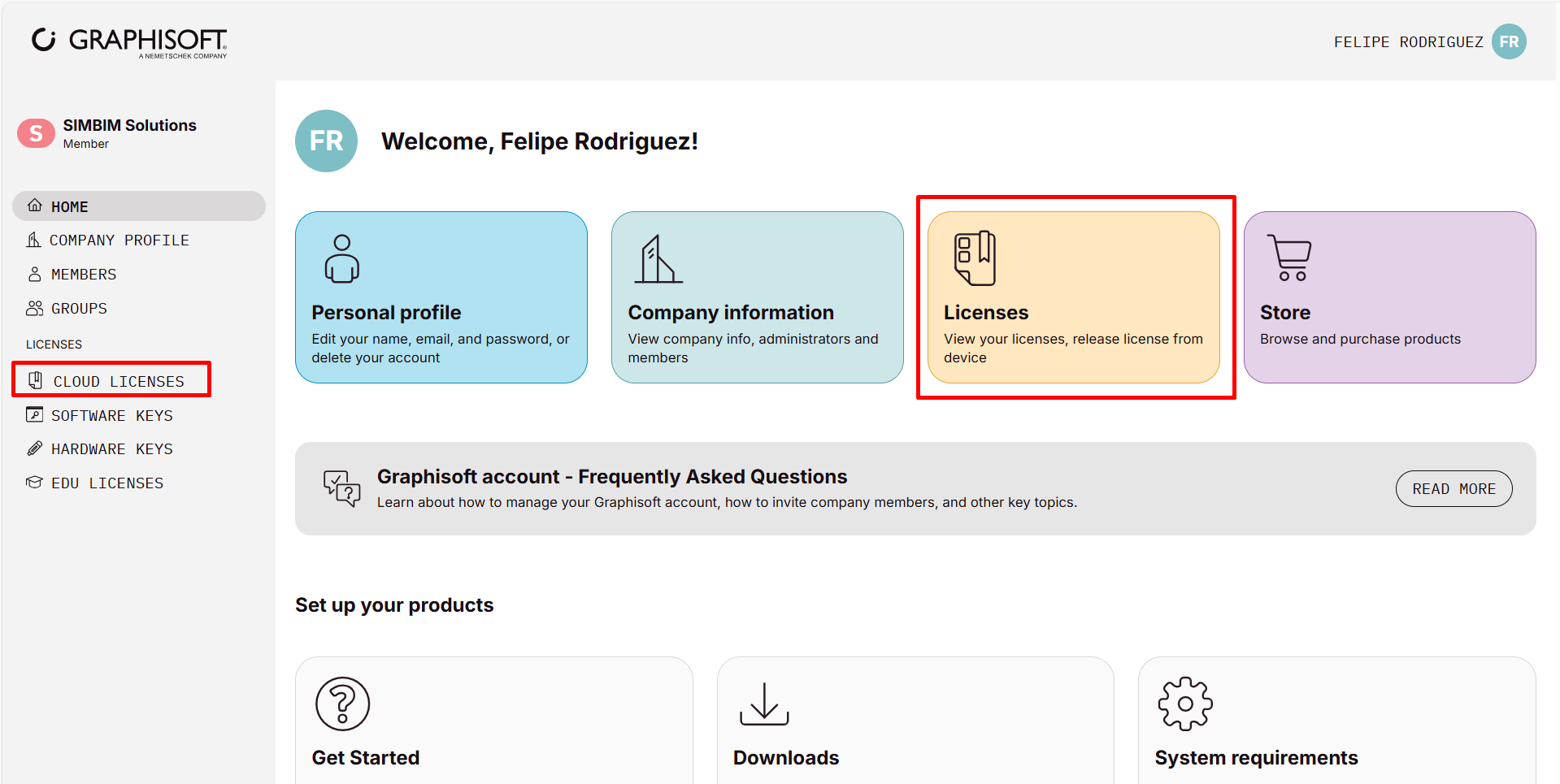
- Select an available licence.
-
Click the menu (⋯).
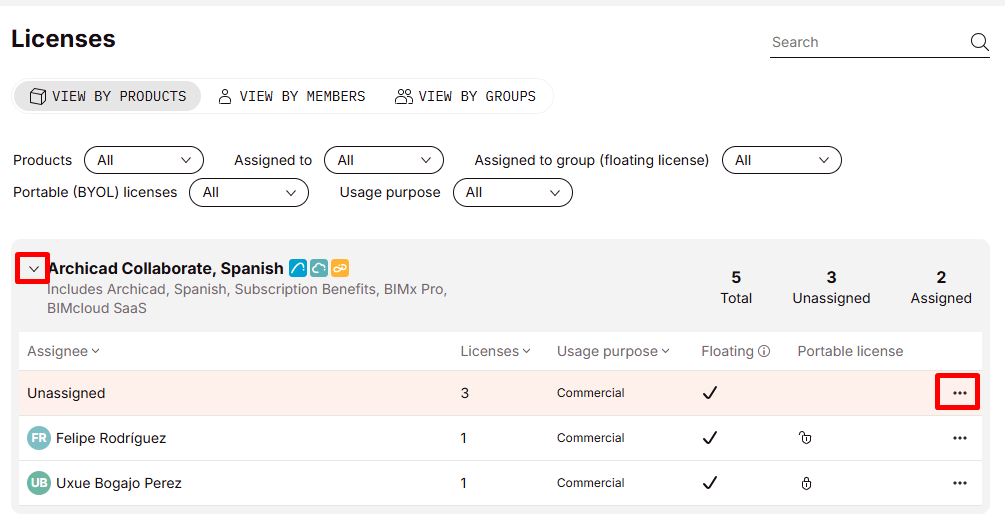
- Select "Assign".
- Choose the assignee:
- Individual user
- Group
-
Confirm the change.
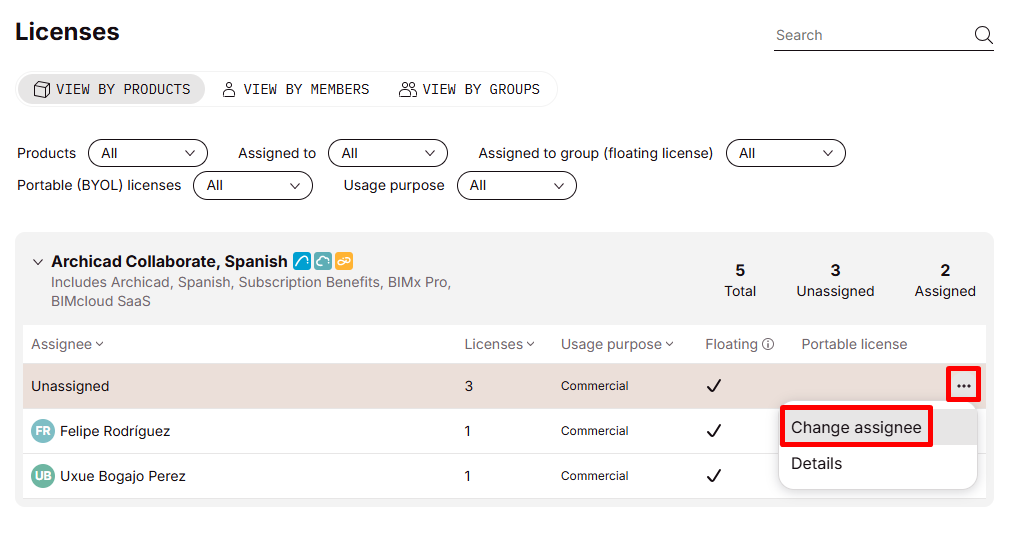
Note: You can reassign licences at any time according to your team's needs.