
Articles in this section
- How to Create an Archicad Template and What It Should Contain?
- How to Reallocate Bluebeam Subscriptions Between Accounts?
- How to Subscribe to Software with SIMBIM
- Archicad Files Don't Show the Correct Icon on Windows
- Why Can't I Assign a Licence If the User Shows Up as a Guest?
- How to Reset Your Bluebeam ID (BBID) Password?
- How to Transfer Markups to Another Document?
- How to Manage My Bluebeam Subscriptions?
- How to Change the Administrator of a Graphisoft ID Company?
- How to Use Bluebeam Revu on Mac Computers?
How to Manage User Access to Projects in BIMcloud SaaS?
Graphisoft's BIMcloud SaaS enables real-time collaboration on Archicad projects in the cloud. Properly managing user access is essential to ensure data security and project integrity. This article explains how to control and configure user access to projects in BIMcloud SaaS.
1. Access management fundamentals
BIMcloud SaaS uses a role-based access control system. Management is carried out from the BIMcloud Manager interface, where administrators can:
- Add or remove users
- Assign roles and permissions
- Control access to specific projects and libraries
2. User roles and permissions
BIMcloud includes several predefined roles:
- Server Administrator: Full access to all projects and settings.
- Project Administrator: Manages specific projects, including user access.
- Team Member: Can work on assigned projects, but cannot manage access.
- External Collaborator: Limited access, intended for consultants or clients.
Each role has a set of permissions that can be customised per project.
3. Granting access to projects
To give a user access to a specific project:
- Log in to BIMcloud Manager.
- Go to the Projects tab.
- Select the desired project
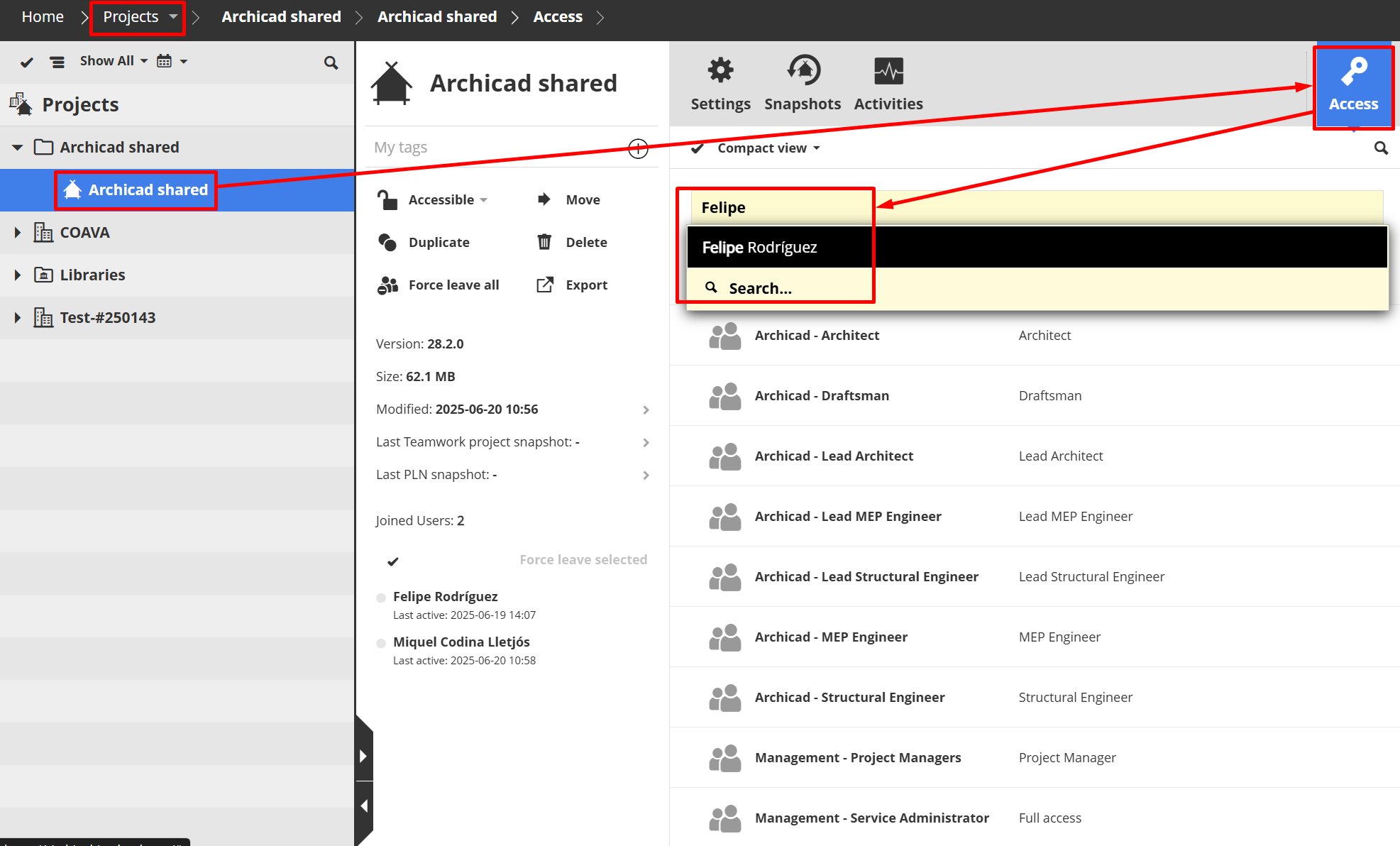
- Click Access (top right).
-
Add the users or groups that should have access.
-
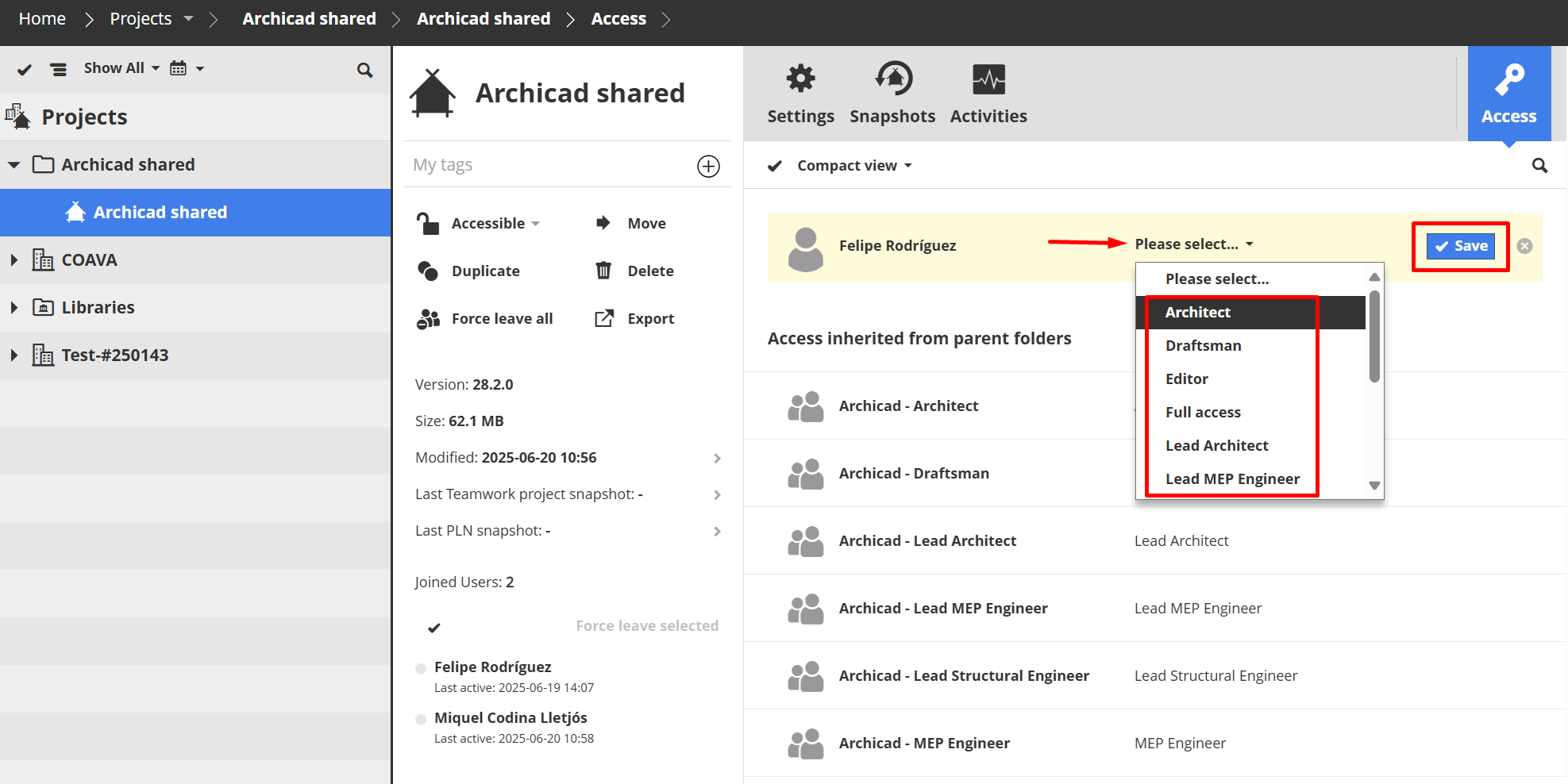
Assign the corresponding role and permissions.
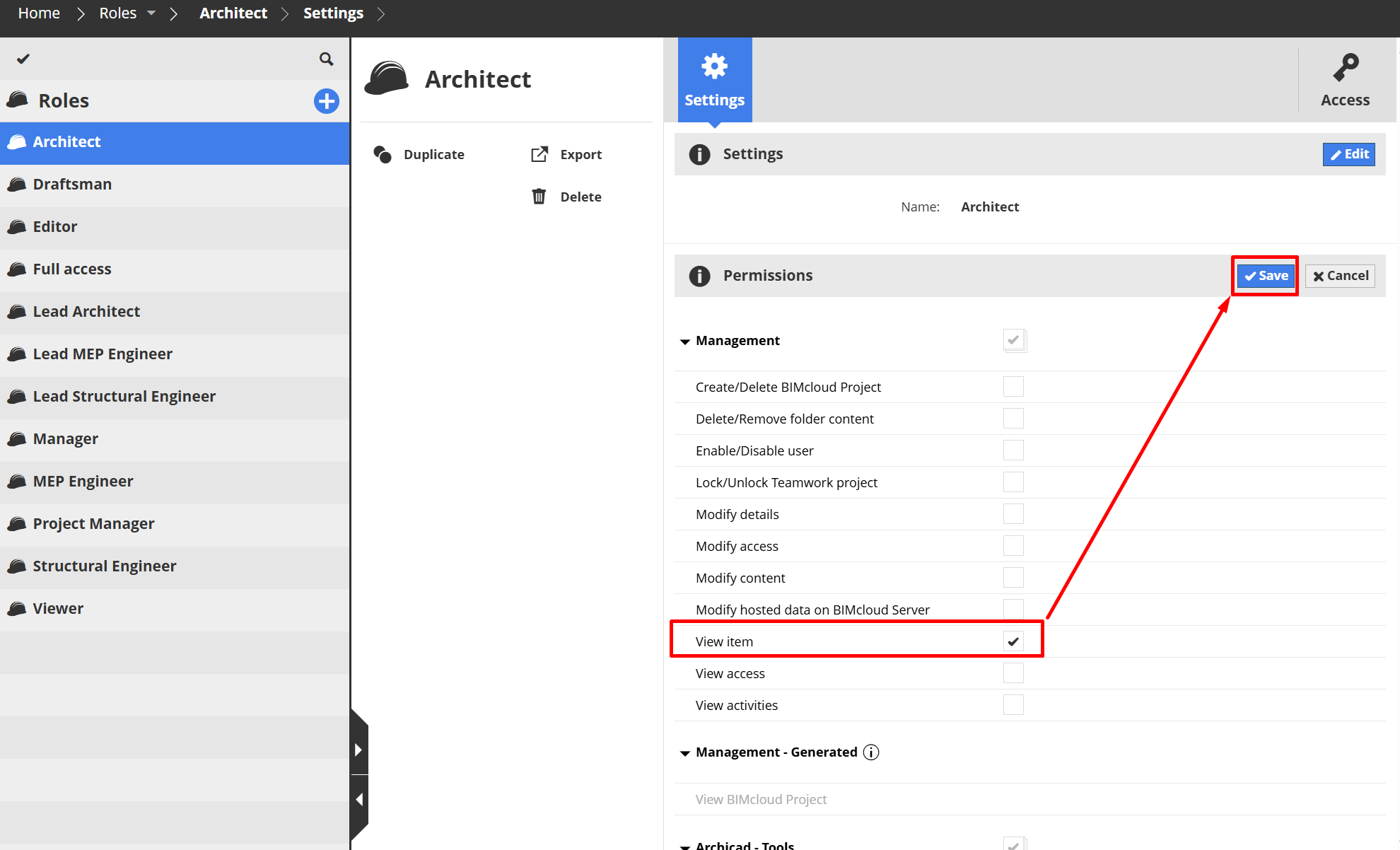
⚠️ Important note: Some roles do not have the "View item" permission enabled by default in the Management tab. Even if they have been granted access to a project, they will not be able to see it in the list unless an administrator manually enables this permission. Be sure to review and adjust the role's permissions to ensure proper visibility.
🔒 Remember: Users with management roles (such as Server Administrator) always have access to all projects, regardless of the specific configuration of each one.
4. Best practices
- Use groups to simplify permission management.
- Avoid using the "Everyone" group on sensitive projects.
- Conduct regular audits of user access.
- Document access policies to maintain clear internal control.
5. Troubleshooting access issues
If a user cannot access a project:
- Check their role and permissions in BIMcloud Manager.
- Confirm that the project is shared and that the user is included.
- Make sure the user is not blocked or disabled.
- Check the network connection and login credentials.