
Articles in this section
- How to Uniquely Identify Hotlink Module Zones in Archicad Schedules?
- How to Set the Origin of a 3D Texture in Archicad?
- Why Do Drawings Exported to PDF in Archicad Generate Very Large Files?
- How to Map a Custom Archicad Property to an IFC Property?
- How to Remove an Archicad Educational Licence from a Computer?
- How to Change an Archicad File Started in the International Version to the Spanish Version?
- How to Import a PDF to Use as a Reference in Archicad?
- How to Use Educational and Commercial Versions of Archicad on the Same Computer?
- How to Get the Archicad Connection with Twinmotion?
- How to Create a Structural Frame with the Create Truss Tool in Archicad?
How to Set the Origin of a 3D Texture in Archicad?
If you need the pattern of a 3D texture in Archicad to start at a specific point, you can redefine its origin directly on the element.
This lets you control more precisely how the texture looks in the model.
Setting the 3D texture origin
Follow these steps:
- select the element whose texture you want to adjust,
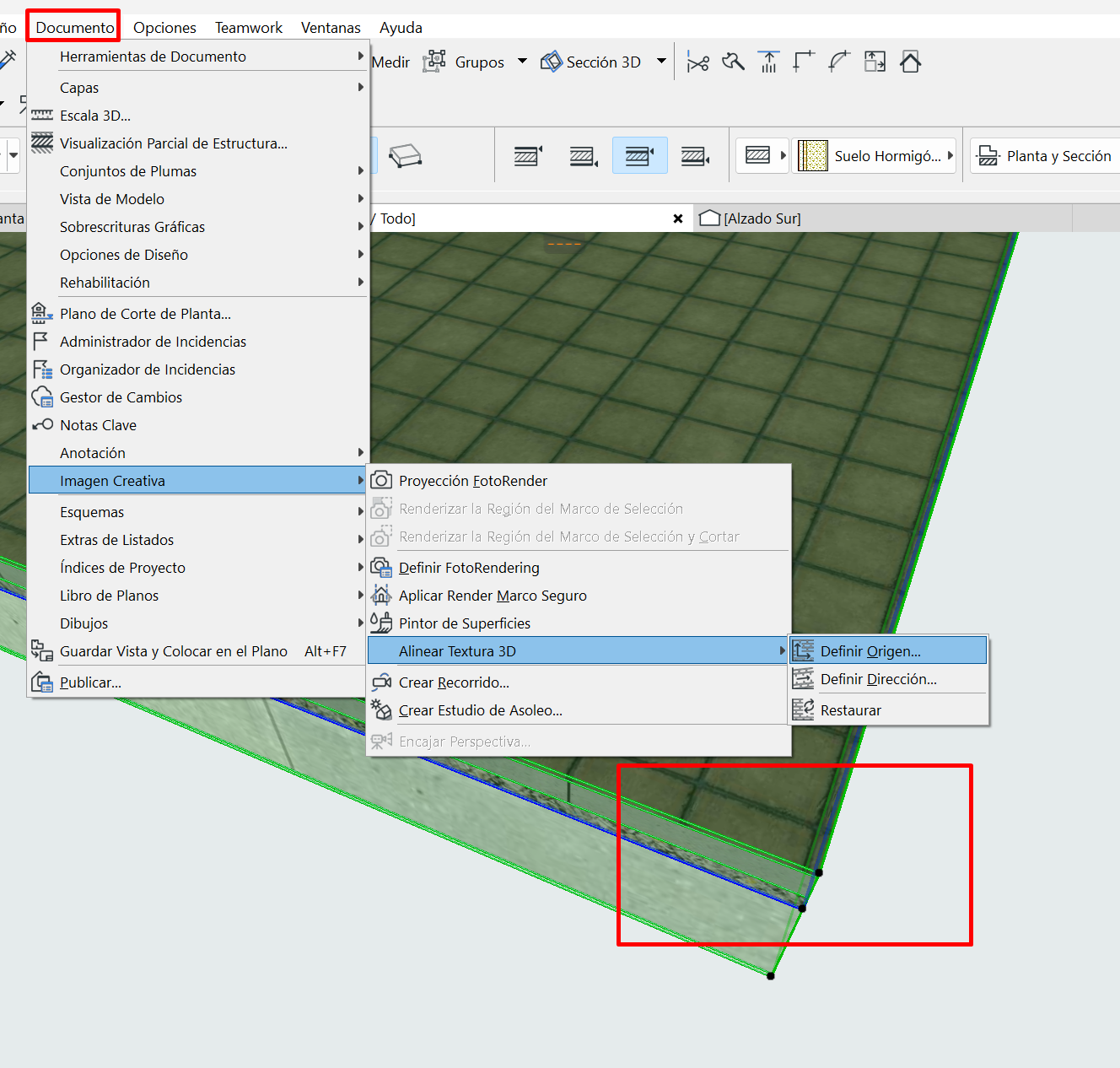
- go to Document > Creative Imaging > Align 3D Texture > Set Origin,
-
click the point where you want the pattern to start.
-
The texture pattern will adjust automatically to the new origin.
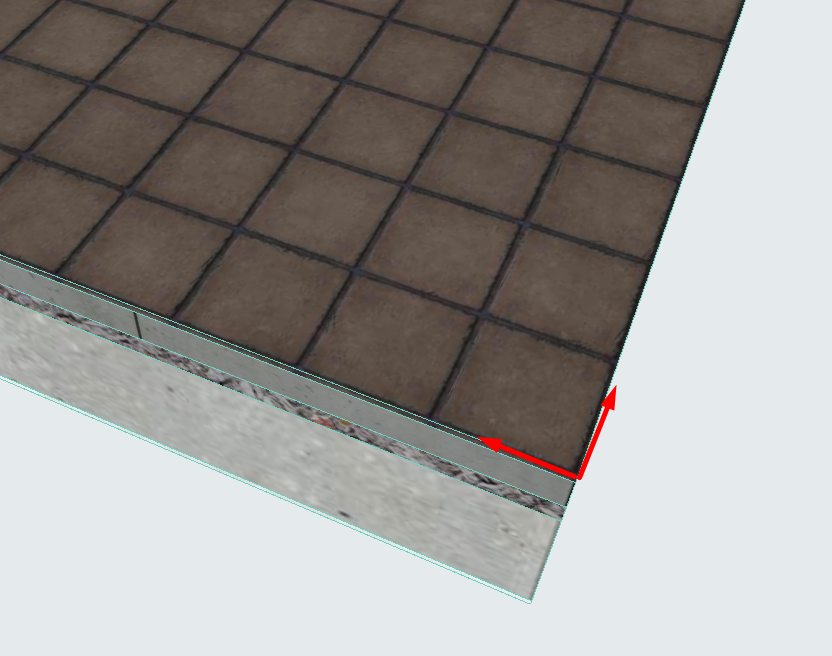
Note: This option is especially useful when you want to align a texture with a specific reference point on the model or visually correct where the pattern starts.
Creating a keyboard shortcut to use it faster
If you use this command frequently, you can assign it a keyboard shortcut to work more efficiently.
- go to Options > Work Environment > Keyboard Shortcuts,
-
type set origin in the search box,
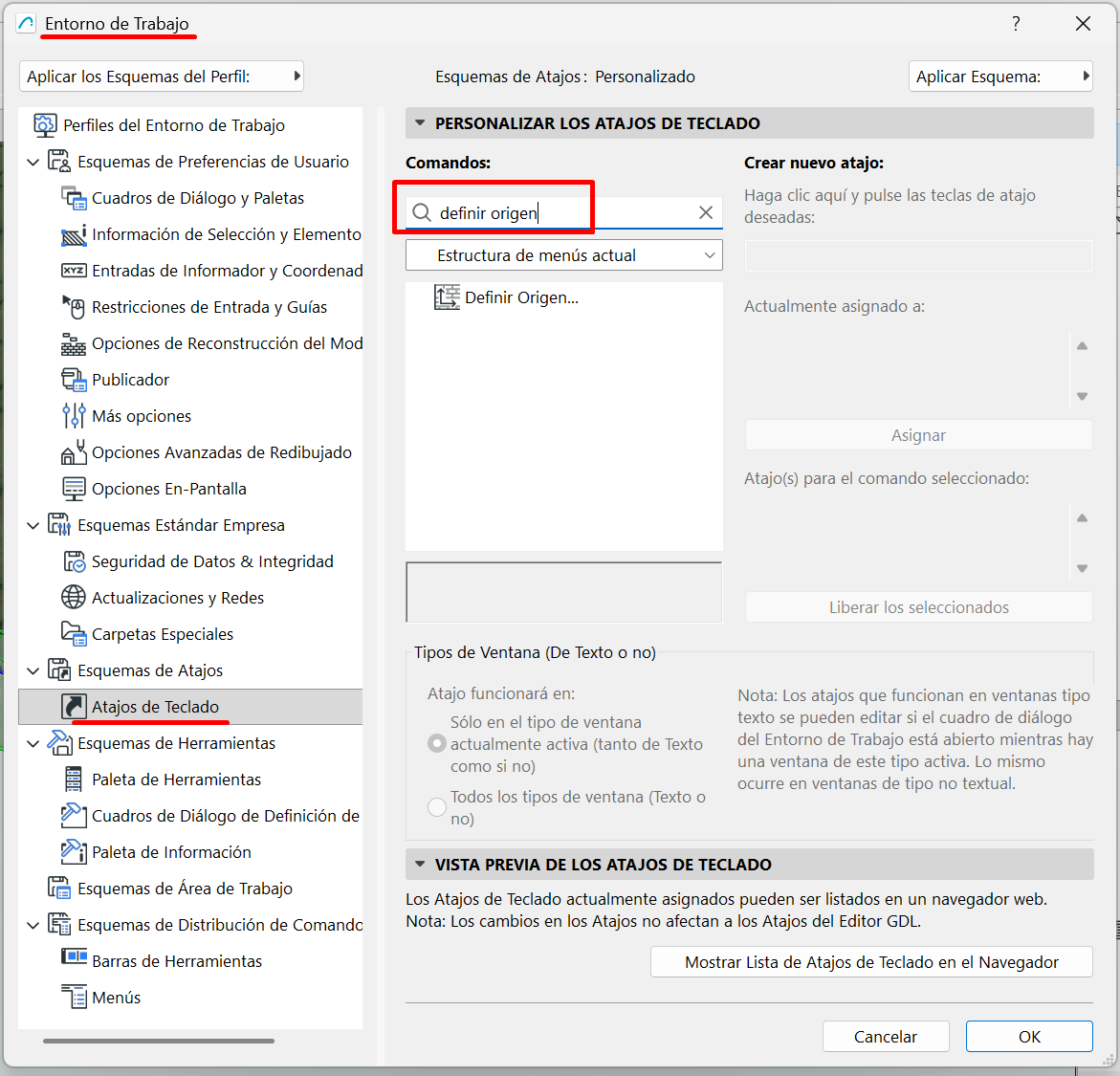
- select the command from the list,
-
assign it a key or key combination.
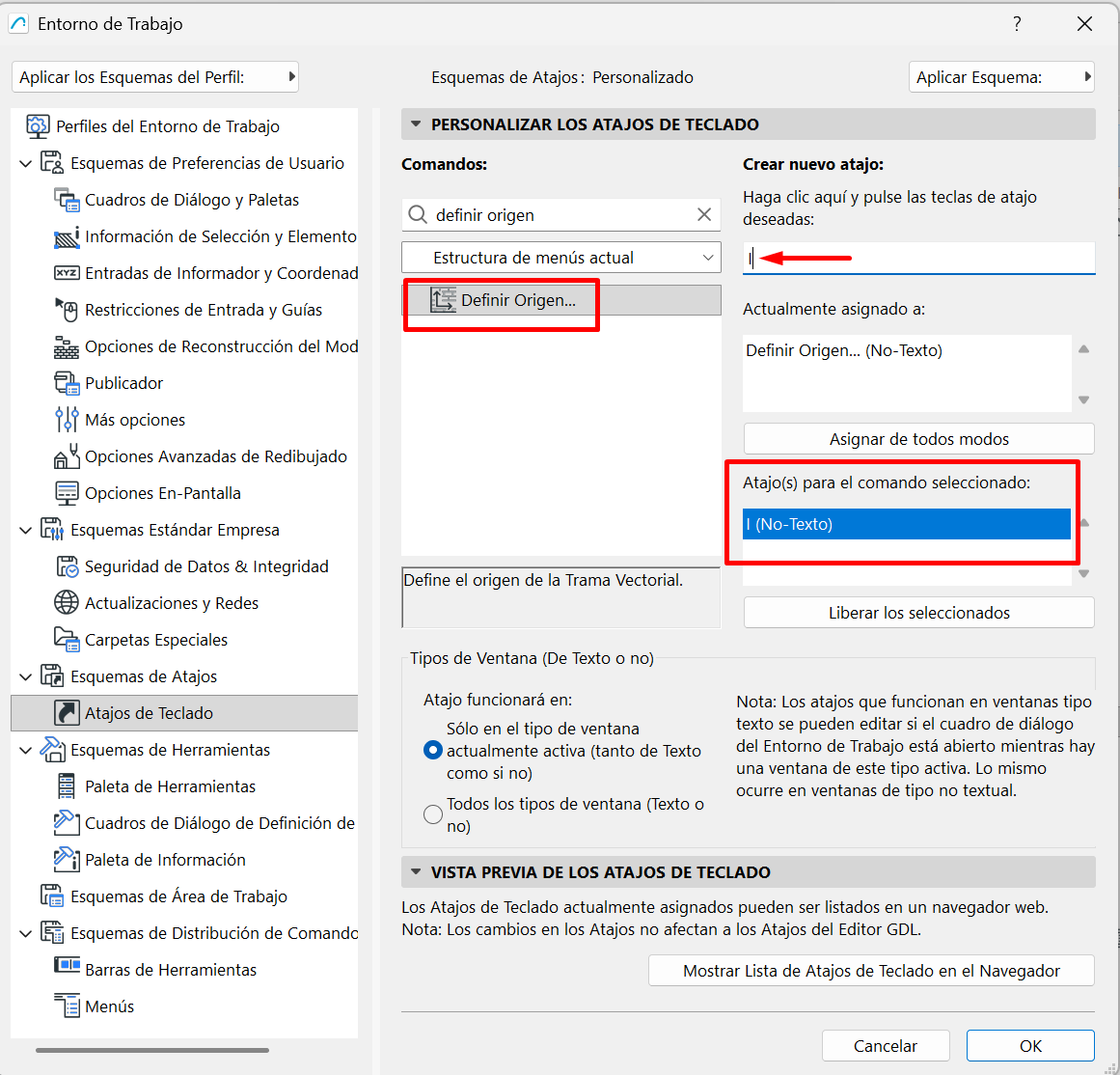
From then on, you'll be able to trigger the command much faster in your daily work.
Related articles
- How to Uniquely Identify Hotlink Module Zones in Archicad Schedules?
- Why Do Drawings Exported to PDF in Archicad Generate Very Large Files?
- How to Map a Custom Archicad Property to an IFC Property?
- How to Remove an Archicad Educational Licence from a Computer?
- How to Change an Archicad File Started in the International Version to the Spanish Version?