
Articles in this section
- How to Create an Archicad Template and What It Should Contain?
- How to Reallocate Bluebeam Subscriptions Between Accounts?
- How to Subscribe to Software with SIMBIM
- Archicad Files Don't Show the Correct Icon on Windows
- Why Can't I Assign a Licence If the User Shows Up as a Guest?
- How to Reset Your Bluebeam ID (BBID) Password?
- How to Transfer Markups to Another Document?
- How to Manage My Bluebeam Subscriptions?
- How to Change the Administrator of a Graphisoft ID Company?
- How to Use Bluebeam Revu on Mac Computers?
How Can I Publish a BIMx Model from Archicad?
Reading time: 5 min.
Publishing a BIMx model from Archicad is a simple process that lets you share your projects efficiently, enriched with additional information. Here are two methods for doing so:
Direct Method
-
Quick Access:
-
Go to the menu File > Publish BIMx Hyper-Model.
-
This method is ideal for a quick, direct publication of your BIMx model.
Publisher Set Method
For more detailed control and the inclusion of multiple views and layouts, follow these steps:
-
Open the Organizer:
-
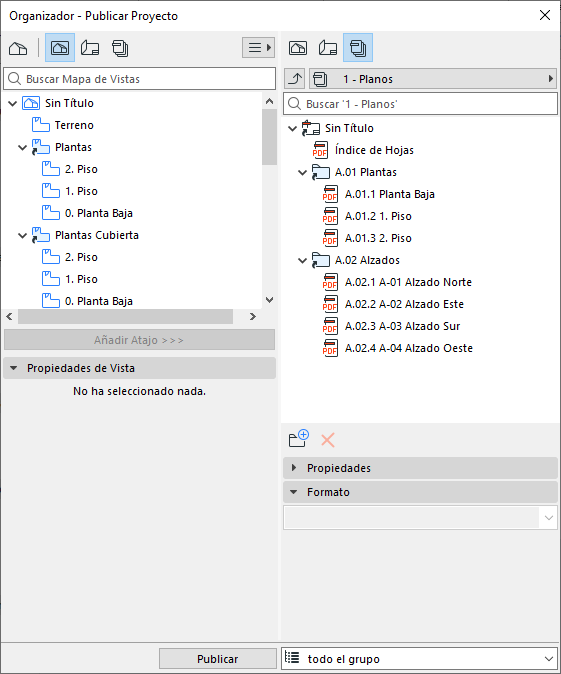
Use the Organizer to have the View Map and the Publisher Sets open side by side.
-
-
Set up the Publisher Set:
- Make sure you have the View Map open in the left column, and the Publisher Sets in the left column.
-
Create a new publisher set and give it a name, for example, BIMx Hyper-Model.
-
Configure the publishing properties as needed.
-
Publishing Options:
-
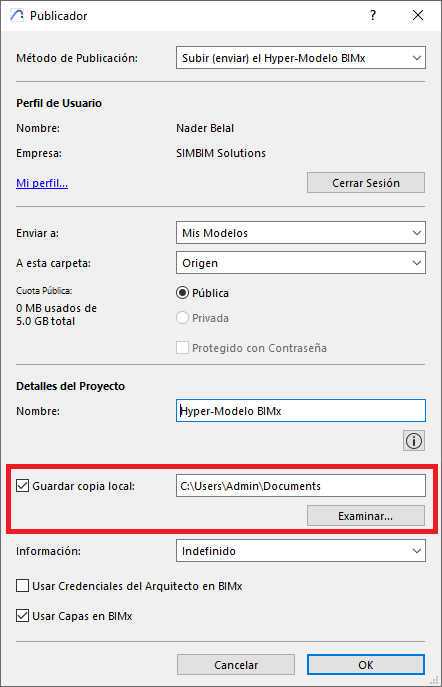
You can publish the BIMx file locally on your computer or upload it to BIMx Model Transfer (read more...) to share it easily, and you can also select the Save local copy option to generate a copy of the BIMx file on your computer.
-
-
Enrich the Hyper-Model:
-
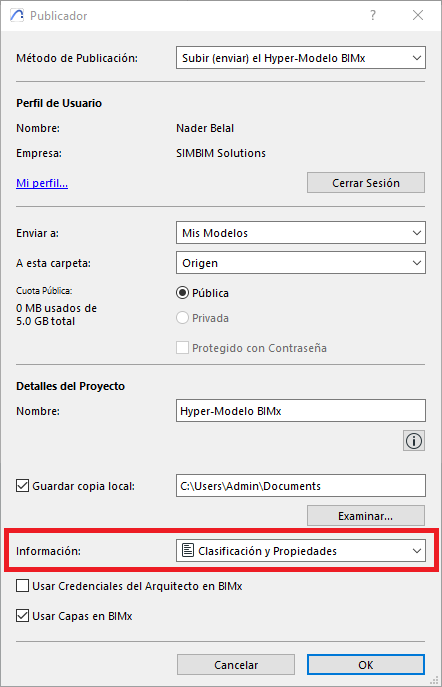
Use the "Info" menu to add additional information, such as "Classification and Properties" or "Schedules". This additional information makes your model accessible and useful to any stakeholder at any phase of the building's lifecycle.
-
-
Assign Credits:
-
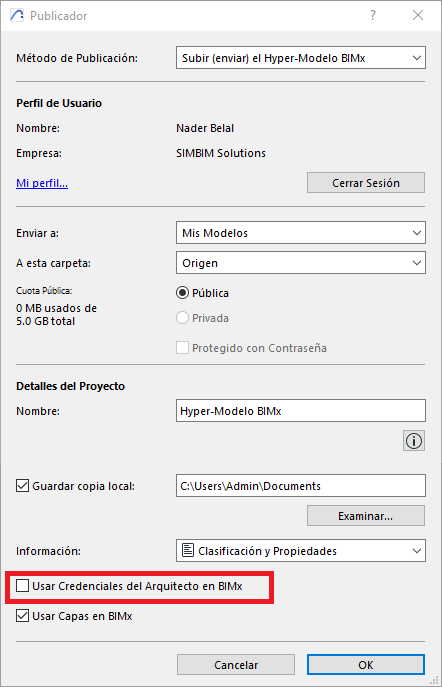
You can use the architect credits set up from Use Architect Credits in BIMx in the BIMx Publisher dialog box.
-
-
Include Views and Layouts:
-
From the organizer:
-
Drag and drop the 3D Views you want to include from the View Map.
-
Drag and drop the Layouts you want to include from the Layout Book.
-
-
-
Publish the Hyper-Model:
-
Once you have included all the necessary views and layouts, select the Publisher Set and click Publish.
-
The following article provides more detailed information about the BIMx Model Transfer site:
BIMx Model Transfer Site – My SIMBIM Centre
Conclusion
Publishing a BIMx model from Archicad is a task that can be done quickly and simply, or with a more detailed approach, depending on your needs. Both methods let you share your projects efficiently, enriched with additional information that makes it easier to collaborate and access important data at any phase of the building's lifecycle.
With Archicad, complex tasks become simple, making your design process smooth and efficient!