
Articles in this section
- How to Uniquely Identify Hotlink Module Zones in Archicad Schedules?
- How to Set the Origin of a 3D Texture in Archicad?
- Why Do Drawings Exported to PDF in Archicad Generate Very Large Files?
- How to Map a Custom Archicad Property to an IFC Property?
- How to Remove an Archicad Educational Licence from a Computer?
- How to Change an Archicad File Started in the International Version to the Spanish Version?
- How to Import a PDF to Use as a Reference in Archicad?
- How to Use Educational and Commercial Versions of Archicad on the Same Computer?
- How to Get the Archicad Connection with Twinmotion?
- How to Create a Structural Frame with the Create Truss Tool in Archicad?
How Do I Fix Colour Issues in 3D Views in Archicad?
Reading time: 6 min.
In some Archicad projects, 3D views can show an unexpected blue (or other colour) tint, affecting both interior and exterior scenes. This behaviour can be due to rendering, lighting or material settings, or even the model's location. This article describes step by step how to identify and correct this anomaly using Archicad's tools.
Prerequisites:
Basic knowledge of navigation in the 3D environment.
Permissions to modify view settings, if you are working in Teamwork.
Detailed Correction Procedure
-
Turn Off Physically Based Rendering
Go to Options > Work Environment > More Options...
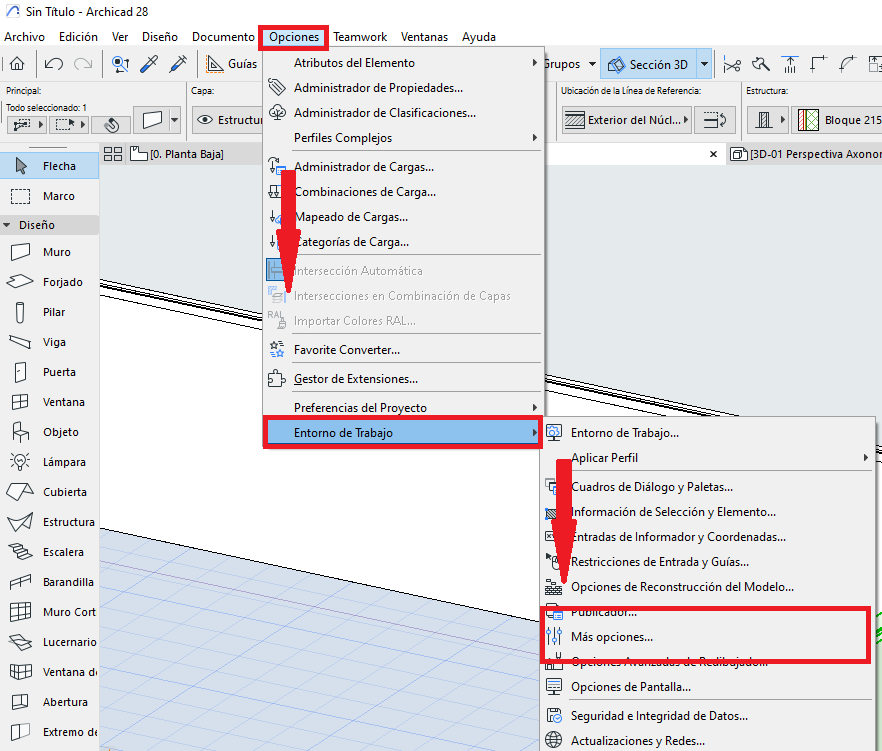
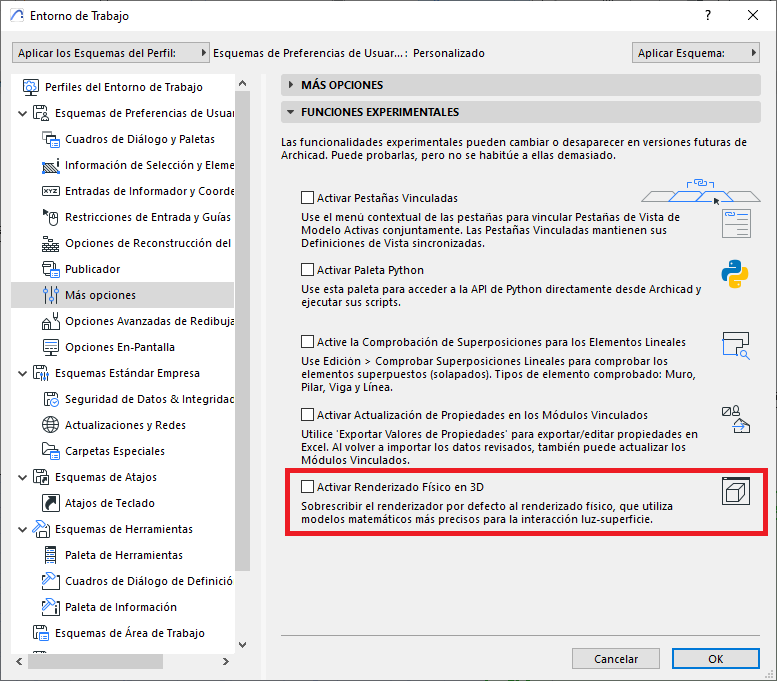
Turn off the Physically Based Rendering option.
-
Reset the Sunlight Settings
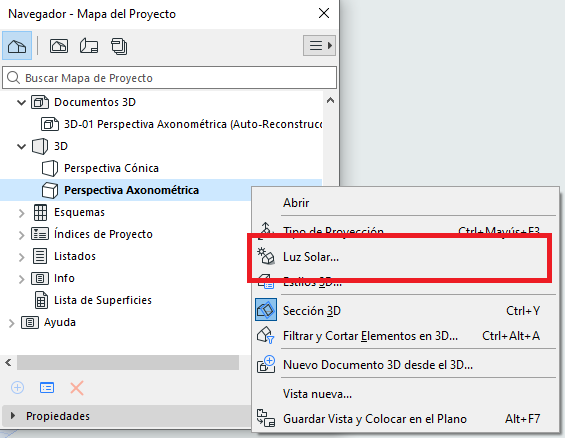
In the project's Navigator palette, right-click on the View, and select Sunlight Settings.
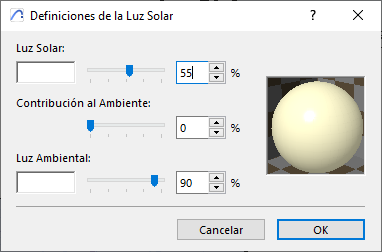
Copy the following values to reset the Sunlight Settings to the default configuration.
-
Check Renovation Filters or Graphic Override Rules
Go to Document > Renovation > Renovation Filter Options. Select "00 Show All Elements", or the closest similar setting.
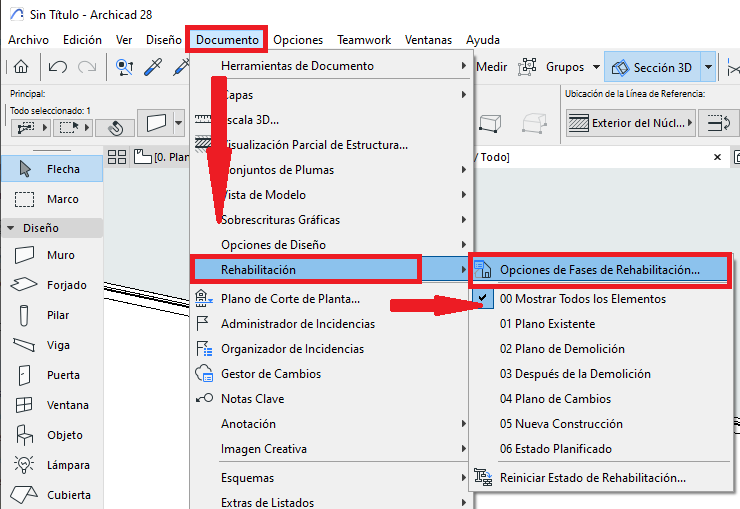
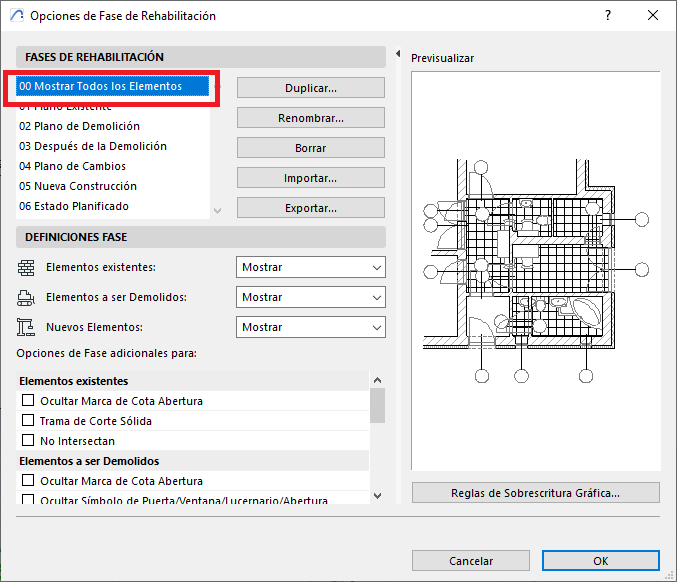
In the "Renovation Filter Options" dialogue box, select "00 Show All Elements", or the closest similar setting.
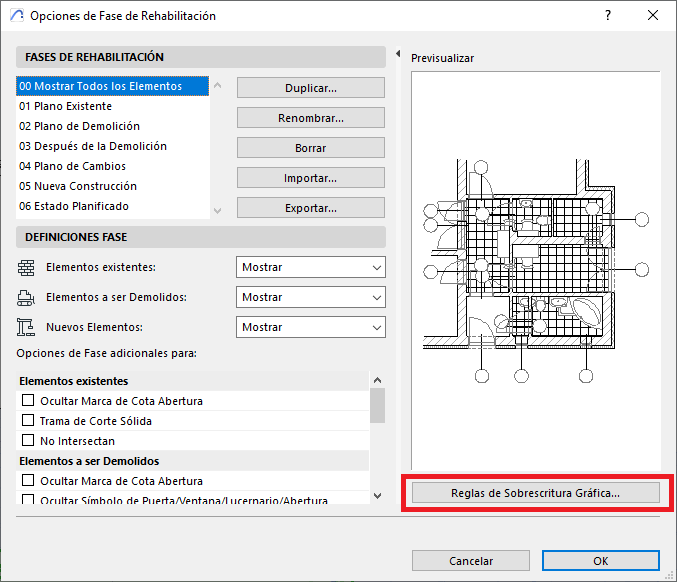
Then click on Graphic Override Rules, and check that there are no active rules affecting colour.
Turn Off the Editing Plane
Go to View > Editing Plane Display, and turn it off.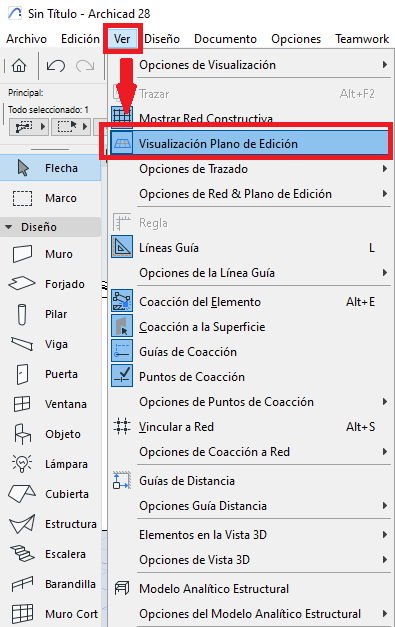
The blue Editing Plane can reflect or cause visual distortions when rotating the model.
Check the Model's Location
Confirm that the model is as close as possible to the project origin (coordinate 0, 0).
Check Surfaces and Textures
Check that the surfaces or textures have not been accidentally modified or replaced.
Check or Update the Graphics Drivers
Verify that the graphics card drivers are up to date from the manufacturer's website.
-
Verified Resolution:
Once the previous steps have been applied, open a 3D view and confirm that:White surfaces no longer have bluish (or other colour) tints.
The sky or background does not apply unrealistic shadows.
Interior elements keep their natural colour.
Related articles
- How to Uniquely Identify Hotlink Module Zones in Archicad Schedules?
- How to Set the Origin of a 3D Texture in Archicad?
- Why Do Drawings Exported to PDF in Archicad Generate Very Large Files?
- How to Map a Custom Archicad Property to an IFC Property?
- How to Remove an Archicad Educational Licence from a Computer?