
Articles in this section
- How to Uniquely Identify Hotlink Module Zones in Archicad Schedules?
- How to Set the Origin of a 3D Texture in Archicad?
- Why Do Drawings Exported to PDF in Archicad Generate Very Large Files?
- How to Map a Custom Archicad Property to an IFC Property?
- How to Remove an Archicad Educational Licence from a Computer?
- How to Change an Archicad File Started in the International Version to the Spanish Version?
- How to Import a PDF to Use as a Reference in Archicad?
- How to Use Educational and Commercial Versions of Archicad on the Same Computer?
- How to Get the Archicad Connection with Twinmotion?
- How to Create a Structural Frame with the Create Truss Tool in Archicad?
How Do Renovation Statuses Affect Schedules in Archicad?
In Archicad, schedules do not work in isolation. How they display can change depending on the active renovation status at that moment.
That active status can come from:
- the last active window of the Project Map,
- the last active View,
- or the status selected directly in the Renovation Palette.
Because of this, the same schedule can show different results depending on the context it is opened from or the renovation status active at that moment.
To keep a consistent representation, it is recommended to save this configuration as a View.
How to adjust a schedule according to renovation status
If you need to adjust a schedule with a specific renovation status, the most practical approach is to:
- open the schedule,
- activate the Renovation Palette,
-
and change the renovation status to the one you need to display.
This lets you:
- switch between different renovation statuses,
- check how the schedule is represented in each case,
- and review the result without modifying the schedule itself.
Example:
This is especially useful if you need to obtain a schedule with all the new windows in the project.
- Open the window schedule.
- Activate the Renovation Palette.
- Change the renovation status to show only New (or create a new one).
-
Hide the elements with Existing and To Be Demolished status.
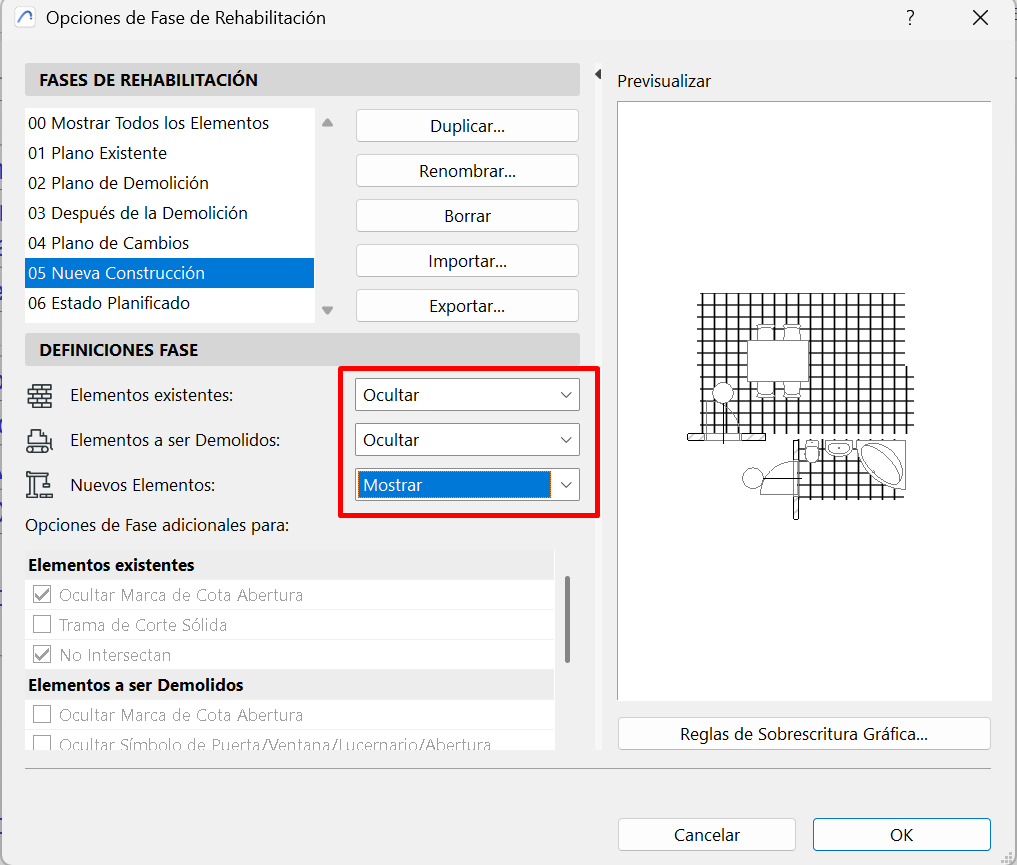
This way, the schedule will show only the new windows in the project.
Note: If you change the status from the Renovation Palette, the schedule's display will update according to that active status.
Saving as a View
If you need the schedule to always keep a specific representation, it is recommended to save it as a View.
Saving the schedule as a View lets you:
- preserve the configuration it is currently displaying with,
- keep the renovation status active at that moment,
- avoid depending on later changes to the palette,
- and ensure a more consistent representation.
Related articles
- How to Uniquely Identify Hotlink Module Zones in Archicad Schedules?
- How to Set the Origin of a 3D Texture in Archicad?
- Why Do Drawings Exported to PDF in Archicad Generate Very Large Files?
- How to Map a Custom Archicad Property to an IFC Property?
- How to Remove an Archicad Educational Licence from a Computer?