
Articles in this section
- How to Uniquely Identify Hotlink Module Zones in Archicad Schedules?
- How to Set the Origin of a 3D Texture in Archicad?
- Why Do Drawings Exported to PDF in Archicad Generate Very Large Files?
- How to Map a Custom Archicad Property to an IFC Property?
- How to Remove an Archicad Educational Licence from a Computer?
- How to Change an Archicad File Started in the International Version to the Spanish Version?
- How to Import a PDF to Use as a Reference in Archicad?
- How to Use Educational and Commercial Versions of Archicad on the Same Computer?
- How to Get the Archicad Connection with Twinmotion?
- How to Create a Structural Frame with the Create Truss Tool in Archicad?
How to Add a New Surface from the Catalog in Archicad?
Archicad lets you import predefined surfaces from a catalog structured by categories. This catalog contains surfaces that aren't active in the project by default, but can be added at any time from the Surface Manager.
Steps to add a surface from the catalog
-
Open the Surface Manager: Go to the menu
Options > Element Attributes > Surfaces…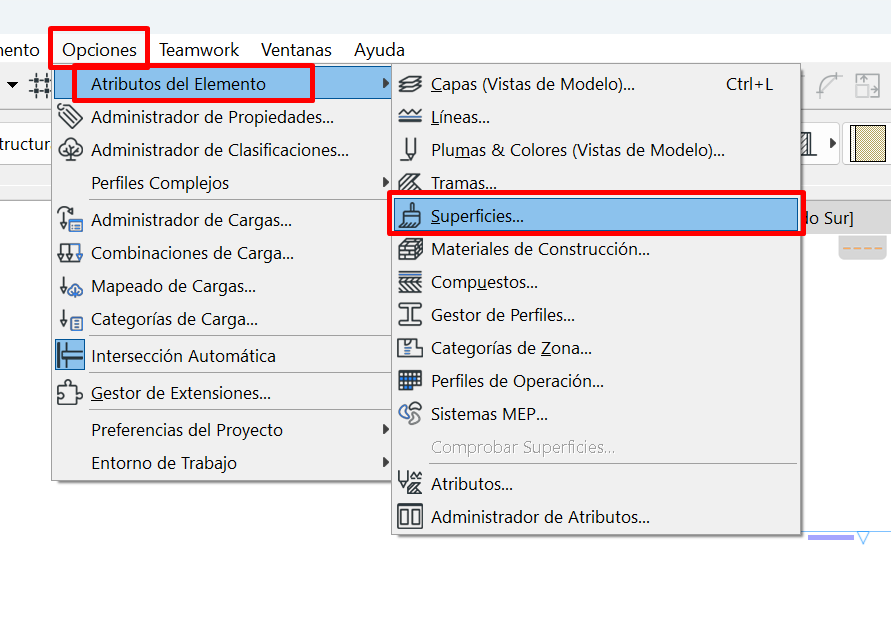
-
In the bottom-left corner of the manager, click the "New" button
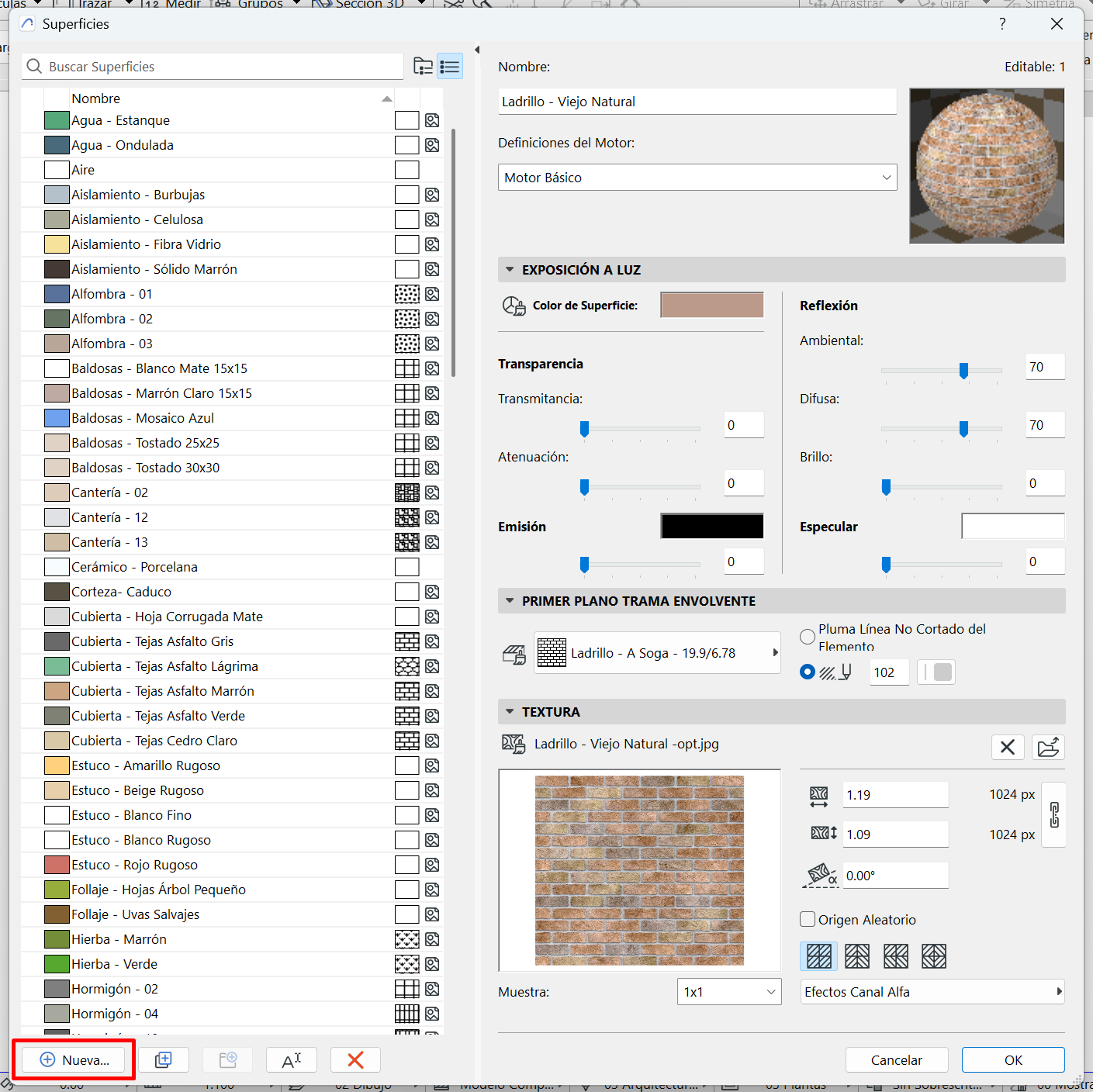
- Select the "New From Catalog…" option
-
Assign a custom name to the new surface in the corresponding box
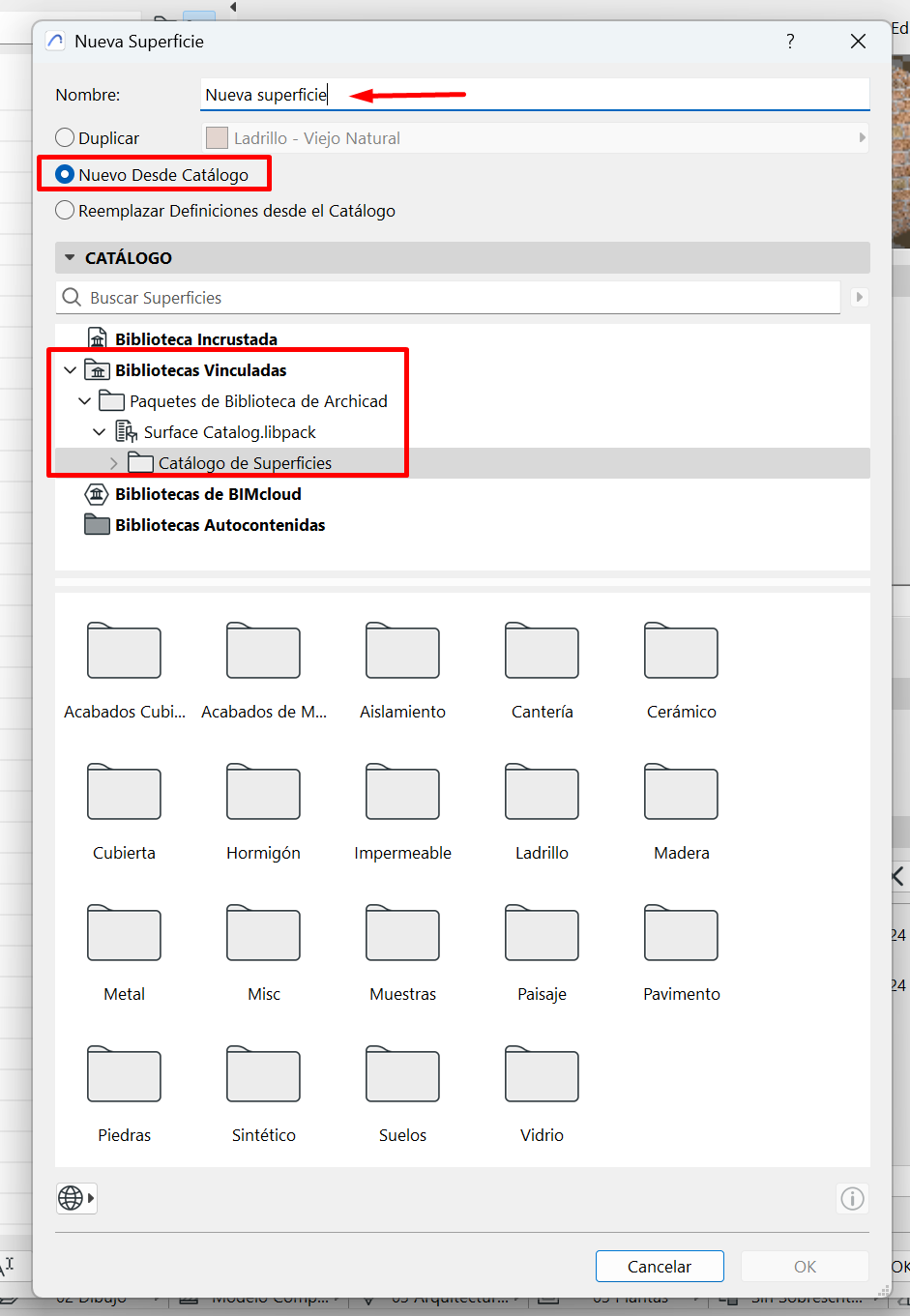
- In the catalog dialog box, select a surface from the available list
- Click "OK" to add it to the project
The selected surface will be added to the project with the name you defined, and will be available in the Surface Manager's list.
Note: In this catalog you'll find additional surfaces that aren't installed by default in Archicad.
Access to additional surfaces
Archicad users with an active subscription, SSA or Forward can access an expanded catalog of additional surfaces, available to download to the current project with a single click.
This premium catalog is accessible directly from the Add New Surface dialog box.
To access it:
-
Click the Additional Surface Catalog for SSA/Forward Users… command, available from the drop-down button at the bottom of the dialog box.
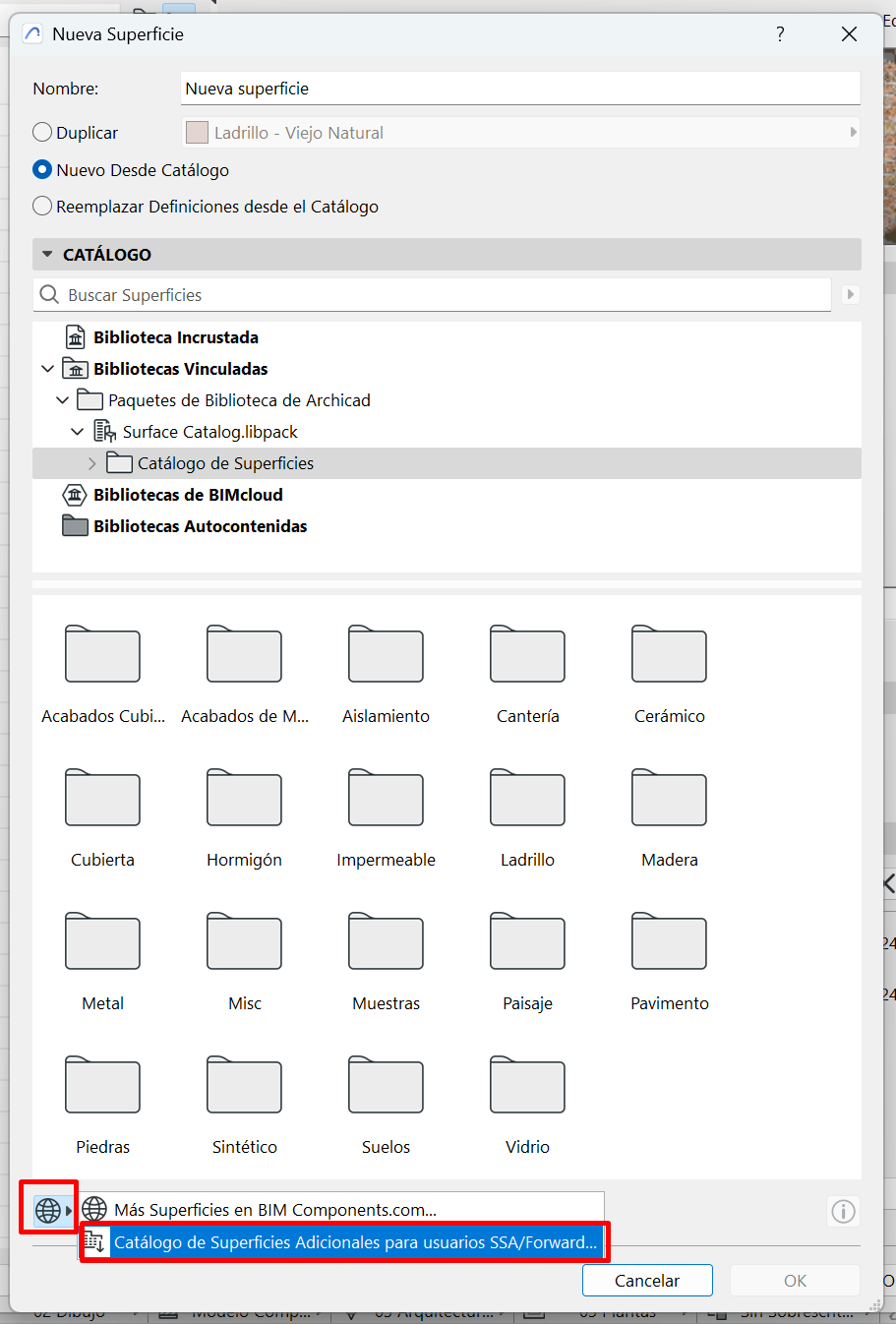
Archicad will automatically check your licence:
- If you have an active subscription or SSA/Forward contract, you'll be redirected to the extended catalog.
- If you don't have a valid subscription, information about the licence needed to access this content will be shown.
Note: Inside the link to the extended catalog you'll also find the instructions needed to download and install the surface package in your Archicad environment.
Related articles
- How to Uniquely Identify Hotlink Module Zones in Archicad Schedules?
- How to Set the Origin of a 3D Texture in Archicad?
- Why Do Drawings Exported to PDF in Archicad Generate Very Large Files?
- How to Map a Custom Archicad Property to an IFC Property?
- How to Remove an Archicad Educational Licence from a Computer?