
Articles in this section
- How to Uniquely Identify Hotlink Module Zones in Archicad Schedules?
- How to Set the Origin of a 3D Texture in Archicad?
- Why Do Drawings Exported to PDF in Archicad Generate Very Large Files?
- How to Map a Custom Archicad Property to an IFC Property?
- How to Remove an Archicad Educational Licence from a Computer?
- How to Change an Archicad File Started in the International Version to the Spanish Version?
- How to Import a PDF to Use as a Reference in Archicad?
- How to Use Educational and Commercial Versions of Archicad on the Same Computer?
- How to Get the Archicad Connection with Twinmotion?
- How to Create a Structural Frame with the Create Truss Tool in Archicad?
How to Add a Tool to a Toolbar in Archicad?
Customising your toolbar in Archicad can greatly streamline your work, as it gives you direct access to the tools you use most. Follow these steps to add a tool to a toolbar:
-
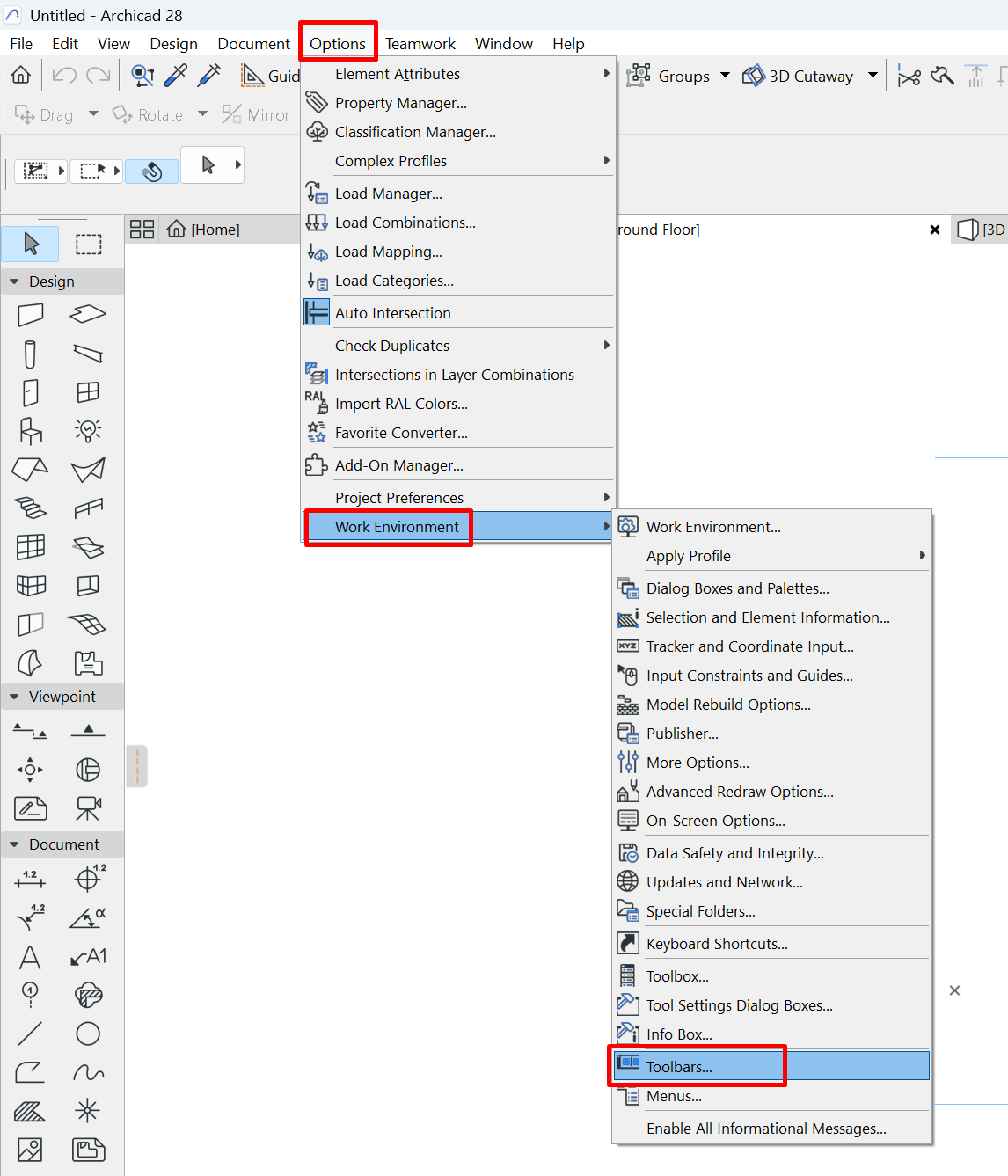
Open the Work Environment settings
-
Go to Options > Work Environment > Toolbars.
-
-
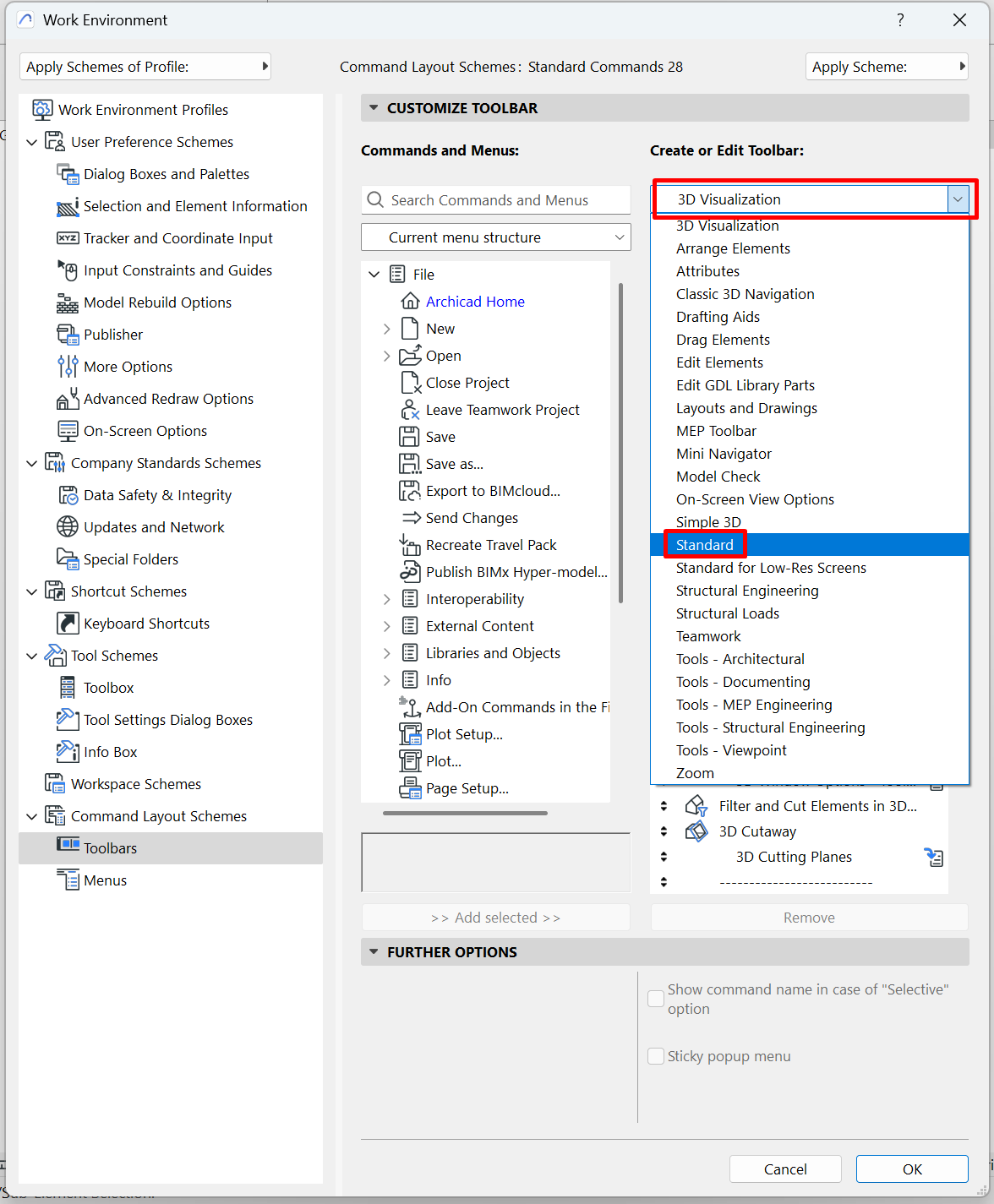
Choose or create a toolbar
-
Select an existing toolbar from the list or click New to create a custom one.
-
-
Add commands to the toolbar
-
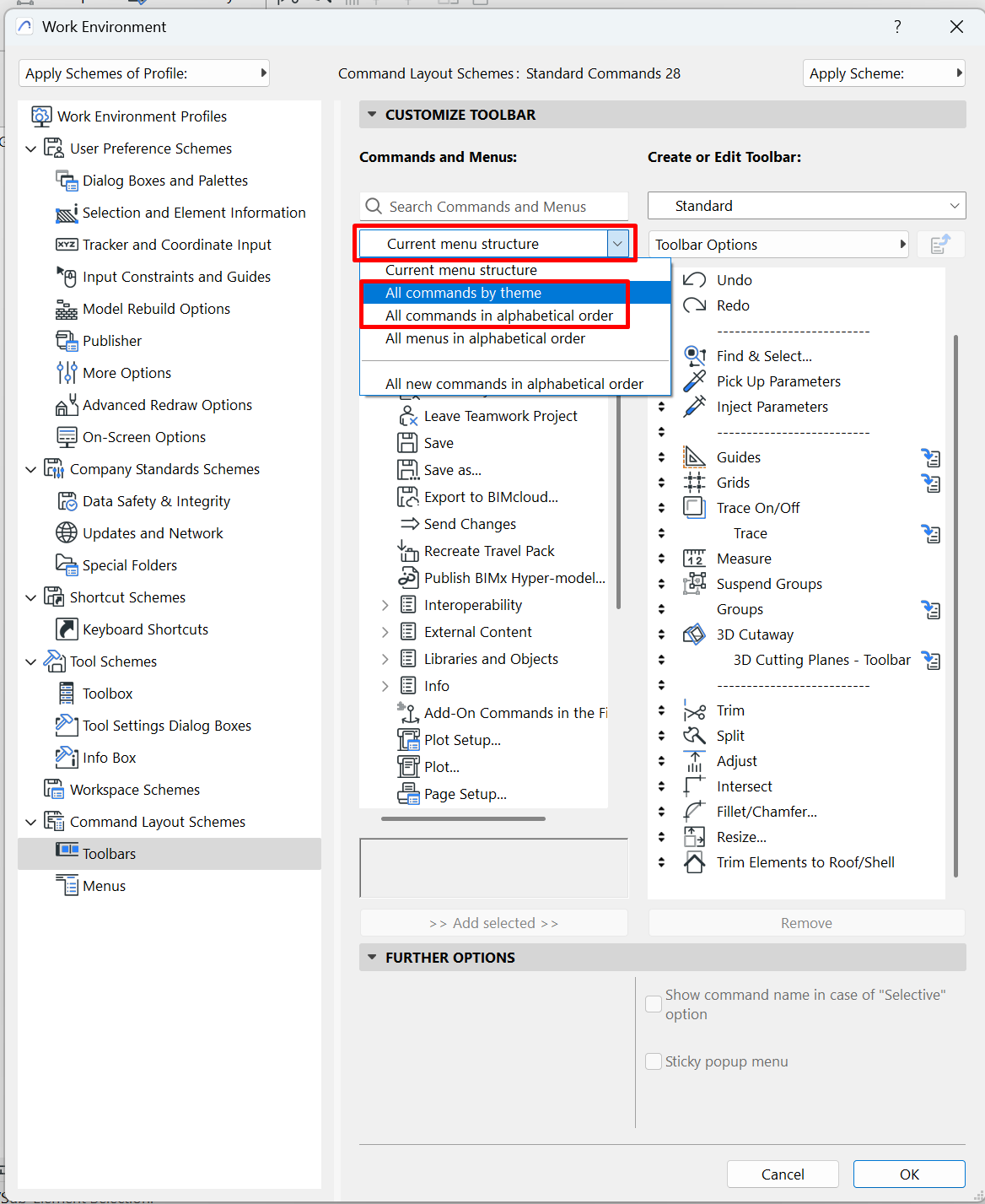
In the left-hand panel, select All Commands by topic or alphabetical order.
-
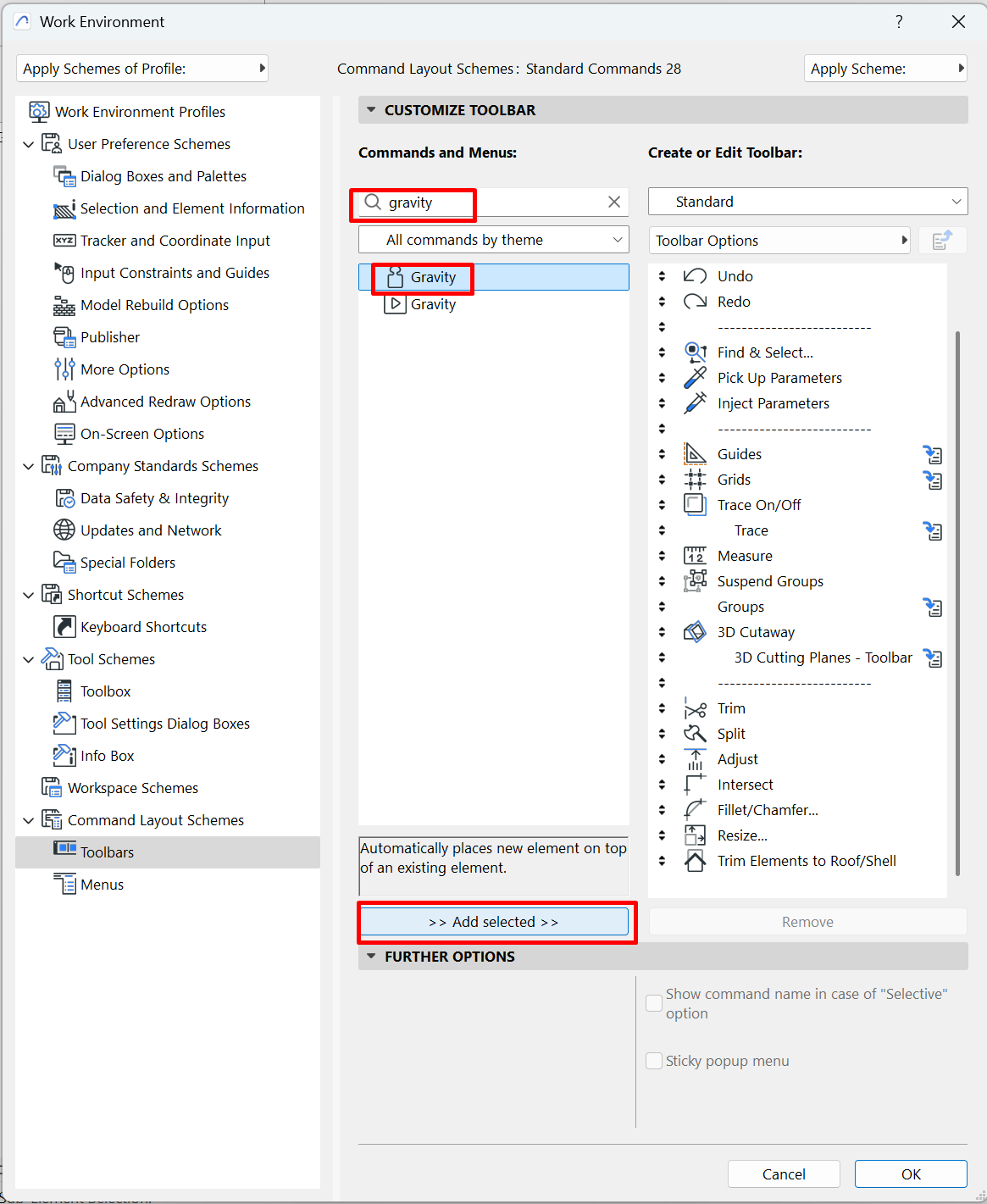
Search for the tool or command you want to add (for example, Gravity, Offset, Split).
-
Select it and click Add Selected to move it to the right-hand panel (your toolbar).
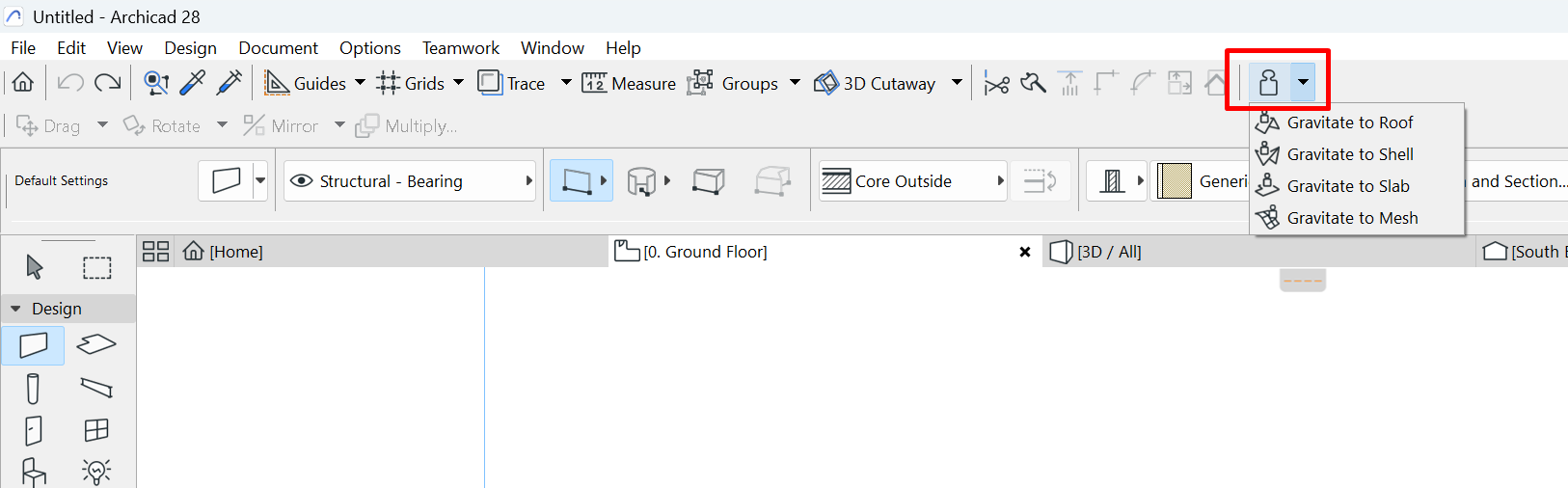
- If the tool you want has the option to add a drop-down menu for related variants, look in the left-hand panel and select All Menus by alphabetical order. (For example, Gravity with its variants Gravity with Roof, Gravity with Slab, etc.)
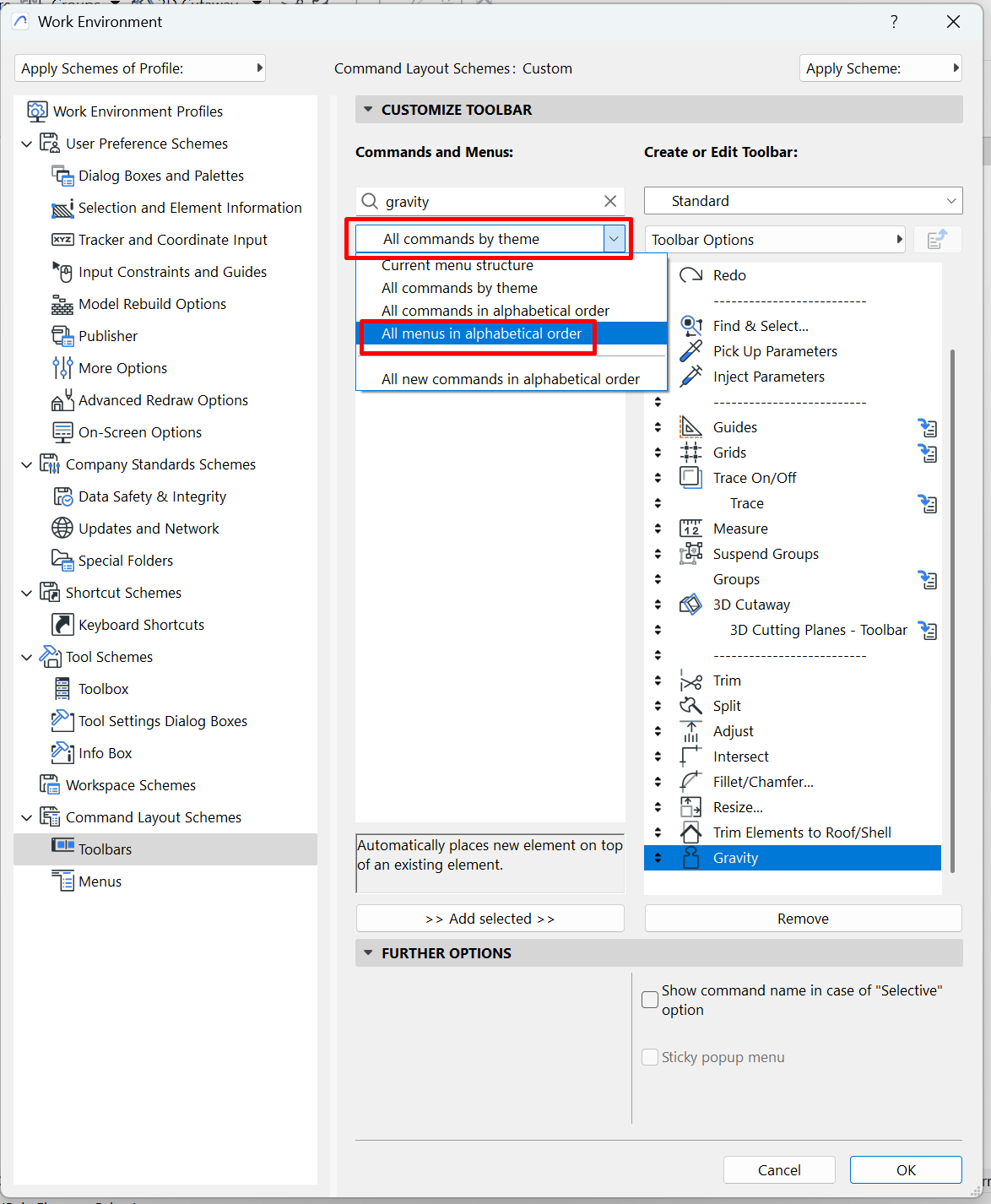
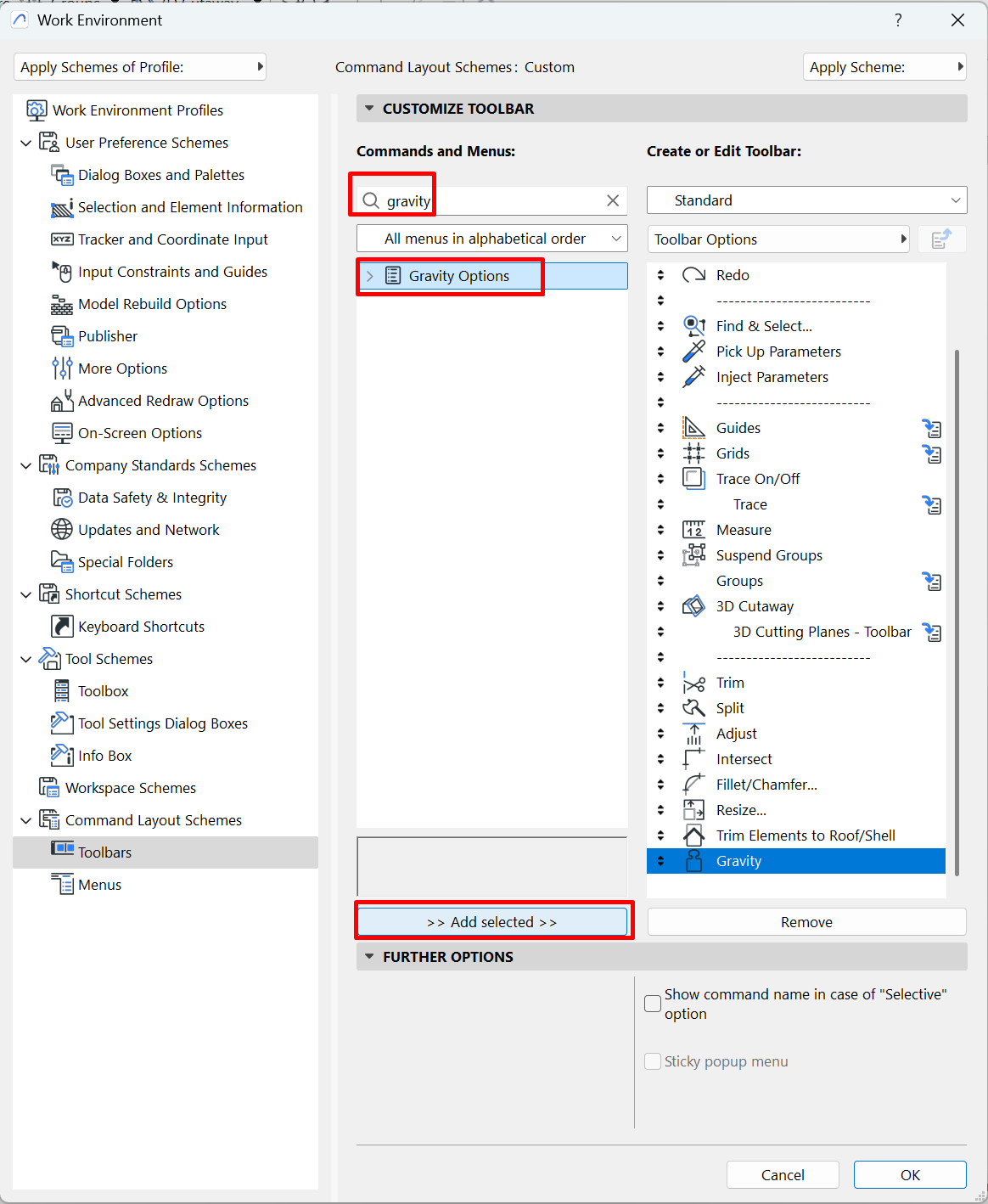
- Search for the menu you want to add (for example, Gravity Options)
- Select it and click Add Selected to move it to the right-hand panel (your toolbar).
-
-
Arrange the toolbar
-
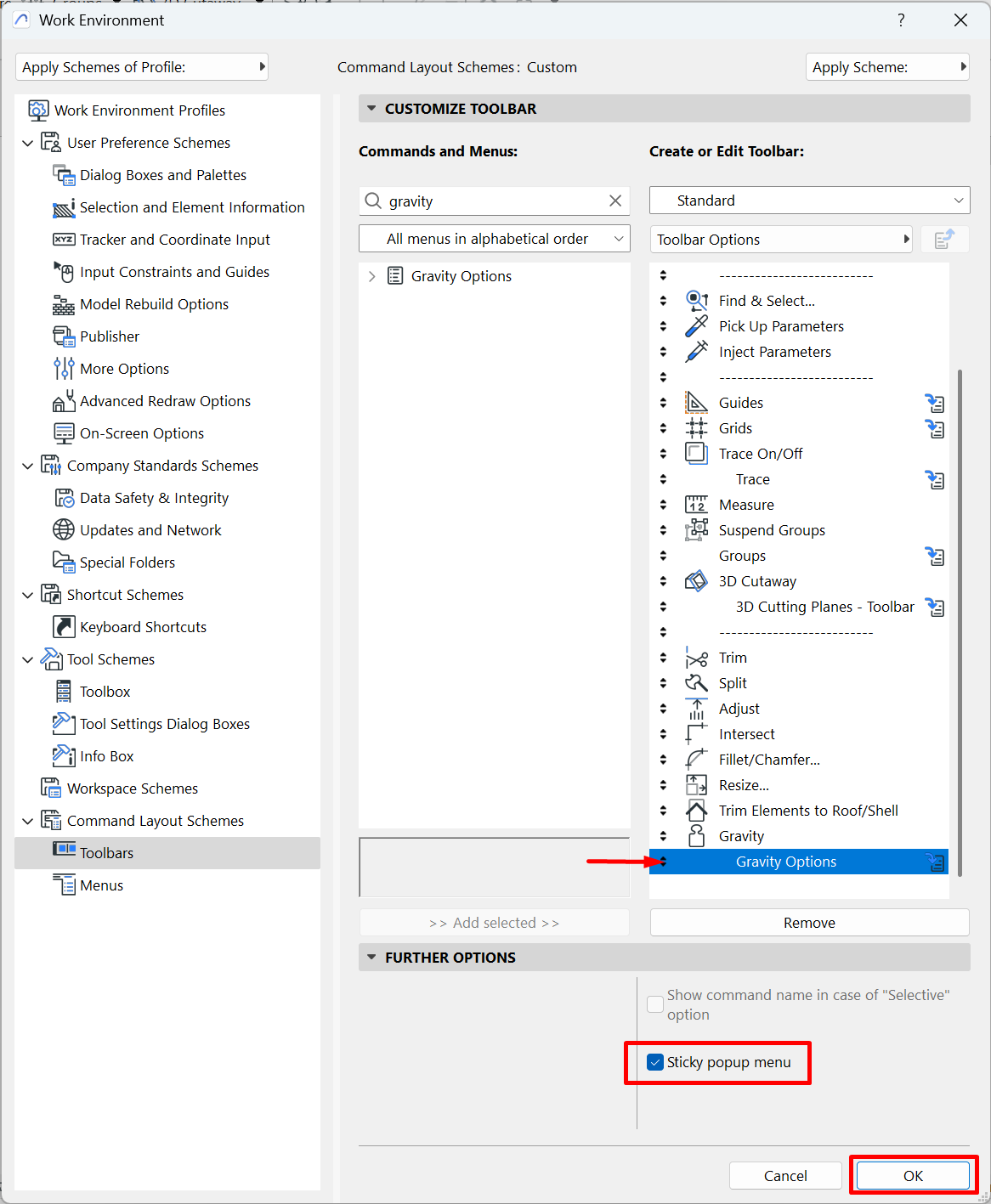
Use the Up/Down arrows to change the order of the commands.
- To set a menu as a drop-down, place the menu below the main tool and enable the "pull-down menu of previous item" option
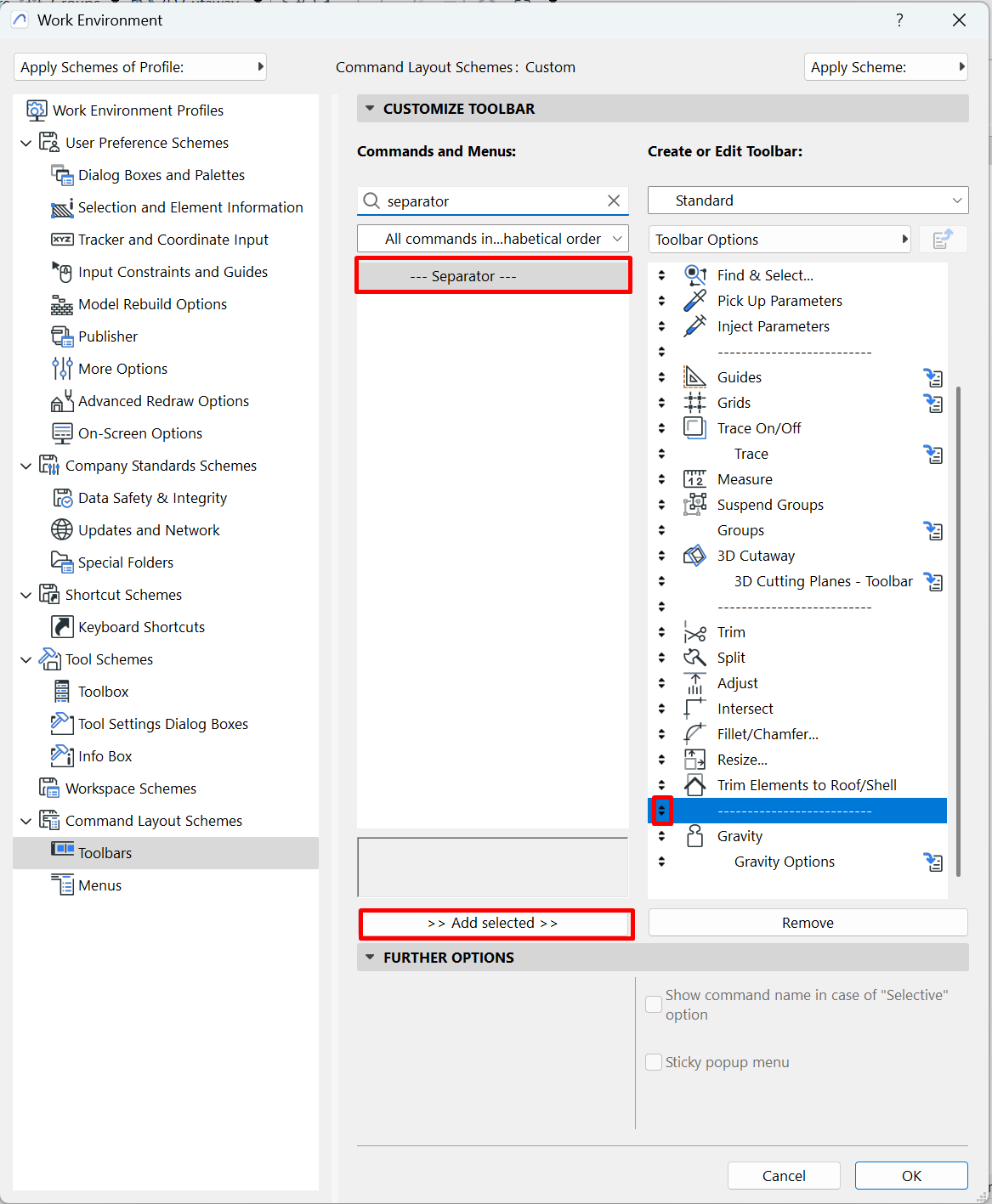
- You can add separators to visually group tools. Add them from the left-hand panel (separator)
-
-
Apply and save the changes
-
Click OK to apply the changes.
-
Save your customised work environment from Work Environment Schemes so you don't lose it.
-
-
Activate the toolbar
-
If you created a new toolbar, go to Window > Toolbars and make sure your custom toolbar is checked and visible.
- You'll have the tool or toolbar ready to use.
-
Related articles
- How to Uniquely Identify Hotlink Module Zones in Archicad Schedules?
- How to Set the Origin of a 3D Texture in Archicad?
- Why Do Drawings Exported to PDF in Archicad Generate Very Large Files?
- How to Map a Custom Archicad Property to an IFC Property?
- How to Remove an Archicad Educational Licence from a Computer?