
Articles in this section
- How to Uniquely Identify Hotlink Module Zones in Archicad Schedules?
- How to Set the Origin of a 3D Texture in Archicad?
- Why Do Drawings Exported to PDF in Archicad Generate Very Large Files?
- How to Map a Custom Archicad Property to an IFC Property?
- How to Remove an Archicad Educational Licence from a Computer?
- How to Change an Archicad File Started in the International Version to the Spanish Version?
- How to Import a PDF to Use as a Reference in Archicad?
- How to Use Educational and Commercial Versions of Archicad on the Same Computer?
- How to Get the Archicad Connection with Twinmotion?
- How to Create a Structural Frame with the Create Truss Tool in Archicad?
How to Change the 2D Symbol of a Lamp in Archicad?
If you want to change the 2D symbol of a standard Archicad lamp, the best approach is to duplicate the original object first and work on a copy.
This way you can modify the symbol without altering the library's standard object.
Preparing the object for editing
Follow these steps:
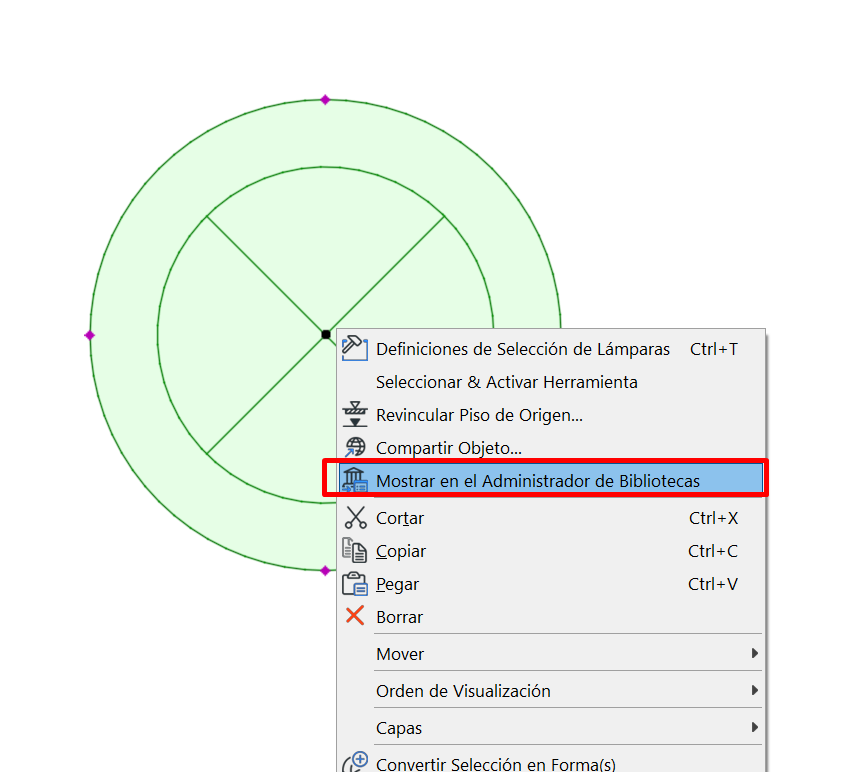
- select the lamp whose symbol you want to change,
- right-click the object,
-
select Show in Library Manager,
- click the Duplicate icon,
-
save the copy in the Embedded Library.
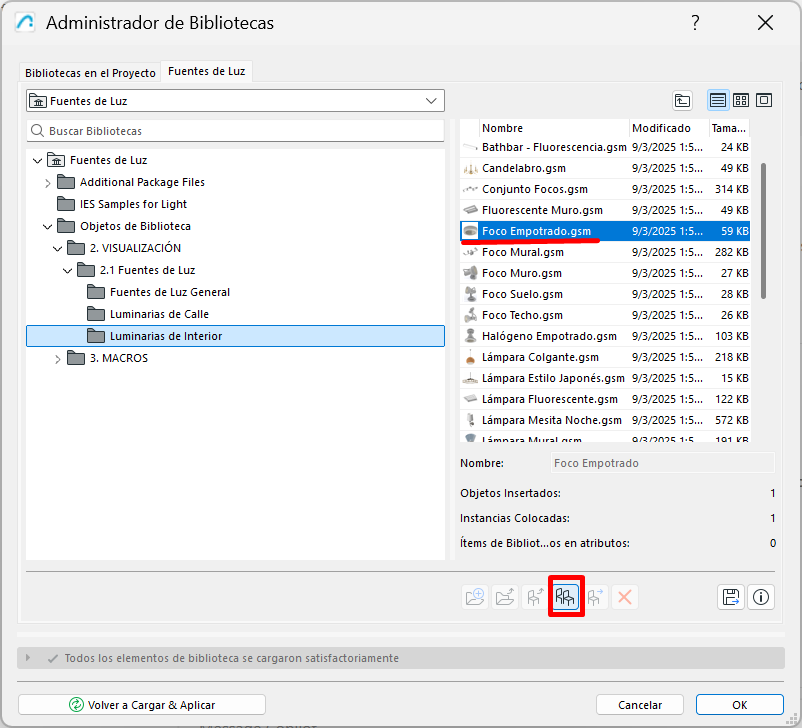
From there, you can work on your own version of the object.
Note: It is always best to edit a copy in the Embedded Library rather than the original standard object.
Drawing the new 2D symbol
Once you have duplicated the lamp:
-
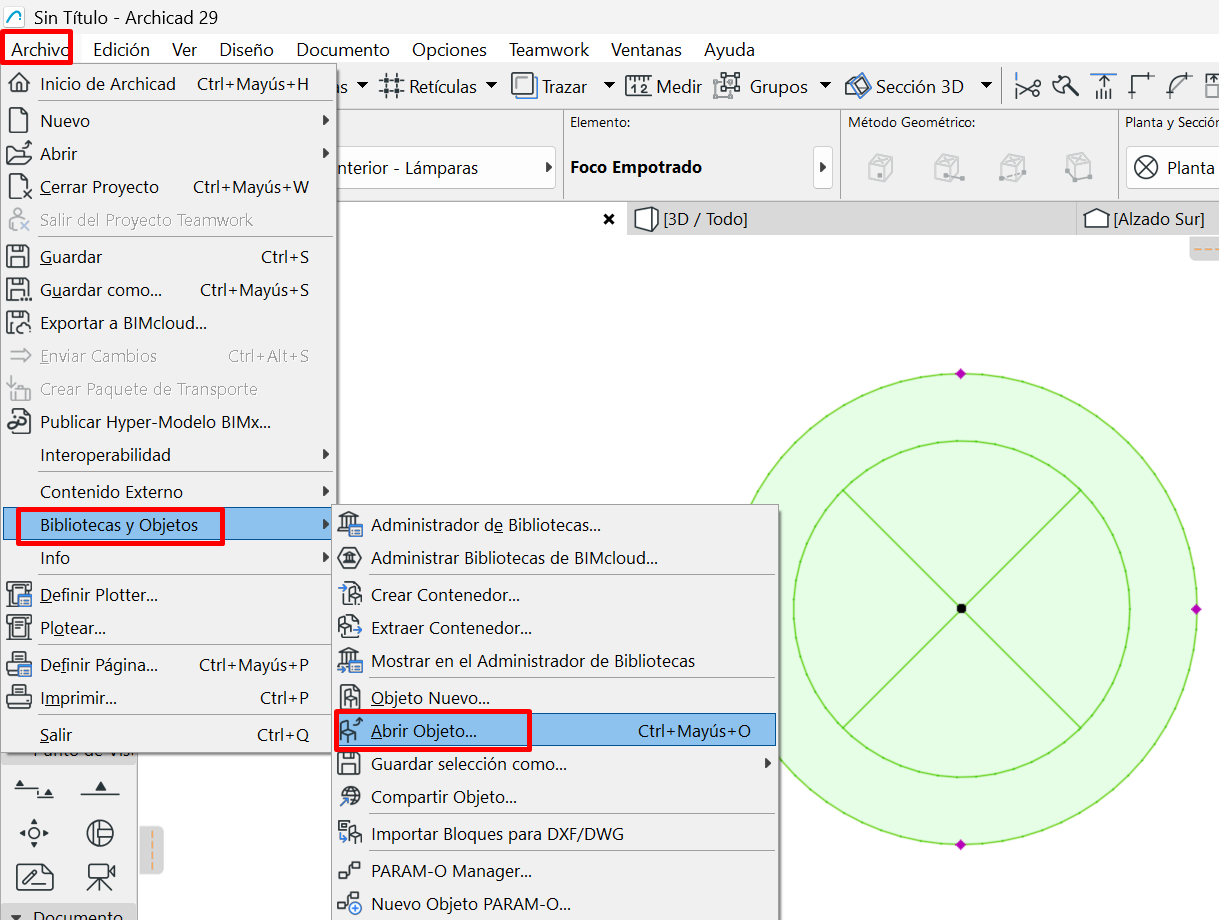
open the copy in the GDL Editor,
-
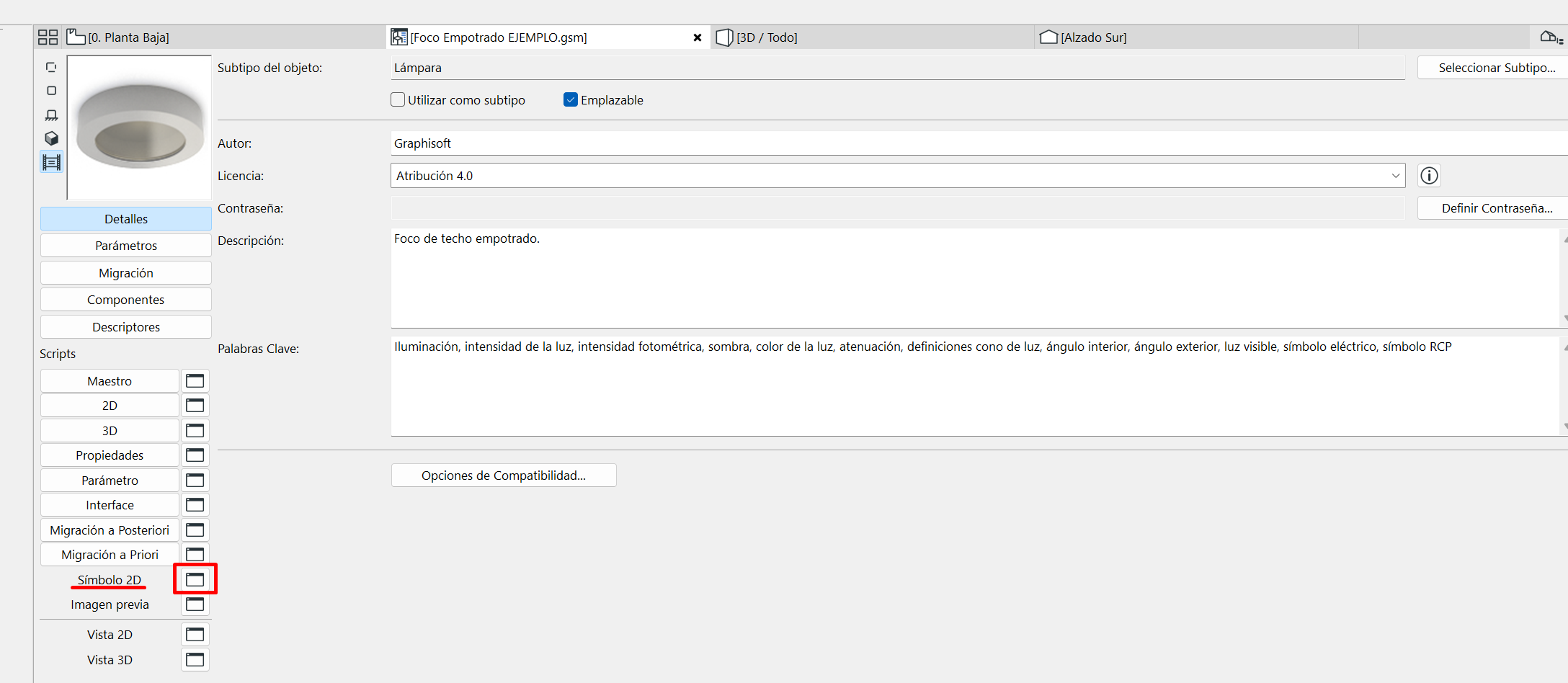
open the 2D Symbol window,
-
draw the new symbol you want to appear on the floor plan there.
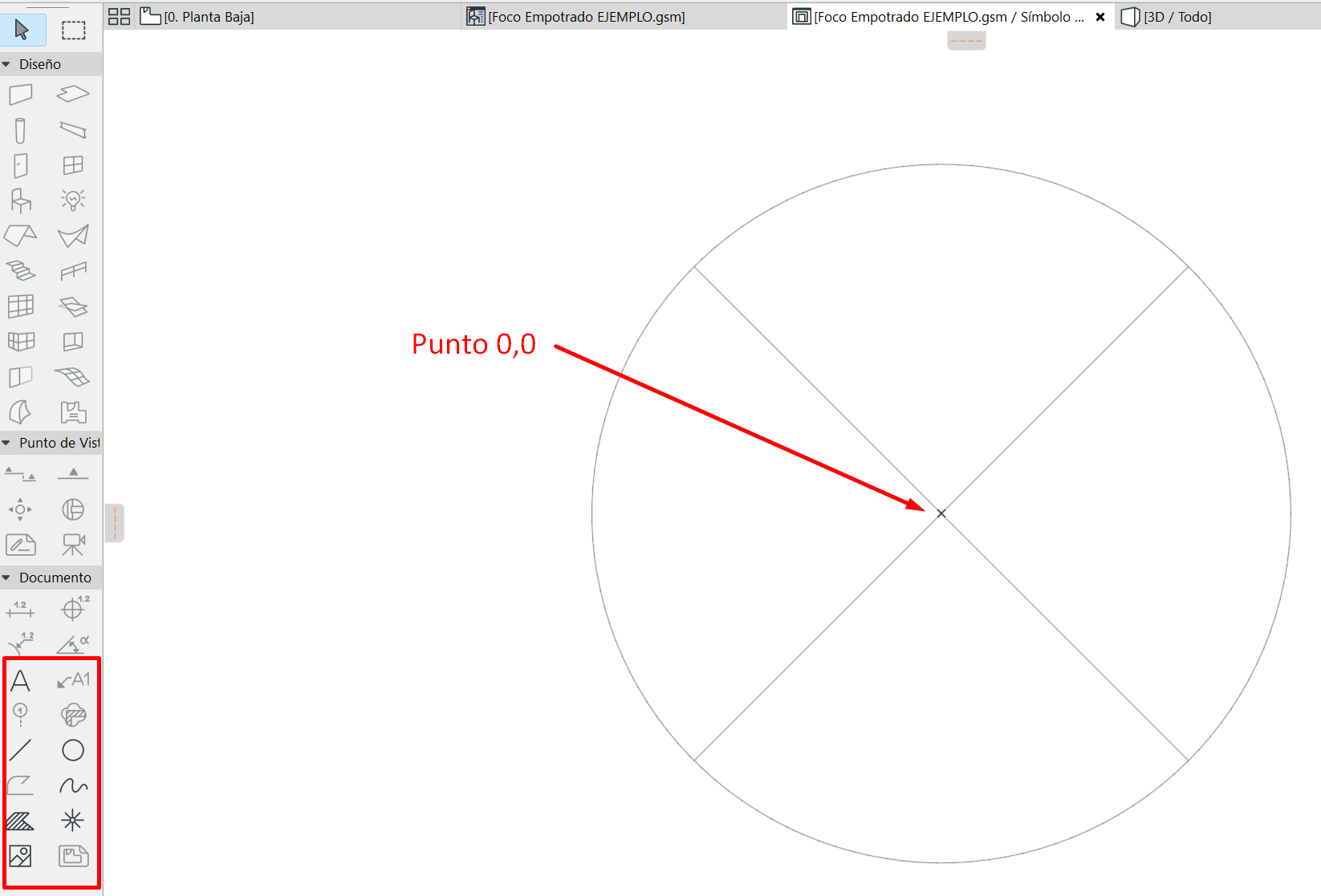
Important: the object may still be using its 2D Script
In many lamp objects, the floor plan symbol does not depend only on what you draw in the 2D Symbol window.
If the object has content in its 2D Script, Archicad will keep using that script to represent the lamp on the floor plan. This means the newly drawn symbol will not appear until the script is adapted to use it.
Note: If the object has a 2D Script, drawing the symbol in the 2D Symbol window is not enough on its own. The script must also be adapted.
A practical way to solve it
Rather than manually editing the entire script, the most practical approach is to use AI to help you adapt the object.
Alongside this article, you can consult two reference files for the Archicad Recessed Spotlight object:
- a text file with the original script,
- and a text file with a modified reference script.
These files let you compare the original structure with the modified one and use them as support when asking an AI to adapt the script of the object you want to modify.
What the AI should do when modifying the script
The modification you need does not involve rebuilding the entire object.
The idea is to:
- keep the script's overall structure,
- preserve the object's original header and calls,
- and replace only the part that draws the 2D symbol so it uses the symbol drawn in the corresponding fragment.
The reference call is this:
FRAGMENT2 1, 1
This instruction makes the object use the symbol drawn in the 2D Symbol window, instead of continuing to draw it by code.
How to use the reference files with an AI
If you want to apply the same method to another object, you can use the following as support:
- the original script of the object you want to modify,
- the original script of the Archicad Recessed Spotlight object,
- the modified reference script of the Recessed Spotlight,
- and an instruction like this:
Example prompt: I'm going to give you three files: the original script of the object I want to modify, the original script of the Archicad Recessed Spotlight object, and the modified reference script of the Recessed Spotlight. Compare the original and modified versions of the Recessed Spotlight to understand what change was made to the 2D Script, then apply that same logic to the object I want to modify. Keep the object's original structure and replace only the part that draws the 2D symbol so it uses FRAGMENT2 1, 1. Give me back the full adapted 2D Script and indicate which block you changed.
This will make it easier to get a useful adaptation without having to manually rewrite the entire script.
Expected result
Once the script has been adapted:
- save the object,
- return to the project,
- update the lamp on the floor plan,
- check that it now shows the symbol you drew in the 2D Symbol window.
Quick summary
To change the 2D symbol of a standard lamp in Archicad:
- duplicate the object,
- save it in the Embedded Library,
- draw the new symbol in 2D Symbol,
- use the reference files as support,
- use an AI to help adapt the object's 2D Script,
- save the object and check the result.
Related articles
- How to Uniquely Identify Hotlink Module Zones in Archicad Schedules?
- How to Set the Origin of a 3D Texture in Archicad?
- Why Do Drawings Exported to PDF in Archicad Generate Very Large Files?
- How to Map a Custom Archicad Property to an IFC Property?
- How to Remove an Archicad Educational Licence from a Computer?