
Articles in this section
- How to Uniquely Identify Hotlink Module Zones in Archicad Schedules?
- How to Set the Origin of a 3D Texture in Archicad?
- Why Do Drawings Exported to PDF in Archicad Generate Very Large Files?
- How to Map a Custom Archicad Property to an IFC Property?
- How to Remove an Archicad Educational Licence from a Computer?
- How to Change an Archicad File Started in the International Version to the Spanish Version?
- How to Import a PDF to Use as a Reference in Archicad?
- How to Use Educational and Commercial Versions of Archicad on the Same Computer?
- How to Get the Archicad Connection with Twinmotion?
- How to Create a Structural Frame with the Create Truss Tool in Archicad?
How to Create a Property in Archicad?
In Archicad, Properties let you add custom information to model elements, such as codes, references, statuses, manufacturers, phases, or any other data you need to manage within the project.
Creating a property correctly lets you keep information better organised, reuse it in schedules, and improve the model's consistency.
To do it properly, it's best to first define where it will be created, what data type it will have, and which elements it will apply to.
Where to create a property
To create a new property in Archicad, go to:
Options > Property Manager
From there you can see the existing property groups and create a new property within the group that suits you.
Note: If you want to keep the information well organised, it's best to create the property within a clear, easily identifiable group, rather than leaving it mixed in with other generic properties.
How to create a property step by step
Once inside the Property Manager, the usual process is as follows:
-
create a new property group, if you need one,
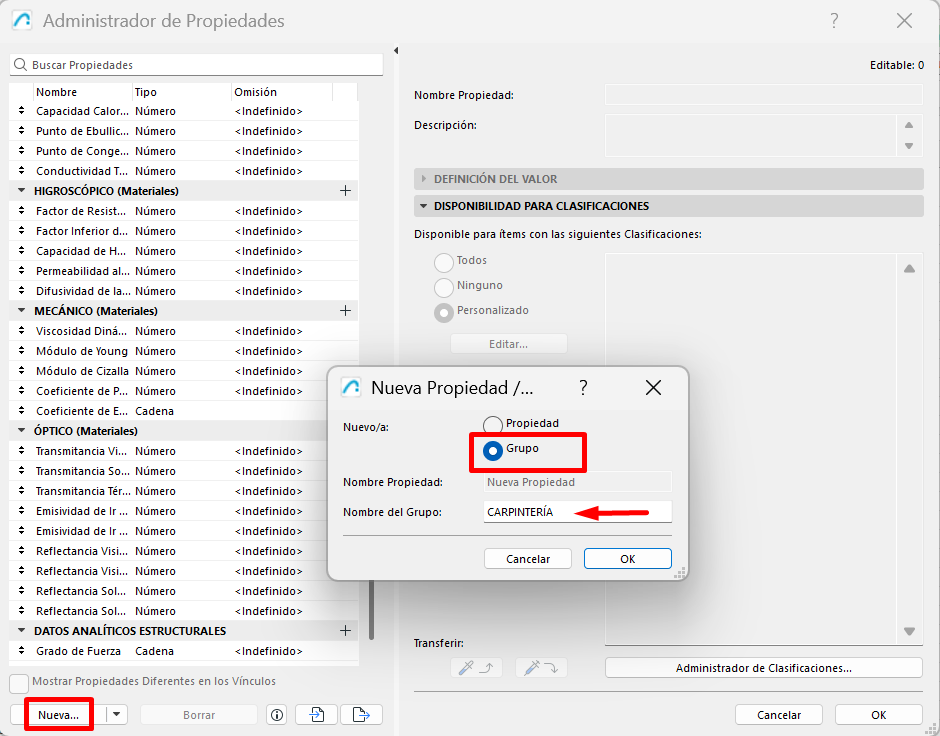
- select the group where you want to save the property,
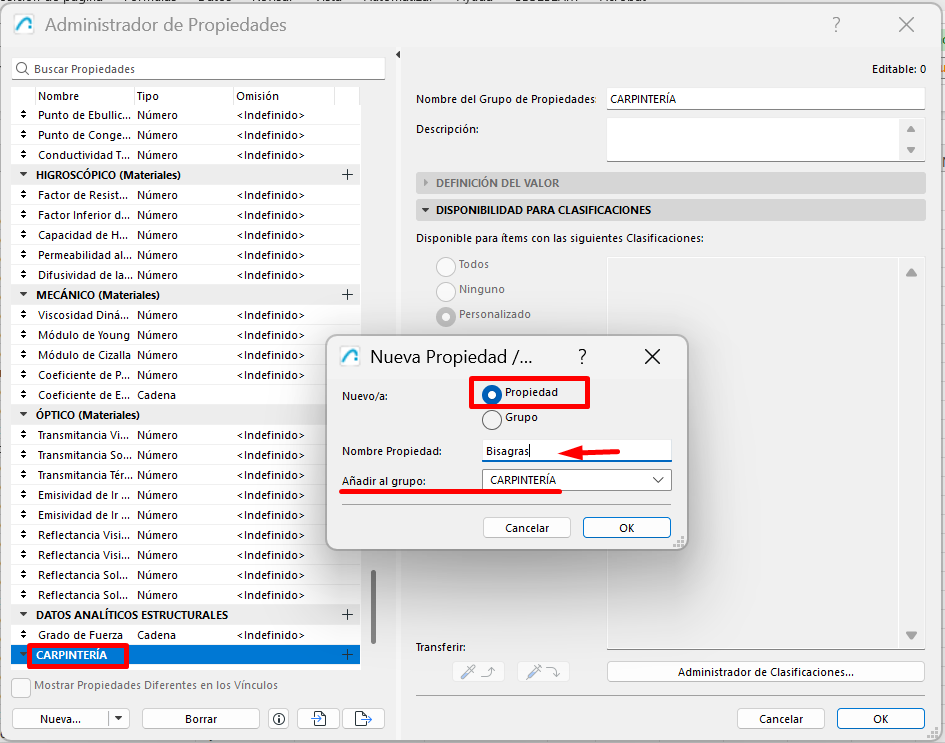
- click New Property,
-
enter the name of the property,
-
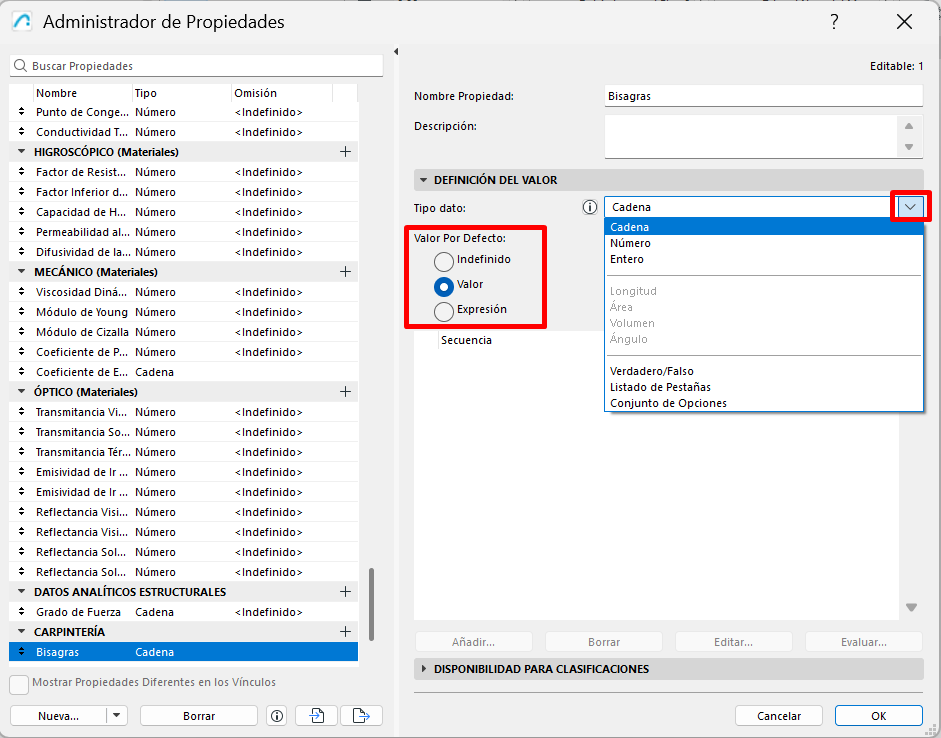
define the data type,
-
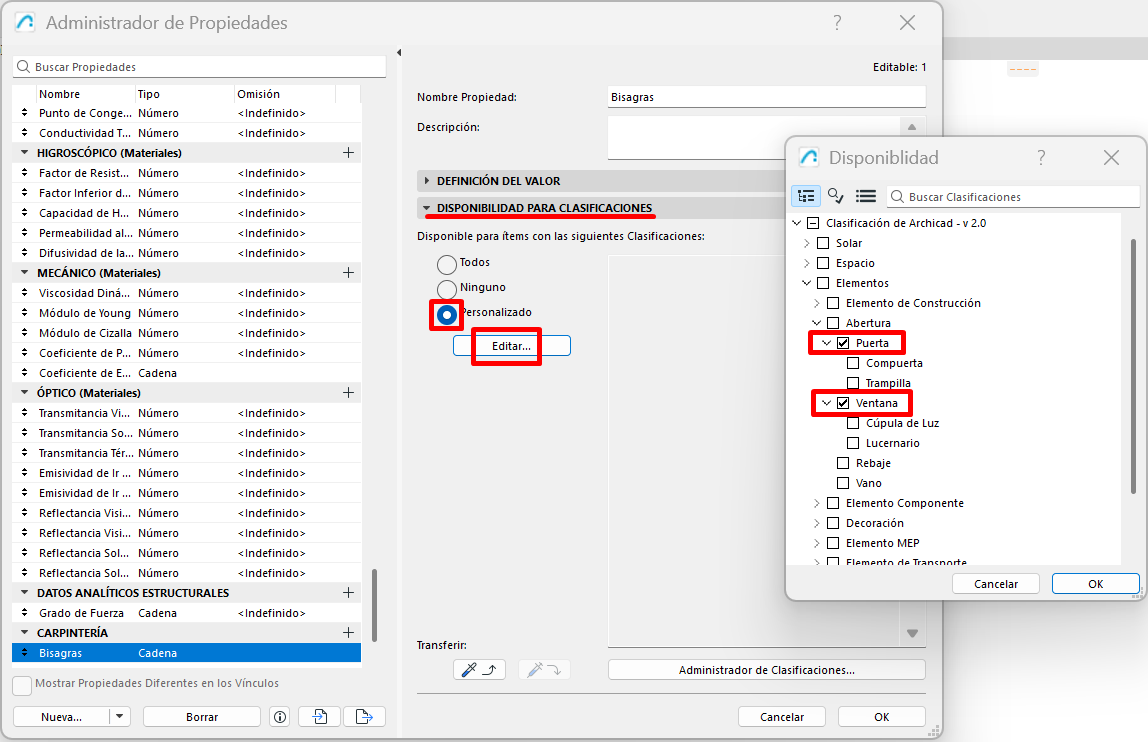
indicate which elements or classifications it will apply to,
- and save the changes.
After that, the property will become available for elements that meet the criteria you defined.
What you need to define when creating the property
When creating a property, there are several important fields worth reviewing carefully:
- Name, to clearly identify the property,
- Description, if you want to explain what it's for,
- Value type, such as text, number, true/false, multiple choice, or expression,
- Availability, to decide which elements will be able to use it,
- Default value, if you want the property to already appear filled in initially.
This part is important because a poorly defined property can later cause errors in schedules, filters, or data management.
Note: Whenever possible, it's best to use controlled option lists instead of free text. This reduces typing errors and keeps information more consistent throughout the project.
How to assign the property to an element
Once created, the property can be filled in from the settings of the corresponding element.
To check this:
- select a model element,
- open its Settings,
- go to the Properties section,
-
and check whether the new property appears available.
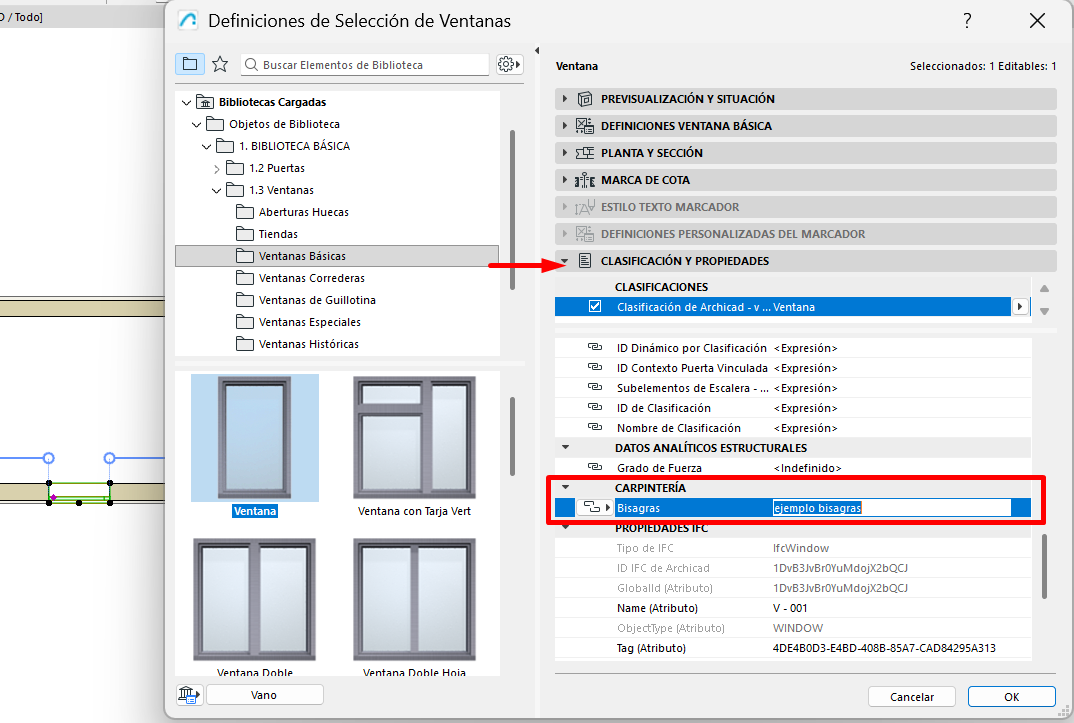
If the property doesn't appear, it usually means its availability was set for a different element type or a different classification.
What this means in practice
Creating a property isn't just about adding one more field in Archicad.
In practice, it means you can:
- add specific information to elements,
- filter elements according to specific criteria,
- use that information in interactive schedules,
- improve the model's consistency,
- and better prepare the project's data export.
That's why the clearer and more organised the property structure is, the easier it will be to maintain the quality of the model's information.
Best practices when creating properties
To avoid confusion and keep the project organised, it's best to:
- use clear, consistent property names,
- group properties by topic or function,
- avoid creating duplicate properties with similar names,
- clearly define the data type from the outset,
- limit the property to only the elements that actually need it.
Note: If several people work on the same file or the same template, it's best to agree on a common logic for naming and grouping properties. This avoids creating different structures for the same information.
Common cases
The property doesn't appear on the element
This usually happens because the property was created with availability criteria that don't include that element type or its classification.
I don't know which data type to use
It depends on the information you want to store. If the value should be chosen from specific options, a list is usually best. If you only need a closed answer, true/false may be enough.
The property was created, but isn't practical
In many cases, the problem isn't the property itself, but how its structure, availability, or chosen data type was defined.
Related articles
- How to Uniquely Identify Hotlink Module Zones in Archicad Schedules?
- How to Set the Origin of a 3D Texture in Archicad?
- Why Do Drawings Exported to PDF in Archicad Generate Very Large Files?
- How to Map a Custom Archicad Property to an IFC Property?
- How to Remove an Archicad Educational Licence from a Computer?