
Articles in this section
- How to Uniquely Identify Hotlink Module Zones in Archicad Schedules?
- How to Set the Origin of a 3D Texture in Archicad?
- Why Do Drawings Exported to PDF in Archicad Generate Very Large Files?
- How to Map a Custom Archicad Property to an IFC Property?
- How to Remove an Archicad Educational Licence from a Computer?
- How to Change an Archicad File Started in the International Version to the Spanish Version?
- How to Import a PDF to Use as a Reference in Archicad?
- How to Use Educational and Commercial Versions of Archicad on the Same Computer?
- How to Get the Archicad Connection with Twinmotion?
- How to Create a Structural Frame with the Create Truss Tool in Archicad?
How to Create and Place a Module (.MOD) File in Archicad?
Creating modules in Archicad is an efficient way to manage and reuse parts of your project. Modules let you reference external content, streamline collaboration, and maintain consistency across your designs. Follow these steps to create and manage modules in Archicad:
1. Understanding Hotlink Modules
Hotlink Modules let you reference external content within your project. This can include elements from other Archicad files, IFC files, Rhinoceros files, and others. Using modules helps keep your project organised and reduces file size by linking the content rather than embedding it.
2. Creating a Module
To create a module, you need to save the selected elements or Stories of your project as a .mod file. This file format contains only model and floor plan data, which makes it smaller and easier to manage.
Steps to Create a Module:
-
Select Elements: On the floor plan, select the elements or Stories you want to include in the module.
-
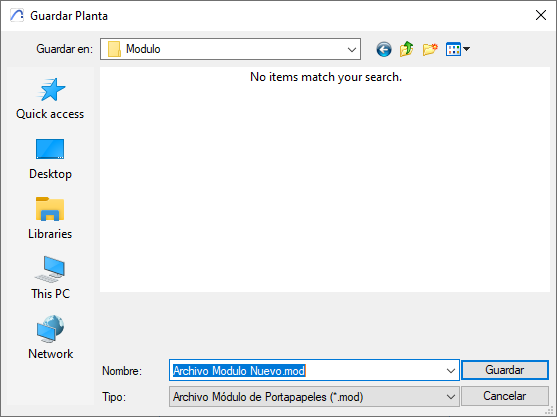
Save as Module:
-
Go to File > Save As...
-
Choose the .mod file format.
-
Configure the options to include the Stories and elements in the module.
-
3. Placing a Module
Once you have created a module, you can place it in your project by following these steps:
-
Place Hotlink:
-
Go to File > External Content > Place Hotlink...
-
Select the module file.
-
-
Choose Stories: Decide whether to place all the module's Stories or just one Story.
-
Adjust the Placement: Position the module within your project as needed.
4. Module Settings
The module settings let you control various aspects of the placed module, including visibility, orientation, and Story matching. You can adjust the elevation to match the host project's Story structure and configure layout options.
Key Settings:
-
Visibility: Controls which elements of the module are visible in your project.
-
Orientation: Adjusts the module's orientation to fit your design.
-
Story Matching: Makes sure the module's Stories align with the host project's Story structure.
5. Best Practices for Creating Modules
-
Consistent Naming Conventions: Use clear, consistent naming conventions for your module files so you can identify and manage them easily. For example, include the project name, module type, and version number in the file name.
-
Layer Management: Organise the elements within the module using layers. This helps control visibility and manage updates efficiently.
6. Common Issues and Solutions
-
Elevation Settings: If a module doesn't adapt to elevation changes when moved, make sure the module's elements are correctly linked to the host project's Story levels. Adjust wall heights after placing the module if necessary.
-
Updating Modules: When updating a module, make sure all instances of the module in the project refresh to reflect the changes. Use the Hotlink Module Manager to manage and update modules effectively.
7. Advanced Tips
-
Partial Modules: For complex projects, consider creating partial modules that include only specific elements (for example, floor, walls, equipment) and placing them separately. This approach can help manage design variations more efficiently.
-
Master Layer Control: Each Hotlink Module has a "Master Layer" that lets you turn off or hide the entire module. This is particularly useful for managing large projects where you need to control the visibility of entire sections.
By following these steps and examples, you can create and manage modules effectively in Archicad, improving your workflow and collaboration capabilities. If you have any specific questions or need more details, feel free to ask us!
Related articles
- How to Uniquely Identify Hotlink Module Zones in Archicad Schedules?
- How to Set the Origin of a 3D Texture in Archicad?
- Why Do Drawings Exported to PDF in Archicad Generate Very Large Files?
- How to Map a Custom Archicad Property to an IFC Property?
- How to Remove an Archicad Educational Licence from a Computer?