
Articles in this section
- How to Uniquely Identify Hotlink Module Zones in Archicad Schedules?
- How to Set the Origin of a 3D Texture in Archicad?
- Why Do Drawings Exported to PDF in Archicad Generate Very Large Files?
- How to Map a Custom Archicad Property to an IFC Property?
- How to Remove an Archicad Educational Licence from a Computer?
- How to Change an Archicad File Started in the International Version to the Spanish Version?
- How to Import a PDF to Use as a Reference in Archicad?
- How to Use Educational and Commercial Versions of Archicad on the Same Computer?
- How to Get the Archicad Connection with Twinmotion?
- How to Create a Structural Frame with the Create Truss Tool in Archicad?
How to Delete Hotlinks or Modules in Archicad?
External Content Modules and Hotlinks let you reference files from other projects within your current project. However, there may be times when you need to delete a module or a Hotlink. Follow these steps to delete a module or Hotlink from your project in Archicad:
Step 1: Open the Hotlink Module Manager
- Open Archicad
- Go to the File > Open menu, and select your project
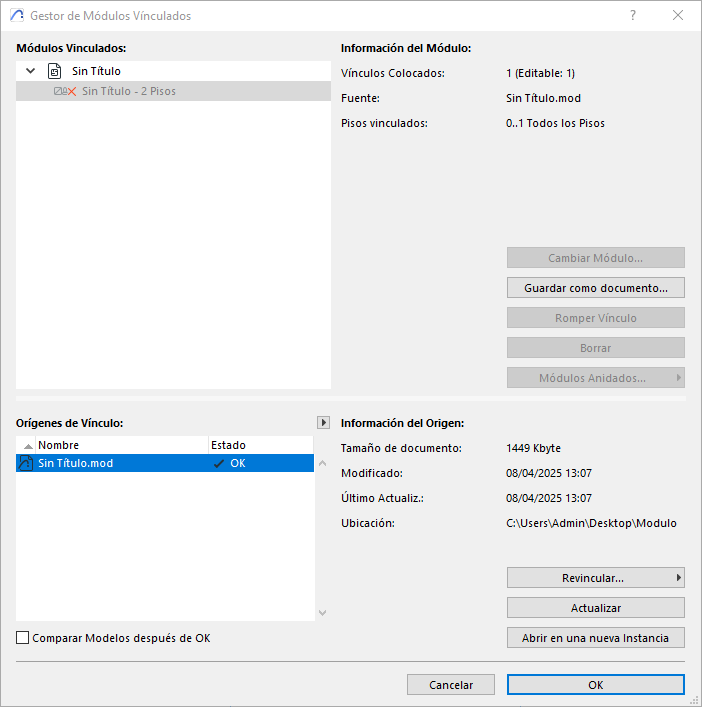
- Go to the File > External Content > Hotlink Module Manager menu. This tool provides an overview of all the external content in your project.
Step 2: Select the Hotlink
- In the Hotlink Module Manager, you'll see a list of all the external content in your project (Hotlinks and modules).
- Locate the Hotlink or module you want to delete.
- Click the Delete button.
Step 3: Update the Project
-
After deleting the Hotlink or module, it's important to update your project.
-
Regenerate any view or layout that depended on the Hotlink to make sure your project reflects the changes.
Additional Tips
-
Back up your project: Before making significant changes such as deleting a Hotlink or module, it's a good idea to create a backup of your project.
-
Check dependencies: Make sure there are no critical elements in your project that depend on the Hotlink or module you're deleting.
-
Update Hotlinks regularly: Make sure Hotlinks and/or modules are updated regularly to reflect the latest changes in the source files. This helps keep your project consistent and accurate.
-
Use consistent templates: When working with multiple Hotlinks and/or modules, use consistent templates across all files to avoid conflicts and ensure smooth integration.
- Manage attributes: Make sure attributes such as layers, fills and surfaces are consistent across all files to avoid display issues.
- Back up regularly: Back up your project regularly, especially before making significant changes such as deleting Hotlinks. This ensures you can restore your project if something goes wrong.
Frequently Asked Questions About Deleting Hotlinks in Archicad
Q1: What happens to imported attributes when I delete a Hotlink or module?
-
A: Attributes imported with Hotlinks and/or modules will not be deleted. These attributes will remain in your project.
Q2: Can I edit the content of a Hotlink or module after breaking the Hotlink?
-
A: Yes, you can break the Hotlink of a specific instance and then edit its content to suit the project's needs.
By following these steps and tips, you can effectively delete Hotlinks and/or modules in Archicad. If you have any further questions or need additional assistance, feel free to ask us!
Related articles
- How to Uniquely Identify Hotlink Module Zones in Archicad Schedules?
- How to Set the Origin of a 3D Texture in Archicad?
- Why Do Drawings Exported to PDF in Archicad Generate Very Large Files?
- How to Map a Custom Archicad Property to an IFC Property?
- How to Remove an Archicad Educational Licence from a Computer?