
Articles in this section
- How to Uniquely Identify Hotlink Module Zones in Archicad Schedules?
- How to Set the Origin of a 3D Texture in Archicad?
- Why Do Drawings Exported to PDF in Archicad Generate Very Large Files?
- How to Map a Custom Archicad Property to an IFC Property?
- How to Remove an Archicad Educational Licence from a Computer?
- How to Change an Archicad File Started in the International Version to the Spanish Version?
- How to Import a PDF to Use as a Reference in Archicad?
- How to Use Educational and Commercial Versions of Archicad on the Same Computer?
- How to Get the Archicad Connection with Twinmotion?
- How to Create a Structural Frame with the Create Truss Tool in Archicad?
How to Delete Local Teamwork Data in Archicad?
Efficiently managing Archicad’s local Teamwork data is crucial for keeping optimal performance and freeing up space on your machine. Follow these steps to delete local Teamwork data in Archicad:
Step-by-step guide
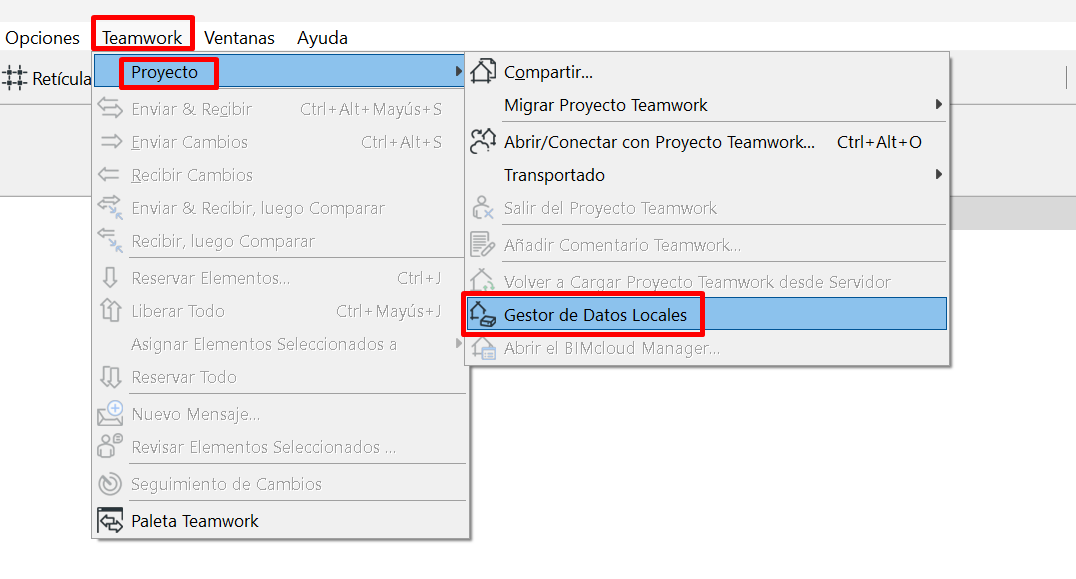
1. Open the Local Data Manager
To start, go to Teamwork > Project > Local Data Manager. This will open the Local Data Manager dialog box, where you can manage your local Teamwork projects and libraries.
2. Select the data to delete
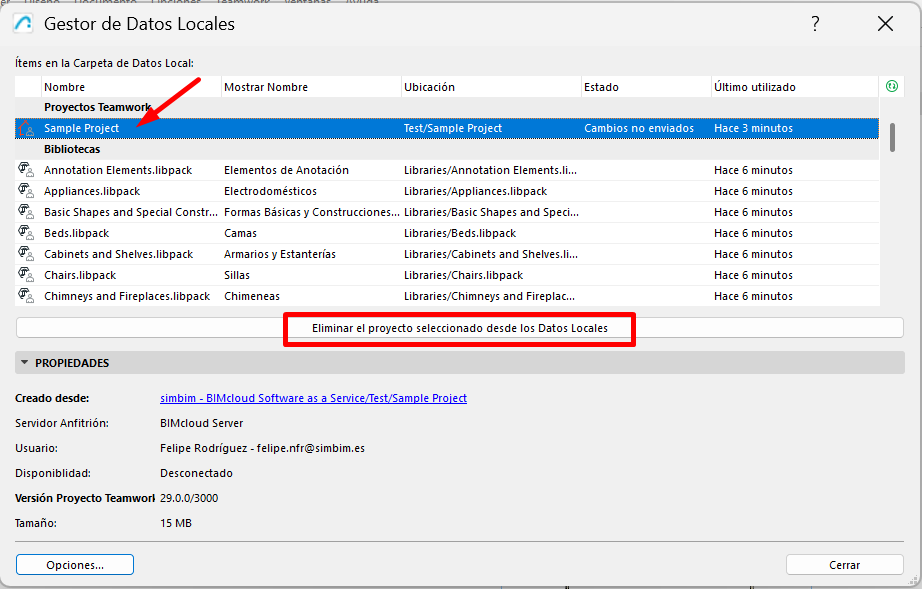
In the Local Data Manager dialog box, you will see a list of all your local Teamwork projects and libraries. Select the project or library you want to delete. Make sure you choose the correct item to avoid losing important data.
3. Delete the selected data
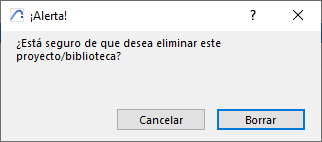
Once you have selected the data to delete, click the Delete button at the bottom of the dialog box. This action will remove the selected project or library from your local data folder.
Important considerations
- Loss of unsent changes: Deleting local data means you will lose any unsent changes. Make sure all your changes have been sent to BIMcloud before proceeding.
Frequently asked questions
-
What happens if I delete local Teamwork data?
- Deleting local Teamwork data will remove the local copies of the project and its libraries from your machine. Any unsent changes will be lost.
-
Can I recover deleted local data?
- Once local data has been deleted, it cannot be recovered. Make sure all changes have been sent to BIMcloud before deletion.
-
Should I leave the project, or just delete the local data?
- If the project is still active, it is recommended to leave the project rather than simply deleting the local copy.
-
How do I know which local data to delete?
- Use the Local Data Manager to review the status and properties of your local data. Delete data for projects that are no longer active or needed.
Best practices
-
Regularly review local data:
- Periodically check the Local Data Manager to identify and delete unnecessary local data. This helps free up space and maintain system performance.
-
Send all changes before deletion:
- Always make sure all changes have been sent to BIMcloud before deleting local data, to avoid losing any work.
-
Leave projects once they are no longer needed:
- Rather than simply deleting the local data, leave projects that are no longer active.
-
Back up important data:
- Before deleting any local data, consider backing up important files to avoid accidental data loss.
-
Communicate with team members:
- Inform your team members before deleting local data or leaving a project, to ensure smooth collaboration and avoid any disruption.
-
Rejoin projects after deletion:
- After deleting local data, rejoin the project via Teamwork > Project > Open/Join Teamwork Project... to download a fresh cache.
-
Regular backups:
- Back up your important data regularly to avoid accidental loss during deletion processes.
Performance issues
- Issue: The Teamwork project is slow to load or navigate.
- Solution: Deleting local cache data can improve performance.
Deleting local Teamwork data helps manage and free up space on your machine by removing unnecessary local copies of Teamwork projects and libraries. Always make sure you have sent all changes, and consider leaving active projects to maintain team collaboration.
Related articles
- How to Uniquely Identify Hotlink Module Zones in Archicad Schedules?
- How to Set the Origin of a 3D Texture in Archicad?
- Why Do Drawings Exported to PDF in Archicad Generate Very Large Files?
- How to Map a Custom Archicad Property to an IFC Property?
- How to Remove an Archicad Educational Licence from a Computer?