
Articles in this section
- How to Uniquely Identify Hotlink Module Zones in Archicad Schedules?
- How to Set the Origin of a 3D Texture in Archicad?
- Why Do Drawings Exported to PDF in Archicad Generate Very Large Files?
- How to Map a Custom Archicad Property to an IFC Property?
- How to Remove an Archicad Educational Licence from a Computer?
- How to Change an Archicad File Started in the International Version to the Spanish Version?
- How to Import a PDF to Use as a Reference in Archicad?
- How to Use Educational and Commercial Versions of Archicad on the Same Computer?
- How to Get the Archicad Connection with Twinmotion?
- How to Create a Structural Frame with the Create Truss Tool in Archicad?
How to Export an Archicad Project as IFC?
Reading time: 3 min.
Exporting an Archicad project as an IFC file is essential for sharing your model with consultants, clients or other stakeholders who use different software. Here is a step-by-step guide to help you through the process:
Steps to Export an Archicad Project as IFC
-
Choose the Export Command:
- Save as...: Use this command to export the entire project or filtered content to a new IFC file.
- Merge to IFC Model...: Use this command to merge selected elements or the entire project into an existing IFC file.
-
Select the File Type:
- Choose from IFC file formats such as .ifc, .ifcXML or .ifcZIP.
-
Define the File Name:
- Specify the name for the new IFC file or select an existing IFC file to merge into.
-
Choose a Translator for the Export:
- Select an IFC Translator to control how elements are interpreted and displayed in the IFC file.
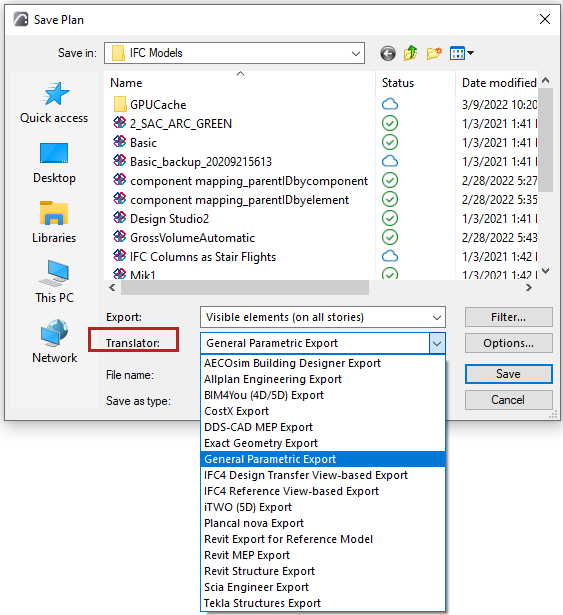
- Select an IFC Translator to control how elements are interpreted and displayed in the IFC file.
-
Filter the Model on Export:
- Use one of the options in the Export field to filter elements by selection, visibility or the entire project. Refine further using the Model Filter dialog box.
-
Export the Model:
- Click "Save" (for Save as) or "Open" (for Merge to IFC Model) to export the model.
After exporting, it's advisable to review the IFC file in an IFC viewer to make sure the save or merge process was completed correctly.
Difference Between Saving as an IFC Project and Merging to IFC Model
Save as
When you save a project as IFC, you create a new IFC file containing either the entire project or a filtered selection of elements.
Example: Imagine you've finished designing a building and need to send the complete model to a structural engineer for analysis. You would use the Save as... command to export the project as an IFC file, making sure all the relevant elements are included.
Merge to IFC Model
When you use Merge to IFC Model..., you add selected elements or the entire project from your Archicad project file into an existing IFC file. This is useful when you need to update an existing IFC model with new or modified elements without creating a new file.
Example: Suppose you have an existing IFC model of a building that has already been shared with several stakeholders. You've made some updates to the architectural design, such as adding new rooms or modifying existing ones. Instead of creating a new IFC file, you use the Merge to IFC Model... command to incorporate these changes into the existing IFC model, making sure everyone has the latest version.
When to Choose One Over the Other
-
Save as: Choose this option when you need to create a new IFC file to share the entire project or specific parts of it. It's ideal for initial exports or when significant changes have been made that require a new file.
-
Merge to IFC Model: Choose this option when you need to update an existing IFC model with new or modified elements. It's ideal for incremental updates and keeping a consolidated IFC model.
By following these steps and understanding the differences, you can effectively manage and share your Archicad projects using IFC files. If you have any specific questions or need more details, feel free to ask us!
Related articles
- How to Uniquely Identify Hotlink Module Zones in Archicad Schedules?
- How to Set the Origin of a 3D Texture in Archicad?
- Why Do Drawings Exported to PDF in Archicad Generate Very Large Files?
- How to Map a Custom Archicad Property to an IFC Property?
- How to Remove an Archicad Educational Licence from a Computer?