
Articles in this section
- How to Uniquely Identify Hotlink Module Zones in Archicad Schedules?
- How to Set the Origin of a 3D Texture in Archicad?
- Why Do Drawings Exported to PDF in Archicad Generate Very Large Files?
- How to Map a Custom Archicad Property to an IFC Property?
- How to Remove an Archicad Educational Licence from a Computer?
- How to Change an Archicad File Started in the International Version to the Spanish Version?
- How to Import a PDF to Use as a Reference in Archicad?
- How to Use Educational and Commercial Versions of Archicad on the Same Computer?
- How to Get the Archicad Connection with Twinmotion?
- How to Create a Structural Frame with the Create Truss Tool in Archicad?
How to Import 3DS Files into Archicad Using the 3DStudio In Add-on?
The 3DStudio In add-on lets you import .3ds files (3D Studio format) directly into Archicad projects as GDL objects.
Prerequisite: install Goodies for Archicad
To enable the 3DStudio In add-on, you need to install the Goodies package that corresponds to your version of Archicad.
🔗 Download Goodies from the official Graphisoft website
Once installed, restart Archicad so the add-on becomes available.
How to import a 3DS file
-
Go to the menu
Design > Design Extras > 3D Studio > Import 3DS FileNote: In some versions, you can also find this option under
File > Interoperability > Import 3DS File...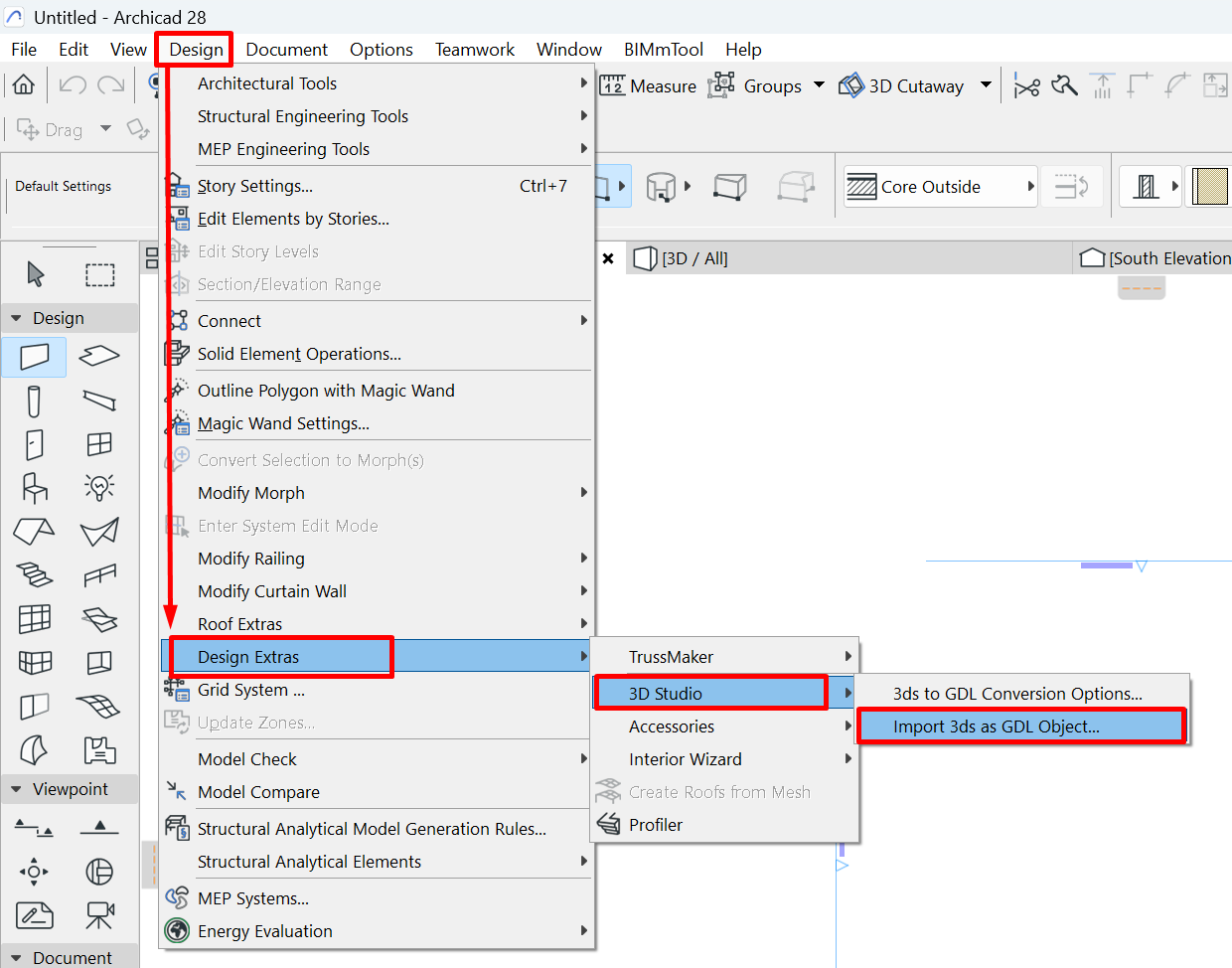
- Select the
.3dsfile from your file system. -
Configure the import options.
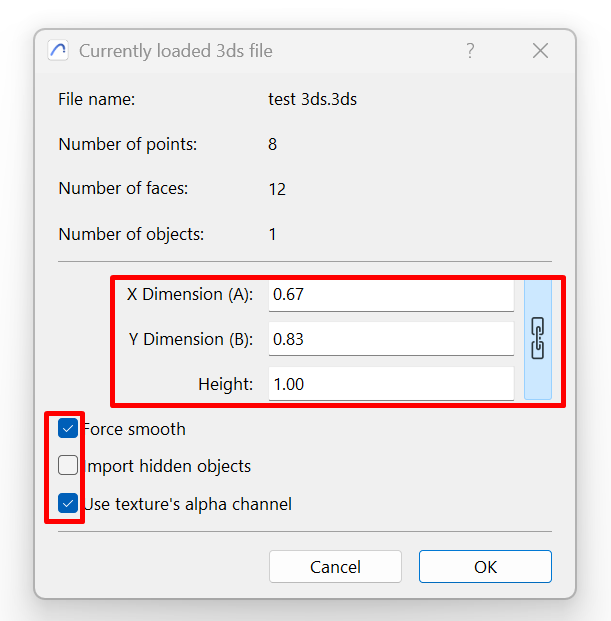
- Click OK to finish the process.
-
The file will automatically be converted into a GDL object and added to the project's active library.
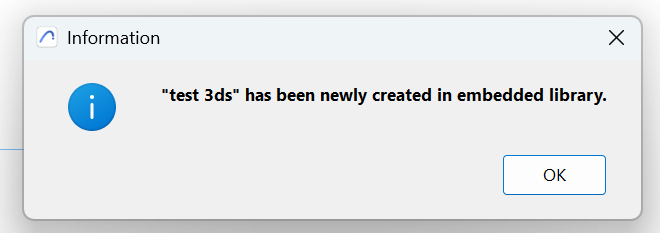
How to find and use the imported object
- Select the Object tool from the toolbar or the design menu.
- Open the object's settings by double-clicking the tool icon or using the keyboard shortcut Ctrl + T (Windows) / Cmd + T (macOS).
-
In the object browser, go to the Embedded Library category.
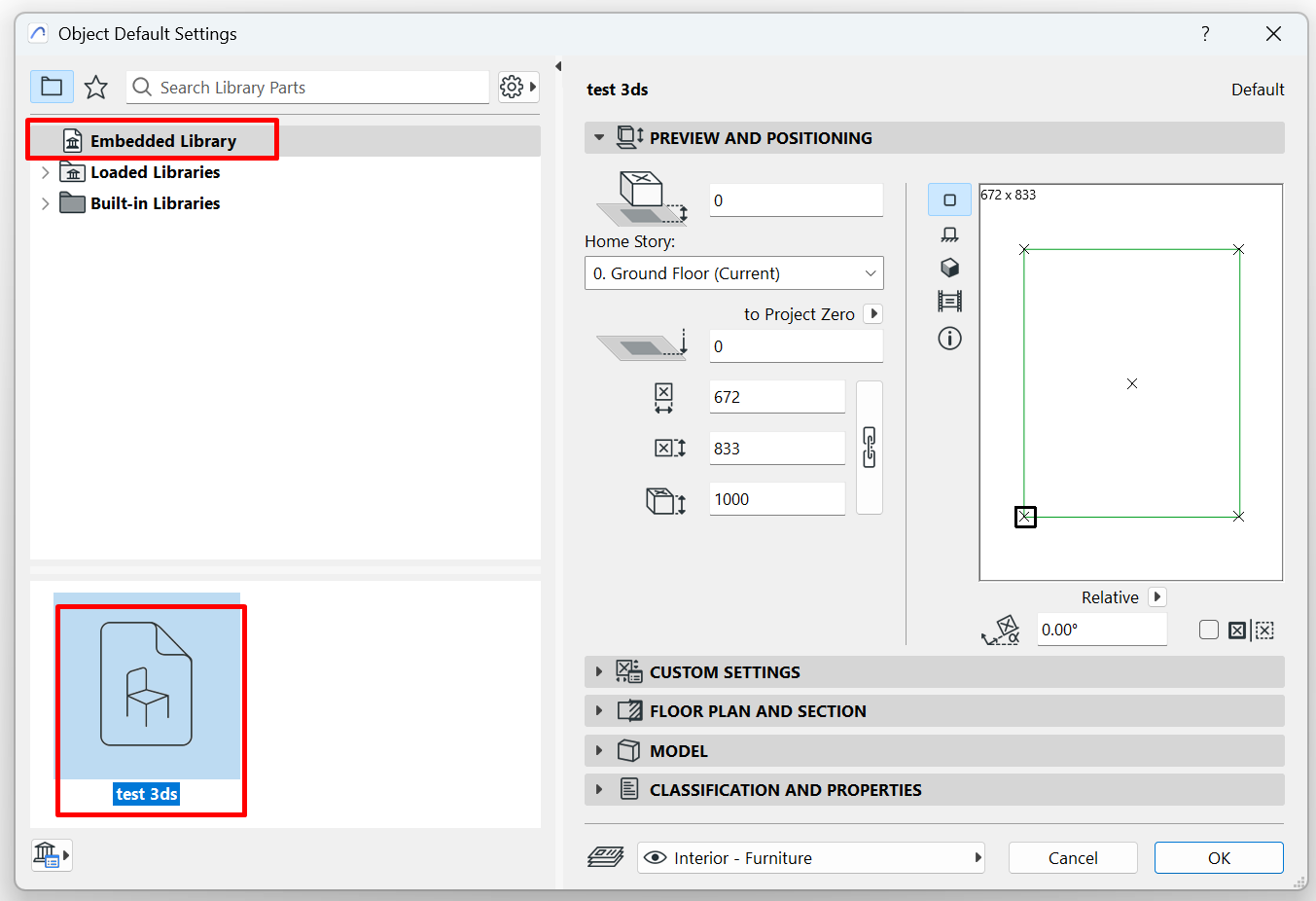
- Select the newly imported object. It will appear with the name assigned during import.
- Place it in the project like any other library object.
Related articles
- How to Uniquely Identify Hotlink Module Zones in Archicad Schedules?
- How to Set the Origin of a 3D Texture in Archicad?
- Why Do Drawings Exported to PDF in Archicad Generate Very Large Files?
- How to Map a Custom Archicad Property to an IFC Property?
- How to Remove an Archicad Educational Licence from a Computer?