
Articles in this section
- How to Uniquely Identify Hotlink Module Zones in Archicad Schedules?
- How to Set the Origin of a 3D Texture in Archicad?
- Why Do Drawings Exported to PDF in Archicad Generate Very Large Files?
- How to Map a Custom Archicad Property to an IFC Property?
- How to Remove an Archicad Educational Licence from a Computer?
- How to Change an Archicad File Started in the International Version to the Spanish Version?
- How to Import a PDF to Use as a Reference in Archicad?
- How to Use Educational and Commercial Versions of Archicad on the Same Computer?
- How to Get the Archicad Connection with Twinmotion?
- How to Create a Structural Frame with the Create Truss Tool in Archicad?
How to Import an IFC File into Archicad?
Importing an IFC (Industry Foundation Classes) file into Archicad lets you integrate models from various BIM (Building Information Modeling) software applications. Archicad offers three main methods for importing IFC files: Open, Merge and Place Hotlink.... Each method serves a different purpose depending on your project’s needs.
Method 1: Open... IFC Model
This method is used to start a new project with the IFC file.
Steps:
- Go to File > Open.
- In the Open... dialog, under Type: select "IFC Files (*.ifc; *.ifczip)"
- Choose the IFC file you want to import.
- Select a suitable IFC translator from the Translator list:
- Click Open.
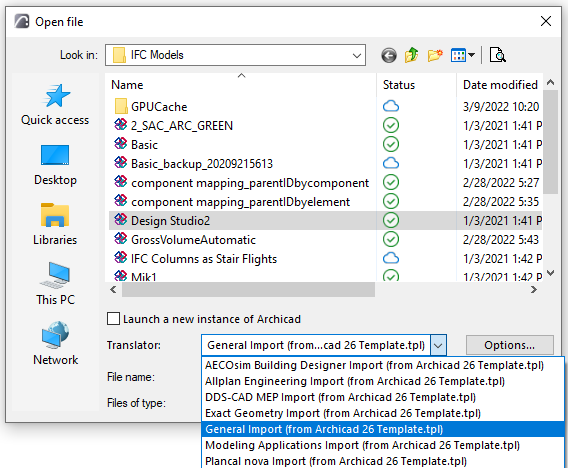
Details:
- The whole model, or filtered parts of the IFC file, will open as a new project.
- The imported elements will be converted into corresponding Archicad elements according to the chosen IFC Translator’s settings.
Example: You receive an IFC file from a structural engineer containing the entire building structure. You want to start a new project in Archicad based on this structure. Using the Open method, you can import the IFC file and start working on the architectural elements while referencing the structural model.
Method 2: Merge... IFC Model
This method is used to insert an IFC model into an existing Archicad project without overwriting its data.
Steps:
- Go to File > Interoperability > Merge > Merge from File... if the IFC file is on your PC, or Merge from BIMcloud... if the IFC file is on BIMcloud.
- In the Merge dialog, select the IFC file format.
- Choose the IFC file you want to merge.
- Select a suitable IFC Translator from the list.
- Click Open.
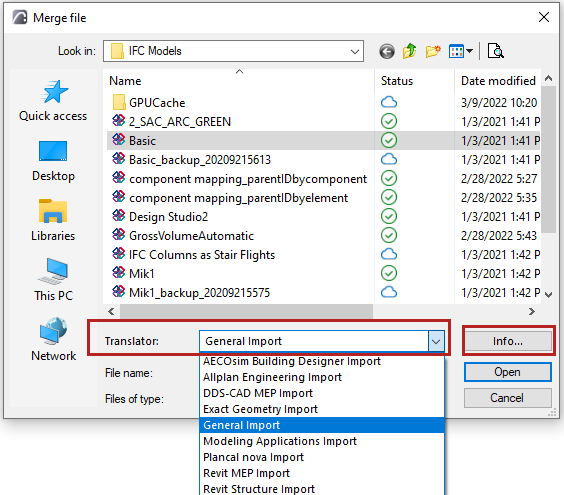
Details:
- The IFC model will be inserted into the current project.
- The merged elements will become real Archicad elements based on the IFC-Archicad mapping convention.
Example: You are working on an architectural project in Archicad and receive an updated IFC file from the MEP (Mechanical, Electrical and Plumbing) engineer. You can use the Merge method to integrate the MEP model into your existing project, ensuring that all elements are accurately represented without overwriting your architectural data.
Method 3: Place Hotlink... IFC Model
This method is used to place IFC files as hotlinks directly in the open project, as protected reference content.
Steps:
- Go to File > External Content > Place Hotlink...
- In the Place Hotlink dialog, click Select Module... and choose a file in IFC format.
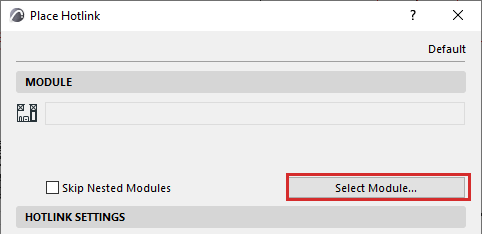
- Select a suitable IFC Translator for the import.
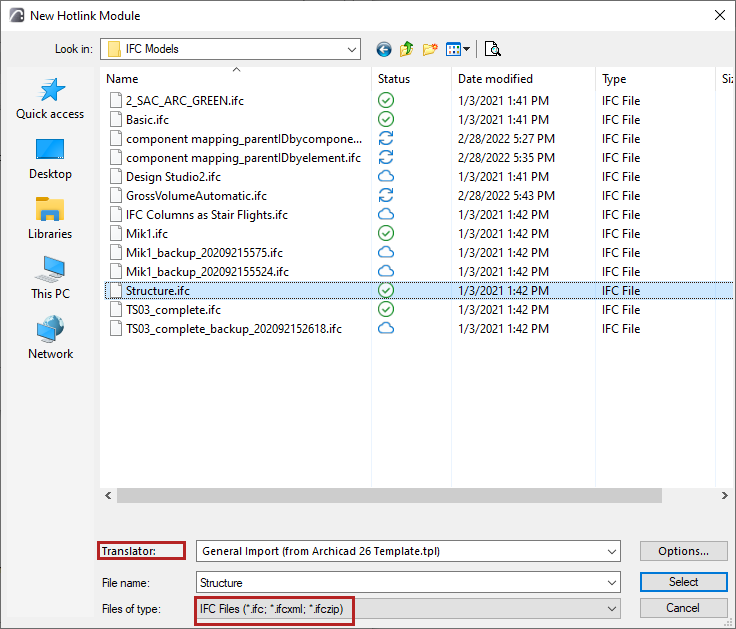
- Click Select.
Details:
- The IFC file will be placed as a linked module in the current project.
- You can place this link as many times as needed, and it will act as an external reference.
Example: Consider that you are working on a large-scale project with multiple buildings. You receive IFC files for each building from different consultants. Using the Link as Hotlink method, you can place these IFC files as references in your master project, allowing you to coordinate and manage the overall site while keeping each building’s model protected and separate.
Choosing the Right Method
- Open: Use this method if you want to start a new project with the IFC file.
- Merge: Use this method if you want to integrate an IFC model into an existing project without overwriting existing data.
- Place Hotlink: Use this method if you need to reference an IFC file multiple times within a project.
Selecting an IFC Translator
An IFC Translator defines how IFC elements should be interpreted and displayed in Archicad. Make sure to choose the right translator according to your project’s requirements.
Frequently Asked Questions
Q: Why is it important to choose the correct IFC translator?
A: The IFC Translator determines how imported elements are interpreted and displayed in Archicad. Choosing the correct translator ensures that elements are represented and integrated correctly in the project.
Q: Can I update an imported IFC model?
A: Yes, you can update an imported IFC model by re-importing the updated IFC file using the Merge method. This will integrate the new data without overwriting the existing project data.
Common Errors When Importing IFC Files
-
Incorrect IFC Translator Selection:
- Problem: Choosing the wrong IFC translator can lead to an incorrect representation of the elements.
- Solution: Make sure to select the appropriate translator based on the source of the IFC file and the IFC file type.
-
Library Issues:
- Problem: Missing libraries or the presence of incorrect libraries can cause import errors.
- Solution: Verify that all necessary libraries are loaded and correctly referenced in the project before starting the IFC file import.
-
File Corruption:
- Problem: Corrupted IFC files can lead to import failures.
- Solution: Validate the IFC file in other software (for example, Solibri, BIMcollab) before importing it into Archicad.
-
Overlapping Elements:
- Problem: Merging IFC files can sometimes cause elements to overlap.
- Solution: Use the Merge... method carefully and review the imported elements to correct any overlap.
If you have any specific questions or need more detail, feel free to ask us!
Related articles
- How to Uniquely Identify Hotlink Module Zones in Archicad Schedules?
- How to Set the Origin of a 3D Texture in Archicad?
- Why Do Drawings Exported to PDF in Archicad Generate Very Large Files?
- How to Map a Custom Archicad Property to an IFC Property?
- How to Remove an Archicad Educational Licence from a Computer?