
Articles in this section
- How to Uniquely Identify Hotlink Module Zones in Archicad Schedules?
- How to Set the Origin of a 3D Texture in Archicad?
- Why Do Drawings Exported to PDF in Archicad Generate Very Large Files?
- How to Map a Custom Archicad Property to an IFC Property?
- How to Remove an Archicad Educational Licence from a Computer?
- How to Change an Archicad File Started in the International Version to the Spanish Version?
- How to Import a PDF to Use as a Reference in Archicad?
- How to Use Educational and Commercial Versions of Archicad on the Same Computer?
- How to Get the Archicad Connection with Twinmotion?
- How to Create a Structural Frame with the Create Truss Tool in Archicad?
How to Import Archicad Element Attributes Using the Attributes Palette?
Reading time: 2 min.
In Archicad’s collaborative workflow, keeping attributes consistent between different project files is essential for accurate documentation and smooth coordination. The Attributes Palette offers a more intuitive and powerful way to manage and import Archicad attributes between projects.
In this article, we’ll show you step by step how to import attributes using this tool, optimising your workflow as an architectural design professional.
What Is the Attributes Palette?
The Attributes Palette is a tool for managing Archicad Attributes that lets you:
- View all the project’s Attributes in one place.
- Edit, rename, delete or reorganise Attributes.
- Selectively import and export attributes from other project files or templates.
This palette replaces and improves on the old Attribute Manager, offering a more visual and efficient experience.
How to Import Attributes from a File with Attributes Exported by the Attributes Palette?
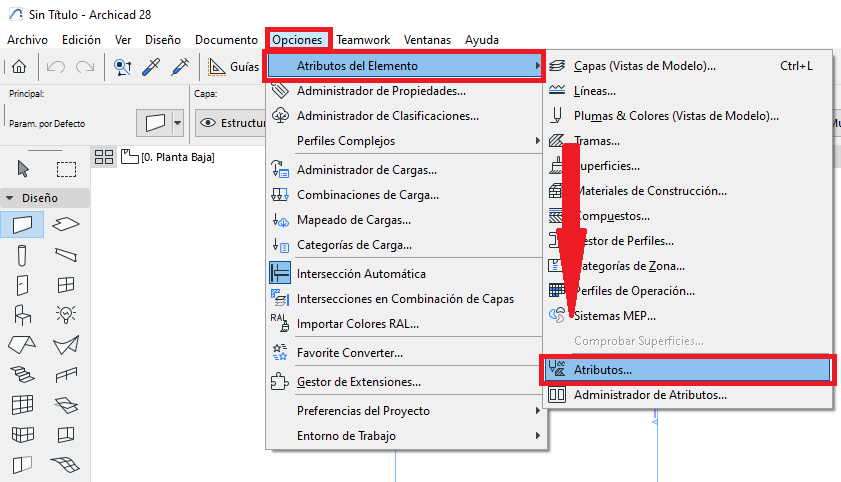
- In Archicad, go to the Options > Element Attributes > Attributes... menu.
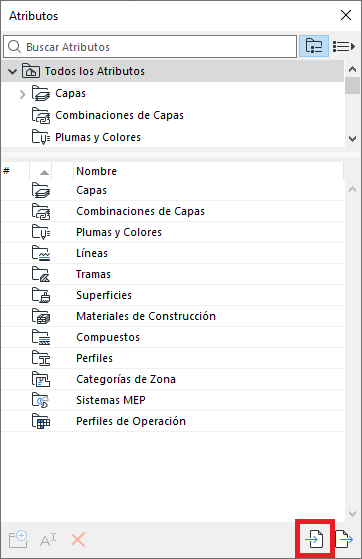
- In the Attributes dialog box, click the Import button.
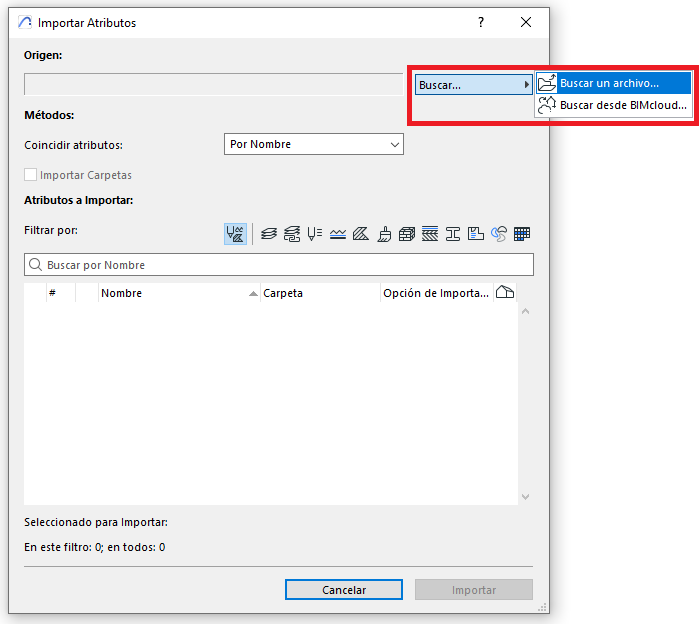
- In the Import Attributes dialog box, click Browse. Then choose between:
- Browse for a file...: If the Attributes file is located on your PC.
-
Browse from BIMcloud...: If the Attributes file is located on BIMcloud.
- Select the method for incorporating the incoming attributes:
By Name: Overwrites the existing attribute with the same name. If the name doesn’t exist, a new attribute is added.
By Index: Overwrites the existing attribute with the same index number. If the index doesn’t exist, a new attribute is added.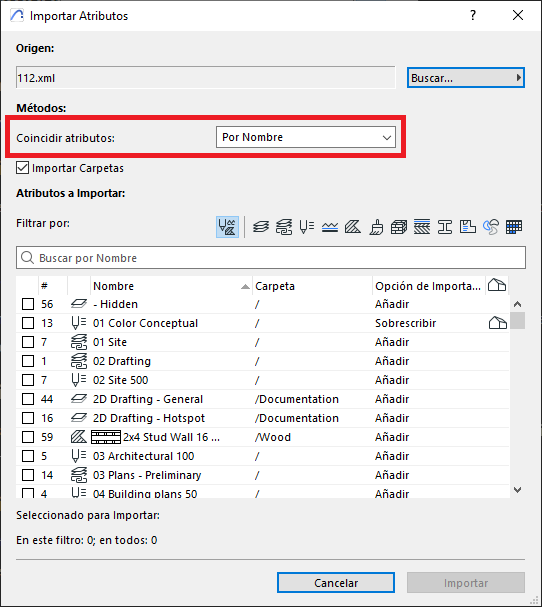
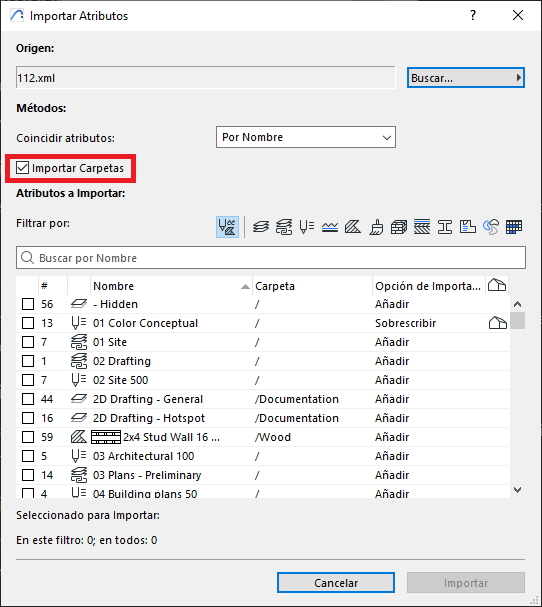
- Don’t forget to enable the Import Folders option.
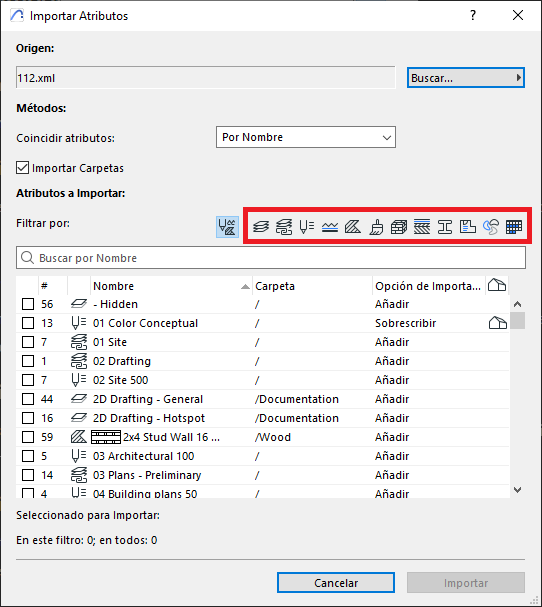
- Filter the list of attributes by type, as needed.
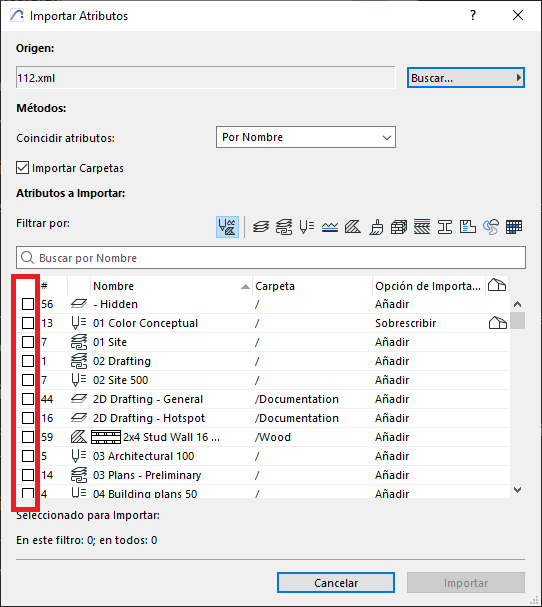
- Check the box for the attribute you want to import.
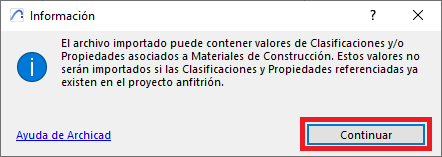
- When the Information dialog box appears, click Continue.
- And confirm the attribute import process.
Important Notes
- This method supports importing attributes from files with the extensions .PLN, .PLA, .TPL, .XML, .AAT, .XLSX.
Common Errors When Importing Attributes
Although the Attributes Palette makes managing Archicad attributes much easier, it’s important to bear in mind some common mistakes that can affect the quality of the project or the process:
- Overwriting attributes without reviewing their use: Importing attributes with the same name or ID can replace existing settings, which could alter elements already placed in the model.
- Not checking for name or index conflicts: If you don’t correctly choose the matching method (by name or by index), you could import duplicate or inconsistent attributes.
- Importing unnecessary attributes: Loading all the attributes from another file without filtering can clutter the project with elements that won’t be used, making organisation harder.
- Not making a backup beforehand: It’s always advisable to save a version of the file before doing a mass import, so you can revert changes if needed.
-
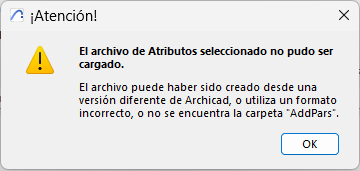
Not enabling the Import Folders option when importing attributes: Some attribute files come with a folder containing the definition of each attribute separately. Not enabling the Import Folders option will cause the following error.
Conclusion
The Archicad Attributes Palette simplifies managing and importing attributes, helping you keep your projects organised and consistent. Whether you work in a collaborative environment or simply want to reuse settings from another project, this tool is key to improving your productivity.
Related articles
- How to Uniquely Identify Hotlink Module Zones in Archicad Schedules?
- How to Set the Origin of a 3D Texture in Archicad?
- Why Do Drawings Exported to PDF in Archicad Generate Very Large Files?
- How to Map a Custom Archicad Property to an IFC Property?
- How to Remove an Archicad Educational Licence from a Computer?