
Articles in this section
- How to Uniquely Identify Hotlink Module Zones in Archicad Schedules?
- How to Set the Origin of a 3D Texture in Archicad?
- Why Do Drawings Exported to PDF in Archicad Generate Very Large Files?
- How to Map a Custom Archicad Property to an IFC Property?
- How to Remove an Archicad Educational Licence from a Computer?
- How to Change an Archicad File Started in the International Version to the Spanish Version?
- How to Import a PDF to Use as a Reference in Archicad?
- How to Use Educational and Commercial Versions of Archicad on the Same Computer?
- How to Get the Archicad Connection with Twinmotion?
- How to Create a Structural Frame with the Create Truss Tool in Archicad?
How to Import Keynotes into Archicad Using Excel
1. Prepare Your Excel File
Make sure your Excel file is structured correctly. The columns must follow this order:
- Type: The keynote type (for example, Folder, Keynote).
- Key: A unique identifier for each keynote.
- Title: The keynote's title.
- Description: A detailed description of the keynote.
- Reference: Any reference information.
- Path: The hierarchical path for nesting the keynotes.
Example:
| Type | Key | Title | Description | Reference | Path |
| <Folder> | 001 | General | General notes | ||
| <Keynote> | 002 | Wall finish | Paint finish details | General |
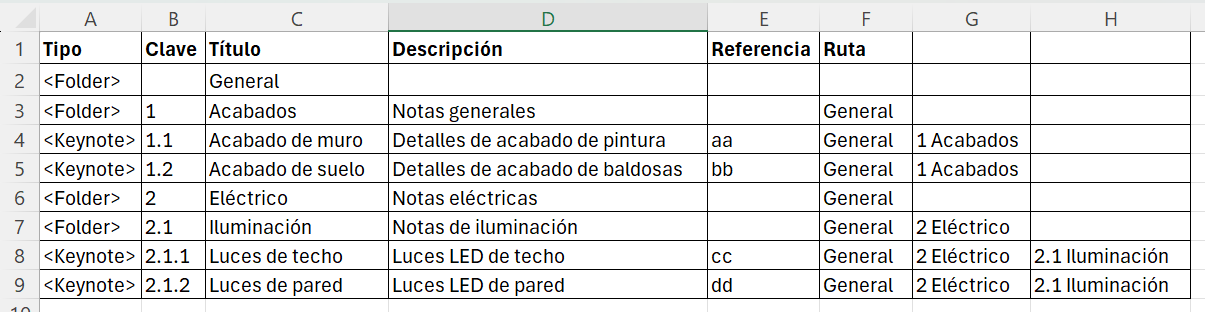
Understanding the Path Column
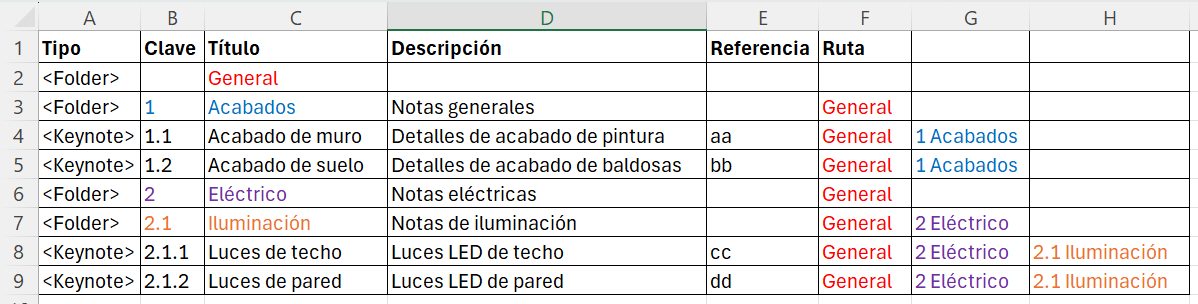
The Path column specifies the hierarchical relationship between keynotes and folders. It helps Archicad understand how to nest the keynotes under the correct folders. Here's how to set it up:
- Top level: For top-level folders, the Path column must be empty. These folders are the main categories under which other folders and keynotes will be nested.
- Subfolders and keynotes: For subfolders and keynotes, the Path column must contain the path to their parent folder. This path is usually a string representing the hierarchy, and it's important to place the folder's key and title in each cell.
Example structure:
2. Import Keynotes into Archicad
- Open Archicad and go to File > Import > Keynotes.
- Select your prepared Excel file and click Open.
- Archicad will import the keynotes and display them in the Keynotes palette.
3. Check and Adjust the Keynotes
After importing, check that the keynotes are correctly nested and displayed:
- Open the Keynotes palette in Archicad.
- Review the hierarchy and make sure all keynotes are correctly placed under their respective folders.
- Make any necessary adjustments directly in the Keynotes palette.
Troubleshooting
- Incorrect nesting: If keynotes aren't nesting correctly, check the Path column in your Excel file for typos or inconsistencies.
- Missing keynotes: Make sure all required fields are filled in and there are no duplicate keys.
Related articles
- How to Uniquely Identify Hotlink Module Zones in Archicad Schedules?
- How to Set the Origin of a 3D Texture in Archicad?
- Why Do Drawings Exported to PDF in Archicad Generate Very Large Files?
- How to Map a Custom Archicad Property to an IFC Property?
- How to Remove an Archicad Educational Licence from a Computer?