
Articles in this section
- How to Uniquely Identify Hotlink Module Zones in Archicad Schedules?
- How to Set the Origin of a 3D Texture in Archicad?
- Why Do Drawings Exported to PDF in Archicad Generate Very Large Files?
- How to Map a Custom Archicad Property to an IFC Property?
- How to Remove an Archicad Educational Licence from a Computer?
- How to Change an Archicad File Started in the International Version to the Spanish Version?
- How to Import a PDF to Use as a Reference in Archicad?
- How to Use Educational and Commercial Versions of Archicad on the Same Computer?
- How to Get the Archicad Connection with Twinmotion?
- How to Create a Structural Frame with the Create Truss Tool in Archicad?
How to Map Element Attributes Between Archicad and DXF/DWG Files? Font Styles
Reading time: 2 min.
When collaborating between CAD programs and Archicad using DXF/DWG files, it's essential to make sure the element attributes between the programs are mapped correctly for successful collaboration.
Setting up the mapping of Font Styles is an aspect of the collaborative project that shouldn't be overlooked, not only for graphical and/or legibility reasons, but also because of the additional information that needs to be visible in the Views or Layouts.
Mapping Text Fonts
To map Text Fonts from Archicad to DXF-DWG files:
- Go to: File > Interoperability > DXF-DWG > DXF-DWG Translation Setup.
- Select the DXF-DWG translator setup you want to duplicate.
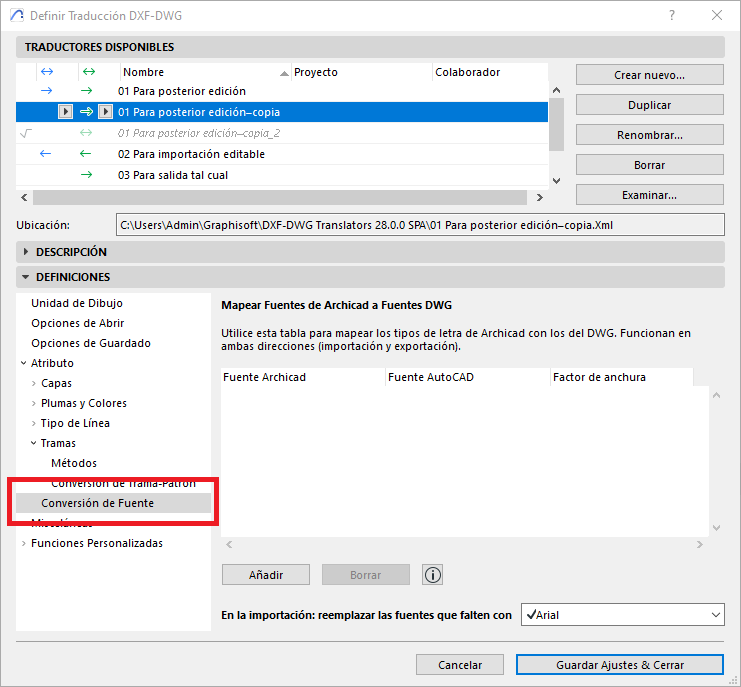
- In the DXF-DWG Translation Setup dialog box, go to Definitions > Attribute > Font Conversion.
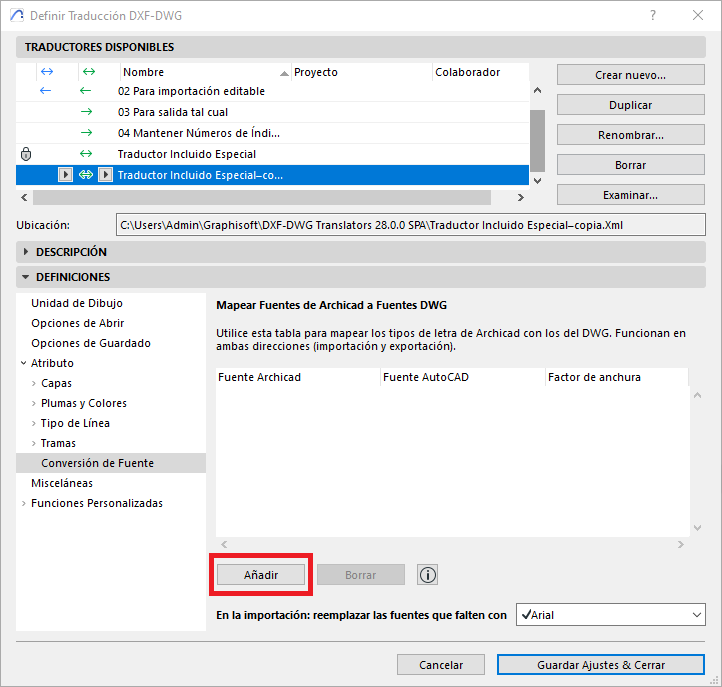
- Click Add.
- In:
Archicad Font (red): select the Text Font used in the Archicad project.
AutoCAD Font (yellow): select the Text Font used in the AutoCAD project.
Width Factor (green): select the width factor of the Text Font when the file is exported as DXF-DWG.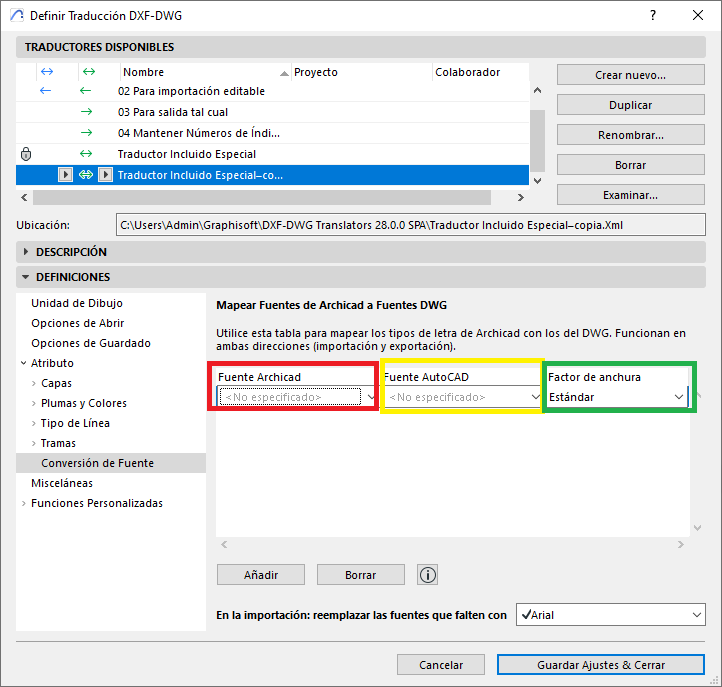
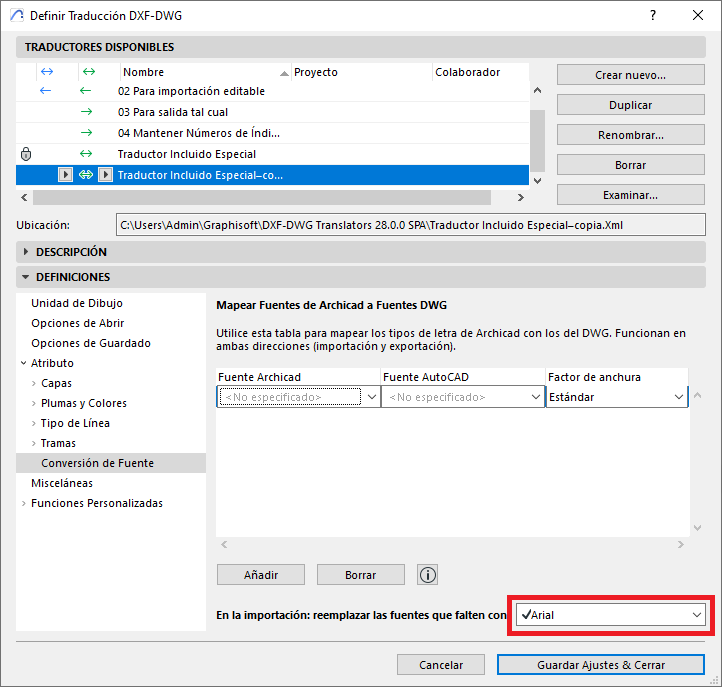
- Select the replacement Text Font to use if it isn't available on the machine (see image).
- Repeat this process for each Text Font you need to map.
- Save the configuration by clicking Save Settings & Close.
Tip:
- Don't edit the original settings of the DXF-DWG Translators that come by default with the program installation.
- Create duplicates of the customised DXF-DWG Translator settings until you achieve the desired configuration.
- Check that the fonts are available on both systems to avoid unwanted substitutions.
By following these steps and incorporating these tips, you can set up the mapping of Text Fonts between your Archicad project and the DXF-DWG files (imported or exported) with your project collaborators.
Related articles
- How to Uniquely Identify Hotlink Module Zones in Archicad Schedules?
- How to Set the Origin of a 3D Texture in Archicad?
- Why Do Drawings Exported to PDF in Archicad Generate Very Large Files?
- How to Map a Custom Archicad Property to an IFC Property?
- How to Remove an Archicad Educational Licence from a Computer?