
Articles in this section
- How to Uniquely Identify Hotlink Module Zones in Archicad Schedules?
- How to Set the Origin of a 3D Texture in Archicad?
- Why Do Drawings Exported to PDF in Archicad Generate Very Large Files?
- How to Map a Custom Archicad Property to an IFC Property?
- How to Remove an Archicad Educational Licence from a Computer?
- How to Change an Archicad File Started in the International Version to the Spanish Version?
- How to Import a PDF to Use as a Reference in Archicad?
- How to Use Educational and Commercial Versions of Archicad on the Same Computer?
- How to Get the Archicad Connection with Twinmotion?
- How to Create a Structural Frame with the Create Truss Tool in Archicad?
How to Migrate the Libraries of a Project Created with an Earlier Version of Archicad?
Reading time: 6 min.
Migrating the libraries of an Archicad project to a newer version is simple if you follow these steps, and you can do it efficiently and without issues.
Note: As of Archicad 29, the program installation no longer includes the Migration Library by default.
You need to download it manually from the following link:
Download Archicad 29 Migration Library
Make sure you correctly select the language and operating system before downloading.
Once the file has downloaded, run it and follow a standard installation (click "Next" until finished).
Why migrate the object libraries to the new version of Archicad?
Migrating the libraries is important for several reasons:
- Optimisation: The most recent libraries are better optimised to work with the new version of Archicad.
- Bug Fixes: The most recent versions of the Archicad libraries usually include fixes for bugs found in earlier versions of the program.
- New Features: The object libraries supplied with each new version of Archicad usually include new objects and features that are not available in earlier versions.
When should I migrate the libraries of an Archicad project?
You should consider migrating the Archicad libraries in the following cases:
- Version Update: When you want to update your project to the new version of Archicad.
- Compatibility: If you encounter compatibility issues with library objects from earlier versions of Archicad.
- Improvements and New Features: To take advantage of the improvements and new features in the most recent libraries.
How to migrate Archicad object libraries?
1. Open the Project in Archicad 28
The first step is to open your project, created in an earlier version of Archicad, in Archicad 28. The program will recognise and prepare the libraries for migration automatically.
2. Migrate Libraries
If Archicad detects that the libraries used in the project belong to earlier versions of the program, it will open a Migration prompt like the one in the following image.
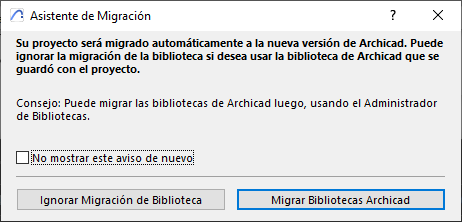
Click "Migrate Archicad Libraries", and the program will load the Archicad 28 Library together with the Migration Libraries folders. This process will automatically update the objects placed from the project's old libraries (versions 17-27) to their latest compatible version. If your project includes library objects earlier than Archicad 17, you will need to use the Library Manager to load the old Migration Libraries.
Migrating Libraries Manually
In some cases, Archicad does not show the Migration prompt, or the user wants to manually control which libraries are loaded.
Follow these steps to carry out the migration manually:
1. Open the Library Manager
In the top menu, select:
File → Libraries and Objects → Library Manager.
In the pop-up window you will see all the libraries currently loaded in the project (local, network, or on BIMcloud).
2. Migrate Library
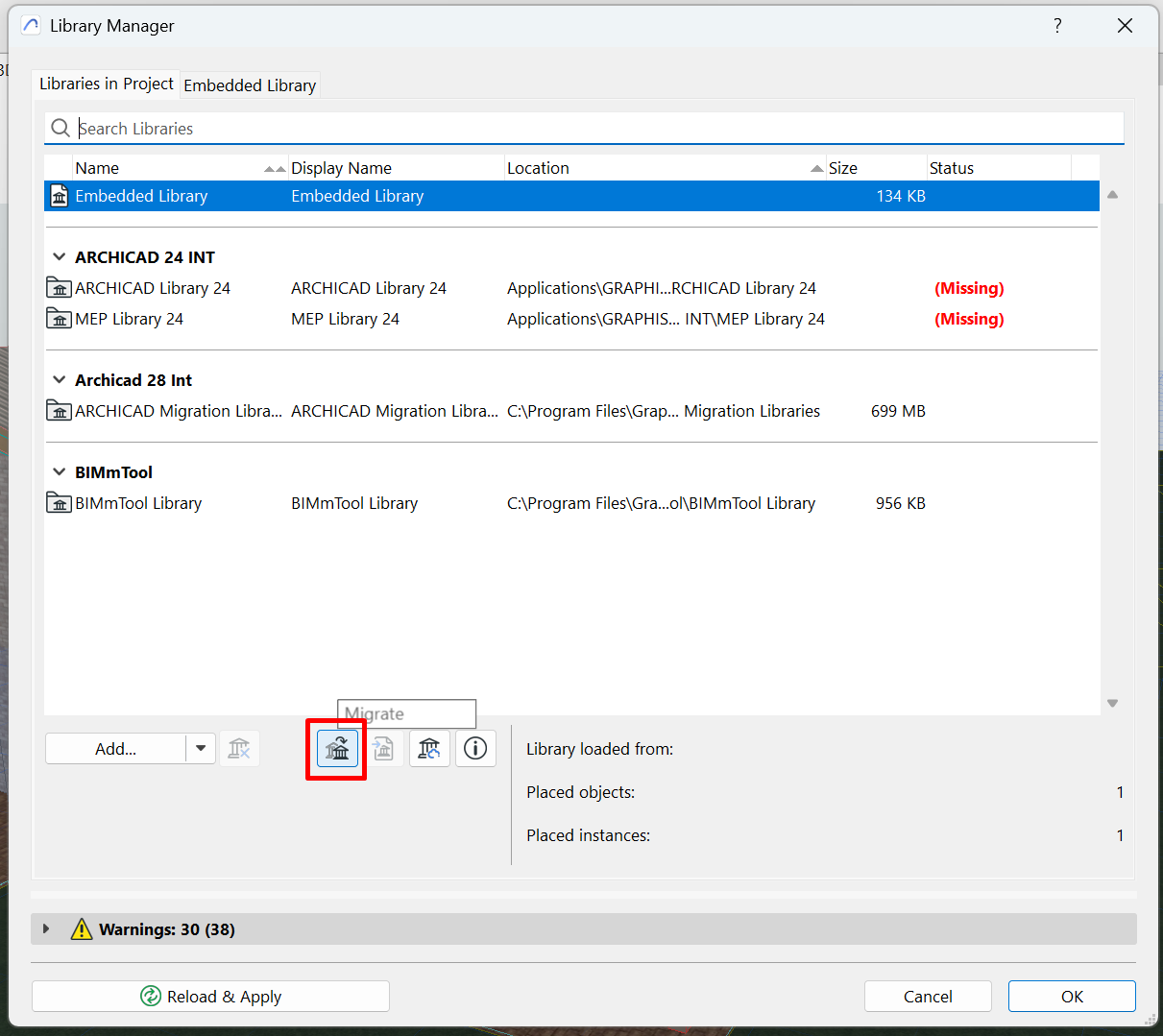
If Archicad detects old libraries within the Library Manager, a "Migrate" button will appear.
Click the "Migrate" button to start replacing the old libraries with the new ones.
This will update the library path and add the necessary Migration Libraries folders.
Next, select "Apply and Reload" to confirm the changes and force an immediate reload of all the project's objects.
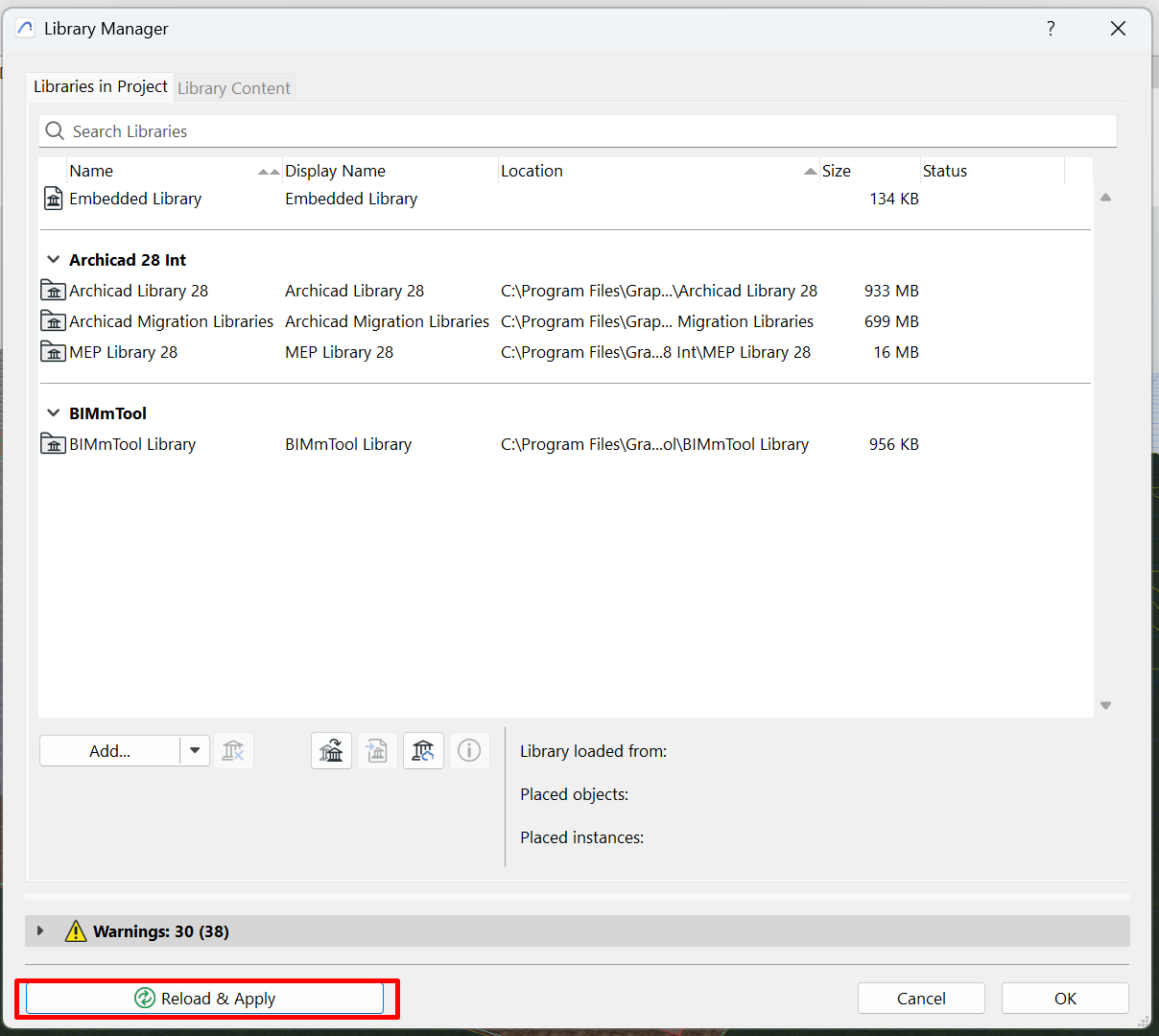
Wait for the reload to finish.
Once complete, all objects linked to earlier versions will be updated to their most recent equivalent.
FAQ: Common Problems When Migrating Archicad Libraries
1. Object compatibility
- Problem: Objects from earlier versions may not be fully compatible with the new version.
- Solution: Manually replace obsolete objects with their new equivalents using the Library Manager...
2. Loading errors
- Problem: Errors loading the libraries during migration.
- Solution: Make sure all the necessary libraries are loaded and up to date. If the errors persist, check the Archicad documentation or contact SIMBIM.
Related articles
- How to Uniquely Identify Hotlink Module Zones in Archicad Schedules?
- How to Set the Origin of a 3D Texture in Archicad?
- Why Do Drawings Exported to PDF in Archicad Generate Very Large Files?
- How to Map a Custom Archicad Property to an IFC Property?
- How to Remove an Archicad Educational Licence from a Computer?