
Articles in this section
- How to Uniquely Identify Hotlink Module Zones in Archicad Schedules?
- How to Set the Origin of a 3D Texture in Archicad?
- Why Do Drawings Exported to PDF in Archicad Generate Very Large Files?
- How to Map a Custom Archicad Property to an IFC Property?
- How to Remove an Archicad Educational Licence from a Computer?
- How to Change an Archicad File Started in the International Version to the Spanish Version?
- How to Import a PDF to Use as a Reference in Archicad?
- How to Use Educational and Commercial Versions of Archicad on the Same Computer?
- How to Get the Archicad Connection with Twinmotion?
- How to Create a Structural Frame with the Create Truss Tool in Archicad?
How to Open and Repair an Archicad Project File?
Reading time: 4 min.
Project files in Archicad can sometimes develop faults that affect how they work: general slowdown of the environment, unexpected application closure, inability to open the file, or errors that cannot be resolved through conventional methods. To avoid losing information and to recover access to the project's content, you need to apply the official open-and-repair procedure provided by Archicad.
Audience
Archicad users, support technicians, coordinators and BIM consultants.
Prerequisites
Archicad installed on the computer.
Access to the file to be repaired.
Do not overwrite the original file until the repair is complete.
Basic knowledge of the Archicad environment.
Resolution Steps:
Open Archicad.
-
Select the Damaged File:
Go to the File > Open > Open... menu.
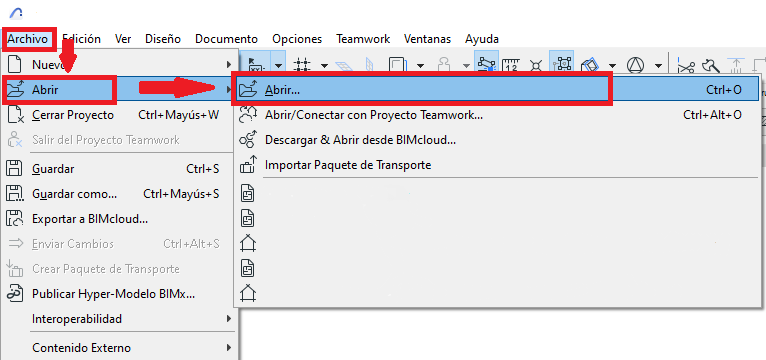
In the Open File dialog box, select the file to be repaired (do not open it directly).
-
Activate Repair Mode:
In the Open File dialog box, select "Open & Repair Selected File"
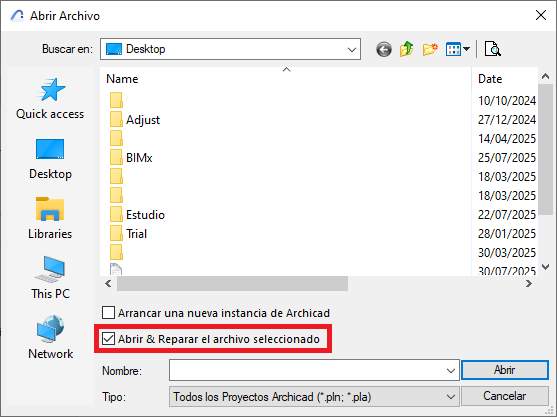
Click Open.
Wait for the Repair:
Archicad will automatically start repairing the project file.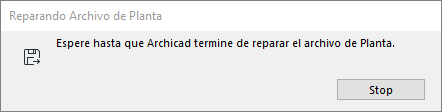
Save the Recovered File Under a New Name:
As soon as the repair process finishes, Archicad will start to open the file and will generate an alert message, in which you should select Save As and save the project under a different name.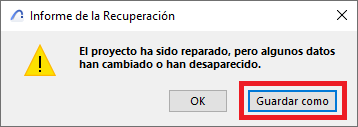
-
Check the File's Content:
Review views, sections, details and layouts
Open the Report view to check for errors
Validate library links and external references, if applicable.
Troubleshooting
| Problem | Solution |
|---|---|
| The file cannot be opened in repair mode | Use a backup copy or a BIMcloud version |
| Elements are missing | Review and link libraries with the Library Manager |
| Archicad closes unexpectedly | Try the repair on another computer |
| The file appears empty | Try a 3D view or check the layers and display filters |
Professional Tip
It is always advisable to enable Autosave and keep regular backup copies, whether locally, in the cloud, or via BIMcloud.
Related articles
- How to Uniquely Identify Hotlink Module Zones in Archicad Schedules?
- How to Set the Origin of a 3D Texture in Archicad?
- Why Do Drawings Exported to PDF in Archicad Generate Very Large Files?
- How to Map a Custom Archicad Property to an IFC Property?
- How to Remove an Archicad Educational Licence from a Computer?