
Articles in this section
- How to Uniquely Identify Hotlink Module Zones in Archicad Schedules?
- How to Set the Origin of a 3D Texture in Archicad?
- Why Do Drawings Exported to PDF in Archicad Generate Very Large Files?
- How to Map a Custom Archicad Property to an IFC Property?
- How to Remove an Archicad Educational Licence from a Computer?
- How to Change an Archicad File Started in the International Version to the Spanish Version?
- How to Import a PDF to Use as a Reference in Archicad?
- How to Use Educational and Commercial Versions of Archicad on the Same Computer?
- How to Get the Archicad Connection with Twinmotion?
- How to Create a Structural Frame with the Create Truss Tool in Archicad?
How to Record and Share Issues Directly from BIMx Pro?
Reading time: 5 min.
During technical review processes for BIM models, whether in the office or on site, it is common to identify deviations, errors or queries about the model’s content. BIMx Pro lets you record these observations directly from an interactive model and share them in formats compatible with authoring software such as Archicad.
This functionality is exclusive to BIMx Pro. Users who only use the free version of BIMx will not be able to create or edit issues within the model. Access to BIMx Pro is granted through a specific licence or by belonging to a registered organisation with Pro rights enabled.
Target audience
- Professionals who use BIMx Pro
- BIM coordinators and quality-review leads
- Clients, consultants and other stakeholders who review BIM models in a professional setting
Technical requirements
- Model exported from Archicad, in Hyper-model format
- The latest version of the BIMx app, installed from the App Store or Google Play
- Pro features enabled via:
- An individual BIMx Pro licence, or
- Membership of an organisation with an active BIMcloud SaaS licence or similar
- Having a Collaborate licence
- Connection to BIMcloud (only if sending directly to Archicad)
Procedure
-
Creating an issue
Requirement: This functionality is only enabled for users with access to BIMx Pro.
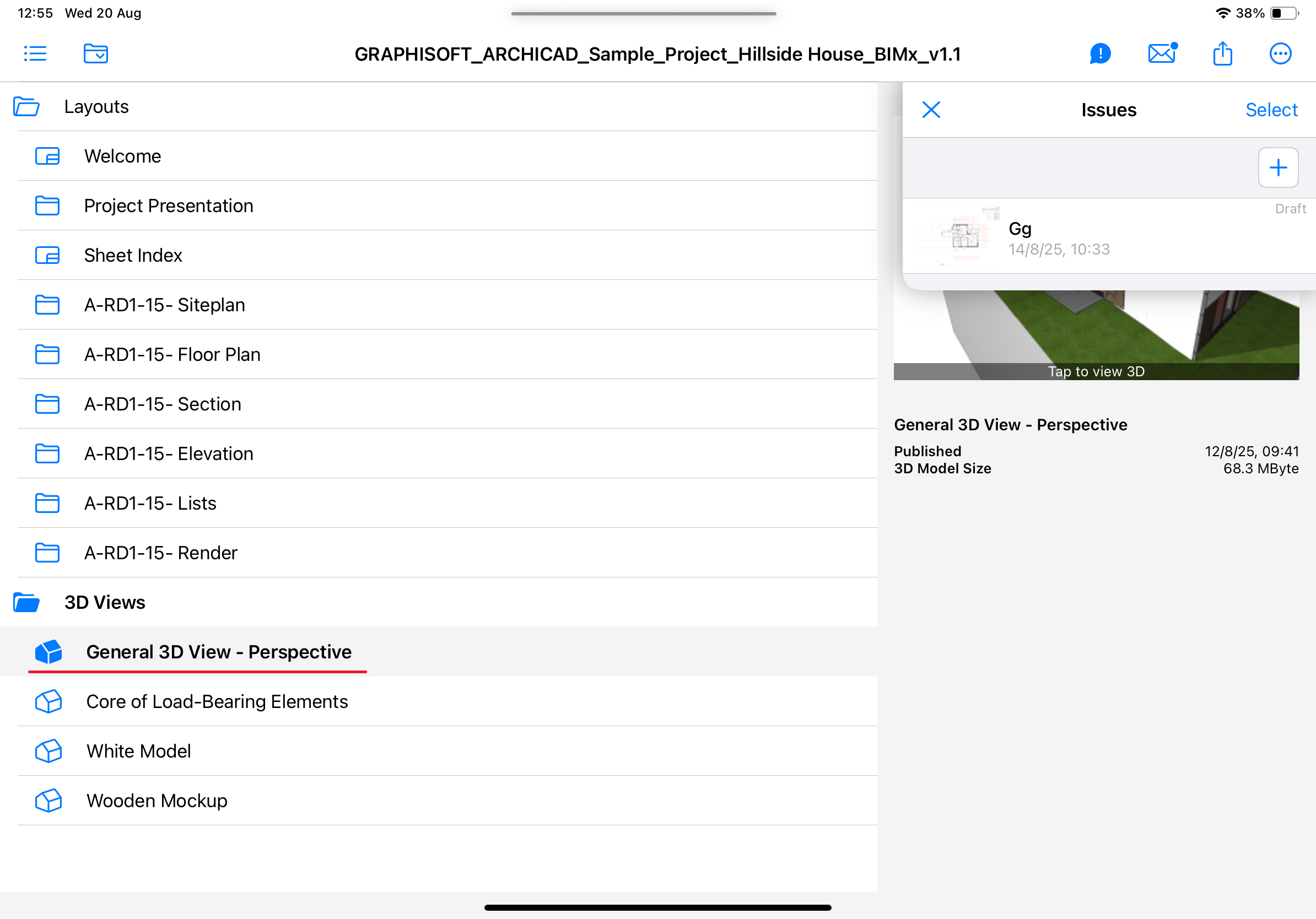
From the 3D model:- Open the model in BIMx Pro, and select a model view
-
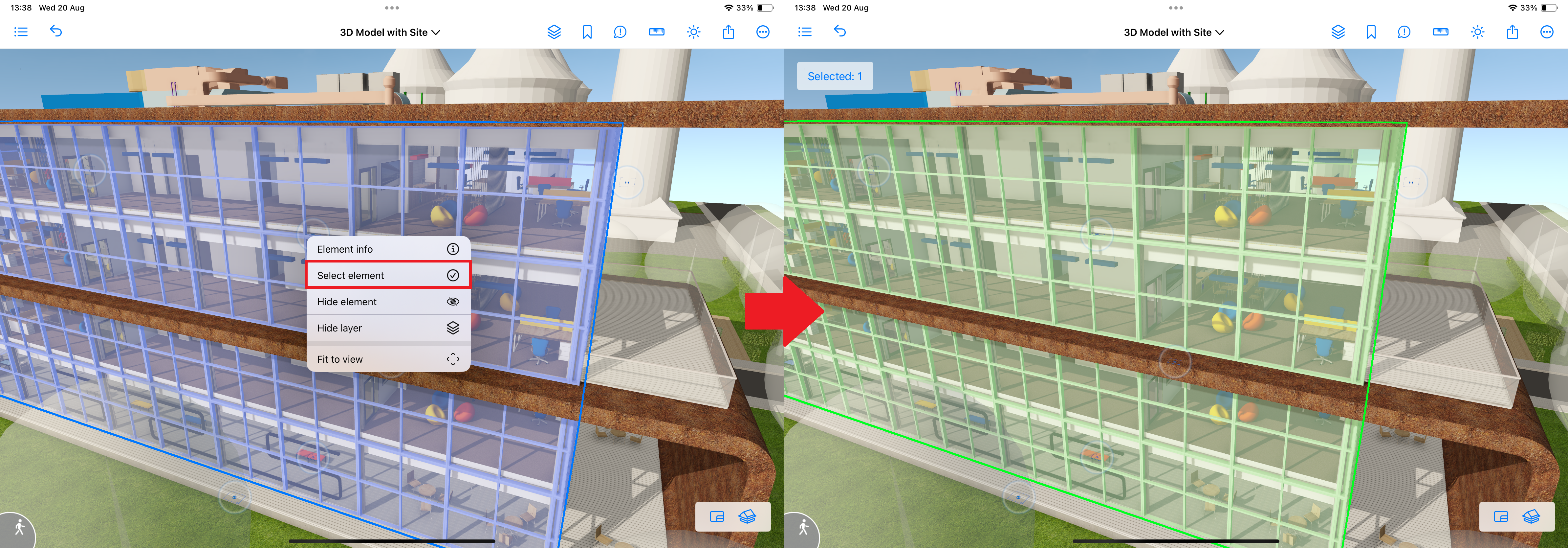
Select a model component
-
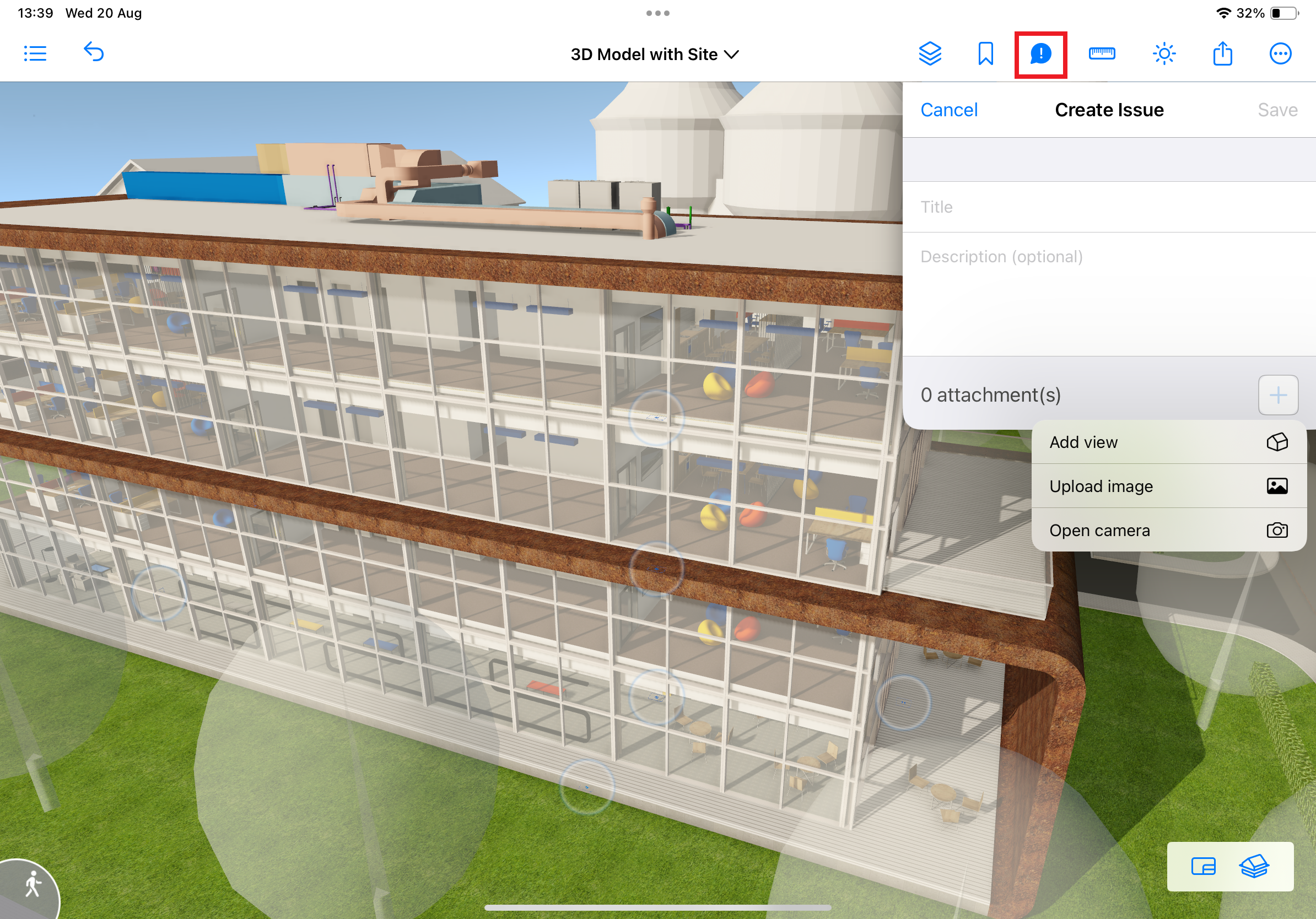
Activate the Create Issue command
-
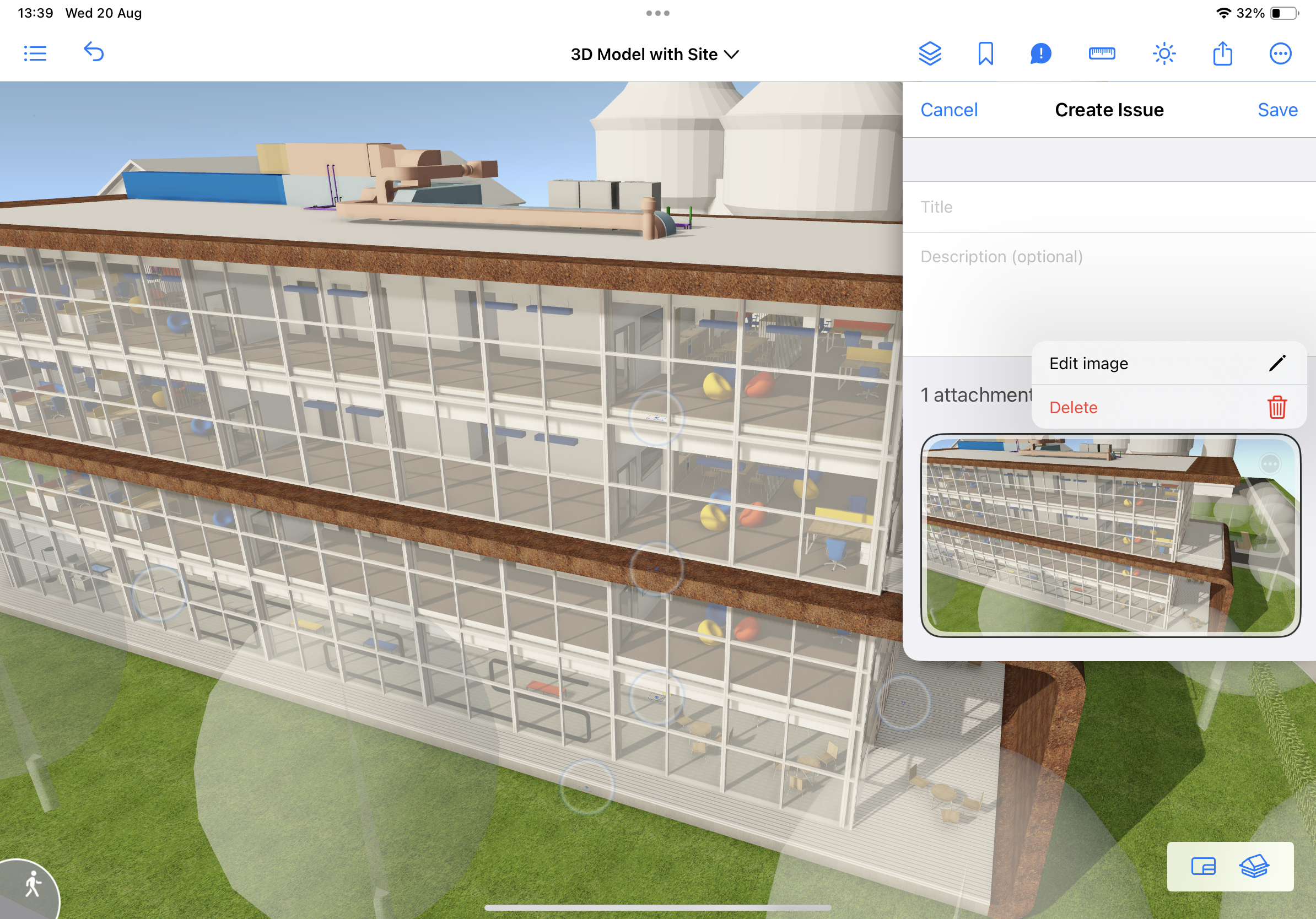
Optional: add an image to the issue.
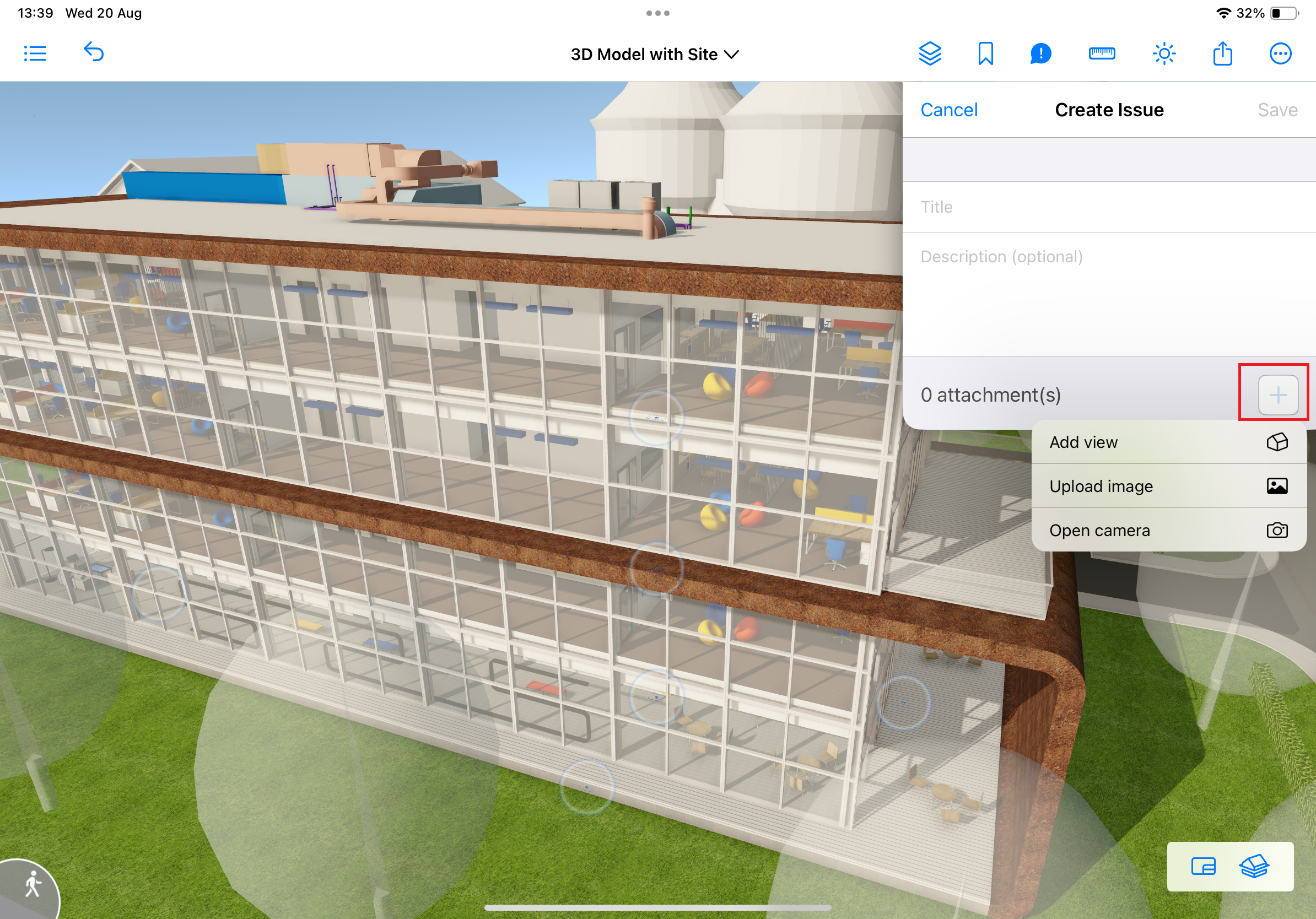
Add View (red): adds a capture from the active view
Upload Image (green): adds an image from the device’s storage
Open Camera (blue): adds a capture from the camera.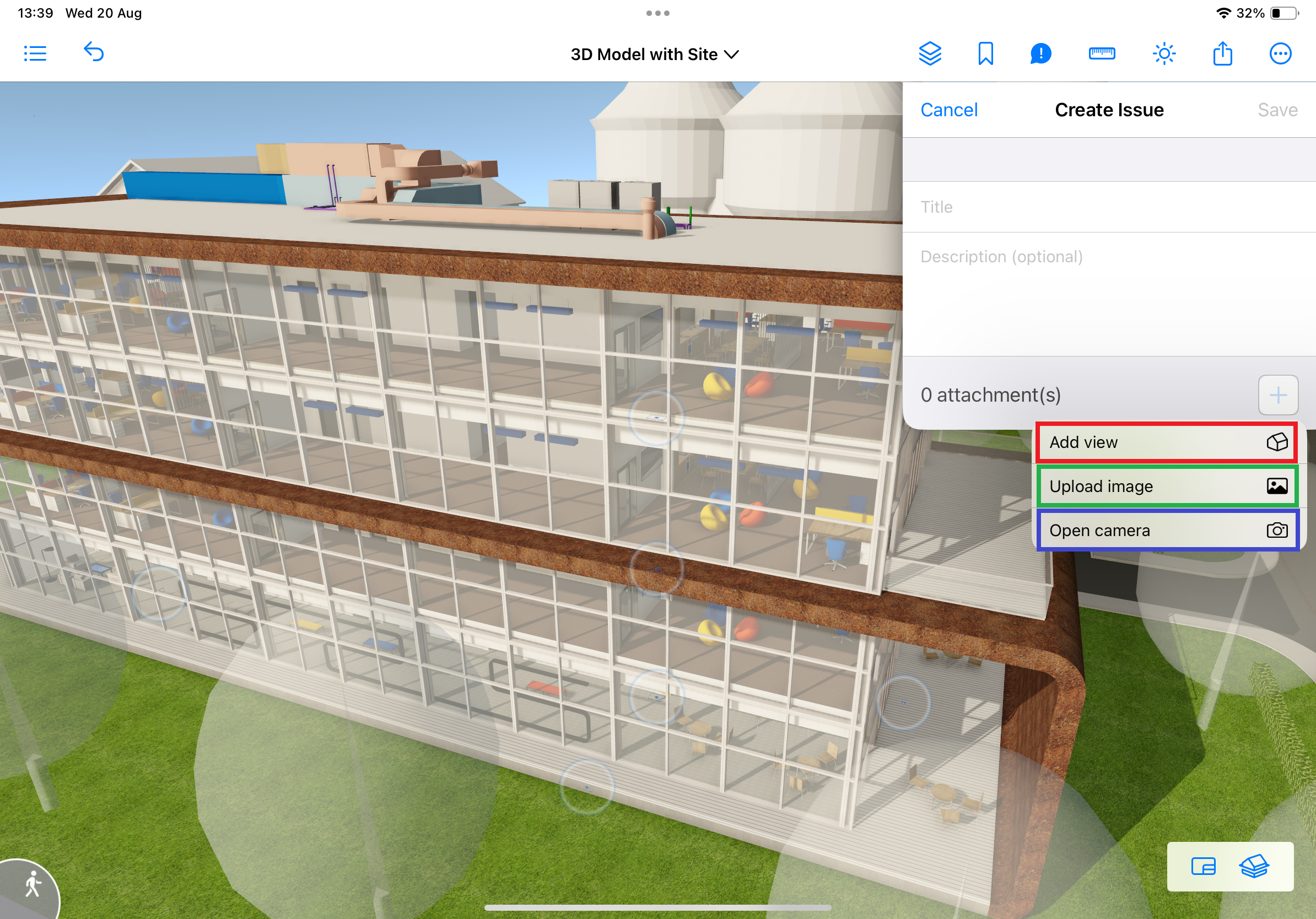
-
A new issue will automatically be recorded with its associated view and selection.
- Open the model in BIMx Pro, and select a model view
-
Editing the issue
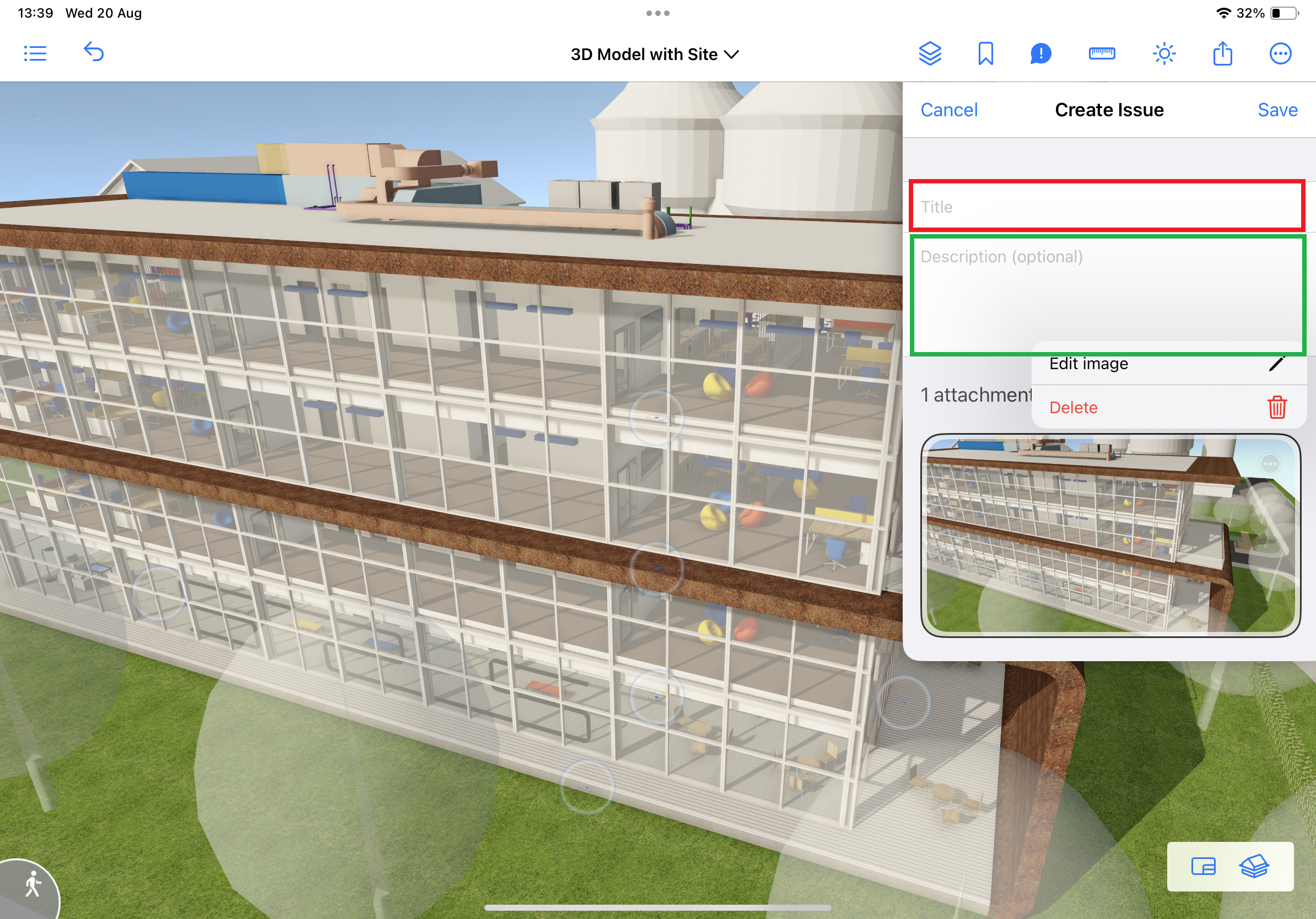
The fields available for editing include:- Title (red): assign an indicative and/or descriptive title
- Description (green): explanatory text, instructions or technical queries
-
Attachments: To add model views or camera captures.
-
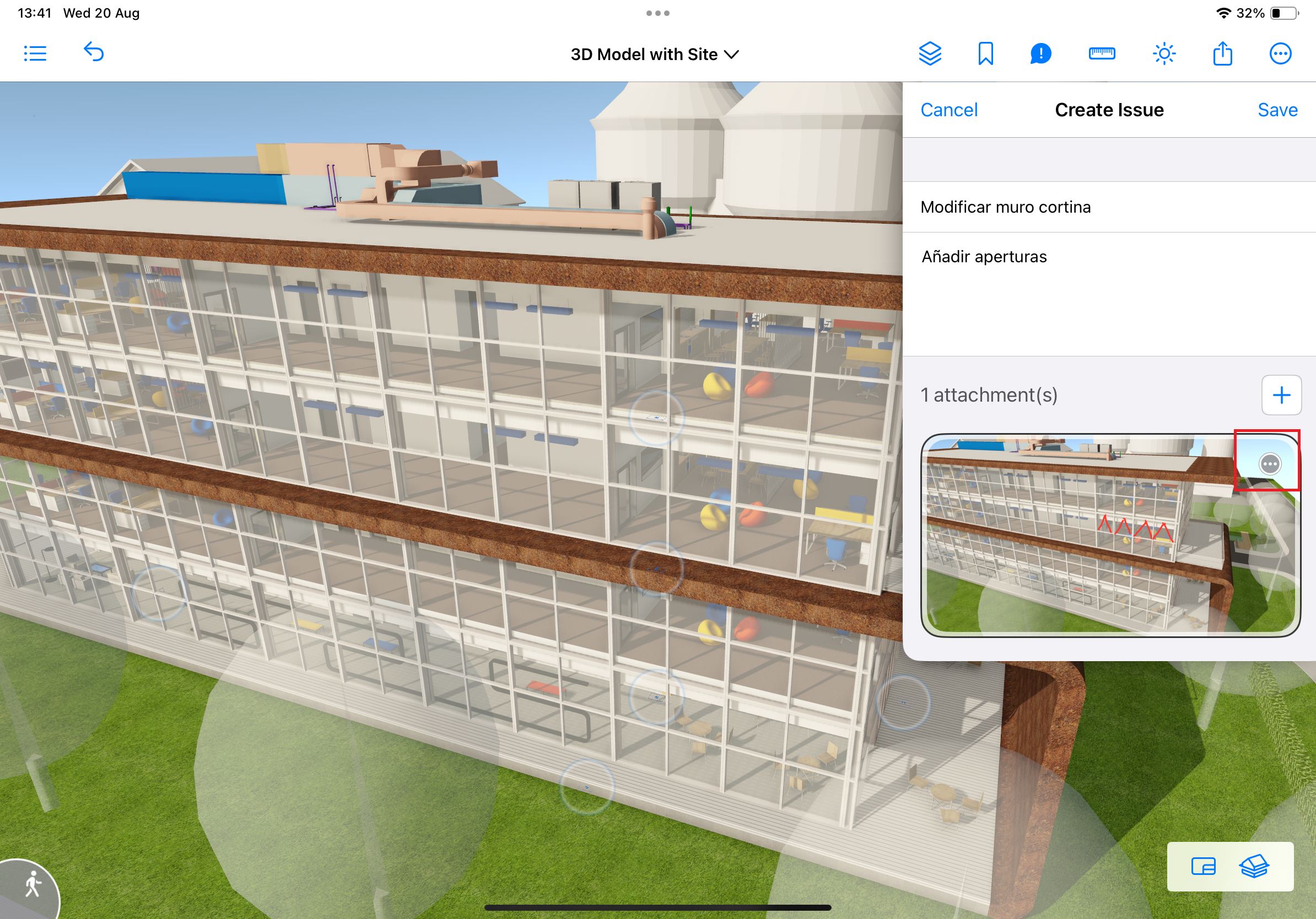
Graphic annotations made on saved views
-
Export and sharing
From the issue list, do the following:- Activate Select mode
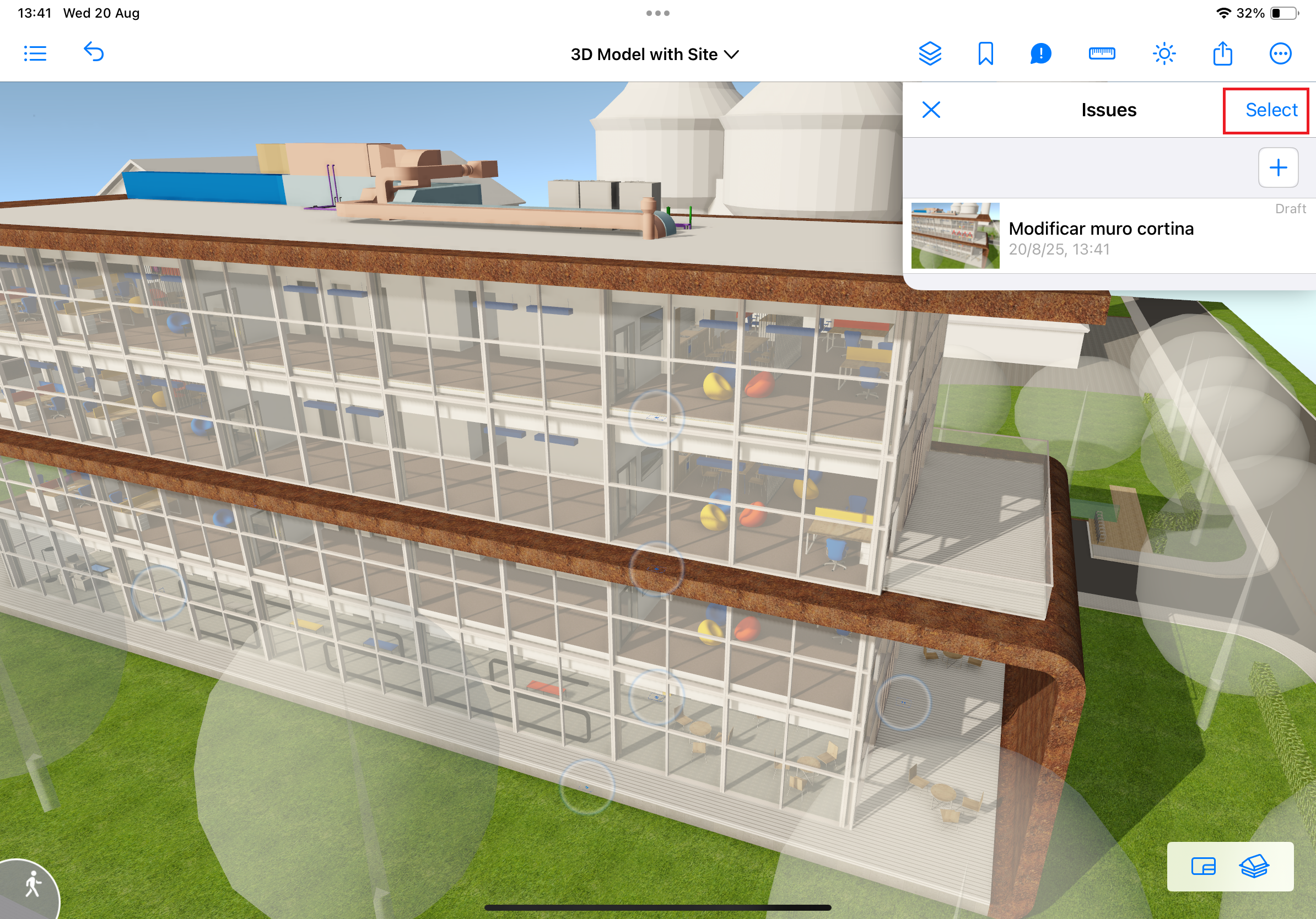
- Mark one or more issues
- Choose one of the following export options:
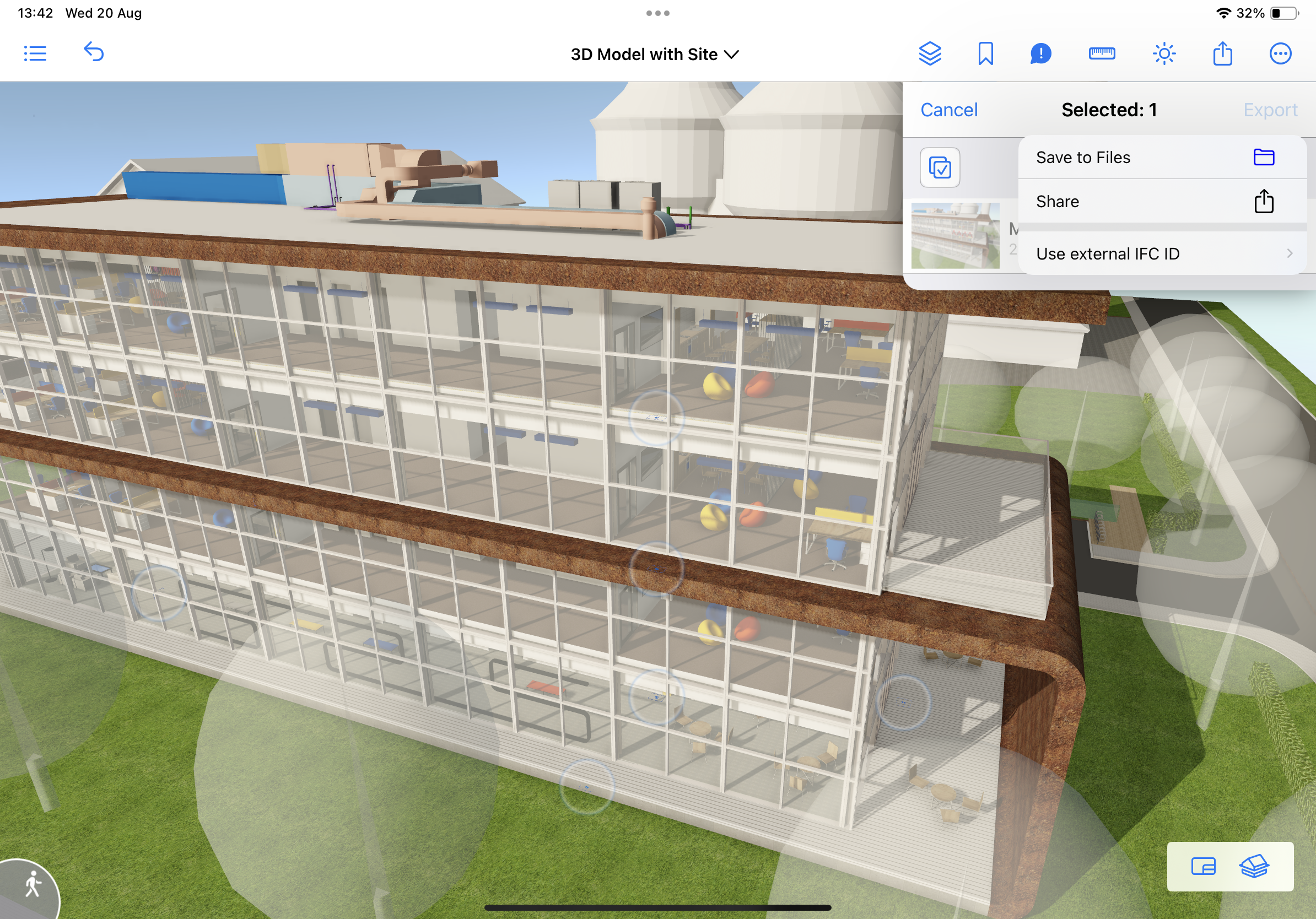
Export method Functional description Send to Archicad Exclusive to Teamwork projects. Issues can be imported into Archicad 27. Save to Files Local export in .bcf format for later transfer. Share Direct sending of the .bcf file via email, AirDrop or other means. Use External IFC ID Enable if the model contains elements generated in software other than Archicad.
- Activate Select mode
-
Importing into authoring software
- In Archicad:
- Use the Import from BIMx Pro button, in the Issue Organizer
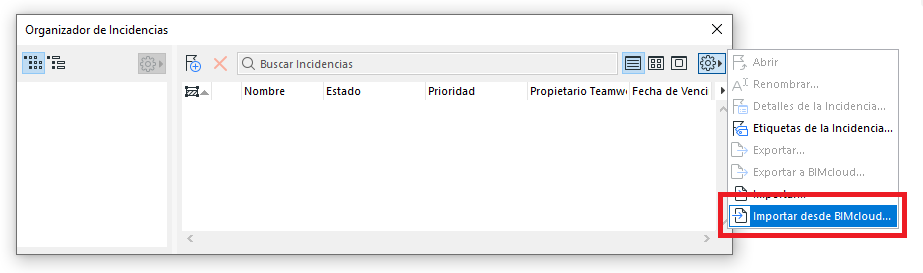
- Use the Import from BIMx Pro button, in the Issue Organizer
- In Archicad:
-
In other cases:
Use the option for importing .bcf files
Compatible with Archicad and other environments that support the BCF standard
Verifying it worked
Confirm that the issue appears listed in BIMx Pro
If it was sent, verify that it appears in Archicad
For a .bcf file, verify it opens correctly in compatible software
Related articles
Related articles
- How to Uniquely Identify Hotlink Module Zones in Archicad Schedules?
- How to Set the Origin of a 3D Texture in Archicad?
- Why Do Drawings Exported to PDF in Archicad Generate Very Large Files?
- How to Map a Custom Archicad Property to an IFC Property?
- How to Remove an Archicad Educational Licence from a Computer?