
Articles in this section
- How to Uniquely Identify Hotlink Module Zones in Archicad Schedules?
- How to Set the Origin of a 3D Texture in Archicad?
- Why Do Drawings Exported to PDF in Archicad Generate Very Large Files?
- How to Map a Custom Archicad Property to an IFC Property?
- How to Remove an Archicad Educational Licence from a Computer?
- How to Change an Archicad File Started in the International Version to the Spanish Version?
- How to Import a PDF to Use as a Reference in Archicad?
- How to Use Educational and Commercial Versions of Archicad on the Same Computer?
- How to Get the Archicad Connection with Twinmotion?
- How to Create a Structural Frame with the Create Truss Tool in Archicad?
How to Save Favorites in Archicad?
Creating and applying Favorites directly from Tool Settings in Archicad is the fastest and most consistent way to save design configurations, including model parameters, graphic attributes and text styles.
What Are Favorites?
Favorites in Archicad are saved combinations of tool settings — such as wall type, pens, materials or text styles — that can be reused instantly. They are essential for working with consistency, speed and compliance with BIM standards (ISO 19650 and ISO 9001).
Why Use the Method from Tool Settings?
Using the star icon (⭐) within Tool Settings lets you:
- Save the current configuration of a tool (for example: Wall, Door, Text or Label).
- Apply that configuration without switching palettes or interrupting your workflow.
- Ensure visual and technical uniformity across all the project's elements.
Important: Favorites store all parameters, including font, size and style in text or label tools, which ensures visually consistent documentation throughout the project template.
Step by Step: Saving a Favorite from Tool Settings
-
Step 1 — Activate the Tool
- Select the tool you want to save (for example, Wall, Door, Text or Label).
-
Step 2 — Open Tool Settings
- Double-click the tool's icon or press Ctrl+T / Cmd+T to open the Tool Settings window.
-
Step 3 — Adjust the Parameters
- Configure all the values you need: structure type, materials, height, layer, composite, pens and fill.
- In text or label tools, also adjust the font, size, style and alignment.
- These settings will be stored in the Favorite for future use.
-
Step 4 — Save as a Favorite
- Click the star icon (⭐) in the top-left corner of Tool Settings.
-
Select Save Current Settings as Favorite….
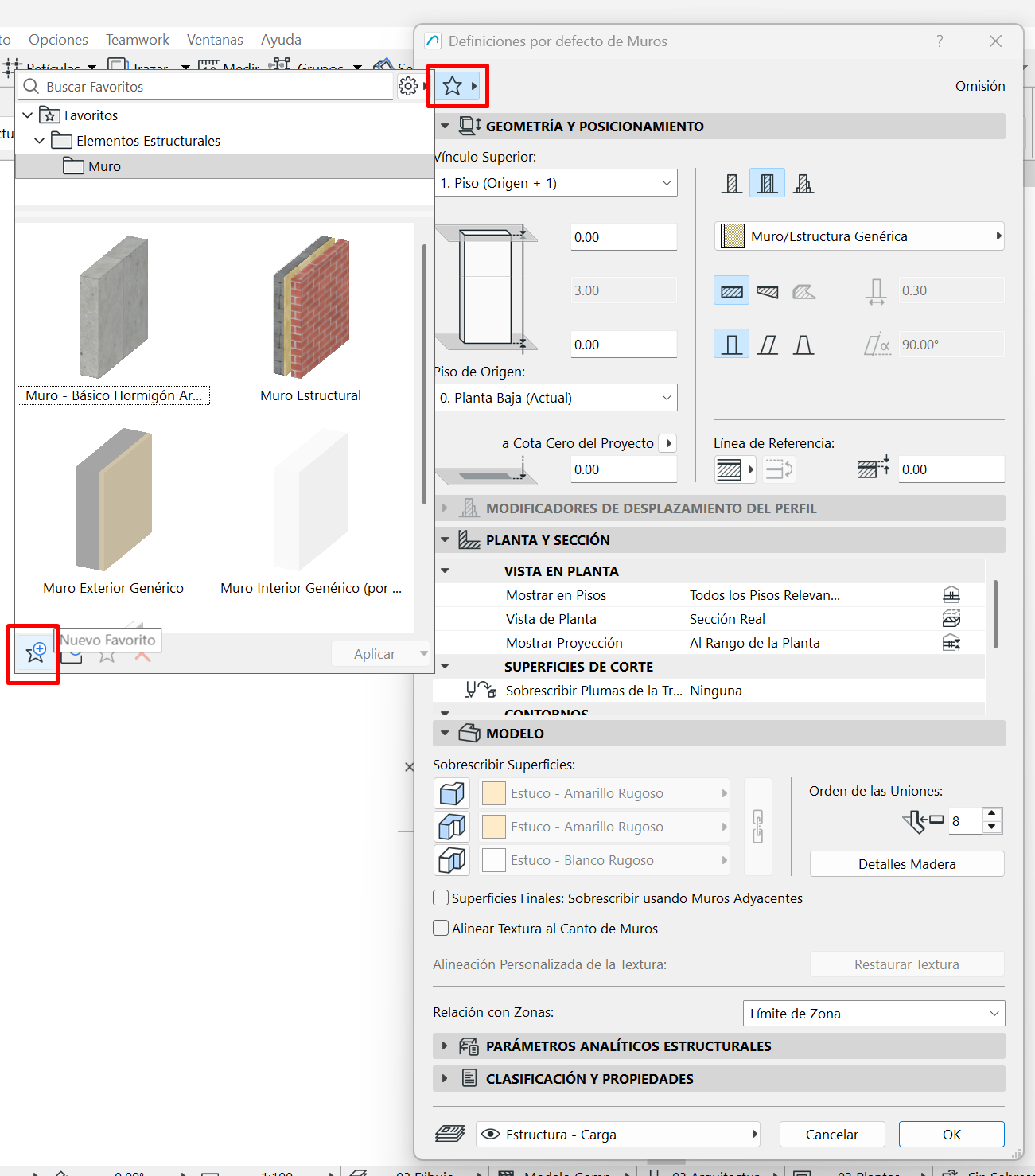
- Enter a clear name following your template's naming convention, for example: WALL_EXT_300_Insulated_G01 or TEXT_Notes_2.0mm_Arial_AN01.
-
Step 5 — Apply a Favorite
- Open Tool Settings for the same tool.
- Click the star (⭐) again and select the Favorite you want.
- Click OK to apply the configuration to the new element.
-
Step 6 — Update an Existing Favorite
- Open Tool Settings and modify the parameters you need.
- Click the star (⭐) and select Update Favorite [Name].
- Note: elements already placed are not automatically modified; the update only affects new ones.
Managing Favorites Across Projects
- Open the Favorites Manager → Save Favorites… to export an .xml file.
- In another project, select Load Favorites… to import the file.
- You can also include your Favorites in an office template (.tpl) to maintain consistency across all projects.
Related articles
- How to Uniquely Identify Hotlink Module Zones in Archicad Schedules?
- How to Set the Origin of a 3D Texture in Archicad?
- Why Do Drawings Exported to PDF in Archicad Generate Very Large Files?
- How to Map a Custom Archicad Property to an IFC Property?
- How to Remove an Archicad Educational Licence from a Computer?