
Articles in this section
- How to Uniquely Identify Hotlink Module Zones in Archicad Schedules?
- How to Set the Origin of a 3D Texture in Archicad?
- Why Do Drawings Exported to PDF in Archicad Generate Very Large Files?
- How to Map a Custom Archicad Property to an IFC Property?
- How to Remove an Archicad Educational Licence from a Computer?
- How to Change an Archicad File Started in the International Version to the Spanish Version?
- How to Import a PDF to Use as a Reference in Archicad?
- How to Use Educational and Commercial Versions of Archicad on the Same Computer?
- How to Get the Archicad Connection with Twinmotion?
- How to Create a Structural Frame with the Create Truss Tool in Archicad?
How to Set Default Units for a Measurement Markup in Bluebeam?
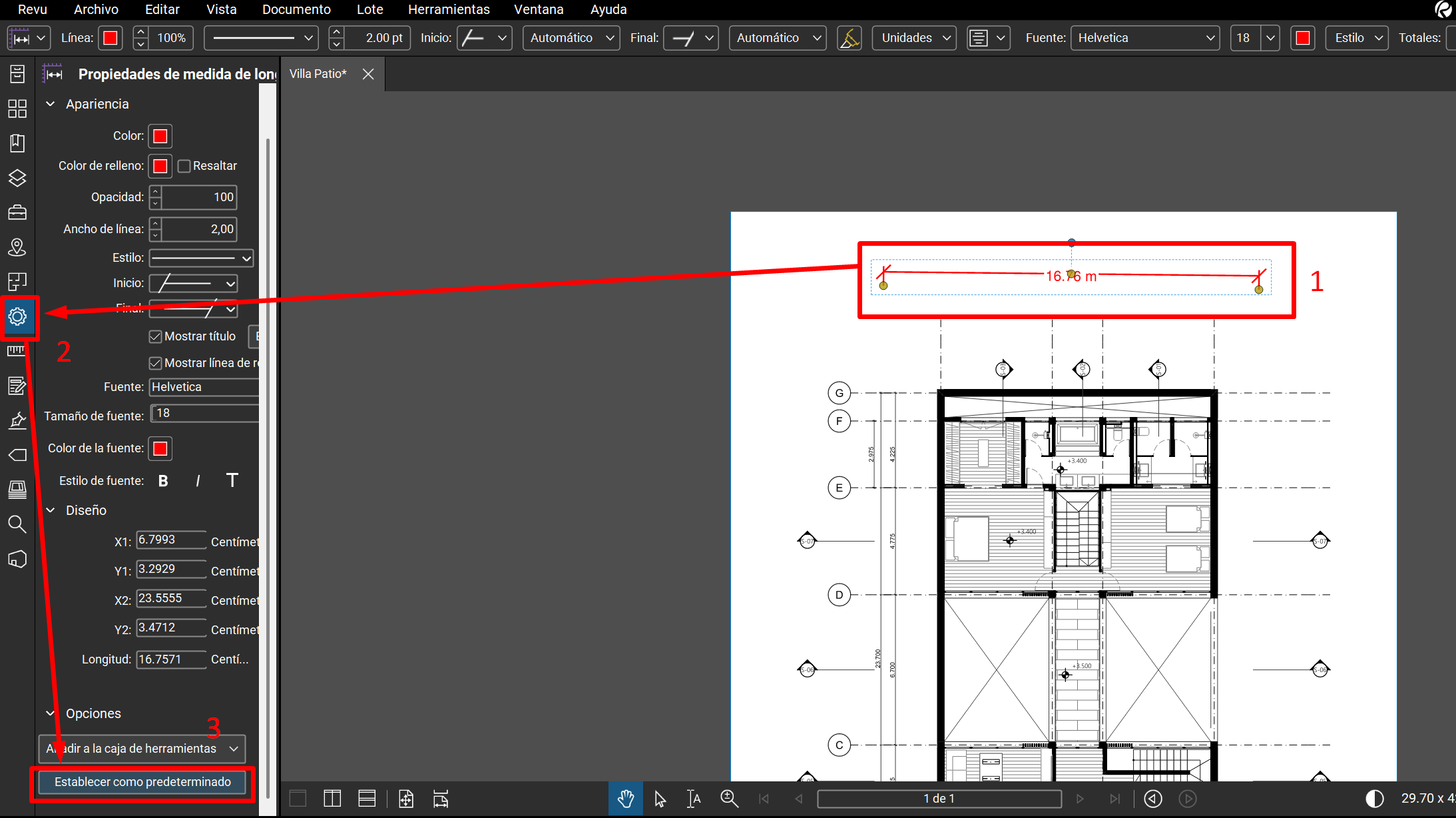
In Bluebeam, you can set default measurement units for your measurement markups, allowing you to work more efficiently and consistently across your projects. To do this, you need to configure a measurement with the desired unit and save it as the default. Below, we explain how to do this step by step:
Steps to set the default units for a markup
-
Select an existing measurement
Make sure the measurement is already configured with the unit of measure you want to use (for example, metres, centimetres, feet, etc.).
-
Open the element's properties panel
Click the measurement to select it and then open the properties panel
-
Set as default
In the properties panel, click the "Set as Default" option. This will save the current configuration as the default for that measurement type.
Important
This process must be repeated for each measurement type you use (for example, length, area, volume, etc.).
From this point on, all new measurements you make with that type of markup will automatically be created with the configured unit.
Related articles
- How to Uniquely Identify Hotlink Module Zones in Archicad Schedules?
- How to Set the Origin of a 3D Texture in Archicad?
- Why Do Drawings Exported to PDF in Archicad Generate Very Large Files?
- How to Map a Custom Archicad Property to an IFC Property?
- How to Remove an Archicad Educational Licence from a Computer?