
Articles in this section
- How to Uniquely Identify Hotlink Module Zones in Archicad Schedules?
- How to Set the Origin of a 3D Texture in Archicad?
- Why Do Drawings Exported to PDF in Archicad Generate Very Large Files?
- How to Map a Custom Archicad Property to an IFC Property?
- How to Remove an Archicad Educational Licence from a Computer?
- How to Change an Archicad File Started in the International Version to the Spanish Version?
- How to Import a PDF to Use as a Reference in Archicad?
- How to Use Educational and Commercial Versions of Archicad on the Same Computer?
- How to Get the Archicad Connection with Twinmotion?
- How to Create a Structural Frame with the Create Truss Tool in Archicad?
How to Show Unit and Total Zone Quantities in an Archicad Schedule?
When working with Zone Schedules in Archicad, it is common to need to display both total quantities and unit area values.
Step 1 - Add the necessary fields
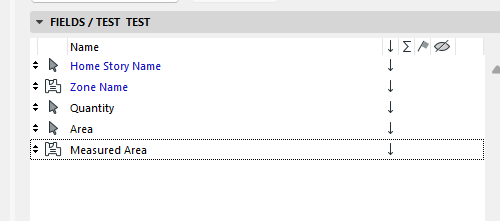
To build the table correctly, add the following 5 Fields to the Schedule:
- Home Story
- Zone Name (or Zone Category if the Type corresponds to the category)
- Quantity (General Parameter)
- Area (General Parameter)
-
Measured Area (Zone) or Calculated Area (Zone)
Step 2 - Initial behaviour of the schedule
Once these fields are combined, you will see that the area columns initially show the accumulated total of all zones.
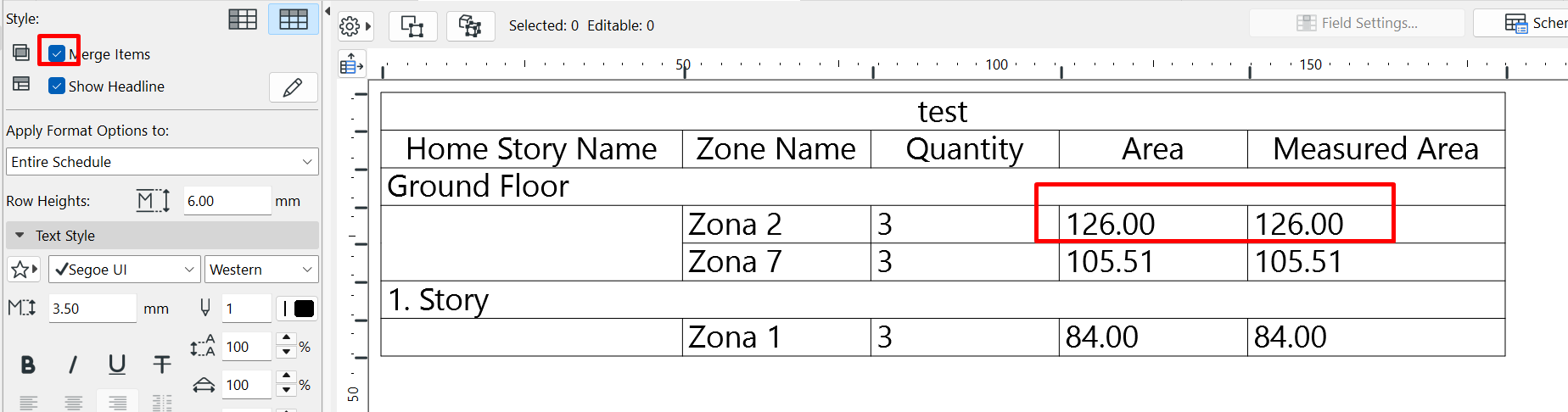
Step 3 - Show the unit area value
For the Area column to correctly show the unit value, you need to change its settings.
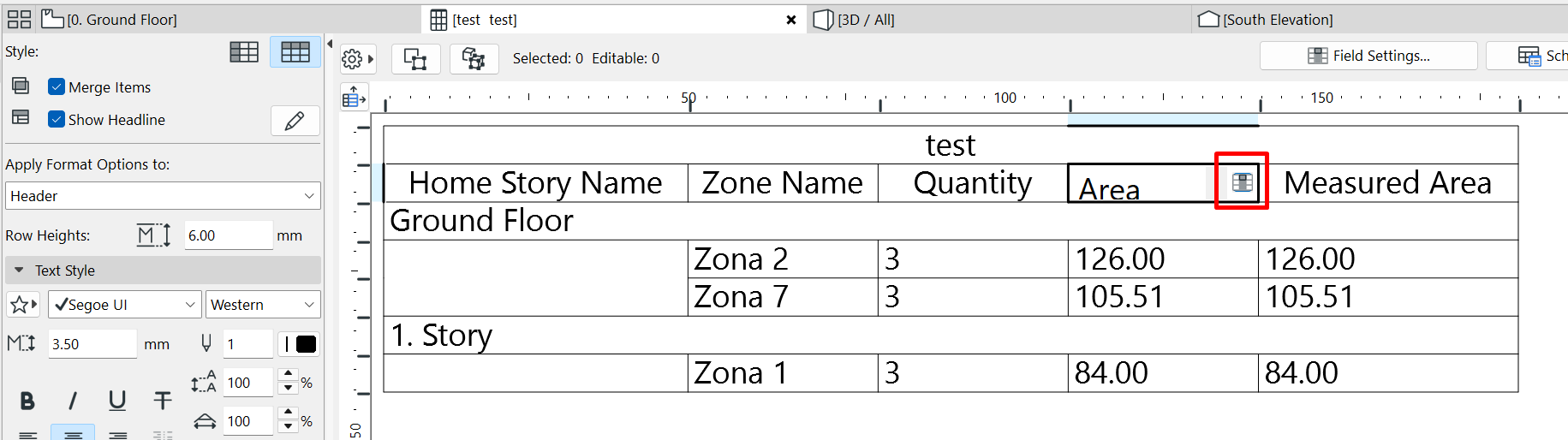
- Select the Area field within the Schedule.
-
Click Field Settings.
-
In the Data Merge Options section, select: Uniform Only and Uniform Value
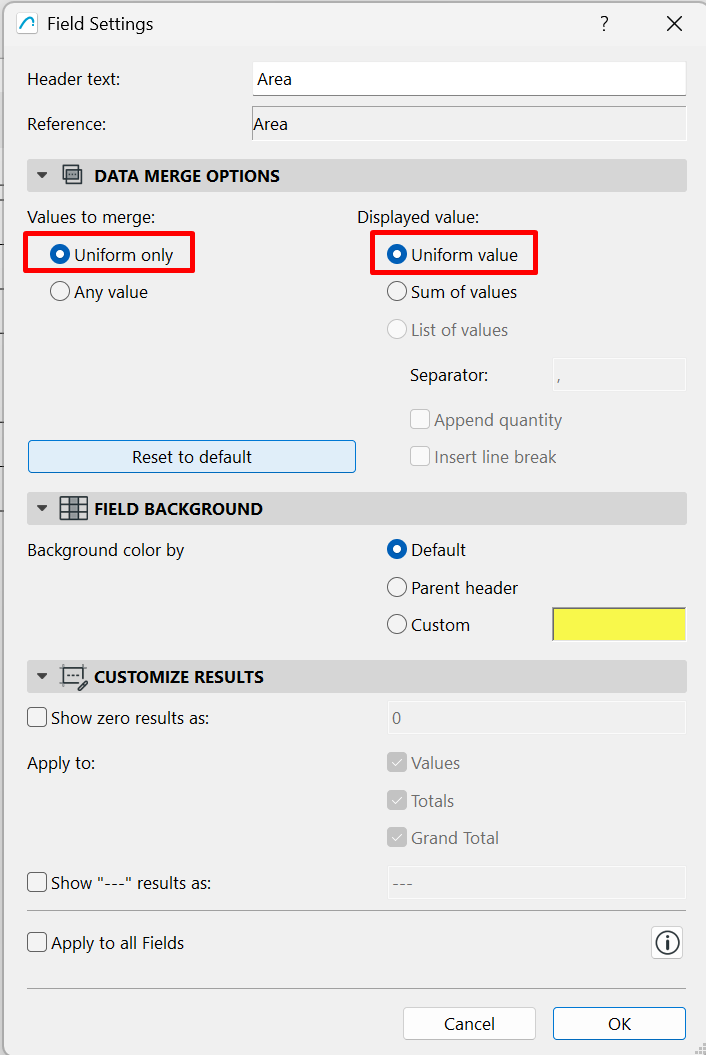
Note: This setting allows the column to show each zone's individual value instead of the accumulated total.
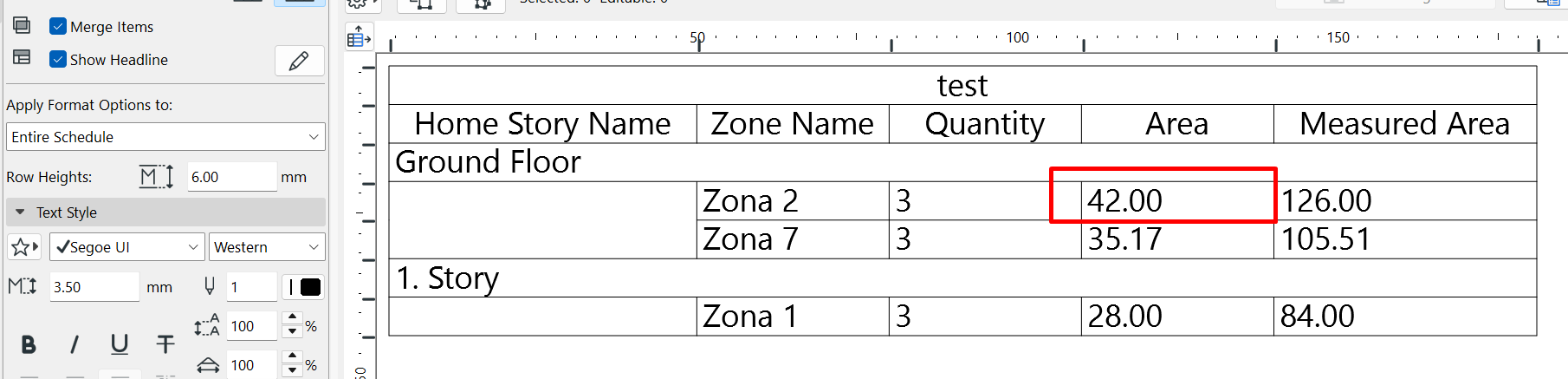
Result
After applying this setting:
- The Quantity column will show the total quantity.
- The Area column will correctly show the unit value.
-
The other columns will keep working according to their grouping criteria.
Related articles
- How to Uniquely Identify Hotlink Module Zones in Archicad Schedules?
- How to Set the Origin of a 3D Texture in Archicad?
- Why Do Drawings Exported to PDF in Archicad Generate Very Large Files?
- How to Map a Custom Archicad Property to an IFC Property?
- How to Remove an Archicad Educational Licence from a Computer?