
Articles in this section
- How to Create an Archicad Template and What It Should Contain?
- How to Reallocate Bluebeam Subscriptions Between Accounts?
- How to Subscribe to Software with SIMBIM
- Archicad Files Don't Show the Correct Icon on Windows
- Why Can't I Assign a Licence If the User Shows Up as a Guest?
- How to Reset Your Bluebeam ID (BBID) Password?
- How to Transfer Markups to Another Document?
- How to Manage My Bluebeam Subscriptions?
- How to Change the Administrator of a Graphisoft ID Company?
- How to Use Bluebeam Revu on Mac Computers?
How to Update Archicad 26 to Use Cloud Licences?
Reading time: 5 min.
Introduction
Since September 2024, Graphisoft only provides Archicad, BIMcloud, and BIMx with Cloud Licences to all new customers, while giving the remaining customers who hold Hardware Licences and Software Licences time and help until 31 December 2025 to renew them and keep enjoying Graphisoft's products and services. If you are one of the customers still using Archicad 26 (or later) with a Hardware or Software Licence, this article will help you with the licence migration process.
Steps to follow
-
Download the latest Archicad update
- Visit Graphisoft's official website (Graphisoft Spain – Build Together).
- Sign in with your Graphisoft ID.
- Go to the Graphisoft Downloads page (Downloads – Graphisoft Spain).
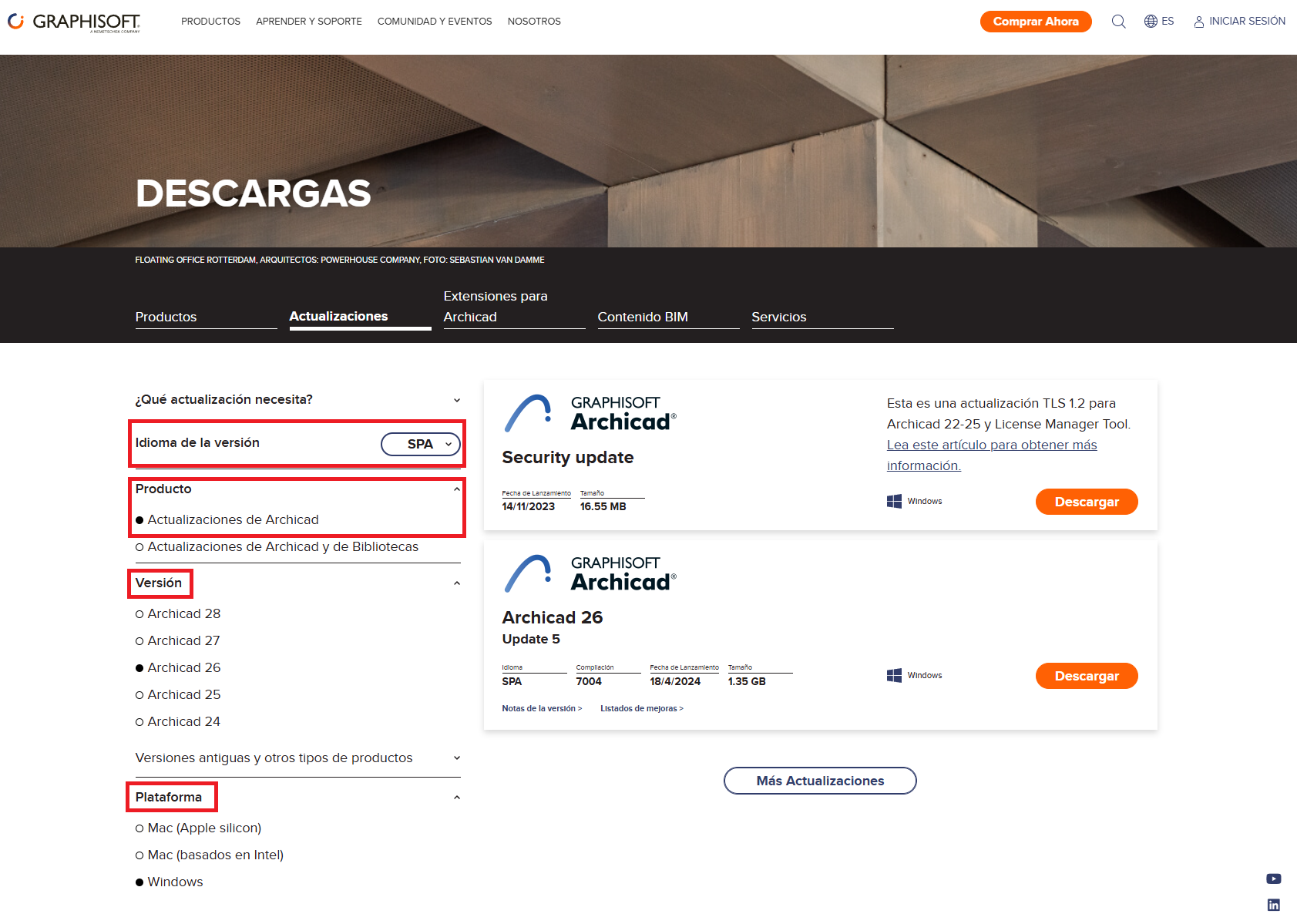
- Make sure you correctly select the Localisation, the Product, the Version, and the Platform of your Archicad (see photo).
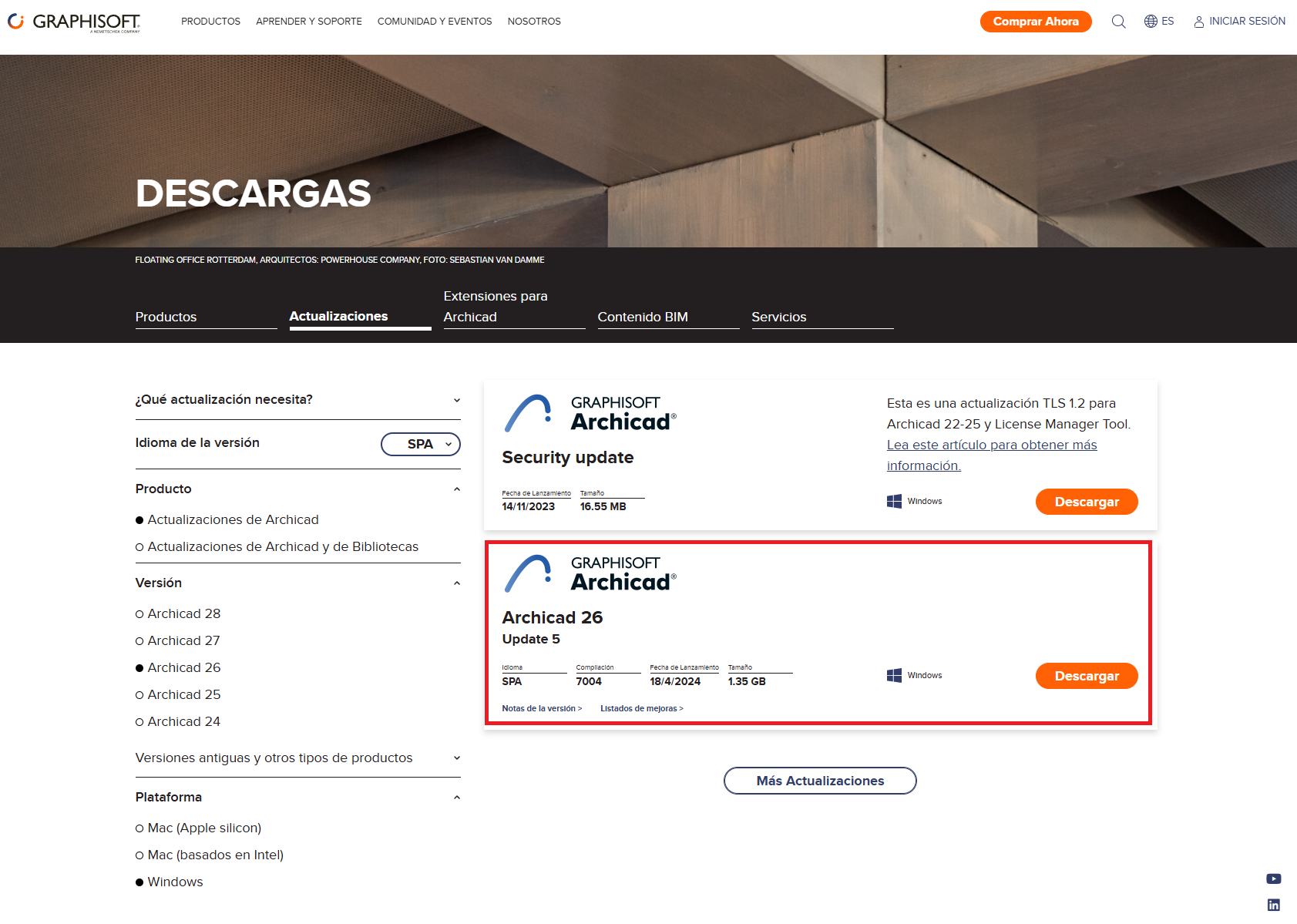
- Download the latest program update by clicking the Download button on the first result that appears on the page (see photo).
-
Install the Archicad update
- Make sure the program is closed, and don't forget to save your projects.
- Double-click the installer you downloaded from the Graphisoft Downloads page.
- Start Archicad
-
Open Archicad, sign in with your Graphisoft ID account, and you're ready to start working
FAQ
-
Q: What should I do if the installer doesn't start the installation process?
A: You may have downloaded the wrong file, or the installer may have been damaged during download. Check the options selected on the Graphisoft Downloads page (Downloads – Graphisoft Spain) and try downloading the installer again. -
Q: What should I do if I ran into problems partway through installing the update?
A: Try installing the update again by double-clicking the installer file. If the problem persists, contact SIMBIM on +34 800 000 143 or email us at support@simbim.es. -
Q: What should I do if I get an error message saying I don't have a Cloud Licence available?
A: Your Cloud Licence may not have been assigned to you — if you are a single user, read the "Single User Licence" section of our article How to Manage and Assign Archicad Cloud Licences? – My SIMBIM Centre; if you work for a company or for a third party, report the issue to your Archicad licence administrator, and if the problem persists, contact SIMBIM on +34 800 000 143 or email us at support@simbim.es.