
Articles in this section
- How to Uniquely Identify Hotlink Module Zones in Archicad Schedules?
- How to Set the Origin of a 3D Texture in Archicad?
- Why Do Drawings Exported to PDF in Archicad Generate Very Large Files?
- How to Map a Custom Archicad Property to an IFC Property?
- How to Remove an Archicad Educational Licence from a Computer?
- How to Change an Archicad File Started in the International Version to the Spanish Version?
- How to Import a PDF to Use as a Reference in Archicad?
- How to Use Educational and Commercial Versions of Archicad on the Same Computer?
- How to Get the Archicad Connection with Twinmotion?
- How to Create a Structural Frame with the Create Truss Tool in Archicad?
Server Connection Error in the Graphisoft License Manager Tool
When using the Graphisoft License Manager Tool (LMT), the following error message may appear:
"Connection to the server could not be established." ("Connection to the server could not be established.")
This error usually occurs when trying to check, upload or download a licence, and means that the tool cannot connect to Graphisoft's licence servers.
If you have verified that your internet connection is working correctly, the next recommended step is to update the License Manager Tool to its latest version.
How to Update the License Manager Tool?
Follow these steps to make sure you are using the latest version of the tool:
Step 1: Download the Latest Version
- Go to Graphisoft's official downloads page: Download License Manager Tool.
-
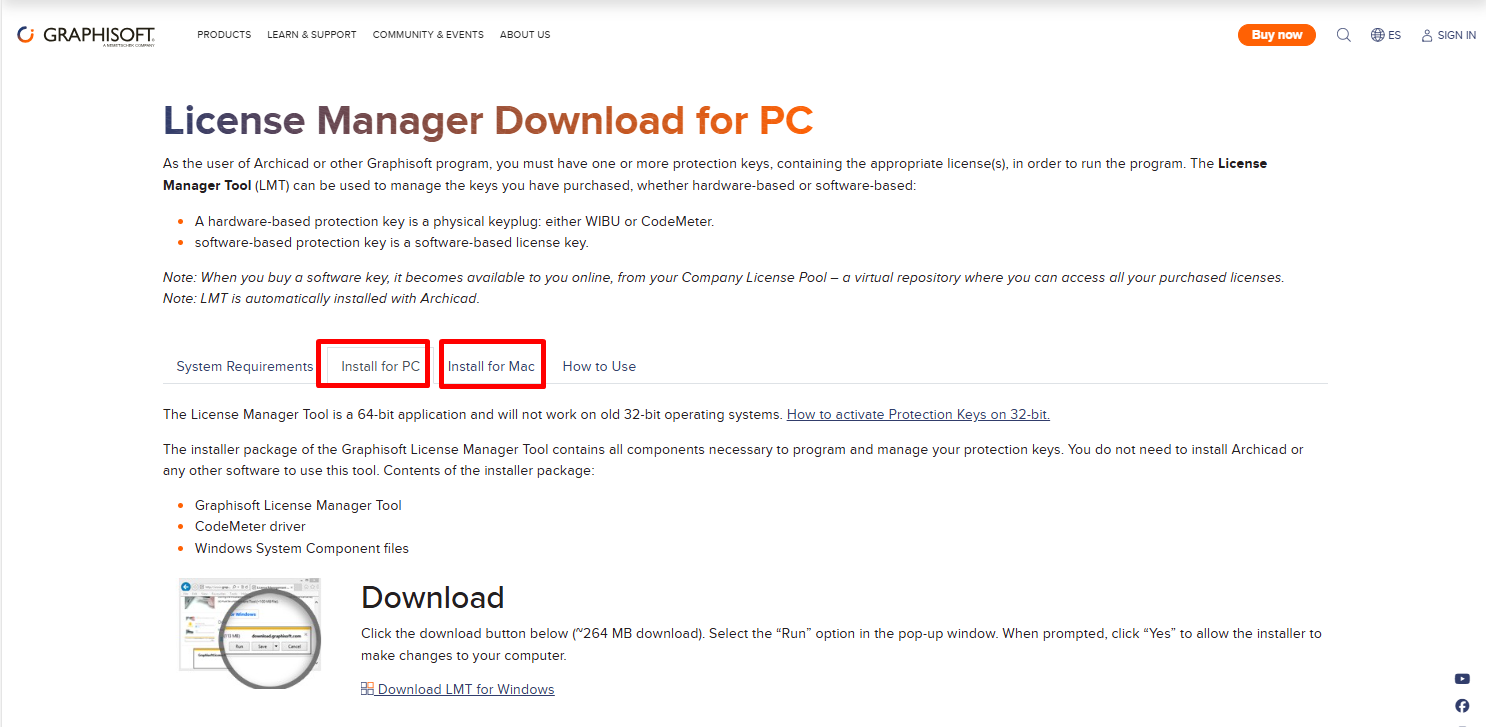
Select the version corresponding to your operating system (Windows or macOS).
-
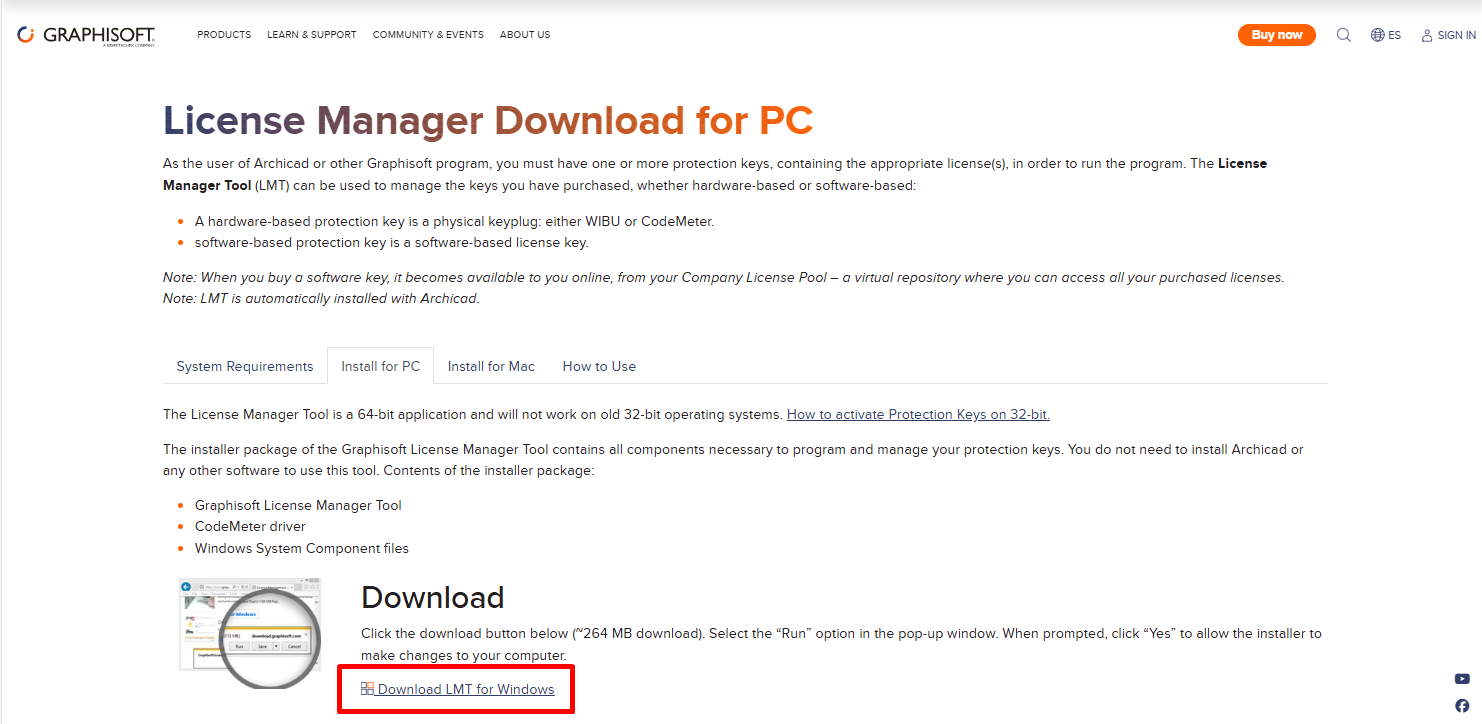
Download the installer.
Step 2: Close the Current Tool
- If the License Manager Tool is open, close it completely before continuing.
Step 3: Run the Installer
- Locate the file you just downloaded.
- On Windows: right-click and select "Run as administrator".
- On macOS: double-click the installer and follow the on-screen instructions.
Step 4: Follow the Installation Wizard
- Accept the licence terms.
- Choose the default installation path (recommended).
- Complete the installation process.
Step 5: Open the Updated Tool
- Launch the new version of the License Manager Tool.
- Sign in with your Graphisoft ID.
- You will be able to upload or download the licence.
Related articles
- How to Uniquely Identify Hotlink Module Zones in Archicad Schedules?
- How to Set the Origin of a 3D Texture in Archicad?
- Why Do Drawings Exported to PDF in Archicad Generate Very Large Files?
- How to Map a Custom Archicad Property to an IFC Property?
- How to Remove an Archicad Educational Licence from a Computer?