
Articles in this section
- How to Uniquely Identify Hotlink Module Zones in Archicad Schedules?
- How to Set the Origin of a 3D Texture in Archicad?
- Why Do Drawings Exported to PDF in Archicad Generate Very Large Files?
- How to Map a Custom Archicad Property to an IFC Property?
- How to Remove an Archicad Educational Licence from a Computer?
- How to Change an Archicad File Started in the International Version to the Spanish Version?
- How to Import a PDF to Use as a Reference in Archicad?
- How to Use Educational and Commercial Versions of Archicad on the Same Computer?
- How to Get the Archicad Connection with Twinmotion?
- How to Create a Structural Frame with the Create Truss Tool in Archicad?
What Are .lcf Files and How Can I Create Them?
Reading time: 5 min.
In complex projects, efficient library management can make the difference between a smooth workflow and one full of errors. Archicad, Graphisoft’s BIM software, offers a practical solution for organising and sharing libraries: .lcf files. In this article we explain what they are, how to create them, and what common mistakes to avoid.
What is an .lcf file?
An .lcf (Library Container File) is a container that groups together all the library objects used in an Archicad project into a single file. This includes items such as GDL objects, macros, images, textures and more.
The default library up to Archicad 27 already came in .lcf format, and it is still in use. You can also create your own .lcf files. This is especially useful when:
- You want to share a complete library without worrying about missing paths or folders.
- You need to improve library loading performance.
- You want to avoid accidental changes to library objects.
- You are looking for a simpler way to manage large libraries.
Advantages of using .lcf files
- Security: Objects inside an .lcf cannot be modified directly.
- Portability: All the library content is in a single file, ideal for sharing or archiving.
- Performance: Archicad loads an .lcf file faster than a traditional folder structure.
- Organisation: The original folder hierarchy is kept within the file.
How to create an .lcf file?
Creating an .lcf file in Archicad is a simple process. Here are the basic steps:
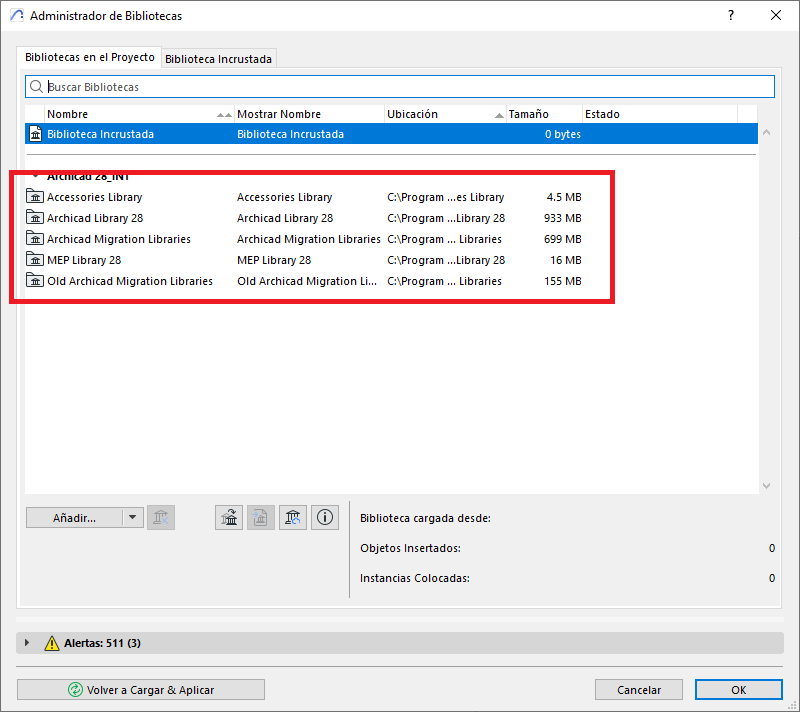
- Make sure all the folders you want to include are loaded and visible in the Archicad Library Manager. (see example image)
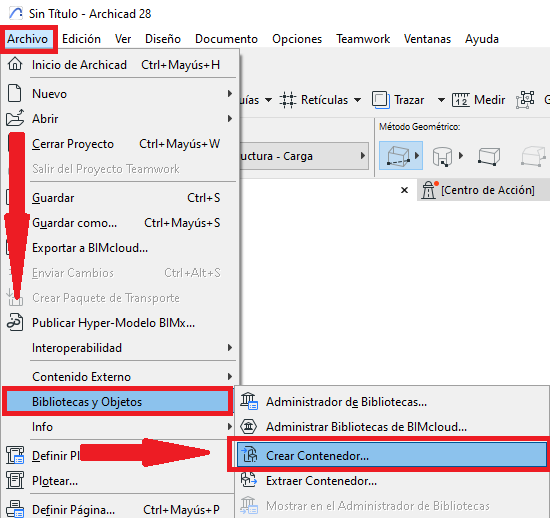
- Go to: File > Libraries and Objects > Create/Extract a Container...
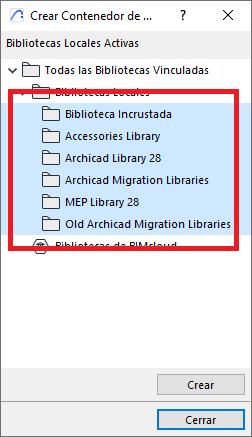
- In the Create Container of ... dialog box, select the folders you want to include.
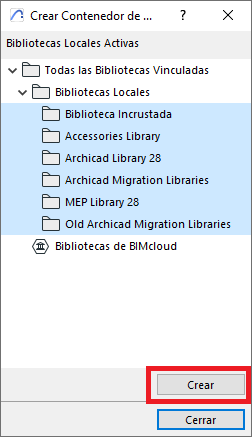
- Click Create.
- Specify the name and location of the .lcf file.
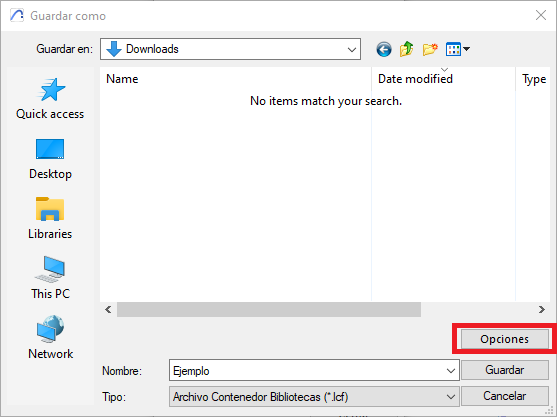
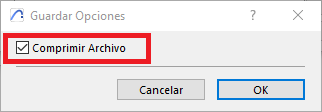
- Optional: Click Options to compress the .lcf file.
- Once the .lcf file is created, go back to the Library Manager, remove the original folders and load the new .lcf file as a local library.
Common mistakes when working with .lcf files
- Not removing the original folders: after loading the .lcf, which can cause conflicts or duplicate objects.
- Including objects with broken paths: or external references that are not packaged correctly.
- Forgetting to update the .lcf: after modifying objects in the original library, which can cause inconsistencies.
Can I extract the content of an .lcf?
Yes. Archicad also lets you extract the content of an .lcf file if you need to access or modify the objects. To do this, go to File > Libraries and Objects > Create/Extract a Container and select the extraction option.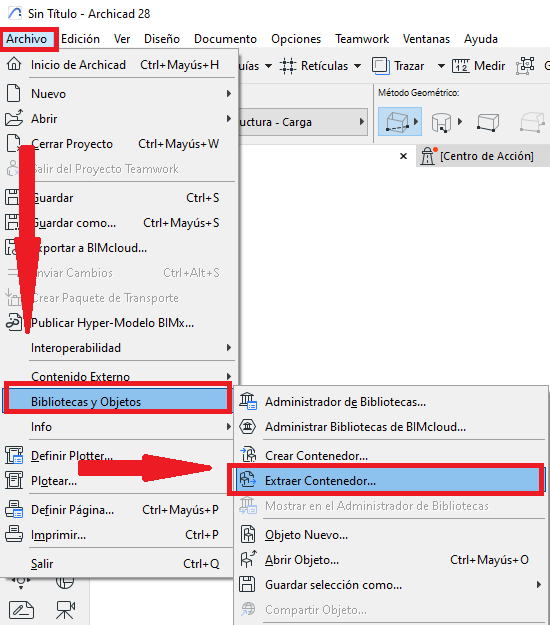
Conclusion
.lcf files are a powerful tool for any Archicad user looking for efficiency, organisation and security in library management. Whether for sharing projects, archiving versions or simply improving performance, mastering their use will save you time and headaches.
Related articles
- How to Uniquely Identify Hotlink Module Zones in Archicad Schedules?
- How to Set the Origin of a 3D Texture in Archicad?
- Why Do Drawings Exported to PDF in Archicad Generate Very Large Files?
- How to Map a Custom Archicad Property to an IFC Property?
- How to Remove an Archicad Educational Licence from a Computer?