
Articles in this section
- How to Create an Archicad Template and What It Should Contain?
- How to Reallocate Bluebeam Subscriptions Between Accounts?
- How to Subscribe to Software with SIMBIM
- Archicad Files Don't Show the Correct Icon on Windows
- Why Can't I Assign a Licence If the User Shows Up as a Guest?
- How to Reset Your Bluebeam ID (BBID) Password?
- How to Transfer Markups to Another Document?
- How to Manage My Bluebeam Subscriptions?
- How to Change the Administrator of a Graphisoft ID Company?
- How to Use Bluebeam Revu on Mac Computers?
What Are the New Features in Archicad 28? Keynotes in Archicad
Reading time: 5 min.
Archicad 28 introduces several new features related to Keynotes, improving efficiency and accuracy in managing annotations in architectural and construction documents. This article will guide you through these new features and how they can be used to improve your project documentation.
Introduction to Keynotes
Keynotes are concise, standardised annotations used in architectural and construction documents to label and describe elements within a project. They ensure clarity and consistency throughout the documentation process.
Accessing Keynotes
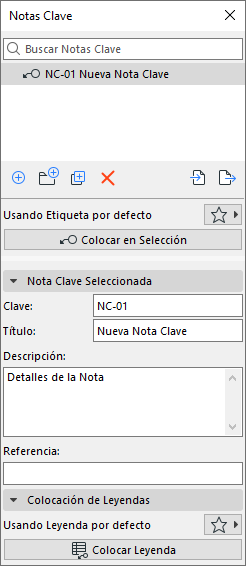
To access the Keynotes palette in Archicad 28, click the Window > Palettes > Keynotes menu.
Creating Keynotes
Creating a new Keynote is simple:
-
Click the icon with the “+” symbol in the Keynotes palette.
-
Each Keynote consists of four pieces of information:
-
Key: A unique identifier for the project. No two Keynotes can share the same key.
-
Title: A descriptive label tailored to each Keynote’s content, which helps with internal organisation and easy identification.
-
Description: Detailed information about the Keynote, providing a full understanding of the annotation. This text box allows multiple lines of text.
-
Reference: External details relevant to the Keynote, such as reference numbers.
-
Placing Keynotes
To place a Keynote at your viewpoint:
-
Double-click the Keynote in the list, or click the “Place Label” button.
-
You can use the default label or choose a favourite by clicking the Favourites icon.
-
The “Place Label” button is especially useful for labelling multiple elements at once. When several elements are selected, the button changes to “Place on Selection”, letting you label all the elements simultaneously with the respective Keynote.
Documenting Keynotes on Layouts
Archicad 28 offers a structured approach to managing and displaying Keynotes within your project’s Layouts:
-
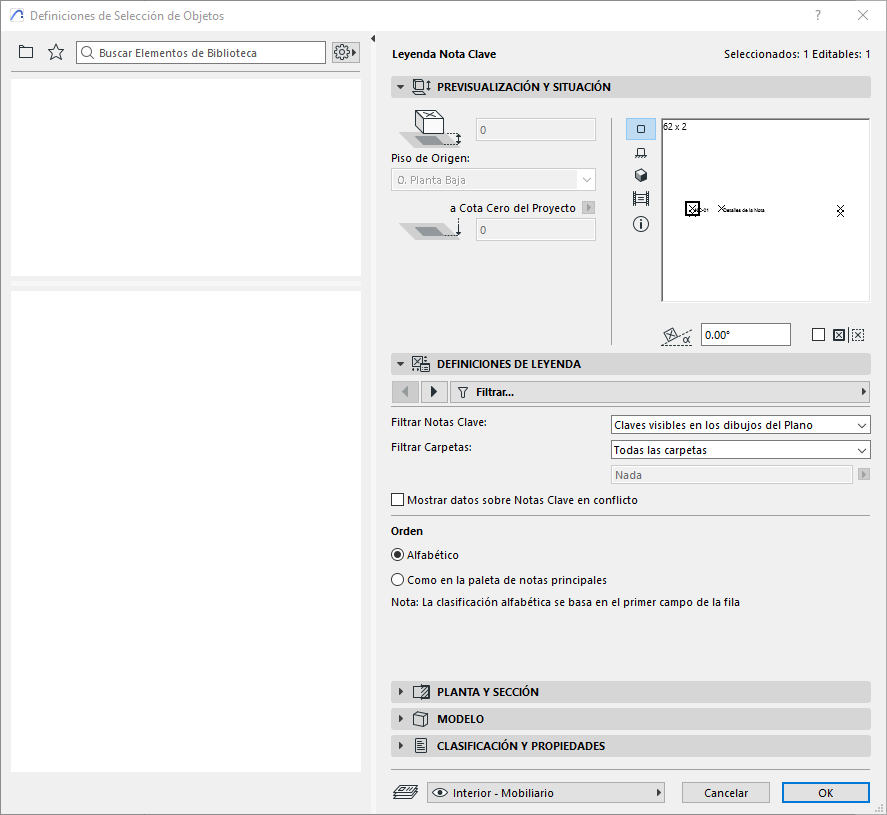
Open a Layout and place a Legend containing information linked to the Keynotes by clicking the “Place Legend” button in the Keynotes palette.
-
The Legend is coded as a GDL element and can be found in the object library.
-
Adjust the visibility of the Keynotes in the legend through the various settings available in the object settings dialog box.
-
Any change made to a Keynote in the project is automatically reflected in the legend, ensuring your documentation stays accurate and up to date.
Excel Import and Export Capabilities
Archicad 28 improves workflow efficiency with Excel import and export capabilities:
-
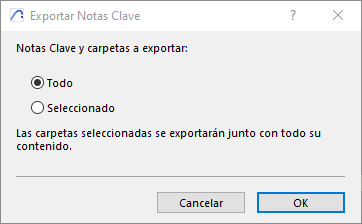
Export your Keynotes from Archicad to an Excel file using the “Export Keynotes” button in the Keynotes palette. You can choose to export all Keynotes or only the selected ones.
-
Update any Keynote information as needed in Excel.
-
Import the Excel file back into Archicad using the “Import Keynotes” button in the Keynotes palette. This action updates the Keynotes database within the project, reflecting any changes made in Excel.
-
As Keynotes are modified at the viewpoint, the corresponding updates are automatically reflected in the associated Layouts.
The following article explains how to set up the Excel file to import into Archicad:
How to Import Keynotes into Archicad Using Excel – My SIMBIM Centre
The new features related to Keynotes in Archicad 28 significantly improve the management and documentation of annotations within architectural and construction projects. By using these features, you can ensure clarity, consistency and up-to-date documentation throughout your project’s lifecycle.
If you have any questions or need further assistance, don’t hesitate to contact us!