
Articles in this section
- How to Uniquely Identify Hotlink Module Zones in Archicad Schedules?
- How to Set the Origin of a 3D Texture in Archicad?
- Why Do Drawings Exported to PDF in Archicad Generate Very Large Files?
- How to Map a Custom Archicad Property to an IFC Property?
- How to Remove an Archicad Educational Licence from a Computer?
- How to Change an Archicad File Started in the International Version to the Spanish Version?
- How to Import a PDF to Use as a Reference in Archicad?
- How to Use Educational and Commercial Versions of Archicad on the Same Computer?
- How to Get the Archicad Connection with Twinmotion?
- How to Create a Structural Frame with the Create Truss Tool in Archicad?
Why Can't I Connect MEP Equipment to the Route in Archicad?
If you can't connect a piece of MEP equipment to a pipe route, this is usually because the element is set as an Object instead of Equipment, because the MEP System doesn't match, or because the object isn't correctly prepared for MEP.
Symptoms
- The route reaches the element, but doesn't connect.
- The element is in the model, but doesn't behave like a piece of MEP equipment.
Cause
This problem is usually due to one of these situations:
- The element is placed as an Object rather than as Equipment.
- The MEP System defined on the equipment's connection doesn't match the route's.
- The element is custom-made and isn't correctly prepared to work as a valid MEP object.
Solution
Step 1: Check Whether the Element Is Set as Object or Equipment
Note: Many MEP-compatible elements are initially inserted as an Object. To work correctly as MEP equipment, they must be set as Equipment.
- Select the element in the model.
- Check whether it's set as an Object.
-
If so, change it to Equipment from the context menu.
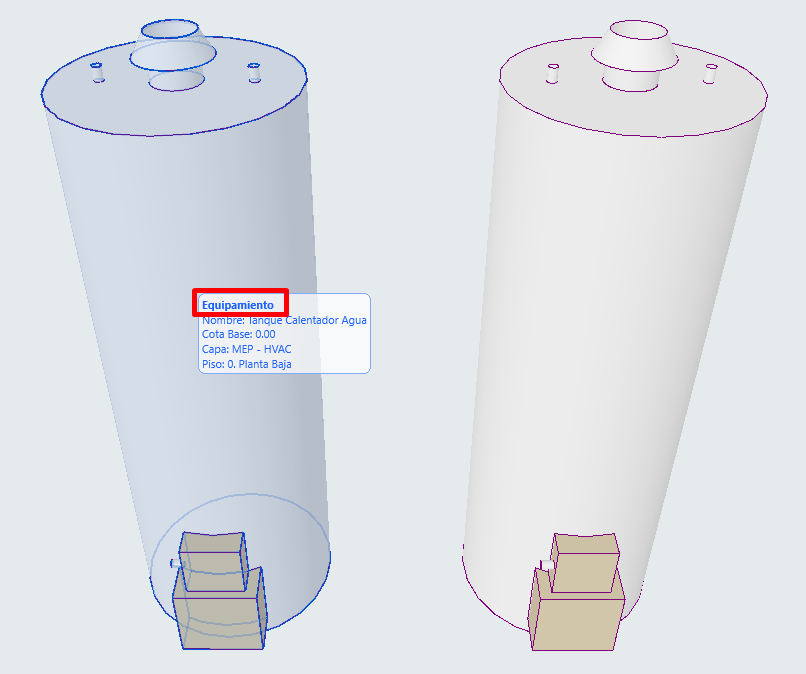
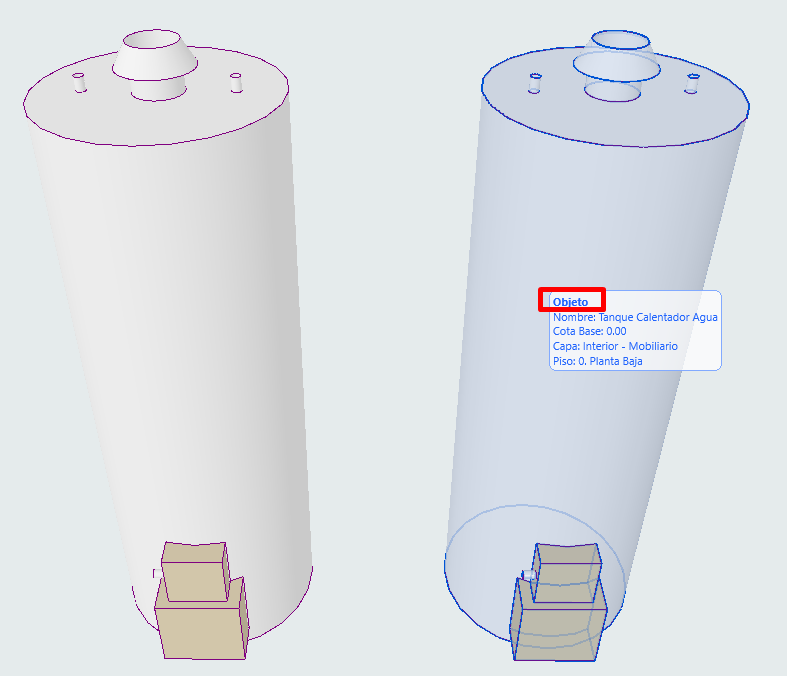
Once converted to Equipment, try connecting the pipe route again.
Step 2: Check the MEP System on the Equipment's Connection
Note: It's not enough to check the route's system. You also need to define the MEP System on the equipment's own connection within its definitions.
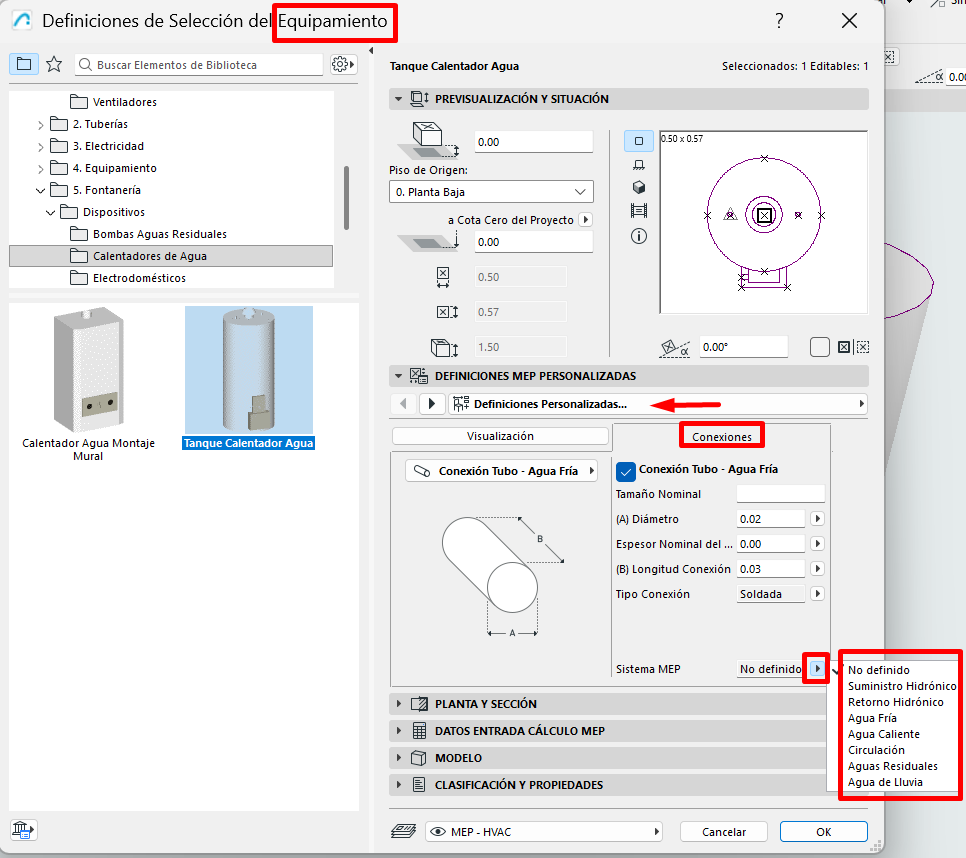
- Open the Equipment Definitions.
- Go to Custom MEP Definitions.
- Enter Connections.
- Locate the connection's MEP System field.
- Select the correct system, for example Cold Water, Hot Water, Hydronic Return, or another as appropriate.
If the connection is set to Undefined or has an incorrect system, the route may not connect correctly.
Step 3: If the Element Is Custom, Replace It if Necessary
If the object cannot be converted to Equipment or doesn't behave like an MEP element, it is probably not suitable for this type of connection.
- Check whether the element comes from an MEP-ready library.
- If not, replace the object with an MEP-ready element.
- Test the connection again with the new equipment.
Visual Tip: Find Open MEP Connections
To visually review unclosed route and equipment ends and connections, turn on:
View > On-Screen View Options > Open MEP Connections
This option can help you quickly check whether the element is showing MEP connections recognised by Archicad.
On an element set as Equipment, open connections can be shown visually on the model. However, if the same element is set as an Object, those connections will not be shown, even though the element is identical.
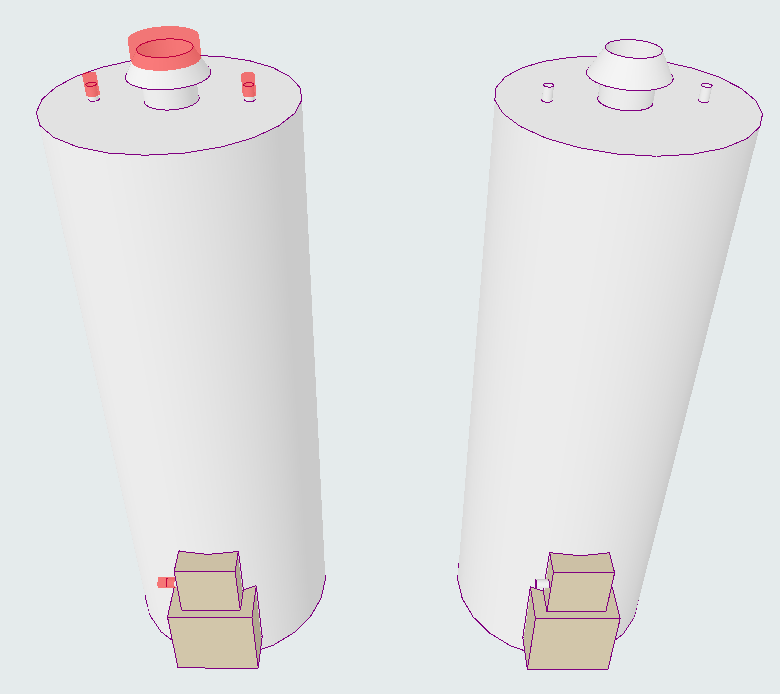
In the image above, the element on the left shows the open connection highlighted, indicating that Archicad is recognising it as a visible MEP connection. The element on the right, being set as an Object, does not show that same visual indication.
Note: This option is only a visual aid. It does not enable or block the connection by itself, but it can serve as a quick clue to detect whether the element is being recognised as MEP Equipment and whether it has visible open connections.
Related articles
- How to Uniquely Identify Hotlink Module Zones in Archicad Schedules?
- How to Set the Origin of a 3D Texture in Archicad?
- Why Do Drawings Exported to PDF in Archicad Generate Very Large Files?
- How to Map a Custom Archicad Property to an IFC Property?
- How to Remove an Archicad Educational Licence from a Computer?