
Articles in this section
- How to Uniquely Identify Hotlink Module Zones in Archicad Schedules?
- How to Set the Origin of a 3D Texture in Archicad?
- Why Do Drawings Exported to PDF in Archicad Generate Very Large Files?
- How to Map a Custom Archicad Property to an IFC Property?
- How to Remove an Archicad Educational Licence from a Computer?
- How to Change an Archicad File Started in the International Version to the Spanish Version?
- How to Import a PDF to Use as a Reference in Archicad?
- How to Use Educational and Commercial Versions of Archicad on the Same Computer?
- How to Get the Archicad Connection with Twinmotion?
- How to Create a Structural Frame with the Create Truss Tool in Archicad?
Why Does a Surface Look Different in Basic Render and in Cineware in Archicad?
In Archicad, a single Surface can hold different settings depending on the render engine being used. That’s why it can look one way with the Basic render engine and another way with Cineware, even though it’s exactly the same Surface.
This explains why the result can change when rendering: the Surface hasn’t necessarily been modified — a different configuration saved within that same Surface is simply being used instead.
To check it correctly, it’s important to verify which specific engine configuration is being viewed or edited.
Where to check the Surface settings
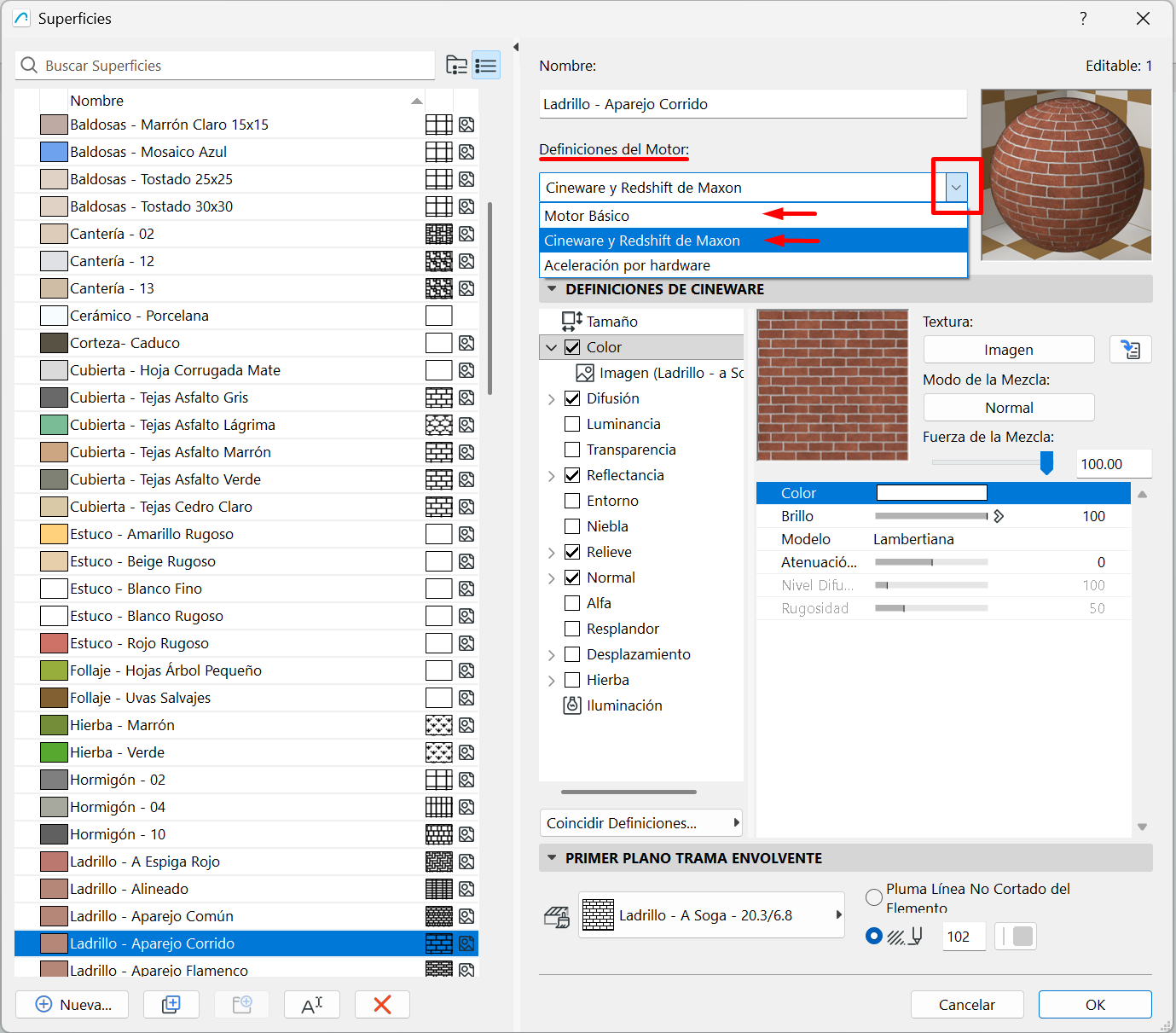
If you need to check how a Surface is configured for a specific engine, go to:
Options > Element Attributes > Surfaces
Select the Surface you want to check.
Inside the dialog box, use Engine Settings to switch between the available configurations, such as:
- Basic
- Cineware and Redshift by Maxon
What this means in practice
This is where the confusion usually arises:
- a Surface may look correct in one type of view,
- but appear different in another render,
- because each engine may be using a different configuration within that same Surface.
So if the result changes between Basic and Cineware, it doesn’t necessarily mean the Surface is wrong or that the texture has failed.
In many cases, it simply means the Surface has different settings saved for each engine.
Note: In Archicad, the problem is often not the Surface itself, but which version of the Engine Settings is being viewed or edited at that moment.
How to check the correct version of a Surface
When you check a Surface, it’s best to:
- open the Surfaces dialog,
- select the Surface you want to check,
- switch Engine Settings to the engine you’re going to render with,
- and confirm that you’re editing the correct configuration.
This is especially important when a user reports that the Surface “has changed” when rendering.
Matching the appearance between Basic and Cineware
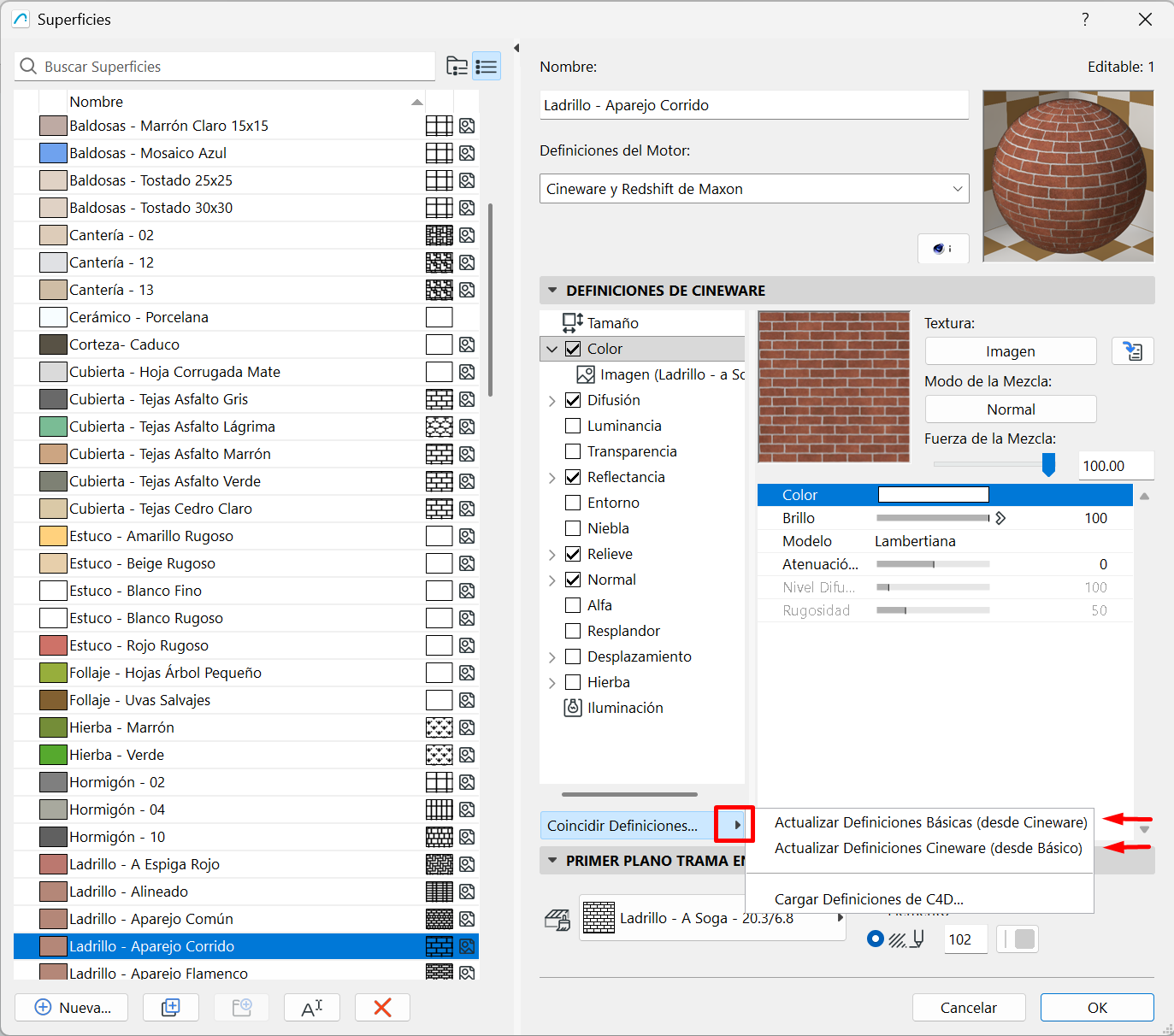
Archicad lets you update a Surface’s settings between both engines using the Match Settings... button.
Within that menu you’ll find these two options:
- Update Basic Settings (from Cineware), to copy the Cineware configuration to the Basic Settings.
- Update Cineware Settings (from Basic), to copy the Basic configuration to the Cineware Settings.
This can help reduce the visual differences between the Basic version and the Cineware version of the same Surface.
To use it:
- open Options > Element Attributes > Surfaces,
- select the Surface you want to check,
- choose in Engine Settings the engine you want to start from,
- click Match Settings...,
- and select the relevant update option.
Note: This update doesn’t guarantee an identical result between Basic and Cineware. It serves to bring both configurations closer together, but some Surfaces may need manual adjustments afterwards.
Common cases
The Surface looks fine in 3D but different in the render
This usually means the Surface was checked or edited with one set of Engine Settings, but the image was rendered with another.
The Surface changes between Basic and Cineware
This usually happens because the same Surface holds specific settings for each engine.
The texture scale or orientation doesn’t match
Before making changes, it’s worth checking that you’re reviewing the correct version of the Surface within Engine Settings.
Note for support
If a user reports that the Surface changed when rendering, the first thing to check is whether that Surface was edited with the Basic settings while the image was generated with Cineware.
Related articles
- How to match Surface settings between Basic and Cineware
- Why a Surface looks different in render and in 3D
- How to align 3D textures in Archicad
- How to fix a Surface’s orientation in render
Related articles
- How to Uniquely Identify Hotlink Module Zones in Archicad Schedules?
- How to Set the Origin of a 3D Texture in Archicad?
- Why Do Drawings Exported to PDF in Archicad Generate Very Large Files?
- How to Map a Custom Archicad Property to an IFC Property?
- How to Remove an Archicad Educational Licence from a Computer?