
Articles in this section
- How to Uniquely Identify Hotlink Module Zones in Archicad Schedules?
- How to Set the Origin of a 3D Texture in Archicad?
- Why Do Drawings Exported to PDF in Archicad Generate Very Large Files?
- How to Map a Custom Archicad Property to an IFC Property?
- How to Remove an Archicad Educational Licence from a Computer?
- How to Change an Archicad File Started in the International Version to the Spanish Version?
- How to Import a PDF to Use as a Reference in Archicad?
- How to Use Educational and Commercial Versions of Archicad on the Same Computer?
- How to Get the Archicad Connection with Twinmotion?
- How to Create a Structural Frame with the Create Truss Tool in Archicad?
How to Create a New Issue in Archicad?
Reading time: 2 min.
Archicad replaces its old markup tool with an extensively collaborative Issue Handling workflow. It lets you:
- Create issues that highlight model elements or views, including optional markers.
- Generate element-based suggestions: New, Modify, Delete.
- Automatically create issues from discrepancies detected by Archicad (Model Compare, Model Check).
- Add comments and define key attributes: Status, Priority, Type, Tags, Description.
- Assign issues to users within Teamwork, with immediate notification.
- Manage long lists of issues using the Issue Organizer in flexible formats.
- Compatibility with BCF (BIM Collaboration Format) versions 3.0, 2.1 and 2.0.
Operational steps: Create a New Issue from the Model Check Report
- In the project file, select the elements that should be included in a new issue.
- Right-click.
- In the context menu, select Add New Issue...
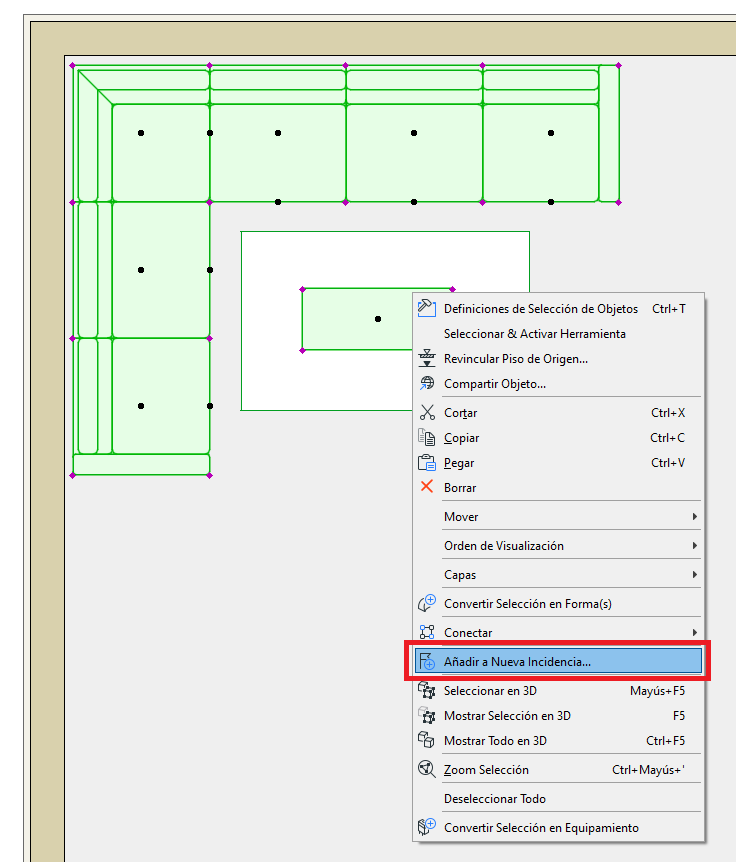
-
The "New Issue" dialog box will appear. In it:
Create a Single Issue (green): To treat the selected elements as a single Issue or multiple Issues.
Name (red): To give the Issue a name.
Issue Details (orange): To define the Status, Priority, Type, and Description of the new Issue.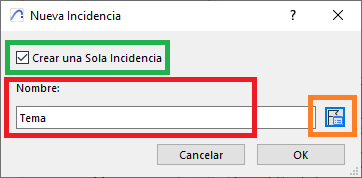
- Type the issue name in the "New Issue" dialog box.
- Click on Issue Details.
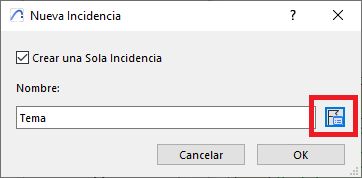
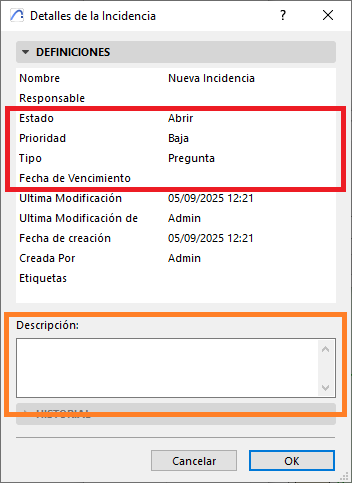
- In the dialog box, define the Status, Priority, Type, and Description of the new Issue (red), and a description of the problem (orange), then finish by clicking OK.
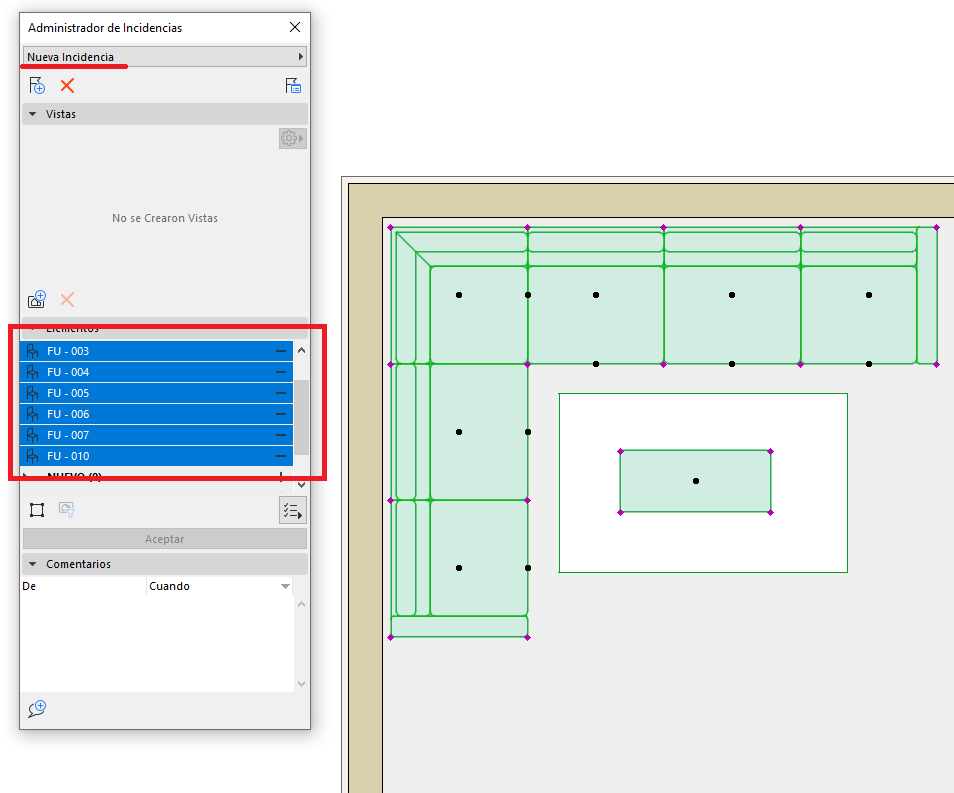
- Once you click OK in the "New Issue" dialog box, you'll be able to see the newly created Issue in the Issue Manager, along with the selected elements.
Related articles
Related articles
- How to Uniquely Identify Hotlink Module Zones in Archicad Schedules?
- How to Set the Origin of a 3D Texture in Archicad?
- Why Do Drawings Exported to PDF in Archicad Generate Very Large Files?
- How to Map a Custom Archicad Property to an IFC Property?
- How to Remove an Archicad Educational Licence from a Computer?