
Articles in this section
- How to Uniquely Identify Hotlink Module Zones in Archicad Schedules?
- How to Set the Origin of a 3D Texture in Archicad?
- Why Do Drawings Exported to PDF in Archicad Generate Very Large Files?
- How to Map a Custom Archicad Property to an IFC Property?
- How to Remove an Archicad Educational Licence from a Computer?
- How to Change an Archicad File Started in the International Version to the Spanish Version?
- How to Import a PDF to Use as a Reference in Archicad?
- How to Use Educational and Commercial Versions of Archicad on the Same Computer?
- How to Get the Archicad Connection with Twinmotion?
- How to Create a Structural Frame with the Create Truss Tool in Archicad?
How to Verify Project Requirement Compliance in Archicad? Space Surface Area Control – Automated Option
Reading time: 8 min.
A technical team developing architectural projects in Archicad on projects with precise requirements regarding the minimum surface area for different types of spaces: offices, technical rooms, corridors, among others. During development, the reference values can change due to client decisions or updated regulations.
Instead of manually verifying compliance, an automated method is implemented in Archicad to check whether the modelled spaces meet the previously established surface area requirements, providing traceability, flexibility in the face of changes and time savings during reviews.
Target audience
Intermediate Archicad users, BIM technicians, implementation consultants, and support staff who need to check quantitative model data.
Prerequisites
- Archicad 25 or later
- Project with Zones modelled and correctly classified
- Basic knowledge of custom Properties and Interactive Schedules
- Reading the following article: How to Verify Project Requirement Compliance in Archicad? Space Surface Area Control - Simplified Option – My SIMBIM Centre
Solution Steps
The steps of this solution depend on the article: How to Verify Project Requirement Compliance in Archicad? Space Surface Area Control - Simplified Option – My SIMBIM Centre
-
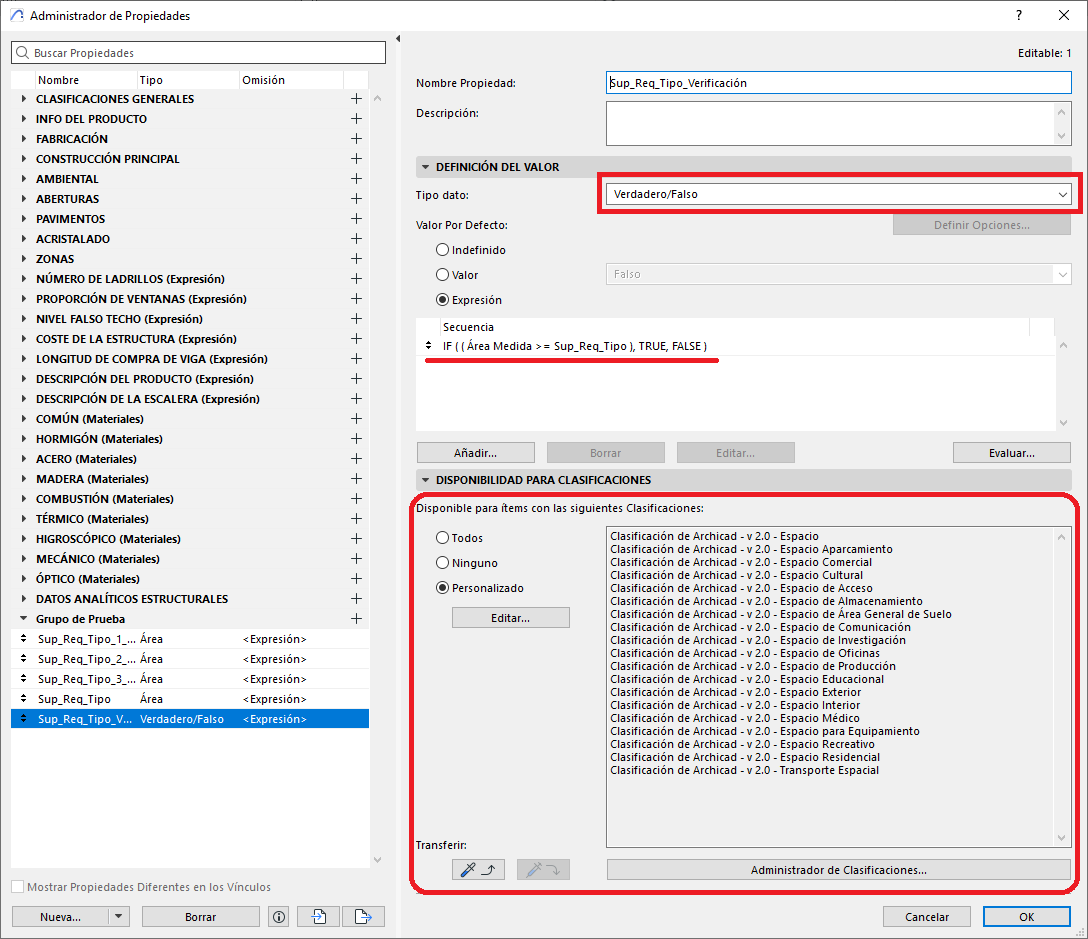
Define a custom boolean property:
- Go to Options > Property Manager.
- In the Property Manager dialog box, click New..., and select Property.
- Create the boolean Property:
- Suggested name: Sup_Req_Tipo_Verificación
- Data type: True/False
- Expression:
IF ( ( {Zone/Measured Area} >= {/Sup_Req_Tipo} ), TRUE, FALSE ) - Classification: Space
-
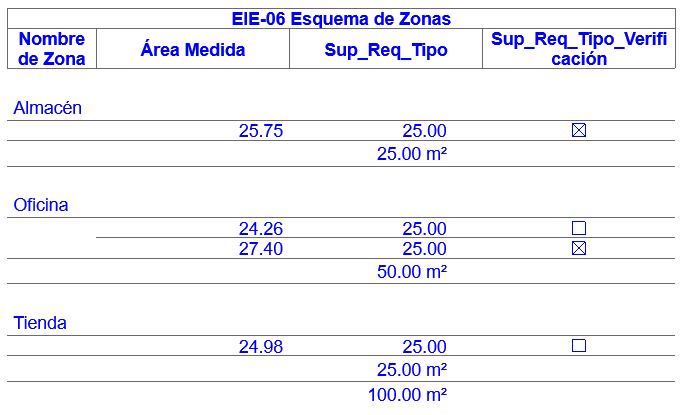
Add the check to the interactive schedule:
- Access the schedule created earlier, or create a new one for the zones
- Zone Name
- Measured Area
- Properties
Sup_Req_TipoandSup_Req_Tipo_Verificación - Save the Schedule by clicking Ok.
- You will then see a schedule similar to the one below, showing the measured area of the Zones compared with the area required by the project, and which ones meet the project's requirements.
Common troubleshooting
| Issue detected | Probable cause | Suggested action |
|---|---|---|
| All results show FALSE | The required surface areas are not defined | Check and correctly assign the required values |
| Some zones do not appear | Missing classification as Zone | Review the element's configuration |
| The property does not appear in the schedule | The property was not included | Add Verificación_Superficie as a visible field in the schedule |
Sample file:
You can download a sample project file where an Interactive Schedule with a custom property that counts elements per unit has been correctly configured:
Related articles
- How to Uniquely Identify Hotlink Module Zones in Archicad Schedules?
- How to Set the Origin of a 3D Texture in Archicad?
- Why Do Drawings Exported to PDF in Archicad Generate Very Large Files?
- How to Map a Custom Archicad Property to an IFC Property?
- How to Remove an Archicad Educational Licence from a Computer?