
Articles in this section
- How to Uniquely Identify Hotlink Module Zones in Archicad Schedules?
- How to Set the Origin of a 3D Texture in Archicad?
- Why Do Drawings Exported to PDF in Archicad Generate Very Large Files?
- How to Map a Custom Archicad Property to an IFC Property?
- How to Remove an Archicad Educational Licence from a Computer?
- How to Change an Archicad File Started in the International Version to the Spanish Version?
- How to Import a PDF to Use as a Reference in Archicad?
- How to Use Educational and Commercial Versions of Archicad on the Same Computer?
- How to Get the Archicad Connection with Twinmotion?
- How to Create a Structural Frame with the Create Truss Tool in Archicad?
How to Map Element Attributes Between Archicad and DXF/DWG Files? Layers
Reading time: 6 min.
When collaborating between Archicad and CAD programs using DXF/DWG files, it is essential to make sure the element attributes are mapped correctly between the programs for successful collaboration.
Configuring the mapping of the project's Layers is an important aspect of collaboration, because:
- Layers are information containers that organise a project's elements in a logical order. This not only improves design clarity, but also makes managing and controlling the collaborative project easier.
- Since Archicad and CAD programs handle layers differently, it is essential to configure your conversion correctly to avoid errors or loss of information (to learn more about this, read New in Archicad: Layers - Management and Workflow Improvements within Archicad – My SIMBIM Centre)
Mapping Layers
To map Archicad Layers to DXF/DWG files:
- Follow the instructions in How to Map Element Attributes Between Archicad and DXF/DWG Files? DXF/DWG as a Mapping Template – My SIMBIM Centre
- Go to: File > Interoperability > DXF/DWG > DXF/DWG Translation Setup.
- Select the DXF/DWG translator configuration to duplicate.
- In the DXF/DWG Translation Setup dialog box, go to Definitions > Attribute and click Pens & Colors.
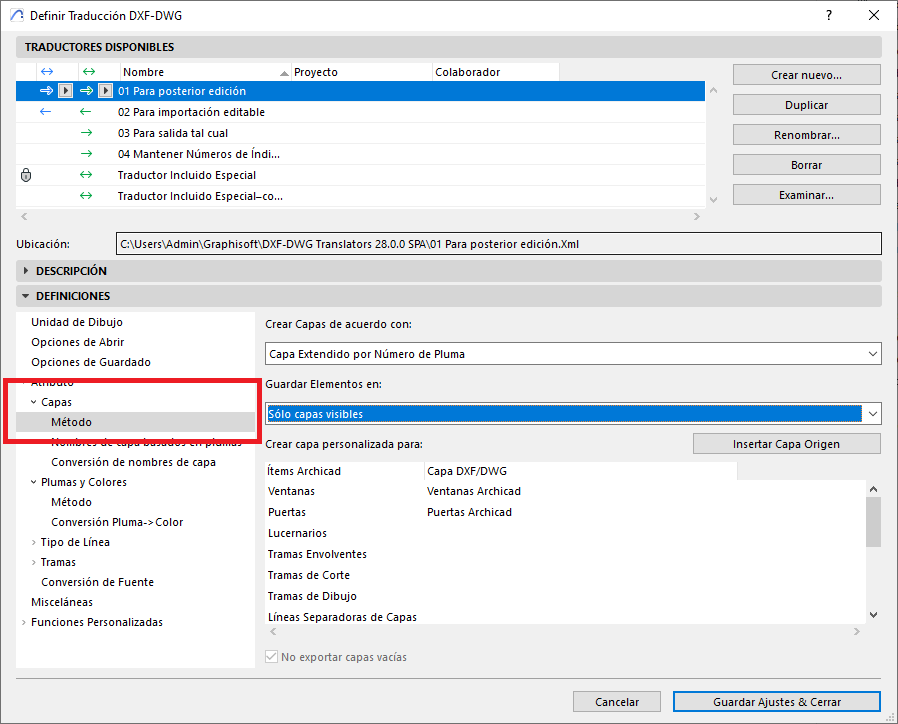
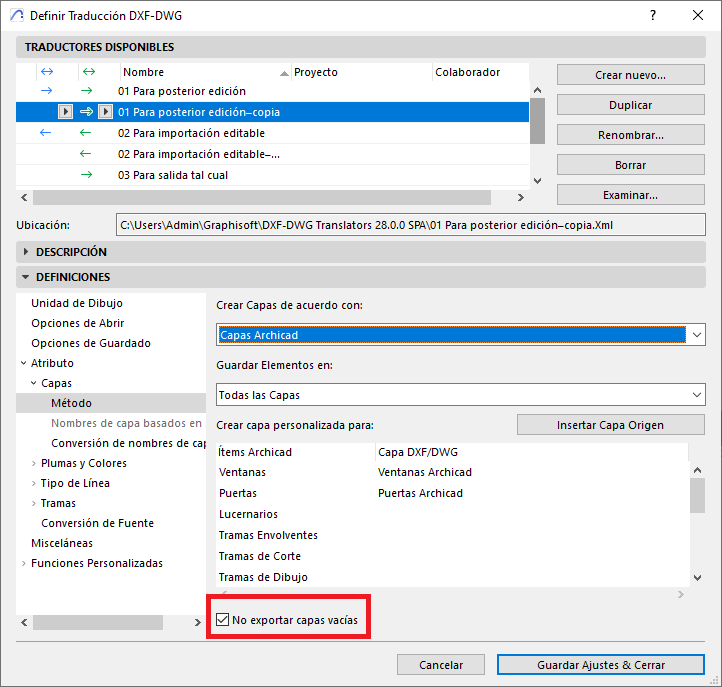
- In the Method dialog box, in:
-
Create Layers According to, select the type of conversion that Archicad Layers to DXF/DWG should adopt (the selected conversion type can affect the following available conversion options):
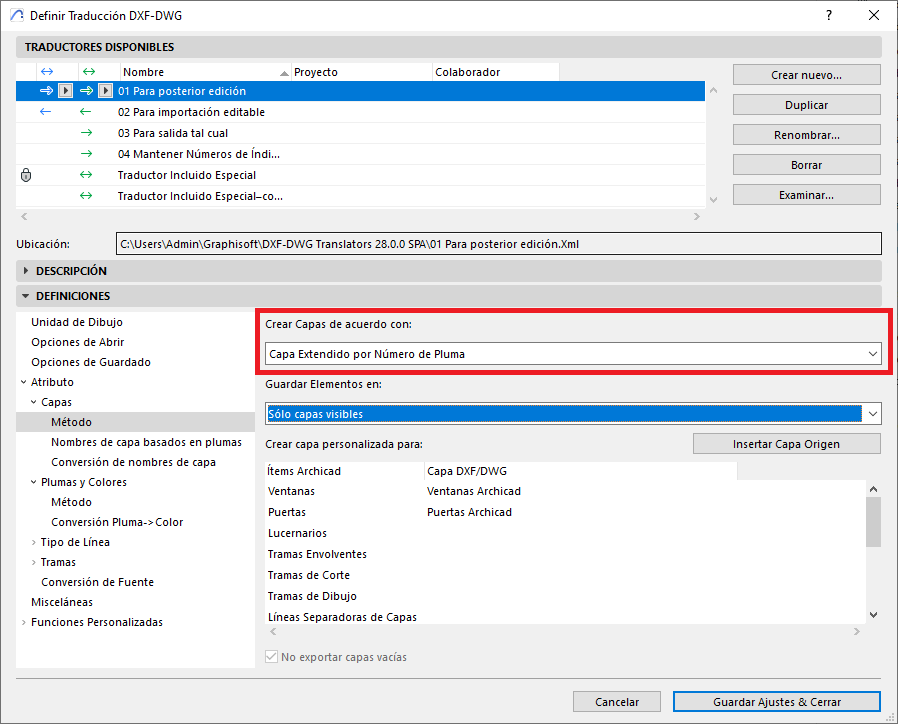
ARCHICAD Layers: The project's Layers in Archicad will be reflected in the DXF/DWG file.
Pen Numbers: Project elements in Archicad will be exported to DXF/DWG layers with a name that references the pen number used for their display in Archicad.
Element types: Project elements in Archicad will be exported to DXF/DWG layers with a name that reflects the Archicad element type.
Layer or declared Pen Number: During the export of layers from Archicad to DXF/DWG files, equivalent layers are generated, but the names defined in the pen-based conversion dictionary take priority over the original Archicad layer names. In addition, within Archicad, custom layers override the standard conversion rules.
Layer extended by Pen Number: During conversion from Archicad to DXF/DWG files, a single Archicad Layer can be split into multiple layers in DXF/DWG if the elements use different pens. These layers are named according to a defined pattern.
-
In Save Elements on, select which Layers will be exported:
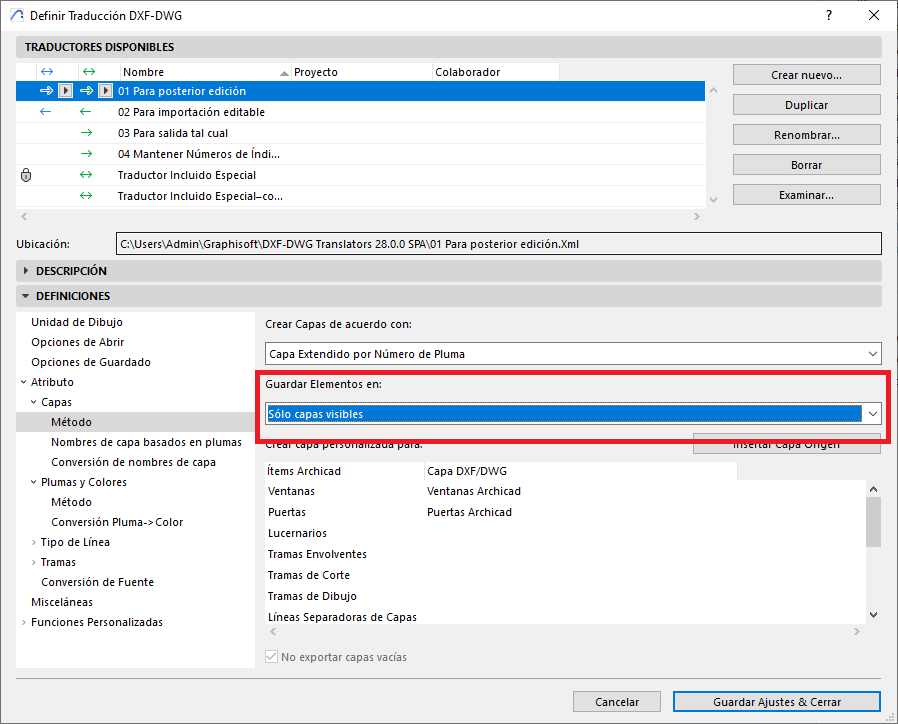
Visible Layers only: Exports the Layers visible in the Archicad view.
All layers: Exports all the project's Layers.
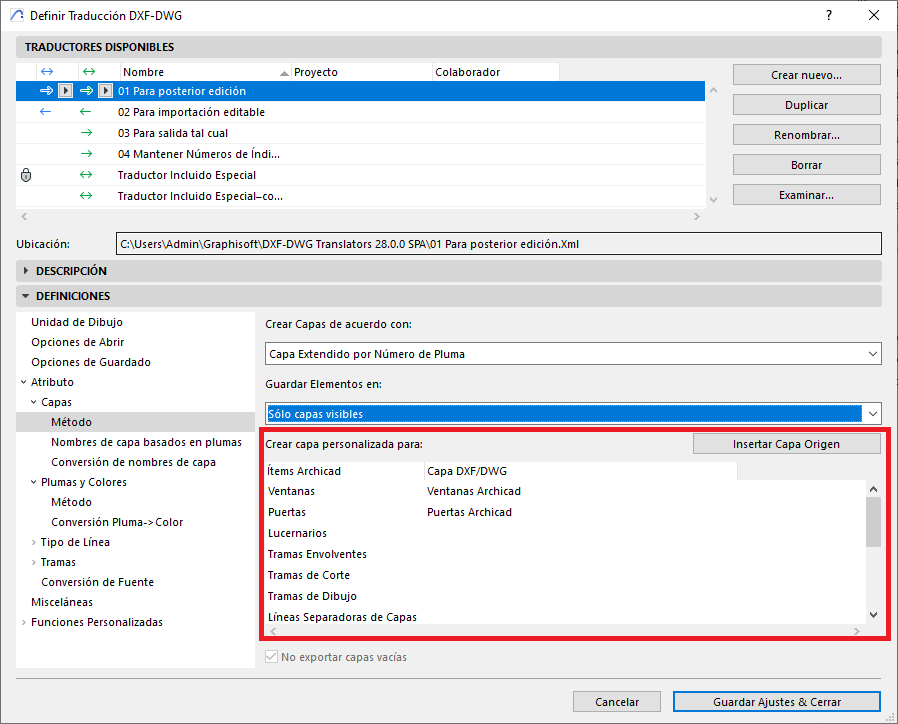
- In Custom Layers, you can assign Windows, Doors, Drafting Fills, Cover Fills, Cut Fills and Skin Separator Lines to separate DXF/DWG Layers, instead of them remaining on the same Layer as the Archicad element they belong to.
-
Do not export empty layers: To specify whether all Archicad Layers should be exported to the DXF/DWG file, or not.
-
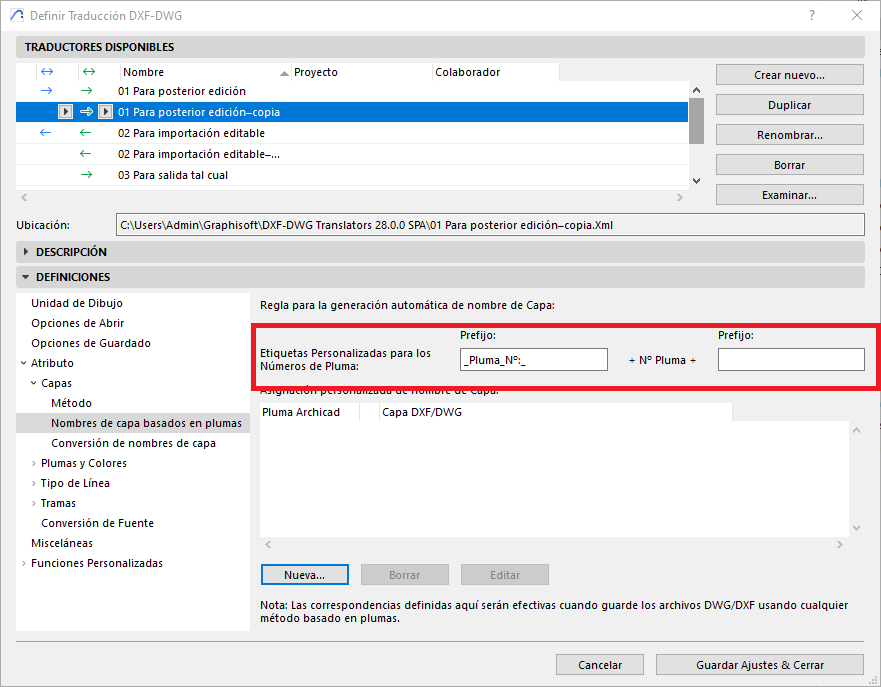
- In the Layer Names Based on Pens dialog box, you can decide how the Layers in DXF/DWG based on Archicad Pens should be generated.
- In Custom Tags for Pen Numbers: Lets you specify the DXF/DWG Layer name format with prefixes and postfixes
-
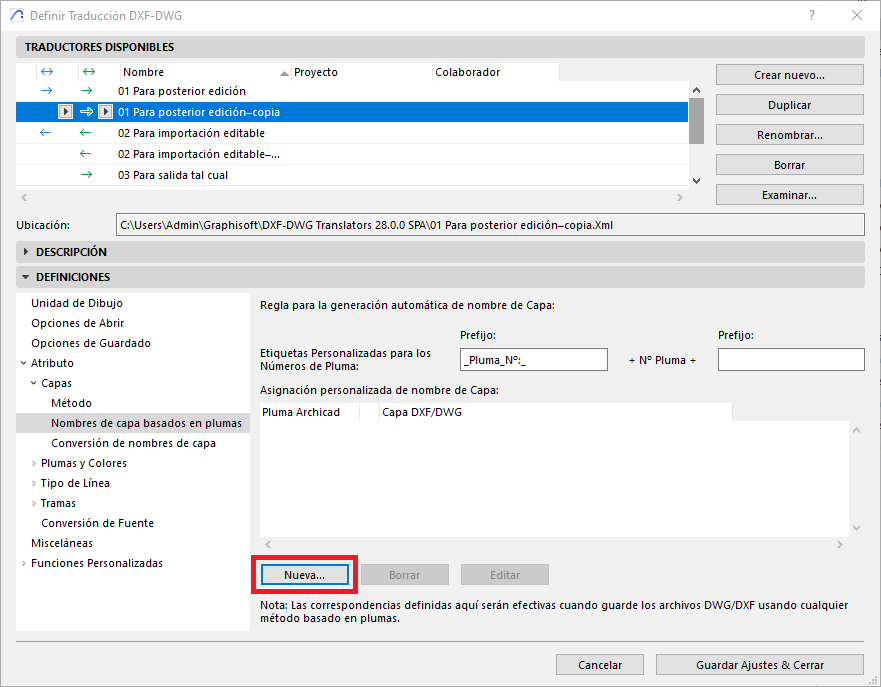
Custom Layer Name Assignment: To assign an Archicad Pen to a specific DXF/DWG layer, click New...
-
Archicad Pen (red): select the Archicad Pen (index).
AutoCAD Layer (green): to assign the Archicad Pen (index) to a specific DXF/DWG layer.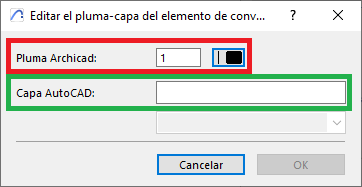
- In Custom Tags for Pen Numbers: Lets you specify the DXF/DWG Layer name format with prefixes and postfixes
- In the Layer Name Conversion dialog box, you can define the conversion criteria between Archicad layers and the DXF/DWG file.
- In Use Custom Tag to Indicate Renovation Status, you define the naming criteria for DXF/DWG Layers (tag) to indicate the construction phases of Archicad elements.
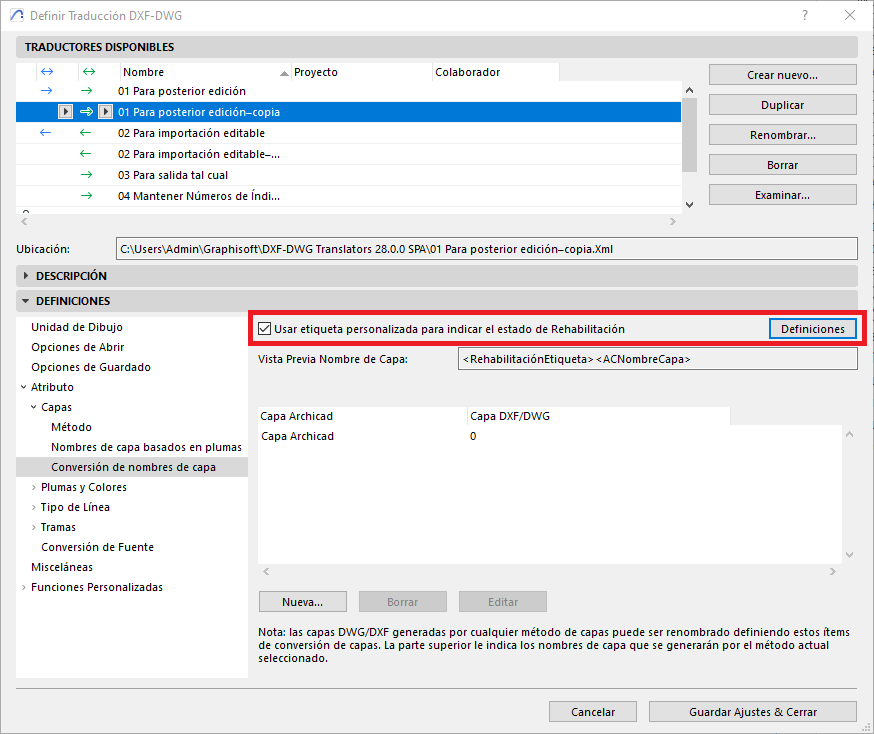
- And by clicking Settings:
Add Custom Tag to Layer Name as (red): select whether the construction-phase tags for Archicad elements are added as a Prefix or Postfix to the DXF/DWG file's Layer name.
In Custom Tag Content for (green): this is for assigning the construction-phase tag content of the elements to be used for the DXF/DWG Layers for Archicad's Existing Elements, Elements to be Demolished and New Elements.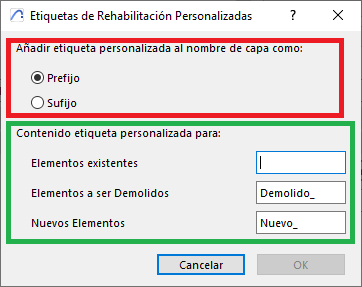
- And to define the conversion criteria for Layers between Archicad and the DXF/DWG files, click New...
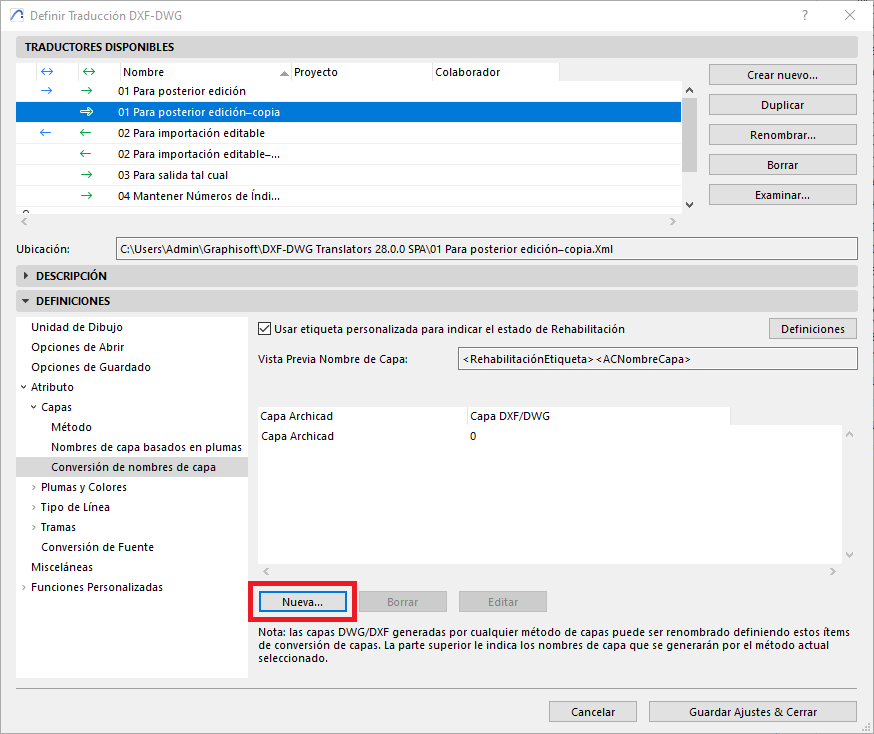
-
Archicad Layers (red): select the Archicad Layer.
Custom Layers (yellow): select the Archicad elements that cannot be assigned their own layer, such as Doors, Windows, Archicad's Door and Window Markers, and Zone Stamps and Texts.
Archicad Pen (green): select elements with an Archicad Pen.
Renovation Status (blue): select elements with a Renovation Status assigned in Archicad.
DWG Template File Layers (pink): select the DXF/DWG layer that the selected elements should be assigned to according to the criteria defined in Archicad Layers (red), Custom Layers (yellow), Archicad Pen (green), Renovation Status (blue), and DWG Template File Layers (pink).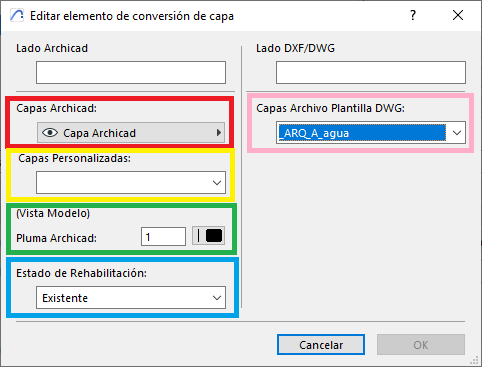
- In Use Custom Tag to Indicate Renovation Status, you define the naming criteria for DXF/DWG Layers (tag) to indicate the construction phases of Archicad elements.
- Repeat this process for the Layers you need to map from Archicad to the CAD program.
- Save the configuration by clicking Save Settings & Close.
Tips:
- Do not edit the original DXF/DWG Translator configurations that come by default with the Archicad installation.
- Create duplicates of the customised DXF/DWG Translator configurations until you achieve the desired configuration.
- The elements in the Archicad project are what control the Pens and how they will appear in the project's Views and Layouts, whereas in CAD programs it is usually the layers that control the Pens and line weights of the elements located on the Layers.
We also recommend reviewing the following resources to better understand how to apply colour mapping effectively between Archicad and CAD programs, in context and with the tools available:
- New in Archicad: Layers - Management and Workflow Improvements within Archicad – My SIMBIM Centre
- New in Archicad: What You Need to Understand About the Pen Table – My SIMBIM Centre
By following these steps and incorporating these tips, you can configure the mapping of Layers between your Archicad project and DXF/DWG files (imported or exported) with your project collaborators.
Related articles
- How to Uniquely Identify Hotlink Module Zones in Archicad Schedules?
- How to Set the Origin of a 3D Texture in Archicad?
- Why Do Drawings Exported to PDF in Archicad Generate Very Large Files?
- How to Map a Custom Archicad Property to an IFC Property?
- How to Remove an Archicad Educational Licence from a Computer?