
Articles in this section
- How to Uniquely Identify Hotlink Module Zones in Archicad Schedules?
- How to Set the Origin of a 3D Texture in Archicad?
- Why Do Drawings Exported to PDF in Archicad Generate Very Large Files?
- How to Map a Custom Archicad Property to an IFC Property?
- How to Remove an Archicad Educational Licence from a Computer?
- How to Change an Archicad File Started in the International Version to the Spanish Version?
- How to Import a PDF to Use as a Reference in Archicad?
- How to Use Educational and Commercial Versions of Archicad on the Same Computer?
- How to Get the Archicad Connection with Twinmotion?
- How to Create a Structural Frame with the Create Truss Tool in Archicad?
How to Map Element Attributes Between Archicad and DXF/DWG Files? DXF/DWG as a Mapping Template
Reading time: 4 min.
When collaborating between Archicad and CAD programs via DXF/DWG files, it's essential to make sure the elements' attributes are correctly mapped between the programs for successful collaboration.
The mapping process can be long, tedious and prone to errors due to differences in how each program handles design elements, as well as the specific requirements of each project or collaborator. To explore these aspects further, we recommend reviewing the following articles:
- New in Archicad: Layers - Management and Workflow Improvements Within Archicad – My SIMBIM Centre
- New in Archicad: What You Need to Understand About the Pen Table – My SIMBIM Centre
This article aims to show you how to speed up the mapping process using a DXF/DWG file as a template, letting you reduce time, minimise errors, and make the process more efficient.
Why use a DXF/DWG file as a mapping template?
One of the most efficient ways to set up attribute mapping between Archicad and CAD programs is to use an existing DXF/DWG file as a template. This method lets you import attributes directly from the DXF/DWG file, making the setup easier and ensuring consistency with the project's standards.
Steps to use a DXF/DWG file as a mapping template
- Prepare the template DXF/DWG file
Make sure the file contains:- All the Layers needed for the project, preferably with their Colours and Pens defined.
- At least one CAD element per layer, with its Line Type, Colour, and Scale defined.
- All the Fills (Hatches) needed, with Type, Colour and Scale configured.
- Go to: File > Interoperability > DXF-DWG > DXF-DWG Translation Setup.
- Select the DXF-DWG translator configuration that most closely matches your needs and click Duplicate.
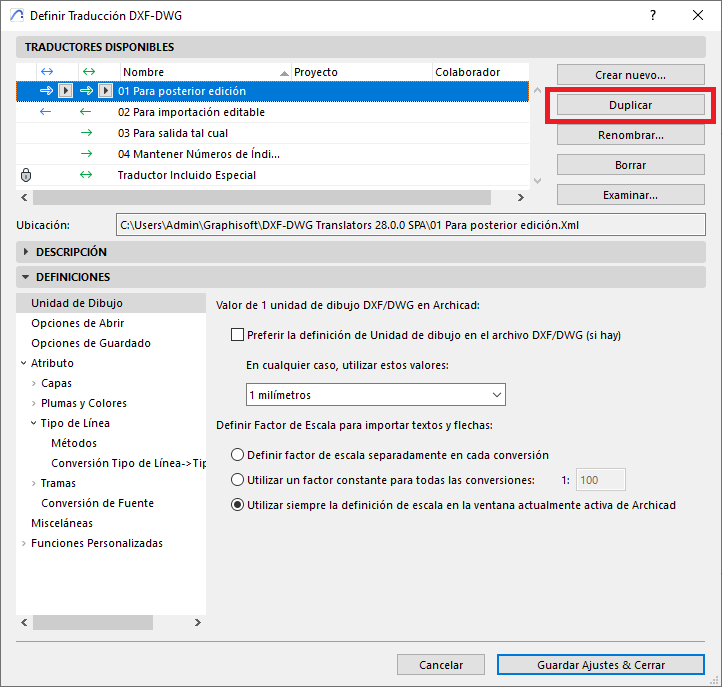
- In the Definitions tab, select Browse for DXF-DWG File (which will act as the template file), and load a template DWG file that contains the attributes you want to map.
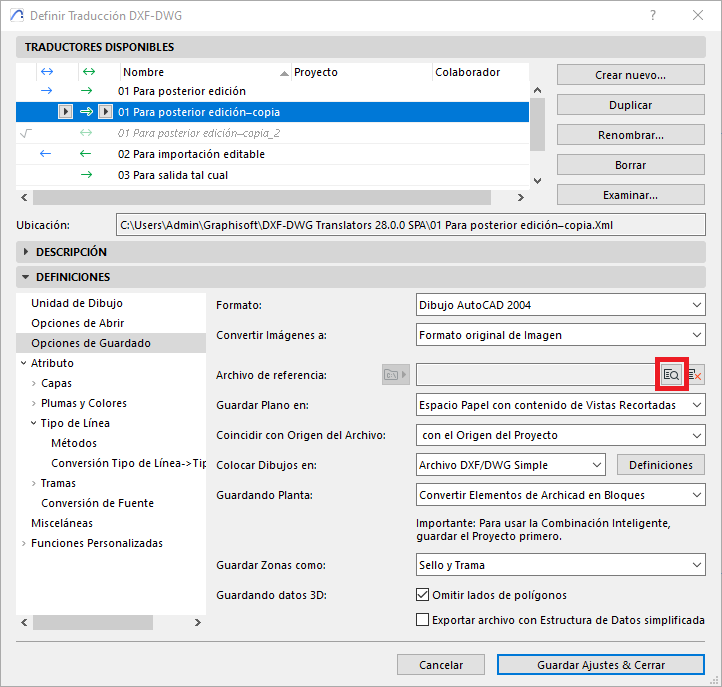
- Repeat this process for each DXF-DWG Translator you need to create.
- Save the configuration by clicking Save Settings & Close.
Tips:
- Don't edit the original DXF-DWG Translator settings that come by default with the Archicad installation.
- Create duplicates of the customised DXF-DWG Translator settings until you achieve the desired configuration.
- Document your configurations to make them easier to reuse in future projects.
Advantages of this approach
Using a DXF/DWG file as a mapping template offers multiple benefits:
- Activates the drop-down menus with attributes from the DXF/DWG file.
- Ensures exported files comply with the project's standards.
- Significantly reduces setup time and the margin for human error.
This method aligns with the best practices described in the articles mentioned above and can become a key tool for improving your workflow in collaborative projects.
By following these steps and applying these tips, you can set up the mapping of Layers between your Archicad project and DXF-DWG files (imported or exported) with your project collaborators, as described in the following articles:
- How to Map Element Attributes Between Archicad and DXF/DWG Files? Layers – My SIMBIM Centre
- How to Map Element Attributes Between Archicad and DXF/DWG Files? Pen and Colour Mapping – My SIMBIM Centre
- How to Map Element Attributes Between Archicad and DXF/DWG Files? Line Type Mapping – My SIMBIM Centre
- How to Map Element Attributes Between Archicad and DXF/DWG Files? Fills – My SIMBIM Centre
Related articles
- How to Uniquely Identify Hotlink Module Zones in Archicad Schedules?
- How to Set the Origin of a 3D Texture in Archicad?
- Why Do Drawings Exported to PDF in Archicad Generate Very Large Files?
- How to Map a Custom Archicad Property to an IFC Property?
- How to Remove an Archicad Educational Licence from a Computer?