
Articles in this section
- How to Uniquely Identify Hotlink Module Zones in Archicad Schedules?
- How to Set the Origin of a 3D Texture in Archicad?
- Why Do Drawings Exported to PDF in Archicad Generate Very Large Files?
- How to Map a Custom Archicad Property to an IFC Property?
- How to Remove an Archicad Educational Licence from a Computer?
- How to Change an Archicad File Started in the International Version to the Spanish Version?
- How to Import a PDF to Use as a Reference in Archicad?
- How to Use Educational and Commercial Versions of Archicad on the Same Computer?
- How to Get the Archicad Connection with Twinmotion?
- How to Create a Structural Frame with the Create Truss Tool in Archicad?
How to Map Element Attributes Between Archicad and DXF/DWG Files? Pen and Colour Mapping
Reading time: 4 min.
When collaborating between CAD programs and Archicad using DXF/DWG files, it is essential to make sure element attributes are correctly mapped between the programs for successful collaboration.
Configuring the Pen and Colour mapping of elements is an important aspect of the collaborative project, because:
- Pens and Colours between Archicad and CAD programs usually have different definitions.
- An incorrect conversion of the elements' Pens and Colours can cause misinterpretation among the project's collaborators.
Mapping Pens and Colours
To map the Pens and Colours of Archicad elements to DXF-DWG files:
- Follow the guidance in How to Map Element Attributes Between Archicad and DXF/DWG Files? DXF/DWG as a Mapping Template – My SIMBIM Centre
- Go to: File > Interoperability > DXF-DWG > DXF-DWG Translation Setup.
- Select the DXF-DWG translator configuration to duplicate.
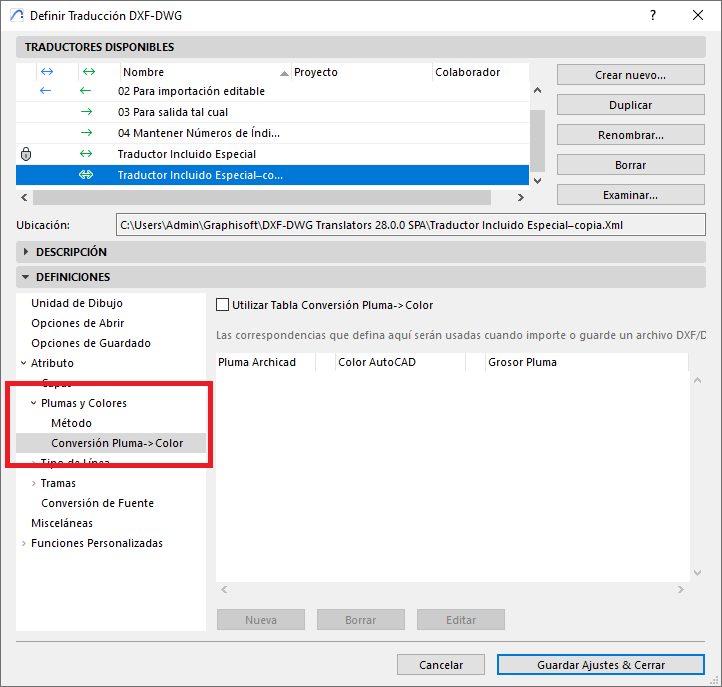
- In the DXF/DWG Translation Setup dialog box, go to Definitions > Attribute and click on Pens and Colours.
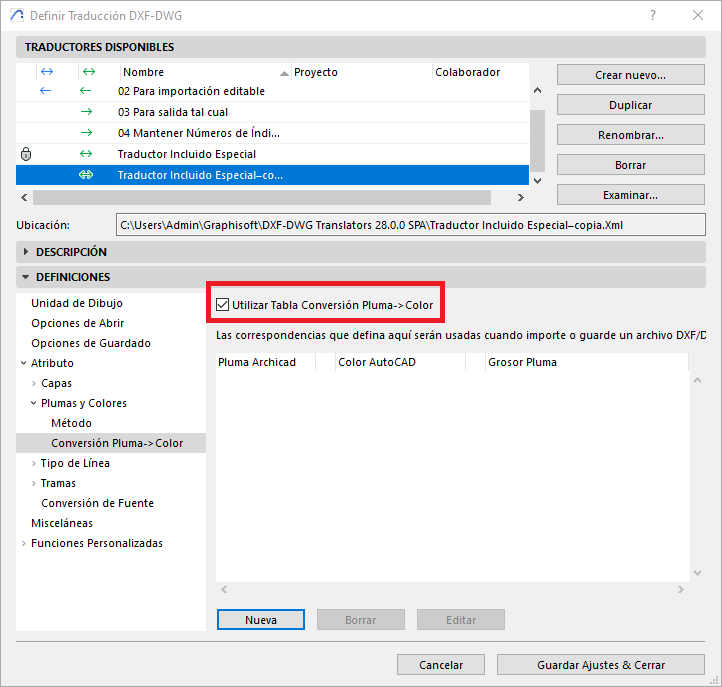
- Turn on the Use Pen -> Colour Conversion Table option.
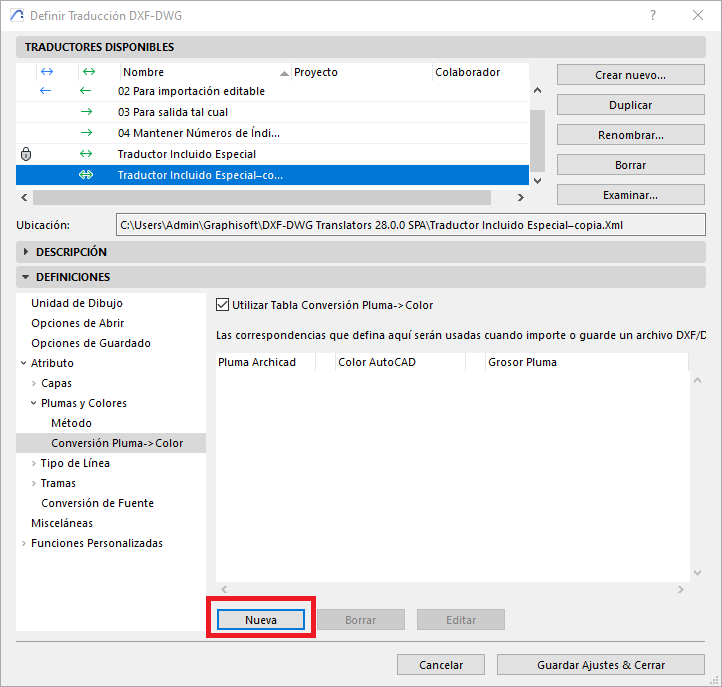
- Click New.
- In the Edit Pen Conversion Item dialog box, for:
Archicad Pen (red): select the Archicad Pen (index).
Pen Weight (yellow): select the corresponding AutoCAD Pen Weight.
AutoCAD Pen (green): select the Pen (index/colour) in AutoCAD.
BYBLOCK / BYLAYER (blue): select whether the Pen in AutoCAD will apply by Block or by Layer in AutoCAD.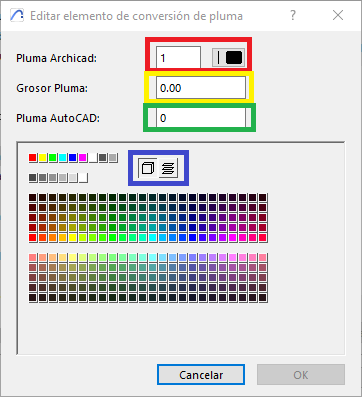
- Repeat this process for each Pen you need to map from Archicad to the CAD program.
- Save the configuration by clicking Save Settings & Close.
Tips:
- Don't edit the original DXF-DWG Translator settings that come by default with the program's installation.
- Create duplicates of the customised DXF-DWG Translator settings until you achieve the desired configuration.
- Remember that in Archicad it is the project elements that control the Pens and how they will appear in the project's Views and Layouts, whereas in CAD programs it is usually the layers that control the Pens and the weights of the elements placed on those Layers.
- Remember that in Archicad you usually work on a light (white) background, while in CAD programs you work on a dark background, so all black-coloured Pens in Archicad will correspond to white-coloured Pens in CAD programs.
We also recommend reviewing the following resources to better understand how to effectively apply colour mapping between Archicad and CAD programs, in context and with the tools available:
- New in Archicad: Layers - Management and Workflow Improvements Within Archicad – My SIMBIM Centre
- New in Archicad: What You Need to Understand About the Pen Table – My SIMBIM Centre
By following these steps and applying these tips, you can configure the Pen mapping between your Archicad project and DXF-DWG files (imported or exported) with your project collaborators.
Related articles
- How to Uniquely Identify Hotlink Module Zones in Archicad Schedules?
- How to Set the Origin of a 3D Texture in Archicad?
- Why Do Drawings Exported to PDF in Archicad Generate Very Large Files?
- How to Map a Custom Archicad Property to an IFC Property?
- How to Remove an Archicad Educational Licence from a Computer?